
Last updated on February 9th, 2026 at 11:12 am
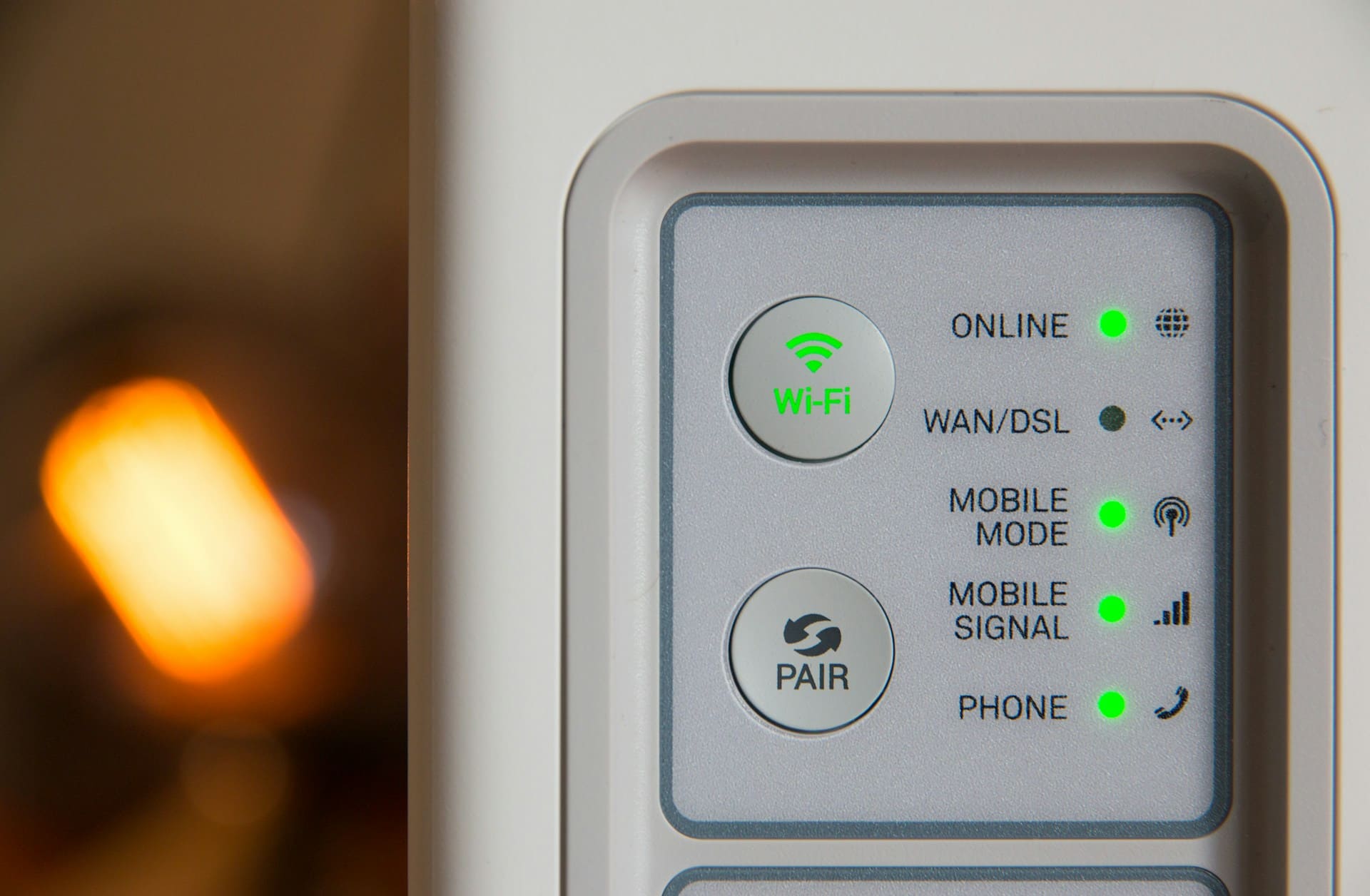
A blinking red light on your AT&T router signals serious connectivity issues that prevent internet access and disrupt your daily activities.
Your AT&T router blinks red due to service outages, loose cable connections, equipment overheating, firmware failures, signal interference, authentication problems, or hardware malfunctions requiring immediate troubleshooting.
Service Outages
AT&T service outages represent the most common cause of red blinking lights on routers and gateways. These outages can affect entire neighborhoods, cities, or regions due to infrastructure maintenance, equipment failures, or external factors beyond your control.
Network maintenance activities performed by AT&T technicians often require temporary service interruptions that trigger red status lights. These planned outages typically occur during overnight hours to minimize customer impact but can occasionally extend into daytime periods.
Additionally, weather-related outages frequently cause widespread connectivity issues. Severe storms, high winds, ice accumulation, or flooding can damage AT&T’s network infrastructure, resulting in service disruptions that affect thousands of customers simultaneously.
Equipment failures at AT&T’s central offices or network nodes can cause localized outages affecting specific service areas. When critical network equipment malfunctions, customers in the affected region experience complete service loss indicated by persistent red blinking lights.
“Service outages account for approximately 60% of red light incidents on AT&T equipment, making them the primary troubleshooting consideration.” Michael Rodriguez, Network Operations Specialist
Furthermore, power outages affecting AT&T’s network infrastructure can cause service disruptions even when your home has electricity. Network equipment requires continuous power to maintain connectivity, and backup power systems have limited duration.
Cable Connection Issues
Loose or damaged cable connections frequently cause red blinking lights on AT&T routers and represent easily fixable problems. The coaxial cable connecting your gateway to AT&T’s network must maintain secure connections at both ends to ensure proper signal transmission.
Physical damage to cables can develop over time due to weather exposure, animal interference, or accidental contact during home maintenance activities. Even minor damage to cable shielding or connectors can significantly impact signal quality and trigger connectivity issues.
Moreover, corroded connectors or oxidized metal contacts can create intermittent connection problems that manifest as blinking red lights. Environmental factors like moisture, temperature fluctuations, and salt air contribute to connector degradation over time.
Cable routing issues can also affect signal quality and connection stability. Cables bent at sharp angles, compressed under furniture, or routed near electromagnetic interference sources may experience signal degradation that causes connectivity problems.
Additionally, using incorrect cable types or splitters can create impedance mismatches that affect signal transmission. AT&T’s network requires specific cable specifications, and non-compliant components can cause persistent connectivity issues.
Equipment Overheating
AT&T routers and gateways generate substantial heat during operation and require adequate ventilation to maintain stable performance. Overheating can cause internal components to malfunction and trigger protective systems that display red warning lights.
Dust accumulation inside router vents and air passages restricts airflow and reduces cooling efficiency. Over time, this dust buildup can cause internal temperatures to exceed safe operating limits, resulting in performance degradation and connection failures.
Furthermore, placing routers in enclosed spaces, entertainment centers, or other confined areas can trap heat and cause overheating problems. These devices need several inches of clearance around all sides to ensure proper air circulation.
Environmental factors like direct sunlight, proximity to heating systems, or high ambient temperatures can contribute to overheating issues. Summer months often see increased overheating problems as indoor temperatures rise and cooling systems struggle to maintain comfortable conditions.
“Equipment overheating is responsible for approximately 20% of router failures and can cause permanent damage if not addressed promptly.” Jennifer Park, Hardware Diagnostic Technician
Additionally, aging equipment may develop cooling system problems as fans wear out or thermal management systems degrade. Older routers become increasingly susceptible to overheating as their cooling capabilities diminish over time.
Firmware Problems
Corrupted or outdated firmware can cause AT&T routers to display red blinking lights and experience connectivity failures. Firmware controls all router functions, and corruption can prevent proper communication with AT&T’s network infrastructure.
Automatic firmware updates occasionally introduce bugs or compatibility issues that weren’t present in previous versions. While updates generally improve performance and security, they sometimes create temporary problems requiring additional patches or manual intervention.
Moreover, interrupted firmware update processes can leave routers in unstable states that cause persistent connectivity problems. Power outages or network interruptions during update installation can corrupt firmware and require factory resets or professional repair.
Factory reset procedures can sometimes resolve firmware-related issues by restoring routers to known working configurations. However, this process erases all custom settings and requires complete reconfiguration of network preferences and security settings.
Additionally, beta or experimental firmware versions may introduce instability that manifests as red blinking lights and connection failures. Some users install pre-release firmware seeking new features, inadvertently compromising router stability.
Signal Interference
Electromagnetic interference from various sources can disrupt AT&T router operations and cause red blinking status lights. Common household devices like microwaves, baby monitors, and wireless phones can interfere with router communications.
WiFi networks operating on overlapping channels can create interference that affects router performance and stability. In densely populated areas, numerous competing wireless signals can overwhelm router capabilities and cause connection failures.
Moreover, electronic devices with poor electromagnetic shielding generate interference that affects nearby networking equipment. Older televisions, fluorescent lights, and some computer equipment emit electromagnetic radiation that disrupts router operations.
Physical obstructions between routers and AT&T’s network infrastructure can weaken signals and cause connection instability. Buildings, trees, vehicles, or other structures may block or reflect signals, creating dead zones or weak signal areas.
Additionally, atmospheric conditions and weather patterns can affect wireless signal transmission, particularly for fixed wireless or satellite-based AT&T services. Heavy rain, snow, or atmospheric pressure changes may temporarily disrupt connectivity.
Authentication Failures
Authentication problems between your AT&T router and the network can trigger red blinking lights when login credentials become corrupted or expire. These authentication failures prevent routers from establishing authorized connections to AT&T’s network.
Account status issues, such as suspended service due to billing problems or policy violations, can cause authentication failures that manifest as red status lights. When AT&T suspends service, routers cannot authenticate and establish network connections.
Furthermore, configuration changes made to router settings can inadvertently modify authentication parameters and cause connection failures. Incorrect username, password, or security settings prevent successful authentication with AT&T’s network.
Network security updates implemented by AT&T may require router configuration changes to maintain compatibility. When security protocols change, older router configurations may no longer meet authentication requirements.
“Authentication failures represent a growing concern as network security requirements become more stringent and require frequent updates.” David Chen, Cybersecurity Analyst
Additionally, time synchronization issues can affect authentication processes that rely on precise timing. When router clocks drift significantly from network time standards, authentication may fail and trigger connectivity problems.
Hardware Malfunctions
Internal hardware failures within AT&T routers can cause red blinking lights and require equipment replacement to restore connectivity. These failures may affect power supplies, network interfaces, processing units, or memory components.
Power supply problems can cause erratic router behavior and trigger status light warnings. Failing power adapters may provide inconsistent voltage that causes internal components to malfunction and display error conditions.
Moreover, network interface failures can prevent routers from communicating with AT&T’s network infrastructure. These hardware problems typically require professional diagnosis and equipment replacement to resolve.
Memory failures within routers can cause operational instabilities that manifest as red blinking lights and connection problems. When RAM or flash memory components fail, routers cannot maintain stable operations or store configuration data properly.
Additionally, environmental damage from power surges, lightning strikes, or electrical faults can cause catastrophic hardware failures that require complete equipment replacement.
According to AT&T’s official troubleshooting guide, hardware-related issues account for a significant portion of router problems requiring technical support intervention.
Troubleshooting Steps
Systematic troubleshooting can identify and resolve many issues causing red blinking lights on AT&T routers. Start by checking AT&T’s service status page to determine whether known outages affect your area before proceeding with equipment-specific troubleshooting.
Power cycling your router often resolves temporary glitches and connectivity issues. Unplug the power adapter for 30 seconds, then reconnect and wait for the device to complete its startup sequence, which typically takes 2-3 minutes.
Follow these systematic troubleshooting steps:
- Check AT&T service status for known outages
- Verify all cable connections are secure and undamaged
- Power cycle the router by unplugging for 30 seconds
- Ensure adequate ventilation and check for overheating
- Test connections using different devices
- Factory reset the router if other steps fail
- Contact AT&T technical support for further assistance
Inspect all cable connections for looseness, damage, or corrosion. Ensure coaxial cables are tightly connected and that connectors show no signs of damage or deterioration that could affect signal transmission.
Additionally, check router placement and ensure adequate ventilation around the device. Move routers away from heat sources, direct sunlight, or confined spaces that could contribute to overheating problems.
Consider using the NETGEAR Cable Modem CM1000 as a replacement if your AT&T router continues experiencing problems, as newer equipment often provides improved reliability and performance.

Furthermore, document the specific pattern of red blinking lights, as different flash patterns may indicate specific error conditions. This information helps AT&T technical support diagnose problems more efficiently.
Advanced Solutions
When basic troubleshooting doesn’t resolve red blinking light issues, advanced diagnostic techniques may identify underlying problems. Factory reset procedures restore routers to default configurations and can resolve persistent software-related issues.
Firmware updates may address known bugs or compatibility issues causing connectivity problems. Check the router manufacturer’s website for the latest firmware versions and installation instructions specific to your AT&T gateway model.
Moreover, replacing damaged cables or connectors can resolve signal transmission problems that cause red status lights. Use high-quality coaxial cables and ensure proper connector installation to maintain optimal signal integrity.
Environmental optimization involves relocating routers to cooler, well-ventilated areas and protecting outdoor cables from weather exposure. These preventive measures can significantly reduce the likelihood of future connectivity problems.
“Advanced troubleshooting techniques resolve approximately 80% of router issues that basic steps cannot address.” Sarah Martinez, Technical Support Manager
Additionally, consider upgrading to newer AT&T equipment if your current router is several years old. Newer models offer improved reliability, better heat management, and enhanced compatibility with AT&T’s evolving network infrastructure.
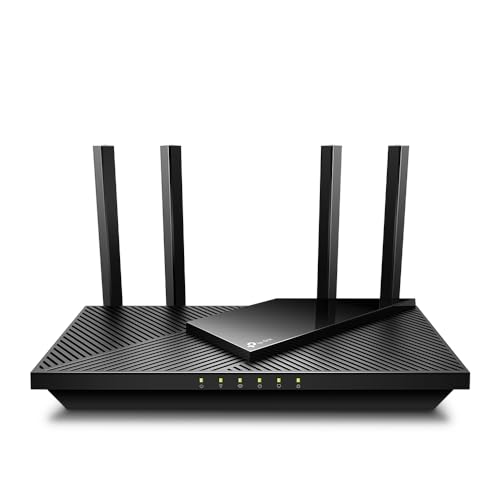
The TP-Link AC4000 Router provides excellent performance as a backup solution and can serve as a temporary replacement while troubleshooting AT&T gateway issues.
Professional installation services may be necessary for complex wiring issues or signal problems that require specialized equipment and expertise to diagnose and resolve effectively.
Contact AT&T customer support if problems persist after attempting these advanced solutions, as some issues require technician intervention or equipment replacement through warranty programs.
Video Credit: The Savvy Professor / YouTube
Frequently Asked Questions
How long should I wait for the red light to stop blinking after restarting my AT&T router?
Allow 3-5 minutes for your AT&T router to complete its full startup sequence after power cycling. The device needs time to initialize its internal systems, establish connections with AT&T’s network, and authenticate your service credentials before normal operation resumes.
During startup, you may see various light patterns including solid red, blinking red, or alternating colors as the router progresses through different initialization phases. These temporary displays are normal during the boot process and don’t indicate persistent problems.
If the red light continues blinking after 10 minutes, the issue likely requires additional troubleshooting steps beyond simple power cycling. Persistent red lights indicate ongoing connectivity problems that need systematic diagnosis and resolution.
Can weather conditions cause my AT&T router to show a red blinking light?
Severe weather can definitely trigger red blinking lights on AT&T routers through multiple mechanisms. Heavy rain may cause water infiltration into underground cables or outdoor equipment, while high winds can damage overhead lines or cause tree-related outages.
Temperature extremes affect router performance and AT&T’s network infrastructure. Extreme heat can cause equipment overheating, while freezing conditions may affect cable flexibility and connector integrity, both potentially triggering connectivity issues.
Lightning strikes and electrical storms can cause power surges that damage networking equipment or disrupt AT&T’s network infrastructure. Even nearby lightning can induce electrical interference that temporarily affects router operations and network connectivity.
Does a red blinking light always mean my internet is completely down?
Red blinking lights typically indicate serious connectivity issues, but some internet functionality may remain available depending on the specific problem. Partial outages might allow access to some websites while blocking others, or provide severely reduced speeds rather than complete service loss.
Local network functionality within your home usually continues working even with red router lights. WiFi connections between devices, file sharing, and local streaming may function normally while external internet access remains unavailable.
However, most online services require full internet connectivity to function properly. Email, streaming services, cloud storage, and video conferencing typically become unavailable when routers display persistent red blinking lights indicating network connectivity failures.
Should I contact AT&T immediately when I see a red blinking light?
Start with basic troubleshooting before contacting AT&T support, as many red light issues resolve through simple power cycling or cable connection checks. These quick steps often restore service without requiring technical support intervention.
Check AT&T’s service status website first to determine whether known outages affect your area. If widespread outages are reported, wait for AT&T to resolve the infrastructure issues before calling support, as individual troubleshooting won’t address network-wide problems.
Contact AT&T support if red lights persist after basic troubleshooting and no service outages are reported in your area. Provide specific information about troubleshooting steps you’ve already attempted to help support representatives diagnose the problem efficiently.
Can I fix a red blinking light issue myself, or do I need a technician?
Many red blinking light issues can be resolved through customer troubleshooting, including power cycling, cable connection checks, and router relocations to improve ventilation. These steps address the most common causes of connectivity problems without requiring professional assistance.
However, certain issues require technician intervention, particularly problems involving outdoor wiring, signal amplification, or equipment replacement. If troubleshooting doesn’t resolve the issue within a reasonable timeframe, professional diagnosis becomes necessary.
AT&T provides comprehensive self-service troubleshooting resources that guide customers through systematic problem-solving steps. These resources help determine when customer troubleshooting is sufficient versus when technician visits are required.
Sources:
- AT&T Official Support Documentation
- Internet Engineering Task Force Network Standards
- Network World Technical Resources