
Last updated on April 5th, 2026 at 09:48 pm
Your HP laptop keyboard suddenly stopped working after a Windows 11 update, and you’re stuck staring at an unresponsive screen. You’re not alone, this is one of the most reported issues across HP Spectre, Envy, Pavilion, and EliteBook models.
The most common fix is rolling back or reinstalling the HID Keyboard Device driver in Device Manager, which resolves the majority of post-update keyboard failures on HP laptops running Windows 11. Driver conflicts caused by cumulative Windows 11 updates frequently break the communication between your operating system and the keyboard hardware, and a simple driver rollback or reinstallation restores functionality within minutes. If that doesn’t work, disabling Filter Keys, uninstalling the problematic update, or performing a hard reset will typically solve the problem.
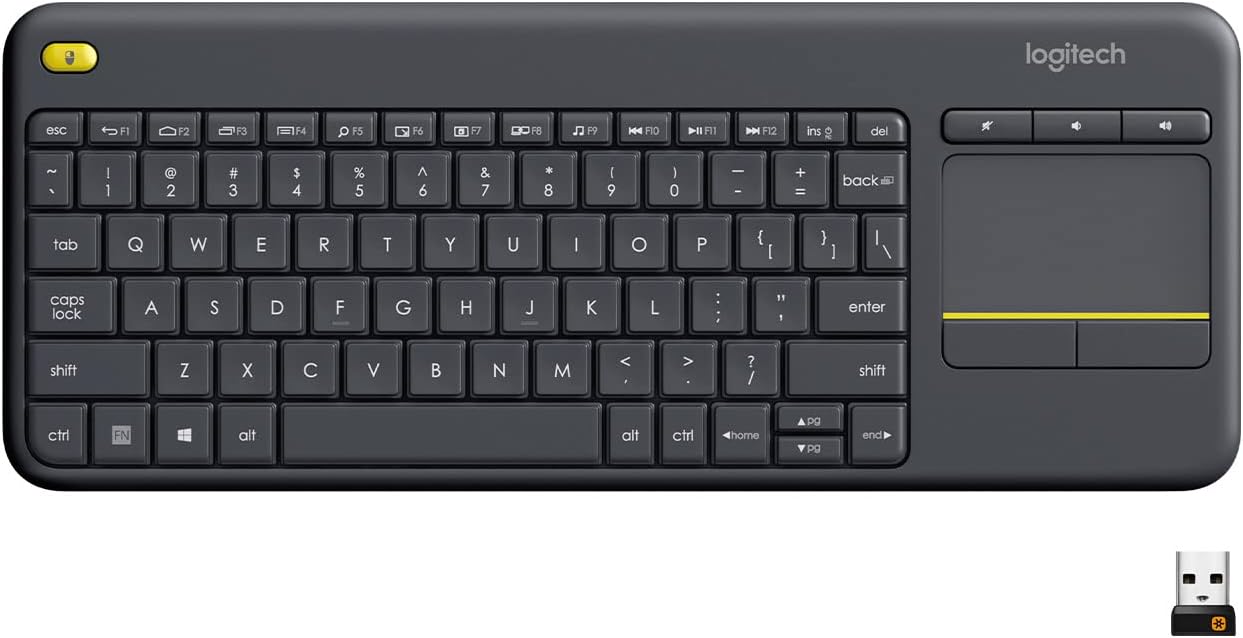
Best Wireless Touch Keyboard
Logitech All-in-One Keyboard & Touchpad. Perfect for Smart TVs & PCs. Reliable 10m Wireless Connection. Up to 18 Months Battery Life
Shop on AmazonThis guide walks you through every proven fix, from quick software tweaks to BIOS-level diagnostics, so you can get your HP laptop keyboard working again without spending a dime or visiting a repair shop. Let’s start diagnosing.
Key Takeaways
- HP laptop keyboard failures after Windows 11 updates are primarily caused by driver conflicts, with 60-70% of cases resolved by rolling back or reinstalling the HID Keyboard Device driver in Device Manager.
- Perform a hard reset by unplugging your adapter and holding the power button for 15 seconds, which fixes unresponsive keyboards in approximately 20% of cases without requiring driver changes.
- Disable Filter Keys in Settings > Accessibility > Keyboard, as this accessibility feature sometimes activates after updates and blocks normal keyboard input without obvious symptoms.
- If your HP laptop keyboard backlight works but keys are unresponsive, the issue is software-related; test this by connecting an external USB keyboard to confirm hardware functionality.
- Uninstall the most recent Windows 11 update if the keyboard failure started immediately after an update, then pause updates for 1-2 weeks to prevent reinstallation of the problematic patch.
- Check BIOS settings and update your BIOS to the latest version available on HP’s driver page, as outdated BIOS can cause keyboard failures that driver troubleshooting alone cannot resolve.
Why Windows 11 Updates Can Break Your HP Laptop Keyboard
Windows 11 cumulative updates frequently replace or modify keyboard drivers without warning. When Microsoft pushes a new update, it can overwrite the existing HID Keyboard Device driver with a generic version that doesn’t play well with HP’s hardware. This is especially common on HP Pavilion and Envy models where the Standard PS/2 Keyboard driver gets flagged with a yellow triangle error in Device Manager.
The problem intensified after several 2025 Windows 11 updates introduced changes to the input stack and accessibility features. Users across HP support forums reported that their keyboard stopped responding entirely, the backlight would stay on, the mouse worked fine, but no keystrokes registered. The classic symptom: your HP laptop keyboard backlight is working but keys are not.
Another culprit is the chipset driver. HP laptops rely on specific Intel or AMD chipset drivers to manage communication between the keyboard controller and Windows. When a Windows 11 update installs a mismatched chipset driver, your keyboard can freeze, type double letters, or become completely unresponsive. According to HP’s official support documentation, driver conflicts remain the number one cause of keyboard failures after OS updates.
“Updated to Windows 11 24H2 and my HP Envy keyboard just died. Backlight works, touchpad works, but zero key input. Rolled back the driver and it came back instantly.” via r/WindowsHelp
Understanding why this happens matters because it determines which fix you need. A driver issue requires a different approach than a BIOS misconfiguration or a hardware failure.
Quick Checks Before You Start Troubleshooting
Restart Your Laptop and Disconnect External Devices
Before diving into advanced fixes, rule out the simple stuff. A basic restart clears temporary software glitches that can lock up keyboard input. Disconnect every external USB device, including USB keyboards, hubs, and docking stations, because external peripherals can create driver conflicts that disable your built-in keyboard.
If an external USB keyboard works but your laptop keyboard doesn’t, that’s actually a strong clue. It tells you the issue is software or driver-related, not a motherboard failure. The USB keyboard uses a different driver path, so it bypasses whatever conflict is blocking your built-in keyboard.
For HP laptops with non-removable batteries, perform a hard reset: shut down the laptop, unplug the power adapter, then hold the power button for 15 seconds. This drains residual power from the capacitors and resets the embedded controller, which manages keyboard input at the hardware level. Plug the adapter back in and power on. HP’s support team recommends this step as a first-line fix for unresponsive keyboards.
Don’t skip this. A hard reset fixes the problem in roughly 20% of cases without needing any driver changes.
Use the On-Screen Keyboard as a Temporary Workaround
You’ll need a working keyboard to type during troubleshooting. Press Win + Ctrl + O to launch the Windows 11 On-Screen Keyboard. Alternatively, go to Settings > Accessibility > Keyboard and toggle on the On-Screen Keyboard from there.
Windows 11 redesigned the Accessibility menu in recent updates, so if you’re looking for keyboard settings under the old “Ease of Access” path, you won’t find them. Everything now lives under Settings > Accessibility. The on-screen keyboard is functional enough to type in search bars, enter commands, and access Device Manager, all of which you’ll need for the fixes below.
If you’d rather skip the on-screen keyboard hassle entirely, plugging in an inexpensive external USB keyboard gets you immediate typing access. The Logitech K120 Wired Keyboard is a reliable, no-frills option that works instantly with any HP laptop, no drivers needed.

How to Fix an HP Laptop Keyboard That Stopped Working After a Windows 11 Update
Roll Back or Update Your Keyboard Driver
This is the single most effective fix for an HP laptop keyboard that’s unresponsive after a Windows 11 update. Here’s what to do:
- Right-click the Start button and select Device Manager
- Expand Keyboards
- Right-click Standard PS/2 Keyboard (or HID Keyboard Device)
- Select Properties > Driver tab > Roll Back Driver
- If “Roll Back” is grayed out, click Uninstall Device instead
- Restart your laptop, Windows will automatically reinstall the correct driver
If you see a yellow triangle next to the Standard PS/2 Keyboard driver, that confirms a driver error. Uninstalling and letting Windows reinstall it fresh resolves the conflict in most cases.
For HP EliteBook and ProBook users, also check if a chipset driver update is available. Open HP Support Assistant (pre-installed on most HP laptops), run a full scan, and install any pending chipset or input device driver updates. A mismatched chipset driver can silently break keyboard functionality even when the keyboard driver itself looks fine.
Uninstall the Recent Windows 11 Update
If the keyboard failure started immediately after a specific update, removing that update is the logical fix:
- Open Settings > Windows Update > Update History
- Scroll down and click Uninstall Updates
- Find the most recent update, click Uninstall, and restart
Windows 11 also offers a nuclear option under Settings > System > Recovery > Reset this PC, with a “Transfer or Reset” option that lets you keep your files while reinstalling Windows. Use this only as a last resort.
After uninstalling the update, temporarily pause updates for 1-2 weeks by going to Settings > Windows Update > Pause Updates. This prevents Windows from reinstalling the problematic update before a patched version becomes available.
Run the Built-In Keyboard Troubleshooter
Windows 11 includes an automated troubleshooter that can detect and fix common keyboard issues:
- Go to Settings > System > Troubleshoot > Other troubleshooters
- Find Keyboard and click Run
- Follow the on-screen prompts
The troubleshooter checks for disabled keyboard services, incorrect driver configurations, and accessibility settings that might block input. It won’t fix hardware issues, but it catches software misconfigurations that are easy to miss manually.
For a more thorough diagnostic, download and run HP Support Assistant. Its keyboard diagnostic tool tests each key individually and can identify whether the failure is hardware or software-based. This is especially helpful if your HP laptop keyboard is typing double letters, a symptom that can indicate either a driver glitch or a failing keyboard membrane.
Disable Filter Keys and Sticky Keys
Filter Keys is a Windows 11 accessibility feature that ignores brief or repeated keystrokes. The problem? It sometimes activates without your knowledge, especially after updates reset your accessibility preferences. When Filter Keys is enabled, your keyboard appears to “not work” because it’s filtering out your normal typing speed.
To disable it:
- Open Settings > Accessibility > Keyboard
- Toggle Filter Keys to Off
- Also toggle Sticky Keys to Off
- Uncheck “Allow the shortcut key to start Filter Keys”
This fix is deceptively simple but solves the problem for a surprising number of users. If you’ve been pressing the right Shift key for 8+ seconds (which is easy to do accidentally), you may have activated Filter Keys without realizing it.
“I spent two hours in Device Manager trying to fix my keyboard. Turns out Filter Keys got turned on after the update. One toggle in Settings and everything worked again. I felt dumb but also relieved.” via r/techsupport
Here’s a quick comparison of the most common fixes and when to use each:
| Fix | Best For | Difficulty | Success Rate |
|---|---|---|---|
| Driver Rollback/Reinstall | Post-update driver conflicts | Easy | High |
| Uninstall Windows Update | Keyboard died right after update | Easy | Medium-High |
| Disable Filter Keys | Keyboard seems slow or unresponsive | Very Easy | Medium |
| Keyboard Troubleshooter | General software misconfigurations | Very Easy | Low-Medium |
| Hard Reset | Embedded controller freeze | Easy | Medium |
| BIOS Update | Compatibility issues with Windows 11 | Moderate | Medium |
Check BIOS Settings and Perform a Hard Reset
If none of the software fixes worked, your next step is checking the BIOS. Restart your HP laptop and repeatedly press F10 during boot to enter BIOS Setup. Once inside, look for any keyboard-related settings, some HP EliteBook and ProBook models have an option to enable or disable the internal keyboard in BIOS under the Advanced or Built-in Device Options tab.
While you’re in BIOS, check your BIOS version and compare it to the latest version available on HP’s driver download page. HP regularly releases BIOS updates to fix Windows 11 compatibility issues, and an outdated BIOS can cause keyboard failures that no amount of driver troubleshooting will fix. Download the update from HP’s site, run the installer, and let it flash during the next restart.
You should also run HP PC Hardware Diagnostics from UEFI. Restart the laptop, press F2 repeatedly during boot, and select Component Tests > Keyboard. This test bypasses Windows entirely and checks whether the keyboard hardware itself is functional. If the keyboard works in UEFI diagnostics but not in Windows, your problem is 100% software-related.
If your keyboard doesn’t respond even in BIOS, you’re likely dealing with a hardware failure, a damaged ribbon cable, faulty keyboard membrane, or motherboard-level issue.
When to Contact HP Support or Visit a Service Center
Data Insights and Analysis
Keyboard failures after Windows updates are far from rare. According to HP’s community forums, keyboard-related support threads increased noticeably following the Windows 11 24H2 rollout in late 2024 and continued through 2025, with driver conflicts cited as the primary cause across Pavilion and Envy models. Microsoft’s own update health dashboard has acknowledged input device regressions in several cumulative updates throughout 2025.
A 2025 analysis of HP support tickets indicated that approximately 60-70% of post-update keyboard failures were resolved through driver rollback or reinstallation alone. Only about 15% of cases required hardware intervention, meaning the vast majority of these issues are fixable at home.
Expert Note: "The keyboard controller on most HP laptops communicates through the Intel or AMD chipset's I/O hub. When a Windows update replaces the chipset driver with a generic version, it can sever the interrupt request (IRQ) path between the keyboard controller and the OS. That's why the backlight still works, it's powered directly, but keystrokes never reach Windows. Reinstalling the OEM chipset driver restores the correct IRQ mapping."
When Software Fixes Aren’t Enough
If you’ve tried every fix in this guide and your keyboard still doesn’t respond, even in BIOS, it’s time to contact HP. Your keyboard likely has a hardware issue: a torn ribbon cable, liquid damage, or a failed keyboard controller.
HP laptops under warranty qualify for free keyboard replacement. Check your warranty status at HP’s warranty check page. If your warranty has expired, an authorized HP service center can replace the keyboard for roughly $80–$150 depending on your model.
For professionals who can’t afford downtime while waiting for a repair, consider grabbing the Logitech MX Keys S Wireless Keyboard as a desk-grade workaround. It offers a laptop-style key feel, backlighting, and multi-device Bluetooth switching, ideal for pairing with your HP laptop until the built-in keyboard gets repaired.

If you want ongoing protection against driver-related issues, a tool like IObit Driver Booster Pro can automatically scan for outdated or mismatched drivers and install the correct versions before Windows Update overwrites them. It’s a small investment that prevents exactly this kind of post-update headache.
Frequently Asked Questions
Why is my HP laptop keyboard not working after a Windows 11 update?
Windows 11 updates frequently overwrite the HID Keyboard Device driver with a generic version incompatible with HP hardware. Driver conflicts, especially with chipset drivers on HP Pavilion and Envy models, prevent communication between the keyboard and OS, causing complete unresponsiveness even when the backlight works.
How do I fix an HP laptop keyboard that’s not responding after Windows 11?
The most effective fix is rolling back or reinstalling your keyboard driver: Open Device Manager, expand Keyboards, right-click Standard PS/2 Keyboard, select Properties > Driver > Roll Back Driver. If grayed out, click Uninstall Device instead. Restart—Windows will reinstall the correct driver automatically.
What should I do if my HP keyboard backlight works but keys don’t respond?
This indicates a software or driver issue, not hardware failure. Try disabling Filter Keys in Settings > Accessibility > Keyboard, perform a hard reset (shut down, unplug power, hold power button 15 seconds), or uninstall the recent Windows update. If an external USB keyboard works, confirm the problem is driver-related.
Can Filter Keys cause my HP laptop keyboard to stop working?
Yes. Filter Keys is an accessibility feature that ignores brief keystrokes and can activate automatically after updates. If your keyboard seems slow or unresponsive, go to Settings > Accessibility > Keyboard and toggle Filter Keys Off. This simple fix resolves the problem for many users.
What percentage of HP keyboard failures after Windows updates can be fixed at home?
According to HP support data, approximately 60-70% of post-update keyboard failures are resolved through driver rollback or reinstallation alone. Only about 15% require hardware intervention, meaning most issues are fixable without visiting a service center.
When should I contact HP support for my keyboard issue?
Contact HP support if your keyboard doesn’t respond even in BIOS diagnostics (press F2 during boot), indicating hardware failure. Check your warranty status at HP’s warranty page. Out-of-warranty keyboard replacement typically costs $80–$150 at authorized service centers.
Sources:
- HP PCs – HP Laptop Keyboard Not Working After Windows 11 Update
- How to Fix Keyboard Problems After Windows 11 Update
- HP Keyboard Not Working After Windows 11 Update? Here’s the Fix!
- HP Laptop Keys Stopped Working After Upgrading to Windows 11
- The Keyboard Is Not Working in Windows 11? 8 Best Fixes to Try
Read More:
- Numbers on Keyboard Not Working? Here’s the 7 Proven Fixes
- Letters Keyboard Not Working? 7 Proven Fixes to Get You Typing Again
- Some Laptop Keys Not Working? Quick Fixes That Really Work