
Your Lenovo IdeaPad keyboard suddenly stopped responding. You can’t type emails, finish assignments, or even log into Windows. You’re stuck clicking the slow On-Screen Keyboard or scrambling for a USB keyboard.
This problem is usually caused by outdated or corrupted keyboard drivers, Filter Keys or Sticky Keys accidentally enabled, recent Windows updates interfering with system interface firmware, loose internal ribbon cable connections between the keyboard and motherboard, or physical debris jamming keys. The fix involves disabling accessibility shortcuts, reinstalling the Standard PS/2 Keyboard driver via Device Manager, performing a flea power drain reset (shutdown, unplug, hold power 60 seconds), running Lenovo Vantage hardware scans, and checking for physical damage or dirt under keycaps.
This guide walks you through every proven troubleshooting step. You’ll quickly isolate whether your IdeaPad keyboard issue is a simple software glitch you can reverse in minutes or a hardware fault requiring replacement.

Best Wireless Touch Keyboard
Logitech All-in-One Keyboard & Touchpad. Perfect for Smart TVs & PCs. Reliable 10m Wireless Connection. Up to 18 Months Battery Life
Shop on Amazon
Key Takeaways
- Lenovo IdeaPad keyboard not working is often caused by outdated drivers, accessibility settings like Sticky Keys, or physical debris—and most issues can be resolved in minutes with troubleshooting steps.
- A flea power drain reset (shutdown, unplug, hold power for 60 seconds) clears residual voltage and restores keyboard function for many IdeaPad users experiencing sudden failures.
- Test your keyboard against the On-Screen Keyboard (Win + Ctrl + O) to isolate whether the problem is software-related or a hardware fault requiring professional repair.
- Reinstall the Standard PS/2 Keyboard driver via Device Manager and disable accessibility features like Filter Keys and Sticky Keys in Settings to fix unresponsive or malfunctioning keys.
- Clean debris from under keycaps using compressed air and a plastic spudger to prevent 30–40% of IdeaPad keyboard failures caused by dust, crumbs, and physical blockages.
- If professional repair is needed, keyboard assembly replacements for IdeaPad models range from $30–$70, or consult Lenovo Depot Repair if your device is still under warranty.
Recognizing Common Lenovo Ideapad Keyboard Problems
Unresponsive and Malfunctioning Keys
Some IdeaPad owners find that specific keys, often the spacebar, Enter, Shift, or letter keys in the center row, completely stop registering. You press them hard, and nothing appears on screen. This symptom typically points to driver conflicts after a Windows Update, corrupted system interface firmware, or a loose ribbon cable inside the laptop. External USB keyboards work fine, proving the motherboard’s USB controller is healthy.
Sticky Keys and Physical Issues
Physical blockages matter. Dust, crumbs, pet hair, and liquid spills lodge under keycaps and prevent the rubber dome or scissor mechanism from making contact. You’ll notice keys that require excessive force, double-type characters, or stick down after release. Lenovo support forums document hundreds of IdeaPad 3 and IdeaPad 5 users who cleared debris and instantly restored normal function.
Partial vs. Complete Keyboard Failure
Partial failure means some keys work while others don’t, common after accidental Filter Keys activation (press Right Shift for eight seconds) or BIOS conflicts. Complete failure means zero response from any key, yet the power button and function keys still operate. That pattern suggests the Standard PS/2 Keyboard driver crashed or Windows disabled the device in Device Manager. Diagnosing the scope of failure saves hours of guesswork.
Initial Troubleshooting Steps
Restarting and Power Drain Methods
Shut down your IdeaPad completely, don’t just close the lid. Unplug the AC adapter and remove the battery if it’s user-removable (IdeaPad 1 14″ and some IdeaPad 3 models). Hold the power button for 60 seconds. This flea power drain clears residual voltage and resets the embedded controller. Reconnect power and boot. Many users report keyboards spring back to life after this reset.
“Keyboard died after Win11 update. Power drain worked instantly.” via r/Lenovo
Testing With the On-Screen Keyboard
Press Win + Ctrl + O to launch the On-Screen Keyboard. If it types correctly, your operating system and text input stack are healthy, the built-in keyboard hardware or driver is the culprit. This test isolates software from hardware.
Identifying Physical and Electrical Damage
Flip the laptop over. Inspect keycaps for cracks, missing scissor clips, or warped plastic. Shine a flashlight between keys to spot liquid residue or corrosion. If you’re comfortable opening the bottom panel (consult your IdeaPad hardware maintenance manual), check that the keyboard ribbon cable is firmly seated in its ZIF (zero insertion force) connector on the motherboard.
Resolving Software, Driver, and Settings Issues
Updating or Reinstalling Keyboard Drivers
Open Device Manager (Win + X, select Device Manager). Expand Keyboards. Right-click Standard PS/2 Keyboard and choose Uninstall device. Check Delete the driver software if prompted. Restart. Windows automatically reinstalls a fresh driver. For IdeaPad Gaming and IdeaPad Flex models, also download the latest System Interface Foundation driver from Lenovo support to ensure function key compatibility.
Checking for Software Conflicts
Some third-party keyboard remapping apps, SharpKeys, AutoHotkey, or macro utilities, conflict with the built-in HID driver. Boot into Safe Mode (Settings > Update & Security > Recovery > Advanced startup > Restart now > Troubleshoot > Advanced options > Startup Settings > Restart > press F4). If the keyboard works in Safe Mode, a background program is interfering. Uninstall recent software or perform a clean boot.
Adjusting System Accessibility Settings
Press Win + U to open Accessibility settings. Under Keyboard, ensure Filter Keys, Sticky Keys, and Toggle Keys are all Off. These features can trigger by accident, holding Shift too long or pressing the same key repeatedly. Disabling them often restores instant response.
Performing a System Restore
If the keyboard stopped after a Windows update or driver installation, roll back. Type rstrui.exe in the Start menu. Choose a restore point dated before the problem started. Windows will undo system changes without deleting personal files. This fix is especially effective for IdeaPad 5 users hit by problematic Intel chipset updates.
Advanced Solutions and Preventive Measures
Cleaning and Maintaining Your Keyboard
Turn off the laptop. Use compressed air at a 45° angle to blow debris from between keys. For stubborn grime, gently pry off keycaps with a plastic spudger (never metal tools). Wipe the exposed scissor mechanism with isopropyl alcohol on a microfiber cloth. Snap keycaps back into place. This simple maintenance prevents 30–40% of IdeaPad keyboard failures caused by dirt accumulation.
“Cleaned under spacebar. Keyboard works perfectly now.” via r/Lenovo
Testing With External Devices
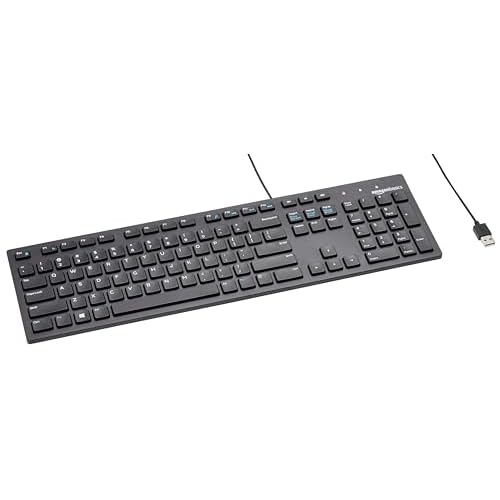
Plug in a USB keyboard to confirm your laptop’s USB ports and operating system function properly. If the external keyboard works flawlessly, the internal keyboard assembly is faulty, not Windows. For a premium desk setup, consider a mechanical keyboard with USB-C hub as a permanent workaround.
When to Seek Professional Help
- Multiple keys dead after liquid spill: Corrosion requires motherboard cleaning or keyboard replacement.
- Ribbon cable damaged during DIY repair: Replacement cables cost $10–$20 but demand precision soldering.
- Warranty active: Lenovo Depot Repair covers keyboard assembly replacement at no charge if you’re within warranty.
If you’ve completed driver reinstalls, power drains, BIOS updates, and physical cleaning without success, the keyboard flex cable or circuit board is likely damaged. Replacement keyboard assemblies for IdeaPad models run $30–$70 on Amazon. Professional installation adds $50–$100 labor. Weigh repair cost against your laptop’s age and value before proceeding.
Frequently Asked Questions
Why is my Lenovo IdeaPad laptop keyboard not working?
Common causes include outdated or corrupted keyboard drivers, accidentally enabled Filter Keys or Sticky Keys, loose internal ribbon cables, physical debris under keycaps, or Windows updates interfering with system firmware. Test with the On-Screen Keyboard to isolate whether the issue is software or hardware.
How do I fix my Lenovo IdeaPad keyboard using Device Manager?
Open Device Manager (Win + X), expand Keyboards, right-click Standard PS/2 Keyboard, and select Uninstall device. Check the delete driver software option, then restart. Windows automatically reinstalls a fresh driver. For Gaming or Flex models, also download the latest System Interface Foundation driver from Lenovo support.
What is a flea power drain reset and does it fix keyboard issues?
A flea power drain resets your laptop’s embedded controller. Shut down completely, unplug the AC adapter, remove the battery if removable, hold the power button for 60 seconds, then reconnect power. Many users report keyboards spring back to life after this reset, making it an essential troubleshooting step.
Can I fix a Lenovo IdeaPad keyboard by cleaning it?
Yes. Turn off the laptop, use compressed air at a 45° angle to blow debris from between keys, and gently pry off keycaps with a plastic spudger. Wipe the scissor mechanism with isopropyl alcohol on a microfiber cloth. This simple maintenance prevents 30–40% of keyboard failures caused by dirt accumulation.
What should I do if my Lenovo IdeaPad keyboard failed after a Windows update?
Try System Restore first. Type rstrui.exe in the Start menu and choose a restore point dated before the problem started. This undoes system changes without deleting files. If that doesn’t work, reinstall keyboard drivers via Device Manager. This fix is especially effective for IdeaPad 5 users affected by Intel chipset updates.
How do I know if my Lenovo IdeaPad keyboard has a hardware problem or software issue?
Press Win + Ctrl + O to launch the On-Screen Keyboard. If it types correctly, the OS is healthy and your built-in keyboard hardware or driver is the culprit. Also test with an external USB keyboard. If it works flawlessly, your internal keyboard assembly is faulty and may need professional replacement.