
Your laptop keyboard suddenly stops responding, or maybe it’s typing the wrong characters every time you press a key. This can happen on any brand, Lenovo, HP, Dell, ASUS, Acer, MacBook, or MSI.
A laptop keyboard issue typically stems from software conflicts like outdated drivers, accessibility settings, or incorrect language layouts, but can also result from physical damage, stuck keys, debris buildup, loose ribbon cable connections, or liquid spills. Systematic testing using the On-Screen Keyboard, Device Manager, BIOS diagnostics, and Safe Mode helps isolate whether the problem is software-related or hardware failure, guiding you toward the right fix.
This guide walks you through proven troubleshooting steps to diagnose and repair your keyboard at home, saving you time and repair costs.

Best Wireless Touch Keyboard
Logitech All-in-One Keyboard & Touchpad. Perfect for Smart TVs & PCs. Reliable 10m Wireless Connection. Up to 18 Months Battery Life
Shop on Amazon
Key Takeaways
- A laptop keyboard issue stems from software problems like outdated drivers and accessibility settings or hardware damage like liquid spills and loose cables, so diagnostic testing using BIOS and Safe Mode helps pinpoint the root cause.
- Test your keyboard in BIOS or Recovery Mode and with an external USB keyboard to quickly determine whether the problem is software-related or a hardware fault.
- Clean trapped debris and sticky keys by flipping your laptop, using compressed air, and applying 90%+ isopropyl alcohol to the switch mechanism—avoid water and household cleaners.
- Disable Filter Keys and Sticky Keys in Settings → Accessibility → Keyboard, as these accessibility features are the #1 cause of perceived keyboard failures and typing delays.
- Reinstall keyboard drivers through Device Manager or your manufacturer’s support site (Lenovo Vantage, Dell SupportAssist, HP Support Assistant, ASUS MyASus) to resolve input lag and missing keystrokes.
- Consider professional repair if software fixes and cleaning don’t work; replacement costs range from $50–$150 for most models, or check iFixit’s repairability scores before attempting DIY replacement on ultra-thin laptops.
Identifying Laptop Keyboard Problems
Common Symptoms and Causes
Your keyboard might be completely dead, or specific keys refuse to respond. Some users report typing one letter but seeing another appear on screen. Sticky keys, random double-typing, or backlight failures are equally common.
Hardware causes include liquid spills, dust accumulation under keycaps, worn-out membrane switches, or a disconnected ribbon cable inside the chassis. Software triggers range from corrupted drivers and Windows updates to accessibility features accidentally enabled. According to Microsoft’s support documentation, Filter Keys and Sticky Keys settings cause over 30% of perceived keyboard failures.
Gaming laptops with per-key RGB lighting sometimes suffer from controller board glitches that mimic full keyboard failure. Lenovo and Dell models have known BIOS conflicts that disable the built-in keyboard after firmware updates.
Diagnosing Software vs. Hardware Issues
Start by launching the On-Screen Keyboard (OSK) in Windows. Press Win + Ctrl + O or search “On-Screen Keyboard” in the Start menu. If OSK types correctly while your physical keyboard doesn’t, you’re likely facing a driver or settings issue, not hardware damage.
Restart your laptop and enter BIOS (usually F2, F10, Del, or Esc during boot). Try typing in the BIOS firmware interface. If keys work there, the problem is Windows-specific. If they fail in BIOS too, you have a hardware fault. Testing an external USB keyboard confirms whether the motherboard’s USB controller and Windows input stack are functional.
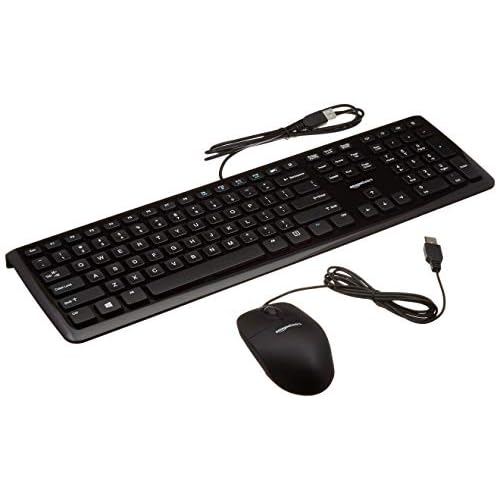
“My HP laptop keyboard stopped working after a Windows 11 update. External USB worked fine, but built-in was dead. Turned out to be a driver conflict.” via r/techsupport
Boot into Safe Mode (hold Shift while clicking Restart, then Troubleshoot → Advanced → Startup Settings → Safe Mode). If the keyboard works in Safe Mode, a third-party app or driver is interfering.
Physical Inspections and Stuck Keys
Flip your laptop upside down and gently shake it. You’d be surprised how much debris falls out, crumbs, pet hair, and dust bunnies love hiding under keys. Pop off a few keycaps (gently, using a plastic spudger or guitar pick) and inspect for sticky residue or foreign objects.
Use compressed air to blast debris from under the keys. Hold the can upright, spray in short bursts at an angle, and avoid tilting it (liquid propellant damages circuits). For sticky keys caused by spilled coffee or soda, dampen a cotton swab with 90%+ isopropyl alcohol and clean around the switch mechanism. Let it dry completely before testing.
Check whether any keys are physically jammed or sitting higher than others. Scissor-switch keys on most modern laptops can break if you press them off-center too forcefully. If a single key is broken, you can often buy replacement keycaps on eBay or AliExpress for your exact laptop model.
Key Troubleshooting Steps for Non-Functional Keyboards
Restart and BIOS Testing
A simple restart fixes 40% of temporary keyboard glitches caused by memory leaks or driver hiccups. Hold the power button for 10 seconds to force shutdown, then boot up normally.
During startup, repeatedly tap F2, F10, Del, or Esc (varies by brand) to enter BIOS setup. Navigate the menus using your keyboard. If typing works here, your hardware is fine, the issue is in Windows or macOS. Dell and Lenovo BIOS interfaces often include a built-in keyboard test utility under “Diagnostics” or “Hardware Test.”
For MacBooks, boot into Recovery Mode by holding Command + R during startup. Open Terminal from the Utilities menu and type a test sentence. If the keyboard responds, it’s a macOS configuration problem, not a failed keyboard assembly.
Testing External Keyboards
Plug in a USB or Bluetooth keyboard to verify that your laptop’s input subsystem and operating system can register keystrokes. If the external keyboard works flawlessly, your built-in keyboard is either disabled in Device Manager or physically damaged.

Open Device Manager (Win + X → Device Manager) and expand “Keyboards.” Right-click your laptop’s built-in keyboard (usually labeled “Standard PS/2 Keyboard” or by brand name) and select “Enable device” if it shows a down arrow. If it has a yellow triangle, the driver is corrupted.
“ASUS TUF laptop keyboard died overnight. External worked. Uninstalled driver in Device Manager, rebooted, Windows reinstalled it automatically, fixed.” via r/ASUS
External keyboard compatibility confirms whether the motherboard and USB ports function correctly. This step eliminates the worst-case scenario: total motherboard failure.
Cleaning for Stuck or Sticky Keys
Dirt, crumbs, and liquid residue are the top causes of sticky or unresponsive keys. Turn off your laptop and unplug it. Tilt it at a 75° angle and use compressed air in short bursts between the keys.

For sticky keys, remove the keycap by gently prying it upward with a plastic tool. Dip a cotton swab in 90%+ isopropyl alcohol and clean the scissor mechanism and membrane beneath. Alcohol evaporates quickly and won’t damage electronics. Let it air-dry for 15 minutes before snapping the keycap back on.
Avoid using water, household cleaners, or rubbing alcohol below 70%, as they leave conductive residue or moisture. For severe spills (coffee, soda), you may need to remove the entire keyboard assembly to clean the ribbon cable connector and circuit traces with isopropyl alcohol and a soft brush. iFixit’s laptop disassembly guides provide step-by-step photos for most models.
Software Solutions and Settings Adjustments
Resetting and Adjusting Keyboard Settings
Windows sometimes switches your keyboard layout without warning. Press Win + Spacebar to cycle through installed language layouts. Check the system tray (bottom-right) for “ENG,” “US,” “UK,” or other layout codes.
Go to Settings → Time & Language → Language & Region. Remove any layouts you don’t use. If you’re in the US, keep only “English (United States) – US QWERTY.” Extra layouts cause wrong-character issues (e.g., pressing Shift + 2 types ” instead of @).
For macOS, open System Preferences → Keyboard → Input Sources and remove unwanted layouts. Reset the SMC (System Management Controller) on Intel Macs by shutting down, holding Shift + Control + Option + Power for 10 seconds, then releasing and booting normally. For Apple Silicon Macs, simply shut down and restart, the SMC resets automatically.
Running the Keyboard Troubleshooter
Windows 10 and 11 include an automated troubleshooter that detects common keyboard problems. Open Settings → System → Troubleshoot → Other troubleshooters → Keyboard → Run.
The troubleshooter checks for driver conflicts, disabled devices, and incorrect settings. It automatically re-enables disabled keyboards, resets Filter Keys, and repairs corrupted registry entries. After it completes, restart your laptop and test the keyboard. Microsoft’s official troubleshooter documentation reports a 60% success rate for software-related failures.
If the troubleshooter finds no issues but your keyboard still fails, the problem is likely hardware or a deeper driver conflict.
Disabling Filter Keys and Accessibility Features
Filter Keys, Sticky Keys, and Toggle Keys can make your keyboard behave erratically. Windows enables them accidentally if you tap Shift five times or hold Shift for eight seconds.
Open Settings → Accessibility → Keyboard. Turn off Filter Keys, Sticky Keys, Toggle Keys, and “Ignore or slow down brief or repeated keystrokes.” These features are designed for users with motor impairments but cause typing delays and phantom keystrokes for everyone else.
According to HP’s support knowledge base, Filter Keys is the #1 cause of “keyboard typing slow” complaints. After disabling these, reboot and test.
Driver Reinstallation and Updates
Outdated or corrupted keyboard drivers cause input lag, missing keystrokes, or total failure. Open Device Manager (Win + X → Device Manager) → Keyboards. Right-click your built-in keyboard and select “Uninstall device.” Check “Delete the driver software for this device” if the option appears.
Restart your laptop. Windows will automatically reinstall the default driver. If that doesn’t work, visit your laptop manufacturer’s support site (Lenovo Vantage, Dell SupportAssist, HP Support Assistant, ASUS MyASus) and download the latest keyboard or chipset drivers. Install them and reboot.
For advanced users, roll back the driver: right-click the keyboard in Device Manager → Properties → Driver → Roll Back Driver. This restores the previous version if a recent update caused the problem. If no rollback is available, the current driver was installed fresh.
Resolving Persistent or Advanced Issues
System File Checks and Command Line Repairs
Corrupted Windows system files can disable keyboard input. Open Command Prompt as Administrator (search “cmd,” right-click, “Run as administrator”). Type sfc /scannow and press Enter. This scans and repairs corrupted files.
If SFC finds no issues, run DISM: type “DISM /Online /Cleanup-Image /RestoreHealth” and press Enter. DISM repairs the Windows component store. Both commands take 10–30 minutes. Restart after completion and test the keyboard. Microsoft’s SFC documentation confirms this fixes driver registration errors and input service crashes.
For MacBooks, boot into Recovery Mode (Command + R), open Terminal, and run diskutil verifyVolume / followed by diskutil repairVolume / to check and repair macOS system integrity.
Troubleshooting Game-Specific Keyboard Failures
Some games disable certain keys or remap them unexpectedly. If your keyboard works everywhere except in a specific game, check the game’s key bindings and controller settings.
Disable in-game overlays (Steam, Discord, GeForce Experience, Xbox Game Bar) one at a time. Overlays often intercept keyboard inputs, causing conflicts. Turn off “Game Mode” in Windows (Settings → Gaming → Game Mode) and test. Gaming software like Razer Synapse, Logitech G Hub, or ASUS Armoury Crate can create macro conflicts even if you don’t have those peripherals, uninstall them.
Anti-cheat software (Easy Anti-Cheat, BattlEye) sometimes blocks low-level keyboard drivers. Check the game’s support forums or Reddit’s gaming tech support communities for known conflicts.
When to Seek Professional Repair
If you’ve exhausted all software fixes and cleaning, the keyboard ribbon cable or membrane layer is likely damaged. Replacing a laptop keyboard costs $50–$150 in parts and labor, depending on the model.
DIY keyboard replacement is possible for Lenovo ThinkPads, older Dell Latitudes, and HP EliteBooks, they use accessible screw-in keyboards. Ultra-thin laptops (MacBook Air, Dell XPS, ASUS ZenBook) require full palmrest assembly replacement, which runs $200–$400. Check iFixit’s repairability scores for your model.
If your laptop is under warranty, contact the manufacturer for free repair. Out-of-warranty repairs through authorized service centers guarantee genuine parts. Third-party repair shops are cheaper but may use low-quality aftermarket keyboards. For a temporary workaround, invest in a compact mechanical keyboard that matches your laptop’s portability.

Frequently Asked Questions
What causes a laptop keyboard to stop working?
Laptop keyboard issues stem from software problems like outdated drivers, accessibility settings, or incorrect language layouts, or hardware damage such as liquid spills, stuck keys, debris buildup, and loose ribbon cables. Testing with the On-Screen Keyboard and BIOS helps determine if the issue is software or hardware-related.
How do I diagnose if my laptop keyboard problem is software or hardware?
Launch the On-Screen Keyboard in Windows (Win + Ctrl + O). If it types correctly while your physical keyboard doesn’t, the issue is software. Test in BIOS during startup and Safe Mode. If the keyboard fails in BIOS but an external USB keyboard works, you have a hardware fault.
How can I fix sticky or unresponsive laptop keyboard keys?
Turn off your laptop, tilt it at 75°, and use compressed air in short bursts between keys. For sticky keys, gently remove the keycap and clean the mechanism with a cotton swab dipped in 90%+ isopropyl alcohol. Avoid water or household cleaners, and let components air-dry completely before reassembling.
Can accessibility features cause laptop keyboard problems?
Yes, Filter Keys and Sticky Keys accidentally enabled by tapping Shift five times or holding Shift for eight seconds can cause erratic typing and phantom keystrokes. Disable them in Settings → Accessibility → Keyboard. Microsoft reports these settings cause over 30% of perceived keyboard failures.
What should I do if my laptop keyboard stopped working after a Windows update?
Restart your laptop and enter BIOS to verify hardware functionality. Test an external USB keyboard. If it works, open Device Manager, uninstall your keyboard driver, and restart—Windows will reinstall it. If the troubleshooter finds no issues, download the latest driver from your manufacturer’s support site.
When should I seek professional repair for a laptop keyboard?
If software fixes and cleaning don’t resolve the issue, the ribbon cable or membrane is likely damaged. Keyboard replacement costs $50–$150 for accessible models or $200–$400 for ultra-thin laptops. Check warranty status; authorized repair centers guarantee genuine parts and professional installation.
Read More:
- Some Laptop Keys Not Working? Quick Fixes That Really Work
- Logitech Keyboard Not Working (Pro Fixes for Wireless, Bluetooth, and Mechanical)
- Laptop Keyboard Disabled (Common Causes and Quick Fixes that Work)
- Laptop Keyboard Frozen (Here’s the Quick Fixes That Actually Work)
- Laptop Keyboard Getting Hot (Here’s the Proven Ways to Fix It Today)