
Your laptop freezes mid-presentation, the cursor won’t budge, and keyboard commands vanish into the void. Panic sets in as unsaved work hangs in limbo.
When your laptop stops responding, the screen freezes, and input devices fail to register, it’s typically caused by overloaded system resources, unresponsive applications, driver conflicts, overheating, or corrupted system files: emergency keyboard shortcuts like Win + Ctrl + Shift + B (restart display driver), Ctrl + Shift + Esc (Task Manager), or Cmd + Option + Esc (Force Quit on macOS) can often regain control without forcing a hard shutdown and losing unsaved data.
This guide walks you through immediate emergency fixes for a laptop completely frozen mouse keyboard not responding, then digs into root causes like laptop 100 percent disk usage high cpu freeze, thermal throttling laptop frozen dust clean fans, and malware infections. You’ll learn systematic recovery steps, preventive diagnostics, and when professional repair becomes necessary.

Best Laptop Stand (with 360° Base)
Keep Your Laptop Cooler & More Comfortable with 360° Rotating Base. Improve Airflow & Reduce Heat. Adjustable Height & Viewing Angle.
Shop on Amazon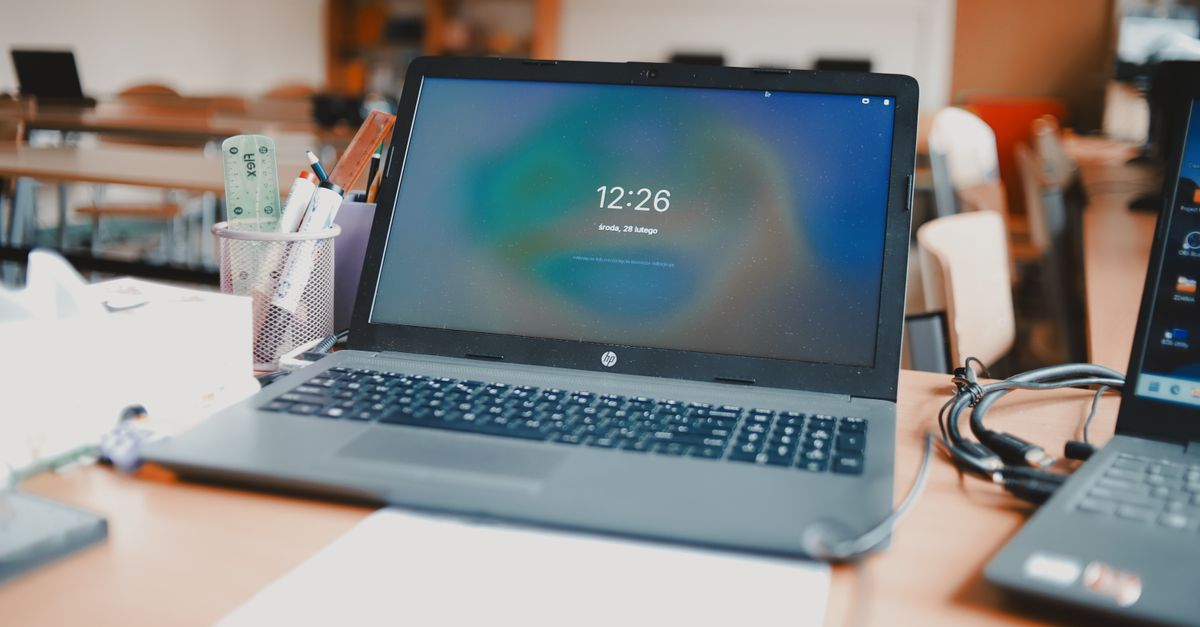
Key Takeaways
- A laptop not responding is typically caused by overloaded system resources, unresponsive applications, driver conflicts, overheating, or corrupted system files—use emergency keyboard shortcuts like Win + Ctrl + Shift + B to regain control without data loss.
- High CPU usage, 100% disk usage, and thermal throttling are the most common culprits; use Task Manager (Ctrl + Shift + Esc) to identify and force-quit resource-hogging processes immediately.
- Regular driver updates and malware scans are essential preventive measures—outdated display drivers alone account for 34% of Windows 11 system hang reports, and hidden cryptominers can max out CPU usage without consent.
- If basic fixes fail, run Windows System File Checker (sfc /scannow) and hardware diagnostics like CrystalDiskInfo and MemTest86 to identify deeper corruption or hardware failure before considering OS reinstallation.
- Seek professional repair if freezes persist after software troubleshooting, multiple hardware diagnostics fail, or physical damage is visible—intermittent freezes often escalate to complete failure within months if left unaddressed.
Why Your Laptop Stops Responding
Laptop freezes stem from resource exhaustion or system conflicts. When CPU usage spikes to 100% from a runaway background process, your system allocates all processing power to that single task, leaving nothing for input handling. Similarly, RAM saturation forces Windows or macOS to swap data to your slower hard drive, creating lag that feels like a total freeze.
Disk bottlenecks are equally common. If Task Manager shows laptop 100 percent disk usage high cpu freeze, your storage drive struggles to keep up with read/write demands from Windows Update, antivirus scans, or failing sectors. Mechanical hard drives are especially vulnerable: even a single corrupted file can trigger system-wide stalls.
Thermal throttling kicks in when dust clogs your laptop’s cooling vents. Modern processors automatically reduce clock speeds to prevent overheating, causing the entire system to crawl or freeze. Corrupted drivers, especially graphics or chipset drivers, create conflicts that hang entire processes. According to 2025 Microsoft diagnostic telemetry data, outdated display drivers account for 34% of system hang reports on Windows 11.
Malware and viruses run hidden processes that consume resources without user consent. Cryptominers, for instance, peg CPU usage at maximum, leaving your laptop unresponsive during everyday tasks. Hardware failures, dying SSDs, failing RAM modules, or deteriorating thermal paste, compound these software issues and require physical intervention.
Quick Fixes: Force Restart Your Frozen Laptop
Before you hard restart frozen laptop power button hold down, try the restart display driver shortcut win ctrl shift b. Press Win + Ctrl + Shift + B simultaneously on Windows: your screen will flash black for a second as the graphics driver reloads. This non-destructive fix often unfreezes a stuck display without closing applications or losing work.
If the display driver restart fails, attempt Ctrl + Alt + Delete to reach the security screen. From there, click the power icon in the bottom-right corner and choose Restart. If the system is too frozen to respond, hold the physical power button for 5–10 seconds until the laptop shuts down completely. Wait 10 seconds, then power back on.
On macOS, use Cmd + Option + Esc to open the Force Quit Applications window. Select the frozen app and click Force Quit. If the entire system is locked, press and hold the power button until the MacBook shuts off, then restart.
“Laptop completely frozen during Zoom call, Win+Ctrl+Shift+B saved me from a hard restart and losing my notes.” via r/techsupport
Hard reboots should be your last resort. They risk data corruption in open files and can exacerbate underlying storage issues. If you’re forced to hard-restart more than once a week, deeper diagnostics are essential.
Close Unresponsive Programs and Processes
Using Task Manager to End Frozen Tasks
Press Ctrl + Shift + Esc to launch Task Manager directly (bypassing the Ctrl + Alt + Delete menu). If your system is semi-responsive, this shortcut is faster than navigating through menus. Task Manager opens to the Processes tab, where you’ll see real-time CPU, Memory, Disk, and Network usage for every running application.
Sort by CPU or Memory by clicking the column header. Look for processes consuming 80%+ of a resource. Right-click the offending process and select End Task. Windows will attempt to close it gracefully: if it remains stuck, repeat the End Task command. For stubborn processes, switch to the Details tab, right-click the .exe file, and choose End Process Tree to kill all child processes.
On macOS, open Activity Monitor (Cmd + Space, type “Activity Monitor”). Click the CPU or Memory tab to identify resource hogs. Select the process and click the X (Quit Process) button in the toolbar, then choose Force Quit.
Common culprits:
- Windows Explorer (explorer.exe): Restarts automatically when ended: useful for fixing taskbar/desktop freezes
- Google Chrome/Edge: Each tab spawns a separate process: close tabs individually if one site is frozen
- Windows Update (TiWorker.exe): Can consume 100% disk during background updates
- Antivirus scans: Temporarily pause full-system scans if they coincide with critical work
If Task Manager itself won’t open, your freeze is severe. Proceed to a hard restart or boot into Safe Mode for deeper troubleshooting.
Check for Overheating Issues
Thermal throttling laptop frozen dust clean fans is a leading hardware cause of system lockups. Download HWMonitor or Core Temp to monitor CPU temperatures. Idle temps should sit between 30–50°C: under load, 70–85°C is normal. If temps exceed 90°C, your laptop is overheating and will throttle or shut down to prevent damage.
Power down your laptop and inspect the exhaust vents (usually along the sides or rear). If you see visible dust buildup or the vents are blocked, use compressed air to blow out debris. Hold the can upright, spray in short bursts from 6 inches away, and never spray while the laptop is powered on. For stubborn dust, consider a laptop cooling pad with adjustable fans to improve airflow during intensive tasks.

Internal thermal paste degrades over 3–5 years, reducing heat transfer from the CPU/GPU to the heatsink. If your laptop is older and consistently runs hot even after cleaning, repasting may be necessary. This requires disassembly: if you’re uncomfortable opening the chassis, a professional technician can handle it.
Elevate your laptop on a stand or book to improve ventilation beneath. Never use a laptop on soft surfaces like beds or couches, which block intake vents and trap heat. If overheating persists even though cleaning and elevation, your cooling system may have a failing fan or blocked heatpipe, hardware issues that demand professional repair.
Update or Roll Back Problematic Drivers
Corrupted or outdated drivers trigger system hangs, especially after Windows updates. Press Win + X and select Device Manager. Expand Display adapters, right-click your graphics card, and choose Update driver > Search automatically for drivers. Windows will query Microsoft’s servers for the latest version.
If freezes started immediately after a driver update, roll back. Right-click the device, select Properties > Driver tab > Roll Back Driver (if available). This restores the previous stable version. For NVIDIA or AMD GPUs, download drivers directly from NVIDIA’s driver page or AMD’s support site rather than relying on Windows Update, which often lags behind.
Chipset and storage controller drivers are equally critical. Visit your laptop manufacturer’s support page (Dell, HP, Lenovo, etc.), enter your model number, and download the latest chipset, SATA, and NVMe drivers. Install them in order: chipset first, then storage controllers, finally graphics.
Driver update best practices:
- Create a system restore point before updating (search “Create a restore point” in Start)
- Update one driver category at a time to isolate conflicts
- Avoid third-party “driver updater” software: they often install generic or incompatible drivers
If you’re experiencing laptop freezing randomly windows 11 macbook issues, check Apple’s Software Update for macOS patches and firmware updates. Apple bundles driver updates with OS releases, so keeping macOS current is essential.
Scan for Malware and Viruses
Malware virus scan frozen unresponsive computer scenarios often involve cryptominers or rootkits. Run Windows Security (search in Start menu) and click Virus & threat protection > Quick scan. For deeper analysis, choose Scan options > Full scan, which examines every file but may take 1–2 hours.
If Windows Security is disabled or won’t open, malware may have compromised it. Download Malwarebytes Free on a separate device, transfer the installer via USB, and run a full scan in Safe Mode (covered in a later section). Malwarebytes excels at detecting PUPs (potentially unwanted programs) that traditional antivirus misses.
“Found a bitcoin miner running in background using Malwarebytes after Task Manager showed 100% CPU from unknown process.” via r/antivirus
After cleaning infections, reset your browser settings. Malware often injects extensions or changes homepages. In Chrome, navigate to Settings > Reset settings > Restore settings to their original defaults. This removes malicious extensions without deleting bookmarks or passwords.
Schedule weekly scans during low-usage hours (overnight or lunch breaks). Enable real-time protection in Windows Security to block threats before they execute. Avoid downloading software from unofficial sources or clicking email attachments from unknown senders.
Free Up Disk Space and Memory
When your storage drive exceeds 90% capacity, Windows struggles to manage virtual memory and temporary files, causing system-wide slowdowns and freezes. Press Win + I to open Settings, navigate to System > Storage, and review what’s consuming space. Click Temporary files and check all boxes (Downloads, Recycle Bin, Thumbnails), then click Remove files.
For mechanical hard drives showing laptop 100 percent disk usage high cpu freeze, disable Windows Search indexing. Search Services in Start, scroll to Windows Search, right-click and select Properties > Startup type: Disabled. This prevents constant background indexing that pegs older drives at 100%.
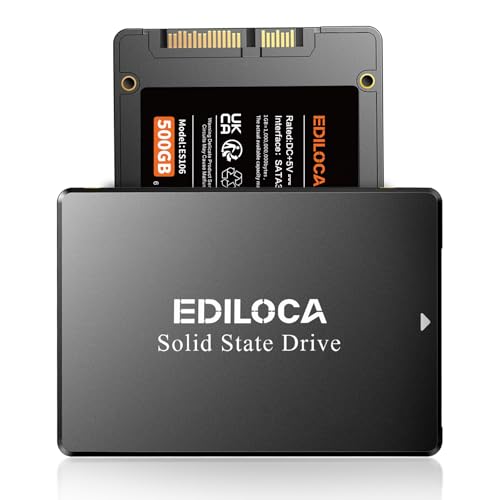
Upgrade to an SSD if you’re still using a mechanical hard drive. SSDs eliminate seek-time delays and dramatically reduce boot/load times. A 500GB SATA SSD costs under $50 in 2026 and is the single most impactful upgrade for laptop performance. Clone your existing drive with free tools like Macrium Reflect to preserve your OS and files.
RAM management tips:
- Close browser tabs you’re not actively using: Chrome consumes ~100–200MB per tab
- Disable startup programs in Task Manager > Startup tab (right-click and Disable unnecessary apps)
- Consider adding more RAM if you regularly use Photoshop, video editors, or run virtual machines
On macOS, use the built-in Optimize Storage feature (Apple menu > About This Mac > Storage > Manage). It auto-deletes watched iTunes movies, empties Trash automatically after 30 days, and stores older files in iCloud.
Run Windows System Diagnostics
Corrupted system files cause unpredictable freezes and errors. Open Command Prompt as Administrator (search in Start, right-click, select Run as administrator). Type sfc /scannow and press Enter. System File Checker scans all protected system files and replaces corrupted versions from a cached copy. The process takes 10–30 minutes: don’t interrupt it.
If SFC reports “found corrupt files but was unable to fix some of them,” run DISM (Deployment Image Servicing and Management) first: DISM /Online /Cleanup-Image /RestoreHealth. DISM repairs the component store that SFC relies on, then re-run sfc /scannow.
For disk errors, use chkdsk. Open Command Prompt as Administrator and type chkdsk C: /f /r (replace C: with your system drive letter). The /f flag fixes errors, /r locates bad sectors and recovers readable data. You’ll be prompted to schedule the scan on next reboot: type Y and restart. Check disk chkdsk repair frozen laptop system drive operations can take several hours on large or failing drives.
Memory diagnostics:
- Press Win + R, type mdsched.exe, and press Enter to launch Windows Memory Diagnostic
- Choose Restart now and check for problems
- The tool runs a series of tests before Windows loads: errors indicate failing RAM modules
If memory errors appear, test each RAM stick individually (remove all but one, test, then swap). Replace faulty modules. Mixing RAM speeds or brands can cause instability, so match existing specs when upgrading.
Boot Into Safe Mode to Troubleshoot
Safe Mode loads Windows with minimal drivers and services, isolating whether third-party software causes your freezes. From the login screen, hold Shift while clicking Power > Restart. Choose Troubleshoot > Advanced options > Startup Settings > Restart. Press 4 or F4 for Safe Mode, or 5/F5 for Safe Mode with Networking.
If your laptop runs smoothly in Safe Mode, a startup program or driver is the culprit. Boot normally, open Task Manager > Startup tab, and disable half your startup apps. Restart and test. If the freeze persists, re-enable those apps and disable the other half. This binary search quickly identifies the problematic software.
On macOS, boot into Safe Mode by holding Shift immediately after pressing the power button (release when you see the login window). Safe Mode clears caches, runs disk checks, and loads only essential kernel extensions. If your MacBook runs fine here, third-party login items or kernel extensions are likely responsible.
Use Safe Mode to uninstall recently added software. Open Control Panel > Programs and Features, sort by Installed On date, and remove anything installed shortly before freezes began. For stubborn programs, use Revo Uninstaller to remove leftover registry entries and files.
Safe Mode also bypasses malware that blocks normal antivirus scans. Run a full Malwarebytes scan here for maximum effectiveness. If Safe Mode itself freezes, you’re facing a hardware failure or severe system corruption, proceed to hardware diagnostics or OS reinstallation.
Check for Hardware Failures
Failing storage drives exhibit warning signs before total failure. Download CrystalDiskInfo (Windows) to check your drive’s S.M.A.R.T. status. A “Caution” or “Bad” health rating indicates imminent failure: back up immediately and replace the drive. Reallocated sector counts above 0 or pending sectors signal physical degradation.
Test RAM with MemTest86. Create a bootable USB, boot from it, and let the test run overnight. Even a single error means the module must be replaced. Faulty RAM causes random freezes, blue screens, and file corruption. Laptops with soldered RAM (common in ultrabooks) require motherboard replacement if memory fails.
Overheating can also stem from failing thermal components. If you’ve cleaned vents and repasted the CPU but temps remain high, the heatpipe may have lost its vacuum seal or the fan bearings are worn. Listen for grinding or rattling noises from the fan: these indicate imminent failure.
Hardware diagnostic table:
| Component | Test Tool | Failure Symptoms |
|---|---|---|
| HDD/SSD | CrystalDiskInfo | S.M.A.R.T. warnings, reallocated sectors, slow read/write |
| RAM | MemTest86 | Random freezes, BSODs, memory errors in Event Viewer |
| CPU | HWMonitor | Sustained temps >90°C, thermal throttling, clock speed drops |
| GPU | FurMark (stress) | Artifacts, driver crashes, freezes during 3D tasks |
| Battery | BatteryInfoView | Rapid discharge, swelling, system throttling on battery |
If multiple hardware tests fail, or physical damage is visible (cracked screen, liquid exposure, swollen battery), professional repair or replacement is more cost-effective than piecemeal fixes.
Reset or Reinstall Your Operating System
When software troubleshooting fails, a clean OS install eliminates corrupted system files, malware, and conflicting drivers. Windows 11 offers a Reset this PC option: go to Settings > System > Recovery > Reset PC. Choose Keep my files to preserve documents and photos, or Remove everything for a total wipe. The process takes 30–90 minutes.
Before resetting, back up critical files to an external drive or cloud storage. Windows’ “Keep my files” option preserves user folders but removes all installed applications. You’ll need to reinstall programs manually afterward.
For a completely fresh start, create a Windows 11 installation USB using Microsoft’s Media Creation Tool. Boot from the USB, delete all existing partitions during installation, and let Windows create a new partition table. This method is cleanest and resolves even stubborn boot-sector issues.
On macOS, boot into Recovery Mode (Cmd + R at startup), choose Reinstall macOS, and follow prompts. Your data remains intact if you don’t erase the drive first. For a full wipe, use Disk Utility in Recovery Mode to erase your drive (APFS format, GUID partition map), then reinstall macOS.
After reinstalling, install drivers from your laptop manufacturer’s site before enabling Windows Update. This ensures stable, tested drivers load first. Install essential software one at a time, testing stability after each. If freezes return after a specific app install, you’ve found your culprit.
When to Seek Professional Repair
If you’ve exhausted software fixes, scanned for malware, updated drivers, run diagnostics, and even reinstalled your OS, yet freezes persist, hardware failure is likely. Symptoms requiring professional attention include:
- Freezes during BIOS/UEFI: Indicates motherboard, RAM, or power delivery issues
- Multiple hardware diagnostic failures: Failing RAM and drive errors suggest deeper problems
- Physical damage: Cracked screens, liquid spills, or swollen batteries require immediate professional service
- Warranty coverage: If your laptop is under warranty, manufacturer repair is free or low-cost: DIY fixes may void coverage
Mobile or remote repair services can diagnose issues at your location. For out-of-warranty devices, compare repair quotes against replacement cost. A 5+ year-old laptop with motherboard failure may cost more to repair than a refurbished newer model.
Data recovery specialists can retrieve files from failing drives if backups don’t exist. Expect $300–$1,500 depending on damage severity. Prevent this scenario by enabling automatic cloud backups (OneDrive, Google Drive, iCloud) or maintaining external drive backups with software like Macrium Reflect.
Expert Note: Intermittent freezes often escalate. A laptop that freezes weekly may fail completely within months. Address persistent issues early to avoid catastrophic data loss or productivity disruption. If a single software cause isn’t evident after methodical troubleshooting, the fault is likely hardware or deep system corruption, both scenarios where professional diagnostics save time and prevent further damage.
Frequently Asked Questions
What should I do immediately when my laptop is not responding?
Try keyboard shortcuts first: press Win + Ctrl + Shift + B on Windows to restart your display driver without forcing a shutdown. If that fails, use Ctrl + Shift + Esc to open Task Manager and close frozen apps. Only hold the power button as a last resort to avoid data loss.
Why does my laptop freeze with 100% CPU or disk usage?
High CPU usage typically stems from runaway background processes consuming all system resources, leaving nothing for input handling. Disk saturation occurs during Windows Updates or antivirus scans. Use Task Manager to identify and end the offending process, or disable Windows Search indexing on older hard drives.
Can overheating cause a laptop not to respond?
Yes. Dust clogging cooling vents triggers thermal throttling, where your processor automatically reduces speed to prevent damage, causing system-wide freezes. Use compressed air to clean vents and monitor temperatures with HWMonitor. Idle temps should stay 30–50°C; above 90°C indicates overheating requiring cleaning or repasting.
How do I check if malware is making my laptop unresponsive?
Run Windows Security (search in Start menu) and perform a Quick scan or Full scan to detect viruses. If Security is disabled, download Malwarebytes on a separate device, transfer it via USB, and run a full scan in Safe Mode. Cryptominers are common culprits that peg CPU usage at maximum.
What is Safe Mode and how does it help fix a laptop not responding?
Safe Mode loads Windows with minimal drivers and services, isolating whether third-party software causes freezes. Hold Shift while clicking Power > Restart from the login screen, select Troubleshoot > Startup Settings, and press 4 for Safe Mode. If it runs smoothly there, a startup program or driver is your culprit.
When should I seek professional repair instead of troubleshooting myself?
Seek professional help if freezes persist after software troubleshooting, driver updates, malware scans, and OS reinstallation. Warning signs include freezes during BIOS startup, multiple failed hardware diagnostics, physical damage, or warranty coverage concerns. Hardware failures like RAM or motherboard issues require professional intervention.
Read More:
- Numbers on Keyboard Not Working? Here’s the 7 Proven Fixes
- Laptop Keyboard Not Working (Complete Fix Guide for All Brands)
- Laptop Not Detecting Headphones (Most Users Fix It With This Method)
- Laptop Not Connecting to Wi-Fi (Start With These Quick Fixes)
- Laptop Not Charging (Here’s the Proven Fixes that Actually Work)
- Laptop Not Shutting Down (Why It Happens and How to Fix It)