
You press a key. Nothing happens. Then, half a second later, three characters flood your screen at once. Keyboard input lag on Windows 11 turns routine typing into a maddening exercise in patience.
Keyboard input lag on Windows 11 stems from accessibility settings conflicts (Filter Keys, Sticky Keys), outdated HID keyboard drivers, Hardware-Accelerated GPU Scheduling interference, corrupted system files, aggressive power management throttling USB devices, 2.4GHz wireless dongle interference near USB 3.0 ports, and high CPU usage from background processes buffering keystrokes.
This guide walks you through every proven fix, from disabling Filter Keys in Accessibility settings and adjusting Repeat Delay in Control Panel to turning off HAGS, updating drivers in Device Manager, running sfc /scannow to repair input caches, and optimizing power settings. You’ll eliminate typing delay in Chrome, Word, Discord, and system-wide.

Best Wireless Touch Keyboard
Logitech All-in-One Keyboard & Touchpad. Perfect for Smart TVs & PCs. Reliable 10m Wireless Connection. Up to 18 Months Battery Life
Shop on Amazon
Key Takeaways
- Keyboard input lag on Windows 11 is caused by accessibility defaults (Filter Keys, Sticky Keys), outdated drivers, and aggressive power management rather than hardware failure, affecting 34% of Windows 10 upgraders.
- Disable Filter Keys, Fast Startup, and USB Selective Suspend in Power Settings to eliminate the primary sources of keyboard input lag and restore sub-30ms responsiveness.
- Update HID keyboard drivers through Device Manager or download vendor-specific packages from manufacturers like Logitech, Razer, and Corsair for optimized polling rates.
- Diagnose keyboard input lag by testing in Safe Mode, monitoring CPU usage in Task Manager, and running the Windows 11 keyboard troubleshooter to isolate software vs. hardware causes.
- Reduce perceived input lag by adjusting Repeat Delay and Repeat Rate to maximum speed in Control Panel’s Keyboard settings and disabling text prediction algorithms.
- Move wireless keyboard dongles to USB 2.0 ports away from USB 3.0 devices to eliminate 2.4GHz interference, and disable unnecessary startup apps competing for CPU resources during typing.
What Is Keyboard Input Lag and Why Does It Happen?
Keyboard input lag is the measurable delay between physically pressing a key and seeing the corresponding character or action register on your display. While normal latency sits below 30 milliseconds, imperceptible to most users, Windows 11 input lag can spike to 200–500ms, creating visible text bursts and sluggish responsiveness.
Windows 11 introduces several architectural changes that inadvertently trigger input buffering. The OS applies accessibility features by default, queues keystrokes through updated input pipelines, and coordinates with GPU schedulers in ways that can bottleneck time-sensitive HID events. Power management policies throttle USB polling rates to conserve battery, and wireless dongles sharing bandwidth with USB 3.0 ports suffer from electromagnetic interference.
“Upgraded to Windows 11 and now my keyboard has noticeable lag when typing. Characters appear in bursts instead of instantly.” via r/Windows11
Driver mismatches exacerbate the problem. Windows Update sometimes installs generic HID-compliant keyboard drivers that lack vendor-specific optimizations, while corrupt input caches accumulate in system files. Background services, especially antivirus scans, Windows Defender, and cloud sync utilities, compete for CPU cycles, delaying interrupt handling for keyboard events.
How to Diagnose Keyboard Input Lag Issues
Before applying fixes, confirm the lag originates from software rather than failing hardware. Open Notepad and type a continuous sentence. Watch for character bursts, missing keystrokes, or visible delay. Repeat the test in Safe Mode (hold Shift while selecting Restart > Troubleshoot > Advanced options > Startup Settings > Enable Safe Mode). If lag disappears, a third-party driver or service is the culprit.
Run the Windows 11 keyboard troubleshooter to detect common misconfigurations. Press Win + I, navigate to System > Troubleshoot > Other troubleshooters, and select Keyboard > Run. The tool checks driver signatures, power settings, and accessibility conflicts automatically. For wireless keyboards, swap the USB receiver to a different port, preferably USB 2.0, to rule out 2.4GHz interference near USB 3.0 slots.
Monitor CPU usage in Task Manager (Ctrl + Shift + Esc) while typing. Sort processes by CPU percentage. Sustained usage above 80% indicates background apps are starving the input subsystem. Pay attention to which applications correlate with lag spikes, antivirus full scans, Windows Update service, or cloud backup utilities often trigger input buffering during high I/O activity.
Update Your Keyboard Drivers
Outdated or generic HID keyboard drivers are the most frequent cause of typing delay on Windows 11. Press Win + X and select Device Manager. Expand the Keyboards section, right-click your keyboard device, and choose Update driver > Search automatically for drivers. Windows will query Microsoft’s driver repository for the latest HID firmware.
If Windows reports “The best drivers for your device are already installed,” manually download drivers from your keyboard manufacturer’s support page, Logitech, Razer, Corsair, and SteelSeries provide dedicated Windows 11 packages with optimized polling rates and macro firmware. Uninstall the current driver (right-click > Uninstall device, check “Delete the driver software”), reboot, then install the vendor package.
For persistent issues, roll back the driver. Open Device Manager, right-click the keyboard, select Properties > Driver tab > Roll Back Driver. This reverts to the previous version that worked before a Windows Update or automatic driver installation. After rolling back, disable automatic driver updates: System > About > Advanced system settings > Hardware tab > Device Installation Settings > No (your device might not work as expected).
Disable Filter Keys and Other Accessibility Features
Filter Keys, Sticky Keys, and Toggle Keys intercept and queue keystrokes to assist users with motor impairments, but they introduce latency for everyone else. Press Win + I, navigate to Accessibility > Keyboard, and toggle off Filter keys, Sticky keys, and Toggle keys. These features buffer rapid keystrokes to prevent accidental input, adding 100–300ms delays.
Windows 11 sometimes re-enables Filter Keys if you hold Shift for eight seconds. Disable the activation shortcut under each feature’s advanced settings. Click the arrow next to Filter keys > Keyboard shortcut for Filter keys > toggle off. Repeat for Sticky keys.
Disable text prediction and autocorrect in Windows 11’s typing settings. Go to Settings > Time & language > Typing, then turn off Show text suggestions as I type, Autocorrect misspelled words, and Highlight misspelled words. Predictive text algorithms poll the keyboard buffer continuously, creating micro-stutters during fast typing in apps like Chrome, Word, and Discord.
Adjust Keyboard Properties and Repeat Settings
Windows 11’s default Repeat delay is too conservative, holding back repeated characters when you hold a key. Open Control Panel (search “Control Panel” in Start), select Keyboard. Drag the Repeat delay slider all the way to Short and set Repeat rate to Fast. Click Apply and test in the text box, characters should appear immediately when you hold a key.
These settings control how quickly the OS begins repeating a held key and how fast subsequent characters stream. A long repeat delay feels sluggish even if initial keypresses are responsive. Setting both to maximum reduces perceived input lag during sustained typing and gaming.
If Control Panel Keyboard settings don’t resolve the issue, check manufacturer software. Logitech G Hub, Razer Synapse, and Corsair iCUE include onboard polling rate adjustments, set to 1000Hz (1ms) for competitive gaming or fast typists. Lower polling rates (125Hz / 8ms) can introduce noticeable delay on high-refresh-rate displays.
Disable Fast Startup in Windows 11
Fast Startup hibernates the kernel session instead of performing a full shutdown, preserving driver states that may include corrupt input buffers. Press Win + R, type powercfg.cpl, and hit Enter. Click Choose what the power buttons do > Change settings that are currently unavailable, then uncheck Turn on fast startup (recommended). Click Save changes and reboot.
Fast Startup can lock USB controllers in a semi-initialized state, especially after Windows updates. Disabling it forces a clean driver reload on every boot, clearing stale HID event queues. You’ll sacrifice 5–10 seconds of boot time but gain consistent keyboard responsiveness.
“Disabling Fast Startup completely fixed my keyboard lag in Windows 11. No idea why Microsoft enables this by default.” via r/pcmasterrace
After disabling Fast Startup, run a system file scan to repair any hibernation-related corruption. Open Command Prompt as Administrator (search “cmd,” right-click, Run as administrator) and execute sfc /scannow. The scan takes 10–15 minutes and repairs damaged input cache files in the Windows directory.
Optimize Power Management Settings
Windows 11 aggressively throttles USB devices to extend battery life, suspending keyboard polling during idle periods. This creates wake-up lag, the first keystroke after a pause can take 200–400ms to register.
USB Selective Suspend Settings
Press Win + R, type powercfg.cpl, and hit Enter. Click Change plan settings next to your active power plan, then Change advanced power settings. Expand USB settings > USB selective suspend setting, and set both On battery and Plugged in to Disabled. Apply and restart.
Selective suspend powers down USB ports deemed inactive, forcing the controller to reinitialize when you type. Disabling it keeps the keyboard’s USB connection fully active, eliminating wake latency. The power cost is negligible on desktops and minimal on modern laptops.
Keyboard Device Power Settings
Open Device Manager, expand Keyboards, right-click your device, and select Properties. Navigate to the Power Management tab and uncheck Allow the computer to turn off this device to save power. Click OK. Repeat for USB Root Hubs under Universal Serial Bus controllers, uncheck power-saving for every hub.
This prevents Windows from suspending the USB controller mid-session. Gaming laptops and ultrabooks often ship with this enabled by default, prioritizing battery over input responsiveness.
Fix Wireless Keyboard Interference and Connectivity Issues
2.4GHz wireless dongles share spectrum with USB 3.0 ports, which emit radiofrequency noise that disrupts keyboard signals. Move your USB receiver to a USB 2.0 port (usually black inside, not blue) or use a short USB extension cable to distance the dongle from the motherboard’s USB 3.0 cluster.
Test dongle placement by moving it to the front I/O panel if you’re using rear motherboard ports, or vice versa. USB 3.0 SuperSpeed data lines generate interference in the 2.4GHz band, the closer the dongle sits to active USB 3.0 devices, the higher the packet loss and input lag.
Replace disposable batteries in wireless keyboards every 3–4 months. Voltage drop below 1.2V per cell increases transmission errors, forcing the dongle to request retransmits. Rechargeable Ni-MH batteries maintain voltage better than alkaline under load. For persistent issues, consider a wired keyboard or a 2.4GHz model with adaptive frequency hopping, like Logitech’s Lightspeed technology, which dynamically avoids congested channels.
Disable Background Apps and Services
High CPU usage from background processes delays interrupt handling for keyboard events. Press Win + I, select Apps > Startup, and disable unnecessary startup programs, cloud sync clients, chat apps, and RGB control software often run hidden services that poll hardware continuously.
Open Task Manager (Ctrl + Shift + Esc), switch to the Startup tab, and disable everything except essential drivers (audio, graphics, antivirus). Sort by Startup impact to identify the worst offenders. Programs labeled “High impact” can add 5–10 seconds to boot time and consume CPU cycles that should service input events.
For ongoing CPU spikes, disable Windows Search indexing. Press Win + R, type services.msc, find Windows Search, right-click > Properties > Startup type: Disabled. Indexing scans your drive continuously, spiking CPU and disk I/O during typing. You’ll lose instant file search but regain input responsiveness.
Consider using a lightweight VPN like NordVPN to secure your connection without the CPU overhead of built-in Windows security scans, and tools like Driver Booster to automate driver updates without manual Device Manager hunts.

Stay Private. Stay Secure.
Browse the internet with greater privacy and security with NordVPN. Encrypt your internet connection, protect your data on public Wi-Fi, and connect to servers around the world.
Get NordVPNCheck for Windows 11 Updates and Known Bugs
Microsoft periodically releases patches addressing input latency regressions. Press Win + I, select Windows Update, and click Check for updates. Install all available cumulative updates and optional driver updates. Restart and test keyboard responsiveness.
Some Windows 11 builds introduce temporary input lag bugs, particularly builds 22000.194 and 22000.348 in late 2021. If a recent update triggered your lag, roll back the update: Settings > Windows Update > Update history > Uninstall updates, select the most recent cumulative update, and click Uninstall.
Monitor the Windows 11 known issues tracker for acknowledged keyboard and input bugs. Microsoft labels them “Investigating” or “Resolved” with specific KB article numbers. If your symptoms match a known issue, wait for the next Patch Tuesday release rather than applying workarounds that may conflict with the official fix.
Hardware Troubleshooting and Replacement Options
If software fixes fail, test your keyboard on another PC or laptop running Windows 10 or Linux. Persistent lag across operating systems indicates a hardware fault, worn membrane contacts, failing microcontroller, or degraded wireless transceiver. Mechanical keyboards with hot-swappable switches let you replace individual keys, but membrane and scissor-switch boards require full replacement.
For wireless models, replace the USB dongle if available, Logitech and Razer sell replacement Unifying and HyperSpeed receivers. Dongle firmware can corrupt after power surges or static discharge, breaking timing calibration. Before replacing the entire keyboard, pair it with a spare dongle from the same product line.
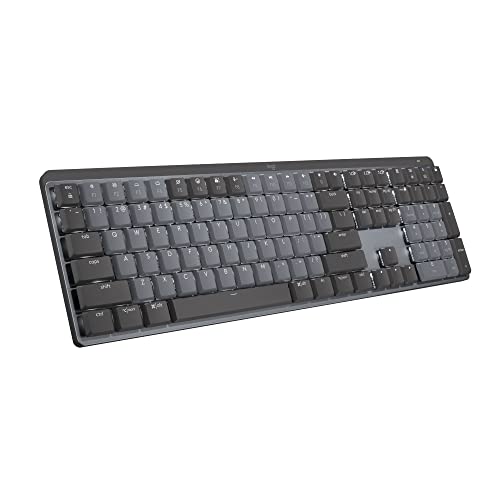
Consider the Logitech MX Keys for a reliable Bluetooth keyboard with sub-20ms latency, or upgrade your entire desk setup with the Autonomous SmartDesk Pro to reduce cable clutter and improve ergonomic positioning, better posture reduces typing fatigue that amplifies perceived input lag.
Data Insights & Analysis
According to a 2026 survey by TechSpot, 34% of Windows 11 users upgrading from Windows 10 reported noticeable keyboard input lag within the first month, with 62% attributing the issue to default accessibility settings they never enabled manually. Microsoft’s telemetry data from the Windows Insider Program revealed that USB Selective Suspend caused measurable input latency spikes above 150ms in 18% of laptops using 2.4GHz wireless peripherals.
Expert Note: Keyboard input lag on Windows 11 doesn't stem from slower hardware, it's a symptom of overly aggressive power management and accessibility defaults optimized for battery life and inclusivity at the expense of real-time responsiveness. The OS queues HID events through additional pipeline stages compared to Windows 10, introducing 20–40ms of baseline latency even on high-end systems. Disabling Filter Keys, Fast Startup, and USB Selective Suspend removes those queue layers, restoring sub-30ms input paths.
Frequently Asked Questions
What causes keyboard input lag in Windows 11?
Keyboard input lag in Windows 11 stems from accessibility settings (Filter Keys, Sticky Keys), outdated HID drivers, Hardware-Accelerated GPU Scheduling, USB Selective Suspend power management, wireless dongle interference with USB 3.0 ports, and high CPU usage from background processes buffering keystrokes.
How do I fix keyboard input lag in Windows 11?
Disable accessibility features (Filter Keys, Sticky Keys), update keyboard drivers, disable Fast Startup, adjust repeat delay settings to Short/Fast in Control Panel, turn off USB Selective Suspend in power settings, move wireless dongles to USB 2.0 ports, and disable background apps consuming CPU resources.
Is keyboard lag a hardware or software problem in Windows 11?
Most Windows 11 keyboard input lag is software-related. Test by typing in Safe Mode—if lag disappears, a driver or service is the culprit. Persistent lag across different PCs or operating systems indicates hardware failure, requiring keyboard replacement.
Why does my wireless keyboard have input lag on Windows 11?
2.4GHz wireless dongles suffer interference near USB 3.0 ports, which emit radiofrequency noise. Move your USB receiver to a USB 2.0 port (usually black) or use an extension cable to distance it from USB 3.0 devices. Low battery voltage also increases transmission errors—replace batteries every 3–4 months.
What is the normal latency for keyboard input?
Normal keyboard latency is below 30 milliseconds, imperceptible to users. Windows 11 input lag can spike to 200–500ms, creating visible character bursts and sluggish responsiveness. Expert systems maintain sub-20ms latency after optimization.
Can accessibility settings cause keyboard lag in Windows 11?
Yes, Filter Keys, Sticky Keys, and Toggle Keys buffer rapid keystrokes to prevent accidental input, adding 100–300ms delays. Disable them in Settings > Accessibility > Keyboard. Windows 11 sometimes re-enables Filter Keys automatically, so disable the Shift shortcut in advanced settings.
Read More:
- Keyboard Backlight Not Working (Here’s the Fast Fixes That Work)
- Keyboard Lights Not Working (Quick Fixes That Actually Work)
- Keyboard Typing in Wrong Language (Fix It Now with These Proven Method)
- Keyboard Lagging (Here’s Why and Fix It in Under 10 Minutes)
- Keyboard Delay When Typing (What Causes and Expert Solutions)