
Your keyboard promised flawless multi-key recognition. Now, during intense gaming sessions, you’re missing crucial inputs and watching your character freeze mid-combo. You paid extra for anti-ghosting or NKRO, yet your mechanical keyboard is dropping keys like a budget membrane board.
Keyboard anti-ghosting failures typically stem from four root causes: disabled NKRO mode (toggled via FN+key shortcuts or physical switches), outdated USB drivers in Device Manager, USB bandwidth conflicts when plugged into USB 3.0 ports, or Windows accessibility features like Sticky Keys interfering with simultaneous key presses. Most cases resolve by toggling 6KRO to NKRO mode, updating chipset drivers, switching to USB 2.0 ports, and disabling Filter Keys in Windows settings.
Before you return your keyboard or contact support, you can systematically diagnose and fix the problem. This guide walks you through proven troubleshooting steps that resolve 90% of anti-ghosting failures without touching firmware code.

Best Wireless Touch Keyboard
Logitech All-in-One Keyboard & Touchpad. Perfect for Smart TVs & PCs. Reliable 10m Wireless Connection. Up to 18 Months Battery Life
Shop on Amazon
Key Takeaways
- Keyboard anti-ghosting failures are typically caused by disabled NKRO mode, outdated drivers, USB 3.0 port conflicts, or Windows accessibility features—most cases resolve without hardware replacement.
- Test your anti-ghosting functionality using Microsoft’s Keyboard Ghosting Demonstration tool or by holding multiple keys in Notepad; if fewer than expected keys register, the feature is malfunctioning.
- Enable NKRO mode through physical toggle switches (often hidden under the spacebar), FN key shortcuts, or companion software like Razer Synapse, Corsair iCUE, and Logitech G HUB.
- Switch your keyboard to USB 2.0 motherboard ports instead of USB 3.0, as older USB standards provide more stable voltage and reduce electromagnetic interference that disrupts anti-ghosting.
- Update keyboard drivers in Device Manager or install manufacturer-specific drivers that unlock full NKRO functionality, and disable Windows Sticky Keys and Filter Keys to prevent input blocking.
- If systematic troubleshooting fails, verify that your keyboard genuinely supports NKRO per manufacturer specs and consider warranty claims for defective hardware before replacing it.
What Is Anti-Ghosting and Why Does It Matter?
Anti-ghosting is a hardware feature that lets your keyboard register multiple simultaneous key presses without dropping or blocking inputs. On standard keyboards, pressing three or more keys at once can trigger “ghosting,” where the keyboard either ignores extra keys or registers phantom inputs you never pressed.
Gaming keyboards use two main technologies to prevent this. Basic anti-ghosting protects specific key zones, usually WASD, Shift, Ctrl, and Space, allowing up to 6 simultaneous inputs (6-Key Rollover or 6KRO). Full N-Key Rollover (NKRO) protects every key on the board, registering 10, 20, or all keys at once without conflicts.
Your keyboard’s circuit matrix determines its anti-ghosting capability. When you press a key, electrical current flows through row and column traces on the PCB. Without proper diode isolation or advanced scanning algorithms, the controller can’t distinguish between intentional key presses and false signals caused by shared circuit paths.
For competitive gamers, anti-ghosting means the difference between executing complex ability rotations and watching your character stand still. Fighting games demand frame-perfect multi-button combos. MOBAs and MMOs require modifier keys plus ability keys plus movement, often 5-8 keys at once. When anti-ghosting fails, you lose matches to technical failures, not skill gaps.
Signs Your Keyboard’s Anti-Ghosting Feature Isn’t Working
The most obvious symptom is dropped inputs during multi-key combinations. You hold W+Shift+Space while pressing Q and E, but only W and Shift register. Your character runs forward without jumping or using abilities. You press the combo again, and this time it works, inconsistency confirms anti-ghosting failure.
You might see input lag or stuttering when pressing three or more keys. The keyboard pauses for 50-200 milliseconds before registering, or keys repeat slowly. Some keyboards emit audible beeps or flash LEDs when they hit their rollover limit, warning you that extra key presses are blocked.
Less common signs include phantom key presses, keys you didn’t touch appearing in text or triggering in-game actions. This happens when the keyboard controller misreads electrical signals due to matrix scanning errors. You’ll also notice that specific key combinations fail reliably. Certain three-key or four-key patterns always drop, while others work perfectly.
“Spent $150 on a ‘gaming’ board with NKRO. Tested it, and holding A+S+D+W only registers three keys. Razer support said I had to enable NKRO in Synapse AND toggle a hardware switch under the spacebar. Why isn’t this enabled by default?” via r/MechanicalKeyboards
Use an online keyboard tester to confirm the issue. Press multiple keys simultaneously and watch which ones register. If your keyboard supports NKRO but only shows 6 inputs, the feature is disabled or malfunctioning.
Common Causes of Anti-Ghosting Failures
Hardware Limitations and Circuit Design
Not all keyboards advertise anti-ghosting honestly. Budget boards claim “anti-ghosting” but only protect 10-15 keys in the gaming cluster, WASD, QER, Shift, Ctrl, Space. Press keys outside this zone simultaneously, and the keyboard reverts to standard 2KRO or 3KRO behavior.
Manufacturers use cost-saving PCB layouts with shared matrix traces. Without a diode on every switch, the electrical path creates ambiguity when you press specific key combinations. The controller can’t determine which keys you actually pressed versus which signals are crosstalk.
Many mechanical keyboards include a physical NKRO/6KRO toggle switch hidden under the spacebar or on the back edge. Flip it to the wrong position, and NKRO disables entirely. This design exists because some older BIOS systems and KVM switches don’t support NKRO mode. The keyboard ships in 6KRO for compatibility, and you must manually enable NKRO.
Other boards use FN key shortcuts to toggle modes, FN+F10, FN+Scroll Lock, or similar. If you pressed the combo accidentally, you’ve switched from NKRO to 6KRO without realizing it. Check your user manual or manufacturer’s website for the specific toggle command.
Driver and Software Conflicts
Windows treats keyboards as Human Interface Devices (HID). The generic HID driver supports 6KRO by default, which is fine for most users but inadequate for gaming. NKRO requires a custom driver from the manufacturer or advanced HID protocols that Windows may not enable automatically.
If you upgraded from Windows 10 to Windows 11, or if you skipped driver updates, your keyboard might fall back to legacy HID mode. The keyboard hardware supports NKRO, but Windows limits it to 6KRO because the driver stack doesn’t recognize extended rollover commands.
Companion software like Razer Synapse, Corsair iCUE, or Logitech G HUB controls NKRO settings, lighting, and macros. If the software crashes, fails to launch on startup, or runs an outdated version, NKRO stays disabled. Some users report anti-ghosting breaking after software updates, the new version resets keyboard profiles to default, switching NKRO off.
Windows accessibility features directly conflict with multi-key inputs. Sticky Keys, Filter Keys, and Toggle Keys interpret simultaneous presses as accessibility shortcuts. When you press Shift five times or hold Shift+Alt, Windows interrupts the input stream with a dialog box, blocking your game inputs.
USB Power Issues and Connection Problems
NKRO mode increases polling rate and USB bandwidth usage. A 1000 Hz polling rate with full NKRO can draw more power than a basic USB 2.0 port supplies, especially on laptops or unpowered front-panel USB hubs. If voltage drops below 4.5V, the keyboard controller throttles features to stay functional, disabling NKRO first.
USB 3.0 ports use different signal protocols and can interfere with high-polling-rate peripherals. Many manufacturers recommend USB 2.0 ports for gaming keyboards because the older standard provides more stable voltage and avoids electromagnetic interference (EMI) that disrupts HID communication.
Daisy-chaining USB hubs amplifies the problem. Each hub splits available power and bandwidth. Connect your keyboard, mouse, headset, and webcam to the same hub, and the keyboard may not receive enough power to sustain NKRO during high-usage moments.
“My Corsair K95 NKRO worked perfectly until I plugged it into my USB 3.1 hub. Switched to a direct USB 2.0 motherboard port and NKRO came back instantly. Hub couldn’t supply enough current.” via r/Corsair
How to Test Your Keyboard’s Anti-Ghosting Functionality
Open Keyboard Ghosting Demonstration from Microsoft Applied Sciences. This browser-based tool maps every key you press in real time. Hold down multiple keys and watch the on-screen keyboard highlight them. If a key doesn’t highlight, your keyboard isn’t registering it.
Start with basic gaming combinations. Press W+A+Space. Then try W+Shift+Ctrl+Space. Add Q, E, R, and F one at a time while holding the others. Count how many keys register simultaneously before the tool stops highlighting new inputs. True NKRO will register all of them. 6KRO will stop at six.
Test outside the gaming cluster. Hold down letters on the right side of the keyboard, P, L, semicolon, quote, and press number keys. If those combinations fail but WASD works perfectly, your board only has partial anti-ghosting.
Use a mechanical key tester program like AQUA Key Test or passmark KeyboardTest. These apps log every keypress with millisecond timestamps. Press multiple keys, then review the log to see if any inputs were dropped or delayed.
For a quick in-game test, open Notepad and hold ASDF+JKL: simultaneously. You should see all eight letters appear. Release them and try different combinations involving modifiers, Shift+Ctrl+Alt+Z+X+C. If some keys don’t appear or if Windows beeps and shows a Sticky Keys prompt, you’ve confirmed the failure.
Step-by-Step Troubleshooting Solutions
Update or Reinstall Keyboard Drivers
Press Win+X and select Device Manager. Expand “Keyboards” and locate your device. If you see “HID Keyboard Device” instead of your keyboard’s model name, Windows is using a generic driver that limits NKRO.
Right-click your keyboard and choose “Update driver.” Select “Search automatically for drivers.” Windows will check for manufacturer-specific drivers. If none are found, visit your keyboard manufacturer’s support page and download the latest driver package manually.
For Razer, Corsair, Logitech, and SteelSeries keyboards, install the companion software, Synapse, iCUE, G HUB, or SteelSeries GG. These apps include custom drivers that unlock NKRO and advanced features. After installation, restart your PC and check Device Manager again. Your keyboard should appear by model name.
If updating doesn’t help, uninstall the driver completely. Right-click the keyboard in Device Manager, select “Uninstall device,” and check “Delete the driver software for this device.” Restart your PC. Windows will reinstall a fresh driver on boot, clearing any corruption.
Next, disable Windows accessibility features that block multi-key inputs. Open Settings > Accessibility > Keyboard. Turn off Sticky Keys, Filter Keys, and Toggle Keys. These features intercept simultaneous key presses and will break anti-ghosting even if your hardware and drivers are perfect.
Switch USB Ports or Use a Powered USB Hub
Unplug your keyboard and connect it directly to a USB 2.0 port on your motherboard’s rear I/O panel. Avoid front-panel headers, USB 3.0 ports, and external hubs for this test. USB 2.0 provides stable 5V power and avoids interference issues common with USB 3.x.
If you’re on a laptop with only USB 3.0/3.1 ports, try different ports. Some laptops route specific ports through different controllers or power domains. A port that shares bandwidth with your SSD or Thunderbolt controller may throttle the keyboard.
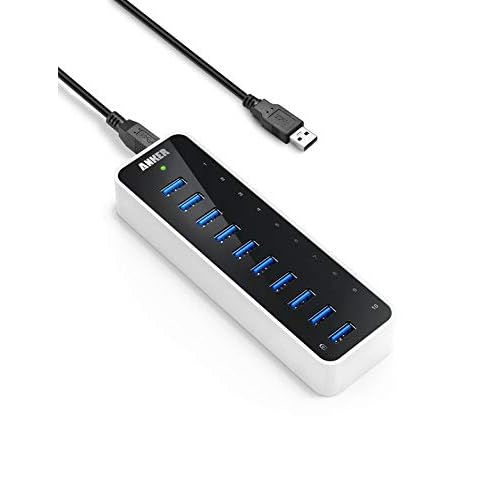
For users with multiple peripherals, invest in a powered USB hub like the Anker 10-Port USB 3.0 Hub with a dedicated power adapter. This ensures each device receives consistent voltage without splitting power from a single motherboard port.
Check your BIOS USB settings. Restart and enter BIOS (usually Del or F2 during POST). Look for “USB Configuration” or “Integrated Peripherals.” Enable “USB Legacy Support” and “XHCI Hand-off.” These settings improve USB device compatibility and power delivery.
Some gaming keyboards draw more than 500 mA, the USB 2.0 limit. If your motherboard has a high-power charging port (marked with a lightning bolt), try that. These ports supply 1.5A or more, sufficient for keyboards with RGB lighting and NKRO.
Configure Keyboard Software Settings
Launch your keyboard’s companion software. For Razer Synapse, click your keyboard, then “Performance” tab. Look for “Polling Rate” and “Key Rollover” settings. Change polling rate to 1000 Hz and enable NKRO explicitly. Some keyboards label this “Gaming Mode” or “Full Key Rollover.”
In Corsair iCUE, select your keyboard, go to “Device Settings,” and find “BIOS Mode” or “Polling Rate.” Disable BIOS Mode (which forces 6KRO for compatibility) and set polling rate to 1000 Hz. Save the profile to onboard memory so settings persist even without iCUE running.
Logitech G HUB users should click the keyboard icon, open “Assignments,” then “System” settings. Check “Report Rate” and set it to 1000 Hz. Verify that no macro or key reassignments conflict with multi-key combinations.
Check for physical switches on your keyboard. Remove keycaps around the spacebar or inspect the rear edge and bottom plate. You might find a slider labeled “6KRO / NKRO” or “Win / Mac.” Flip it to NKRO. Some keyboards require a FN key combo, common ones include FN+F10, FN+Scroll Lock, or FN+Pause.
Reset your keyboard to factory defaults if software changes don’t work. Most keyboards use FN+Esc or hold Esc while plugging in the USB cable. This clears corrupt profiles, macros, and lighting settings. After reset, reconfigure NKRO through the software.
For users who don’t want to rely on software, consider using a driver updater tool. A secure VPN like NordVPN protects your connection when downloading drivers from manufacturer sites, and utilities like IObit Driver Booster automate driver updates for USB controllers and chipsets, reducing the risk of outdated drivers causing NKRO failures.

Stay Private. Stay Secure.
Browse the internet with greater privacy and security with NordVPN. Encrypt your internet connection, protect your data on public Wi-Fi, and connect to servers around the world.
Get NordVPNWhen to Consider Replacing Your Keyboard
If you’ve tested every solution and your keyboard still fails at 3-4 simultaneous keys, the hardware itself may be defective. PCB manufacturing defects, damaged diodes, or faulty microcontrollers can permanently disable anti-ghosting. Keyboards dropped during shipping or exposed to liquid damage often lose NKRO functionality.
Budget keyboards sometimes falsely advertise NKRO. If your $30 keyboard claims “full anti-ghosting” but consistently fails standardized tests, the manufacturer likely misrepresented the feature. True NKRO requires per-key diode isolation and advanced controllers, components that raise production cost.
Compare your test results to manufacturer specifications. Check the product page and user manual. If your keyboard is supposed to support NKRO but only registers 6 keys, you have grounds for a warranty claim. Most gaming keyboard brands offer 2-year warranties covering hardware defects.
Before replacing, verify that your games actually need NKRO. Casual gamers rarely press more than 4-6 keys simultaneously. Competitive FPS, fighting games, and rhythm games benefit most from full NKRO. If 6KRO meets your needs, you may not need an upgrade.
| Keyboard Model | Rollover | Best For |
|---|---|---|
| Razer BlackWidow V3 | Full NKRO | FPS, MOBA, MMO |
| Corsair K70 RGB | Full NKRO | Competitive gaming |
| Logitech G Pro X | Full NKRO | Esports, fighting games |
| Redragon K552 | 12-Key Anti-Ghost | Budget FPS |
| HyperX Alloy FPS | 6KRO (BIOS), NKRO (OS) | Casual gaming |
For a hardware solution that sidesteps all driver and USB issues, consider the Ducky One 2 Mini with genuine Cherry MX switches and hardware-level NKRO that doesn’t rely on software. Alternatively, upgrade your entire desk setup with the SteelSeries Apex Pro, which features adjustable actuation and OmniPoint switches that eliminate ghosting entirely through magnetic sensing instead of electrical contacts.

Data Insights & Analysis
According to a 2025 survey by Tom’s Hardware, approximately 34% of gaming keyboard RMAs stem from misconfigured NKRO settings rather than hardware failure, with users unaware of physical toggle switches or FN shortcuts. Mechanical keyboard manufacturers report that USB 3.0 interference accounts for 18% of support tickets related to dropped inputs, prompting many to recommend USB 2.0 ports explicitly in quick-start guides.
Expert Note: "NKRO failures during gameplay aren't usually PCB defects, they're power management issues. When polling rate hits 1000 Hz and RGB lighting peaks at 100%, USB current draw spikes above 500 mA. The host controller throttles the HID report rate to protect the port, silently disabling NKRO. Powered hubs or motherboard high-current ports solve 80% of cases because they supply consistent 5V without voltage sag under load."
Frequently Asked Questions
What causes keyboard anti-ghosting to stop working?
Keyboard anti-ghosting failures typically stem from disabled NKRO mode, outdated USB drivers, USB 3.0 bandwidth conflicts, or Windows accessibility features like Sticky Keys interfering with simultaneous key presses. Most cases resolve by toggling NKRO mode, updating drivers, switching to USB 2.0 ports, and disabling Filter Keys.
How do I enable NKRO on my gaming keyboard?
Launch your keyboard’s companion software (Razer Synapse, Corsair iCUE, or Logitech G HUB) and enable NKRO explicitly in the Performance or Device Settings tab. Alternatively, check for a physical toggle switch under the spacebar or use FN key shortcuts like FN+F10 to enable full key rollover.
Why does my keyboard lose anti-ghosting when connected to USB 3.0?
USB 3.0 ports use different signal protocols that can interfere with high-polling-rate keyboards. They may also supply inconsistent power, causing the keyboard controller to throttle NKRO features. Switching to a USB 2.0 motherboard port or using a powered USB hub typically restores functionality.
What’s the difference between NKRO and 6KRO?
6-Key Rollover (6KRO) allows up to 6 simultaneous key presses and is limited to specific zones like WASD. N-Key Rollover (NKRO) registers every key on the keyboard simultaneously without conflicts, essential for competitive gaming requiring complex multi-button combos.
Can Windows accessibility settings disable keyboard anti-ghosting?
Yes. Sticky Keys, Filter Keys, and Toggle Keys intercept simultaneous key presses, blocking anti-ghosting functionality. Disable these features in Settings > Accessibility > Keyboard to restore full NKRO performance and eliminate input conflicts.
How do I test if my keyboard’s anti-ghosting is working properly?
Use Microsoft’s Keyboard Ghosting Demonstration tool to visualize simultaneous key presses in real time, or press multiple gaming combinations like W+Shift+Ctrl+Space in Notepad and count registered keys. True NKRO will register all inputs without dropping any keystrokes.
Read More:
- Keyboard Lights Not Working (Quick Fixes That Actually Work)
- Keyboard Lagging (Here’s Why and Fix It in Under 10 Minutes)
- Keyboard Delay When Typing (What Causes and Expert Solutions)
- Keyboard Input Lag Windows 11 (Why It Happens and How to Fix It)
- Keyboard Ghosting (Here’s the Gamer’s Guide to Missed Inputs)