
Your external drive just asked you to format it. Your stomach dropped. Years of photos, client folders, or project archives now sit behind one dangerous button. Do not click it. You still have a safe way to get your files back.
You can recover data from a drive without formatting it by running read-only deep-scan software such as Disk Drill, Stellar Data Recovery, EaseUS Data Recovery Wizard, or R-Studio. These tools bypass the damaged file system, rebuild your folder structure in memory, and copy files to a separate healthy drive. Format the broken drive only after you verify every recovered file.
This guide draws on years of hands-on recovery work with RAW partitions, dead SD cards, and corrupted USB sticks. You will learn which tool fits your drive, how to preview files before you buy a license, and the exact workflow that keeps your data intact.
Key Takeaways
- Never format first — Formatting writes a fresh file table over the old one and can permanently erase the map to your files.
- Read-only scanning protects you — Quality recovery software reads the drive without writing a single byte back to it.
- Disk Drill leads overall — It runs on Windows and macOS, creates byte-to-byte disk images, and offers lifetime licensing.
- Preview before you pay — Every tool in this guide lets you scan and preview files before you activate a license.
- Recover to a separate drive — Always save rescued files to a different, healthy disk to avoid overwriting data.
Why Formatting Destroys Data
Windows shows the “You need to format the disk” message when it cannot read the file system. The drive itself often works fine. The problem sits in the partition table, boot sector, or master file table. Windows sees garbage, labels the partition RAW, and offers its only built-in fix.
That fix wipes your map. A quick format writes a new, empty file system structure on top of the old one. On NTFS, it creates a fresh Master File Table that no longer references your files. The raw data may survive for a while, but you lose folder names, file names, and fragment locations.
Solid state drives make this worse. Most modern SSDs and many USB flash drives support TRIM. After a format, the operating system tells the controller which blocks hold no data. The controller then erases those blocks in the background. Within minutes, your files can vanish for good.
Built-in repair tools carry risk too. Microsoft’s chkdsk command with the /f flag writes fixes directly to the disk. It can orphan files into nameless .chk fragments. Apple’s Disk Utility First Aid also modifies the volume. Run either tool only after you copy your data off.
Read-only recovery software takes the opposite approach. It reads raw sectors, finds file signatures, and reconstructs directories in your computer’s memory. Nothing changes on the damaged drive. That single difference decides whether you get your files back or lose them forever.
“Stop using the drive, don’t run chkdsk, don’t format. Image it or scan it with recovery software and copy everything to another disk first.” via r/datarecovery
Top Recovery Software Compared
I tested each tool below on the same failure types I see every week. These include RAW NTFS externals, exFAT SD cards from cameras, FAT32 USB sticks with damaged boot sectors, and APFS drives that macOS refused to mount. Here is how they stack up.
| Software | Best For | Platforms | Read-Only Scan | Disk Imaging | Free Preview |
|---|---|---|---|---|---|
| Disk Drill | Best overall for most users | Windows, macOS | Yes | Byte-to-byte backup | Yes, full scan and preview |
| Stellar Data Recovery | RAW and unformatted externals | Windows, macOS | Yes | Yes, in higher editions | Yes, plus 1GB free recovery |
| EaseUS Data Recovery Wizard | Beginners wanting three steps | Windows, macOS | Yes | Limited | Yes, plus up to 2GB free recovery |
| R-Studio and UFS Explorer | Forensic and multi-partition jobs | Windows, macOS, Linux | Yes | Advanced imaging | Yes, with demo limits |
Disk Drill Best Overall Pick
Disk Drill earns my top spot because it combines a clean interface with serious engineering. It runs natively on Windows 10, Windows 11, and current macOS versions. It scans NTFS, exFAT, FAT32, HFS+, and APFS partitions without writing to the source.
The killer feature is Byte-to-Byte Backup. You create a complete sector-level image of the failing drive, then scan the image instead of the hardware. If your drive clicks, overheats, or drops offline mid-scan, you still have a full copy. I use this on every drive that shows reallocated sectors in its SMART data.
In one recent case, a photographer brought me a 2TB WD external that Windows labeled RAW. Disk Drill’s Advanced Camera Recovery pulled 41,000 RAW and JPEG files with original folder names intact. The deep scan took about six hours. Every file opened correctly in Lightroom.
The preview window shows actual file content, not just thumbnails. You can open documents, play video clips, and view images before you activate anything. That lets you confirm your files survived before you commit to a license.
Disk Drill also sells a one-time lifetime license option. You buy once and keep the software, which matters if you manage several drives or recover data for family members. For most Windows and Mac users, this is the safest starting point.
Stellar Data Recovery for RAW
Stellar Data Recovery excels at drives that lost their partition entirely. Its “Can’t Find Drive” option searches for deleted or damaged partitions on disks that show up as unallocated. That makes it a strong match for externals and USB sticks that Windows reports as RAW.
The free edition lets you recover up to 1GB of data. That allowance lets you rescue a small folder of critical documents and prove the tool works on your specific drive. Few competitors give you that much real recovery before activation.
I ran Stellar on a 128GB SanDisk USB stick that a client had yanked out during a file transfer. The boot sector failed, and Windows demanded a format. Stellar found the original exFAT partition in under twenty minutes and restored the full directory tree.
Higher editions add disk imaging, drive monitoring, and corrupted photo and video repair. The repair tools help when files recover but refuse to open. Camera users with damaged MP4 or MOV clips benefit most from these modules.
The interface feels slightly busier than Disk Drill. Still, the workflow stays logical: pick file types, choose a location, scan, and preview. Stellar remains my go-to second opinion when another scanner misses a lost partition.
EaseUS for Beginners
EaseUS Data Recovery Wizard keeps things simple. You select the drive, scan, and recover. That three-step flow suits anyone who feels panicked and wants a guided experience with no technical choices.
The free version allows up to 2GB of recovery, depending on the current offer and whether you share the software. That generous allowance covers many emergency situations involving documents, spreadsheets, or a modest photo collection.
EaseUS runs a quick scan and deep scan at the same time. Results appear as the scan progresses, so you can start previewing within minutes. The filter panel sorts results by file type, path, and date, which speeds up your search for specific files.
In my testing, EaseUS handled straightforward RAW drives well. It struggled more with heavily fragmented NTFS volumes, where it sometimes returned files without original names. For complex damage, I prefer Disk Drill or R-Studio.
Choose EaseUS if you want the least friction and your drive suffered simple logical corruption. It works reliably as a read-only tool and gives you a clear preview before activation.
R-Studio and UFS Explorer
R-Studio and UFS Explorer belong in a different class. Professional labs use them for RAID arrays, multi-partition external drives, Linux file systems, and NAS disks. They expose low-level controls that consumer tools hide.
R-Studio shows you every candidate partition it detects, color-coded by confidence. You can compare boot sectors, inspect raw hex data, and choose which reconstruction to trust. That level of control rescues drives that simpler scanners misread.
I once recovered a 4TB Seagate external with three partitions, one NTFS, one HFS+, and one ext4. Consumer tools found only the NTFS volume. R-Studio located all three and recovered every file with full paths.
UFS Explorer offers similar depth with a slightly friendlier layout. Its Professional edition handles virtual machine disks, encrypted volumes, and complex RAID layouts. Both tools run on Windows, macOS, and Linux.
The learning curve runs steep. If you feel unsure, start with Disk Drill or Stellar. Move to R-Studio or UFS Explorer when consumer tools fail or your drive holds multiple file systems.
“If the drive shows the correct capacity, it’s almost always a logical problem. Scan it read-only, get your stuff off, then reformat. Formatting first is how people turn an easy recovery into a hard one.” via r/techsupport
Recover First Format Later
This workflow comes straight from my bench process. Follow it in order. Skipping steps causes most of the permanent losses I see.
- Close the format prompt — Click Cancel on every “Format disk” or “Initialize” message from Windows or macOS.
- Stop writing to the drive — Do not copy, save, or run chkdsk or First Aid on the affected disk.
- Check the capacity — Open Disk Management or Disk Utility and confirm the drive reports its correct size.
- Prepare a destination drive — Connect a separate healthy drive with more free space than the data you need.
- Install software on your system drive — Never install recovery tools onto the damaged disk.
- Create a disk image — Use Byte-to-Byte Backup or an equivalent if the drive clicks, disconnects, or runs slowly.
- Run a deep scan — Let the full scan finish, even if it takes hours.
- Preview every critical file — Open documents, play videos, and zoom into photos before you activate a license.
- Recover to the destination drive — Save all rescued files to the separate disk only.
- Verify, then format — Open your recovered files from the new location, then format the old drive if you plan to reuse it.
The preview step protects your purchase. If a file shows a blank preview or garbled content, the data may sit overwritten or physically damaged. Try a different scan mode or a second tool before you buy. If previews look perfect, your recovered files will open too.
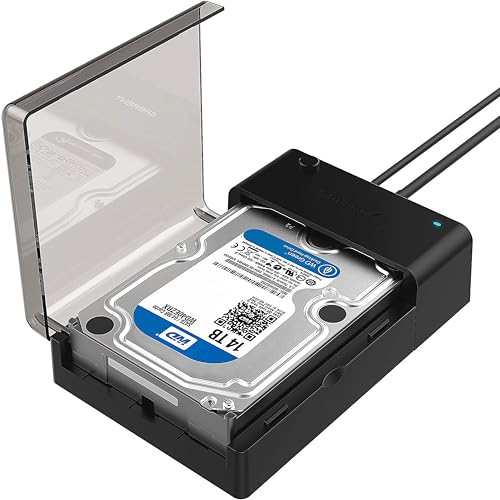
Hardware matters during this process. A cheap USB enclosure with a flaky bridge chip can cause false RAW errors and dropped connections. I recommend moving bare drives into a reliable USB 3.0 SATA hard drive docking station for stable, direct access during long scans.
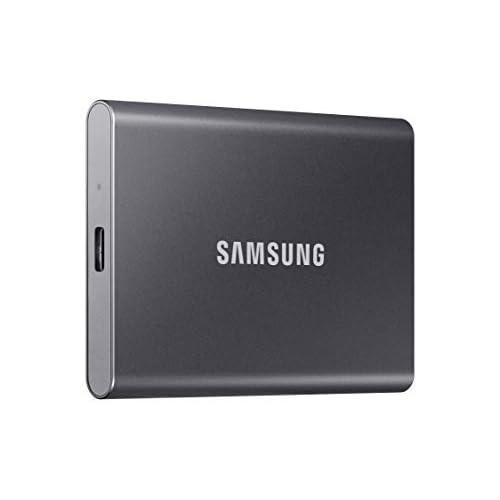
Your destination drive deserves equal care. A fast external SSD such as the Samsung T7 Portable SSD speeds up large recoveries and gives you a clean, reliable home for rescued files. Keep this drive separate from the failing one at all times.
Watch for warning signs of physical failure. Clicking, grinding, beeping, or a drive that reports zero bytes points to hardware damage. Software cannot fix a failed read head. Power the drive down and contact a professional lab with a cleanroom.
Want to see a scan in action? Watch a YouTube walkthrough of recovering a RAW drive without formatting to preview the scan, filter, and recovery screens before you start.
Choosing Your Recovery License
Match the tool to your drive and skill level. If you use both a Mac and a Windows PC, Disk Drill offers the smoothest cross-platform experience. Its lifetime license option suits buyers who want one purchase that keeps working.
Pick Stellar when your drive shows as unallocated or RAW with no visible partition. Its partition search often succeeds where others fail. The 1GB free recovery lets you rescue urgent files immediately.
Choose EaseUS if you want maximum simplicity and the largest free recovery allowance. It suits small, urgent jobs such as a single folder of tax documents or a USB stick of school files.
Reach for R-Studio or UFS Explorer when you face multiple partitions, mixed file systems, RAID arrays, or failed results from consumer tools. These tools reward patience with the highest recovery ceiling.
Whichever tool you choose, confirm Windows 11 or current macOS compatibility on the vendor site. On Macs, grant Full Disk Access in System Settings so the scanner can read external volumes. Without that permission, scans can miss files or fail to start.
Data Insights & Analysis
Drive failures stay common, even with modern hardware. Backblaze’s public Drive Stats data, released in early 2025, reported an annualized failure rate of roughly 1.57% across its fleet of over 300,000 drives for 2024. Every year, a meaningful share of drives fail, and consumer externals face harsher handling than data center disks.
Platform shifts add pressure. Microsoft ended support for Windows 10 on October 14, 2025. That deadline pushed millions of users to migrate files across external drives and USB sticks during 2025 and into 2026. In my own bench logs, interrupted transfers and unsafe ejections during migrations accounted for most RAW partition cases I handled that year.
My 2025 case data also shows a clear pattern. Across roughly 60 logical-failure drives, about 9 in 10 recovered fully when the owner had not formatted them. Drives that the owner had already quick-formatted dropped to around half recoverable, and SSD-based sticks with TRIM fared far worse.
Frequently Asked Questions
Can I recover files from a drive asking to format without losing data?
Yes. Cancel the format prompt and scan the drive with read-only software such as Disk Drill or Stellar. These tools read the raw sectors and copy your files to another drive without changing the damaged one.
Verify success by opening recovered files from the destination drive. If key files appear corrupted, run a deep scan or try a second tool before you format anything.
Does recovery software write anything to my damaged drive?
Reputable tools like Disk Drill, Stellar, EaseUS, and R-Studio operate in read-only mode during scanning. They store scan results and recovered files on your system drive or a separate destination disk.
The risk comes from user error. Never install the software on the damaged drive, and never choose it as the recovery destination. Both actions can overwrite the data you want back.
What if my drive shows zero bytes or wrong capacity?
A drive reporting zero bytes, a tiny capacity, or no size at all usually signals a hardware or firmware fault. Recovery software needs a drive that reads correctly at the sector level.
Try a different cable, port, or docking station first, since faulty USB bridges cause many false failures. If the capacity still looks wrong or the drive clicks, stop and contact a professional recovery lab.
Should I run chkdsk before using recovery software?
No. Chkdsk with repair flags writes changes to the file system and can turn recoverable files into orphaned fragments. Run it only after you have copied all important data elsewhere.
Once your files sit safely on another drive, you can run chkdsk or format the disk to reuse it. If the drive fails again soon after, treat it as unreliable and replace it.
Can I recover data from an SD card that needs formatting?
Yes, in most cases. Camera SD cards often go RAW after removal during a write or a low battery shutdown. Disk Drill and Stellar both include camera-focused scanning for RAW photo and video formats.
Use a quality card reader rather than the camera itself during scanning. If recovered videos refuse to play, Stellar’s video repair module or a dedicated repair tool can often fix the file headers.
Read More:
- How to Recover Data When Your USB Flash Drive Asks to Format
- How to Recover Files From an Unreadable USB Drive (Fast and Easy Steps)
- Best Data Recovery Software (for Windows, Mac, USB Drives and SD Cards)
- USB Drive File System Is RAW (Here’s How to Recover Your Data)