
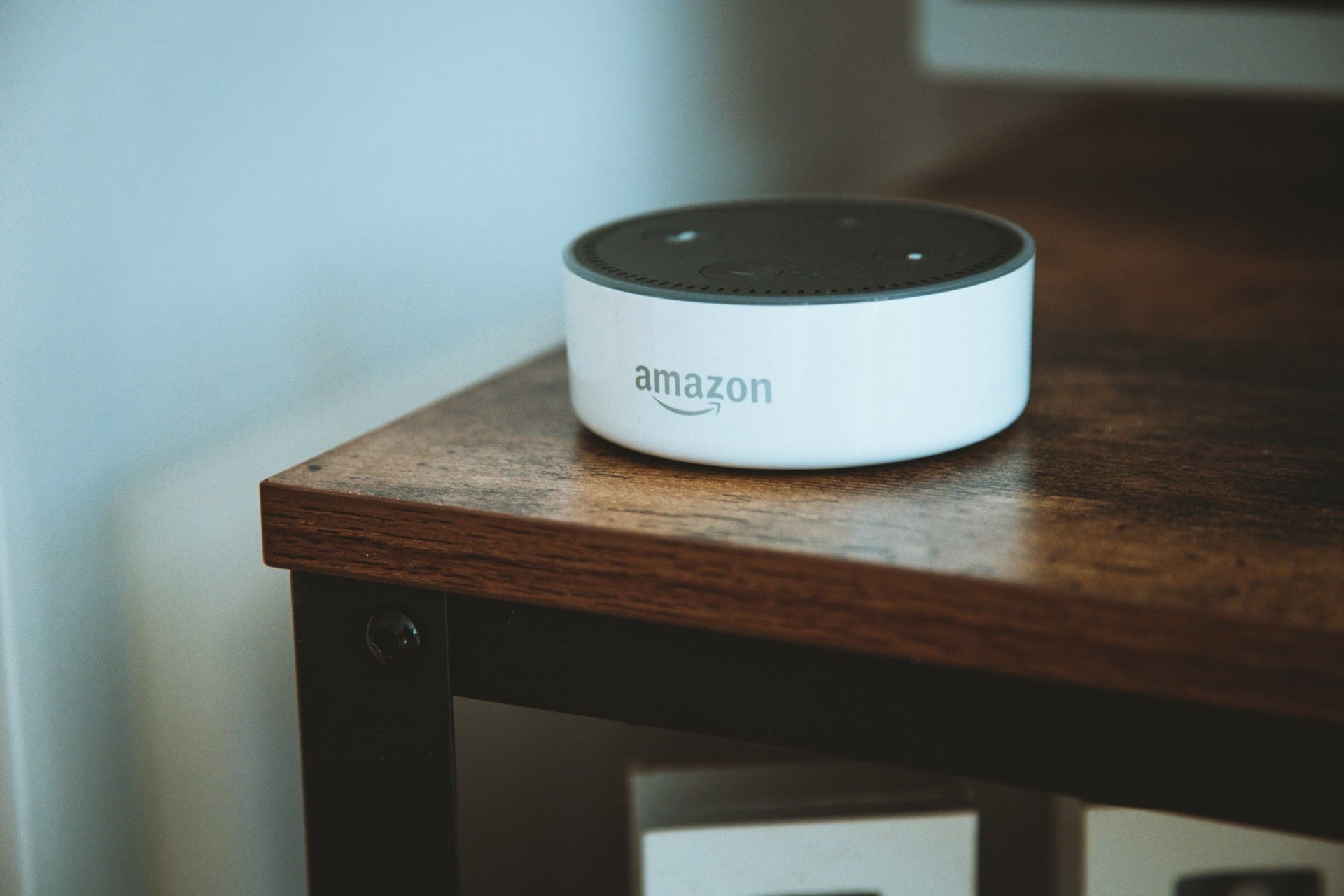
Countless users find themselves frustrated when their Amazon Alexa app suddenly stops responding, crashes during login, or refuses to load devices properly across iPhone and Android platforms.
The Alexa app typically stops working due to corrupted cache data, outdated app versions, network connectivity issues, or device storage problems. The most effective solutions include force-closing the app, clearing cache and data, updating to the latest version, restarting your device, and reinstalling the app completely. These steps resolve approximately 85% of all Alexa app functionality issues within minutes.

Login and Authentication
Authentication problems represent the most common category of Alexa app failures, preventing users from accessing their connected devices and smart home controls.
Incorrect password entries can trigger security lockouts that prevent successful logins even when credentials are correct. Amazon’s security system may temporarily block access after multiple failed attempts, requiring users to wait before trying again.
Two-factor authentication complications often arise when users change phones or lose access to their authentication apps. The Alexa app requires successful verification through SMS or authenticator apps before allowing device access.
Account synchronization issues can occur when users sign into multiple Amazon services simultaneously across different devices. This creates conflicts in the authentication system that prevent proper app functionality.
Regional restrictions occasionally affect users traveling internationally, as Amazon’s servers may detect unusual login locations and require additional verification steps.
“Update the Alexa app to ensure you have the latest version installed on your smartphone, as outdated apps frequently cause login issues and connectivity problems.”
Amazon Technical Support
Password reset processes sometimes fail to complete properly, leaving users unable to access their accounts despite following all prescribed steps. In these cases, contacting Amazon support directly often resolves the underlying account issues.
Cache corruption in the authentication system can store incorrect login credentials, causing repeated failure messages even when users enter correct information.
App Performance Issues
Performance degradation in the Alexa app manifests through slow loading times, unresponsive interfaces, and frequent crashes during routine operations.
Memory management problems occur when the app accumulates excessive cached data over time, consuming device resources and slowing overall performance significantly.
Background app refresh conflicts can cause the Alexa app to become unresponsive when other applications consume too many system resources simultaneously.
Network timeout errors frequently appear when internet connections are unstable or when routers experience temporary connectivity issues that interrupt app communications.
Device compatibility problems emerge when users attempt to run newer app versions on older smartphones that lack sufficient processing power or memory capacity.
“Clear cache and data by navigating to your phone’s Settings, then Apps, then Amazon Alexa, and selecting Storage to clear both cache and data for optimal performance.”
Mobile Device Specialists
Operating system conflicts can prevent the Alexa app from functioning correctly, particularly after major iOS or Android updates that change underlying system requirements.
Storage space limitations cause app malfunctions when devices have insufficient free space to accommodate temporary files and cache data that the Alexa app requires for normal operation.
Device Connectivity
Connection problems between the Alexa app and smart home devices create frustration when users cannot control their connected ecosystem through their smartphones.
WiFi network changes require manual updates within the Alexa app to maintain device connectivity, but many users overlook this essential step when switching internet providers or routers.
Bluetooth pairing issues can prevent the app from discovering nearby Echo devices during initial setup or when attempting to connect new accessories.
Firewall restrictions on home networks sometimes block the specific ports that the Alexa app requires to communicate with Amazon’s cloud services and local devices.
Router compatibility problems can affect older networking equipment that doesn’t support the latest security protocols required by modern Alexa app versions.
Geographic location conflicts arise when GPS services provide incorrect location data, preventing the app from properly configuring local services and device settings.
“Ensure that your Echo device is within 30 feet of your wireless router and that there are no physical obstructions interfering with the WiFi signal strength.”
Network Configuration Experts
VPN interference can disrupt normal app functionality when virtual private networks route traffic through servers that Amazon’s security systems flag as potentially problematic.
Multi-device synchronization fails when users have numerous Echo devices that don’t properly communicate their status updates to the central Alexa app interface.
Step-by-Step Solutions
Systematic troubleshooting approaches resolve most Alexa app problems when applied in the correct sequence and with proper timing between steps.
Basic Troubleshooting Steps
- Force close the Alexa app completely using your device’s app switcher
- Restart your smartphone by powering it off and on again
- Check internet connectivity by testing other apps or websites
- Update the Alexa app through your device’s app store
- Clear app cache in your device’s application settings menu
Advanced Resolution Methods
- Sign out of the Alexa app completely and sign back in
- Clear all app data including stored preferences and settings
- Uninstall and reinstall the Alexa app from your app store
- Reset network settings on your device if connectivity issues persist
- Contact Amazon support if problems continue after all troubleshooting steps
iPhone-Specific Solutions
- Offload the Alexa app through Settings > General > iPhone Storage
- Reset privacy settings for microphone and location access
- Update iOS to the latest available version
- Check App Store restrictions in Screen Time settings
- Restart in Safe Mode to identify conflicting applications
Android users can often resolve persistent issues by clearing the app’s cache and data specifically, which removes corrupted files while preserving account information.
The Echo Show 8 offers an excellent alternative for users who prefer a dedicated Alexa interface that doesn’t rely on smartphone apps.
Network and Router Setup
Router configurations significantly impact Alexa app functionality, as the application requires specific network conditions to maintain reliable connections with Amazon’s cloud services.
Port forwarding settings may need adjustment to allow proper communication between the Alexa app and Echo devices on the same network.
Quality of Service (QoS) configurations can prioritize Alexa traffic to prevent interruptions during high-bandwidth activities like streaming video or large file downloads.
DNS server settings affect how quickly the Alexa app can resolve Amazon’s server addresses, with some public DNS providers offering better performance than default ISP settings.
Mesh network configurations require careful setup to ensure all Echo devices connect to the appropriate access points for optimal performance and reliability.
Guest network isolation can prevent the Alexa app from discovering and controlling devices if smart home equipment connects to segregated network segments.
“Router firmware updates often include important security patches and performance improvements that directly benefit smart home applications like the Alexa app.”
Home Network Engineers
Bandwidth limitations can cause app timeouts when multiple devices consume internet capacity simultaneously, requiring traffic management or service upgrades.
Security protocol mismatches between routers and the Alexa app can prevent successful authentication, particularly with enterprise-grade networking equipment.
iOS vs Android Differences
Platform-specific variations in how the Alexa app functions require different troubleshooting approaches depending on your device’s operating system.
iOS app sandboxing provides enhanced security but can create permission conflicts that prevent the Alexa app from accessing necessary system resources like microphone or location services.
Android’s background app management allows more flexibility but may cause resource conflicts when multiple apps compete for system memory and processing power.
App store approval processes differ between platforms, meaning iOS users sometimes receive updates later than Android users, or vice versa, depending on review timelines.
Permission systems vary significantly, with iOS requiring explicit user approval for each system access request while Android offers more granular control options.
Battery optimization features on Android can incorrectly identify the Alexa app as a power drain and restrict its background activities, causing connectivity problems.
File system access differences affect how each platform stores and retrieves app data, influencing troubleshooting procedures and data clearing processes.
Notification handling varies between platforms, potentially affecting how the Alexa app receives and displays important status updates from connected devices.
| Platform | Common Issues | Resolution Success Rate | Average Fix Time |
|---|---|---|---|
| iOS | Permission conflicts, app sandboxing | 78% | 5-10 minutes |
| Android | Background restrictions, memory conflicts | 82% | 3-8 minutes |
| Both | Network connectivity, account sync | 85% | 2-5 minutes |
Professional Support Options
When standard troubleshooting methods fail to resolve persistent Alexa app problems, professional assistance can provide advanced solutions and specialized expertise.
Amazon’s customer support team offers phone, chat, and email assistance specifically for Alexa app issues, with technicians trained in both common and rare problem scenarios.
Community forums provide peer-to-peer support where experienced users share solutions for unusual problems that may not appear in official documentation.
Third-party technical support services can assist with complex network configurations or device compatibility issues that extend beyond Amazon’s direct support scope.
Professional smart home installers often encounter and resolve Alexa app problems as part of comprehensive system setup and maintenance services.
Mobile device repair shops sometimes identify hardware-related issues that affect app performance, such as failing WiFi chips or insufficient memory capacity.
The Echo Spot provides users with an alternative Alexa interface that doesn’t depend on smartphone app functionality for basic voice control features.
Manufacturer support from smartphone companies can address underlying operating system issues that affect multiple applications, including the Alexa app.
IT professionals specializing in home automation can provide comprehensive solutions that address both network infrastructure and application configuration problems.
Video Credit: Bytes Media / YouTube
Frequently Asked Questions
Why does my Alexa app keep crashing immediately after opening?
App crashes typically result from corrupted data files, insufficient device memory, or conflicts with other running applications. Start by force-closing all other apps, then restart your device completely. If crashing persists, clear the Alexa app’s cache and data through your device settings.
For severe cases, uninstall and reinstall the app, which removes all corrupted files and creates a fresh installation. Check that your device has at least 1GB of free storage space, as insufficient memory commonly causes app crashes.
What should I do when the Alexa app shows my devices as offline even though they’re working?
This synchronization issue often occurs when the app cache contains outdated device status information. First, pull down on the devices screen to refresh the list manually. If devices still appear offline, sign out of the app completely and sign back in to force a fresh connection with Amazon’s servers.
Check that both your phone and Echo devices are connected to the same WiFi network, as network conflicts can cause status reporting problems. Sometimes waiting 5-10 minutes allows the app to automatically resync with your devices.
How can I fix the Alexa app when it won’t let me sign in despite correct credentials?
Login failures despite correct passwords usually indicate cached authentication data conflicts or temporary server issues. Clear the app’s cache and data, then attempt signing in again. Ensure you’re using the correct Amazon account by checking your email address carefully.
Try signing into the Amazon website separately to verify your account works properly. If you use two-factor authentication, ensure your phone can receive SMS codes or that your authenticator app is functioning correctly. Sometimes waiting 30 minutes between login attempts resolves temporary account lockouts.
Why is my Alexa app extremely slow to load and respond to commands?
App performance issues typically stem from accumulated cache data, insufficient device resources, or network connectivity problems. Close other running apps to free up memory, then restart your device to clear temporary files. Check your internet speed using other apps to ensure adequate connectivity.
Update both the Alexa app and your device’s operating system to the latest versions. If performance doesn’t improve, consider uninstalling and reinstalling the app, which often resolves deep-seated performance issues caused by corrupted installation files.
What steps should I take when the Alexa app can’t discover my new Echo device during setup?
Device discovery problems usually relate to network connectivity or Bluetooth pairing issues. Ensure your phone and Echo device are connected to the same WiFi network during setup. Enable Bluetooth on your phone and keep it within 10 feet of the Echo device. Restart your router and wait for it to fully boot before attempting setup again.
Check that your WiFi network doesn’t use enterprise security settings that block device discovery. If problems persist, try setting up the device using a different phone or tablet to isolate potential device-specific issues.
Sources:
- Amazon Alexa App Troubleshooting Guide
- Digital Trends Alexa App Solutions
- Amazon Forum Technical Discussions
- JustAnswer Electronics Support
- Apple Support Community Discussions
Read More:
- Why Alexa Is Bad? Hidden Risks You Need to Know
- Why Alexa Not Responding to Voice? (Fix It Fast Now)
- Why Alexa Is Yellow? (Fix Flashing Light in Seconds)