
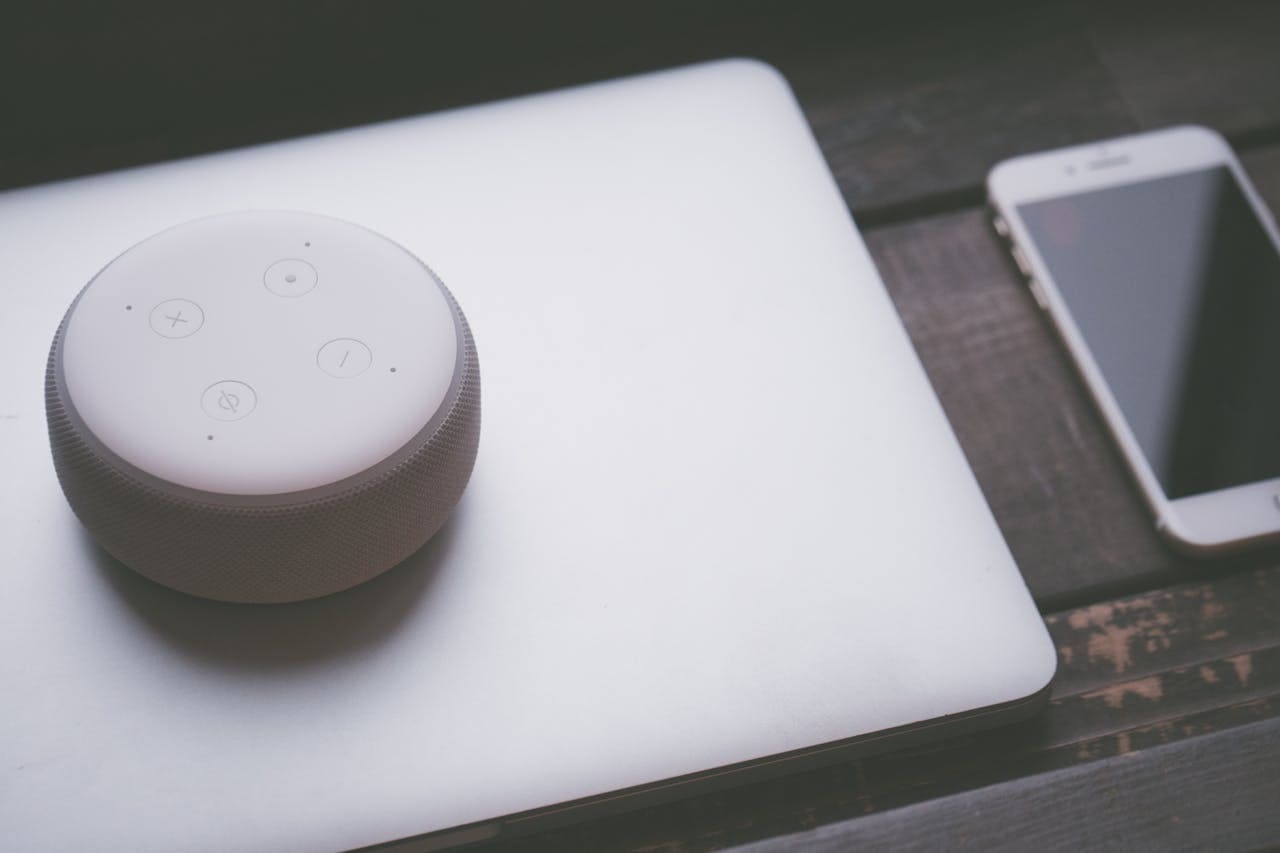
When your Alexa device refuses to connect via Bluetooth, it disrupts the seamless wireless experience you’ve come to expect from your smart home ecosystem, leaving you frustrated and searching for solutions.
Alexa Bluetooth connection failures typically result from pairing mode issues, device compatibility problems, software glitches, or interference from other wireless devices. Most problems resolve by restarting both devices, clearing Bluetooth cache, ensuring proximity during pairing, and verifying compatibility with supported Bluetooth profiles.

Why Bluetooth Connections Fail
Several interconnected factors can prevent your Alexa device from establishing or maintaining stable Bluetooth connections. Understanding these root causes helps you identify the most effective troubleshooting approach for your specific situation.
Device compatibility issues represent the most frequent stumbling block in Alexa Bluetooth connections. Not all Bluetooth devices support the specific audio profiles that Echo devices require for proper functionality. This incompatibility often manifests as connection attempts that appear successful but result in no audio output or frequent disconnections.
However, compatibility problems aren’t the only invisible barriers that can derail your wireless audio experience. Bluetooth version mismatches create another layer of complexity that many users overlook. While newer Echo devices support advanced Bluetooth standards, older smartphones and speakers might struggle with these modern protocols, creating frustrating connection scenarios that seem to work intermittently.
“Make sure that your Bluetooth device uses a supported Bluetooth profile. Move your Bluetooth and Echo devices away from sources of possible interference (such as microwaves, baby monitors, and other wireless devices).” Amazon Customer Support
Even more perplexing than compatibility issues are the signal interference patterns that develop in crowded wireless environments. Modern homes contain dozens of devices competing for the same 2.4GHz frequency spectrum that Bluetooth relies upon. This electromagnetic congestion can prevent initial pairing attempts or cause established connections to drop unexpectedly during playback.
The complexity increases exponentially when multiple Bluetooth devices attempt to connect to the same Echo device simultaneously. Alexa’s connection management system can become confused when handling competing pairing requests, sometimes remembering partial connection data that prevents new devices from connecting properly.
Pairing Mode Problems
The foundation of successful Bluetooth connections rests on properly initiating and maintaining pairing mode on both your Echo device and the target Bluetooth accessory. When pairing mode fails to activate correctly, even compatible devices cannot establish their initial handshake.
Echo devices use specific voice commands and button combinations to enter pairing mode, but these methods can fail due to timing issues or conflicting device states. Saying “Alexa, pair” should activate discovery mode, but this command might not work if your Echo device is currently processing other requests or experiencing software glitches that prevent proper mode switching.
Building on these timing challenges, many users encounter difficulties when their target Bluetooth device fails to enter pairing mode correctly. Wireless headphones, speakers, and smartphones each use different button combinations and hold durations to activate discoverable mode, and these procedures must be executed within specific time windows for successful connection establishment.
“Put your Bluetooth device in pairing mode. Open the Alexa app. Select Devices. Select Echo & Alexa. Select your device. Select Bluetooth Devices, and then select Pair a New Device.” Amazon Support Documentation
The situation becomes more complex when dealing with devices that have previously been paired with other equipment. These devices often retain connection memory that can interfere with new pairing attempts, requiring complete reset procedures before they become available for fresh connections with your Echo device.
Distance and positioning during pairing also play crucial roles that users frequently underestimate. Bluetooth pairing requires closer proximity than normal operation, typically within three feet for optimal success rates. Physical obstacles, metal surfaces, and other electronic devices can create interference patterns that prevent the initial discovery process from completing successfully.
Device Detection Issues
When your Echo device successfully enters pairing mode but fails to detect nearby Bluetooth accessories, the problem often lies in the discovery and scanning protocols that manage device visibility and recognition.
Bluetooth scanning operates on specific time intervals and frequency patterns that can be disrupted by network congestion or device resource limitations. Your Echo device might be scanning for new devices while simultaneously managing existing connections, creating resource conflicts that prevent new device detection from occurring reliably.
Cache corruption within your Echo device’s Bluetooth memory creates another category of problems that gradually worsen over time. As you pair and unpair various devices, temporary connection data accumulates that can eventually interfere with the scanning process. This corruption often manifests as inability to detect devices that were previously visible and functional.
“Make sure that your Bluetooth device is fully charged and close to your Echo device when pairing. If you’ve previously paired your Bluetooth device, remove your device from the Alexa app.” Amazon Community Forum
Background Bluetooth activity from smartphones and other devices can also interfere with Echo discovery processes. When multiple devices in your vicinity are simultaneously scanning for connections or maintaining active pairings, they can create detection conflicts that prevent your Echo from properly identifying new pairing candidates.
The Amazon Echo Dot sometimes struggles with detection when dealing with devices that use non-standard Bluetooth implementation or modified protocol stacks. Gaming controllers, specialized audio equipment, and some smart home accessories might not appear in standard device scans despite being technically compatible.
Connection Dropping Solutions
Established Bluetooth connections that frequently disconnect require different troubleshooting approaches than initial pairing problems. These intermittent failures often indicate power management, interference, or protocol negotiation issues that develop after successful connection establishment.
Power saving features on smartphones and tablets can cause unexpected Bluetooth disconnections when these devices enter sleep mode or activate battery optimization settings. Many mobile devices automatically disable Bluetooth connections to preserve battery life, creating apparent Echo device problems that actually originate from the connected accessory.
The first step in resolving connection stability involves checking power management settings on your connected devices. Navigate to your smartphone’s Bluetooth settings and disable battery optimization for the Alexa app and Bluetooth system services. This prevents your phone from automatically terminating connections during periods of inactivity.
Signal strength monitoring becomes essential when connections drop frequently during specific activities or in certain locations. Bluetooth operates effectively within approximately 30 feet, but obstacles like walls, appliances, and furniture can reduce this range significantly. Test your connection stability in different locations to identify interference sources.
“Make sure that your Echo device has the latest software update. Your Echo device software updates automatically.” Amazon Help Documentation
Advanced interference troubleshooting requires systematic identification of wireless devices that might conflict with your Bluetooth connection. Microwave ovens, wireless security cameras, and baby monitors all operate on frequencies that can disrupt Bluetooth communication. Temporarily disable suspected interference sources to determine if they affect connection stability.
Network router placement and configuration can also impact Bluetooth reliability, particularly with dual-band routers that broadcast both 2.4GHz and 5GHz signals. Switch your Echo device to the 5GHz network if available, as this reduces congestion on the 2.4GHz band that Bluetooth shares with many household devices.
Audio Quality Problems
Successfully connected Bluetooth devices that produce poor audio quality or intermittent sound require troubleshooting approaches that focus on codec compatibility, bandwidth management, and signal optimization.
Bluetooth audio codecs determine how your Echo device compresses and transmits audio data to connected speakers or headphones. Mismatched codec support between devices can result in audio that sounds compressed, delayed, or distorted even when the connection appears stable and strong.
Most Echo devices support standard Bluetooth audio profiles like A2DP and AVRCP, but they might not be optimized for advanced codecs like aptX or LDAC that some premium audio equipment requires. This mismatch often produces functional but suboptimal audio quality that doesn’t reflect either device’s true capabilities.
Buffer management becomes critical when dealing with audio dropouts or stuttering during playback. Bluetooth audio requires consistent data flow to maintain smooth reproduction, and interruptions from other wireless activities can create gaps or delays that are particularly noticeable during music or video content.
Environmental factors also contribute to audio quality degradation in ways that aren’t immediately obvious. Humidity, temperature changes, and even body position can affect Bluetooth signal propagation and cause audio quality fluctuations that seem random but actually follow predictable patterns.
| Issue Type | Common Symptoms | Quick Fix Success Rate |
|---|---|---|
| Pairing Failure | Device not found | 85% with restart |
| Connection Drops | Intermittent audio | 70% with interference removal |
| Audio Quality | Distorted sound | 60% with codec optimization |
| Range Issues | Connection at distance | 90% with repositioning |
App-Based Troubleshooting
The Alexa mobile app provides several tools and settings that can resolve Bluetooth connectivity issues that resist standard device-level troubleshooting methods.
Bluetooth device management through the Alexa app offers more granular control than voice commands alone. Navigate to Devices, select your Echo device, then choose Bluetooth Devices to access pairing history, connection status, and removal options for problematic devices. This interface provides visibility into connection attempts and failures that can guide troubleshooting efforts.
Clearing Bluetooth cache and data through the app can resolve persistent connection problems that survive device restarts. This process removes corrupted pairing information and forces your Echo device to rebuild its Bluetooth connection database from scratch, often eliminating glitches that prevent successful pairing or stable connections.
“Ensure your Echo Show 10, Alexa app and other devices have the latest software updates. Uninstall the Alexa app, powering off the device, and then reinstall.” Amazon UK Forum
App-based device removal provides a more thorough disconnection process than voice commands when dealing with problematic pairings. Select the problematic device in your Bluetooth settings and choose “Forget Device” to completely remove all connection data. This allows for fresh pairing attempts without interference from corrupted connection memory.
Network connectivity verification through the app helps identify whether Bluetooth problems stem from broader connectivity issues rather than specific Bluetooth hardware failures. Check your Echo device’s Wi-Fi status and signal strength, as poor internet connectivity can sometimes interfere with Bluetooth management processes.
The Echo Dot with Clock displays connection status information that can help diagnose Bluetooth problems when combined with app-based troubleshooting tools.
Advanced Reset Procedures
When standard troubleshooting methods fail to restore Bluetooth functionality, comprehensive reset procedures can address underlying system problems that resist simpler solutions.
Bluetooth-specific resets target the wireless communication subsystem without affecting other Echo device settings and configurations. Access this option through the Alexa app by navigating to Device Settings, selecting your Echo device, and choosing “Reset Bluetooth” from the advanced options menu. This process clears all Bluetooth pairings and connection history while preserving your device’s other settings.
However, some persistent Bluetooth problems require more aggressive intervention that addresses the entire device software stack. Factory resetting your Echo device erases all settings and returns the unit to its original configuration, often resolving complex software conflicts that prevent proper Bluetooth operation.
The factory reset process varies by Echo device model but typically involves holding specific button combinations for 15-20 seconds while the device is powered on. Consult your device’s documentation for exact procedures, as incorrect reset attempts can sometimes cause additional problems rather than solving existing ones.
Network reset procedures can also resolve Bluetooth issues when they stem from router configuration problems or Wi-Fi interference patterns. Restart your wireless router and modem, then reconfigure your Echo device’s network connection to eliminate any network-related factors that might affect Bluetooth performance.
Professional diagnosis becomes necessary when multiple reset procedures fail to restore Bluetooth functionality. Contact Amazon customer support for advanced troubleshooting assistance or warranty replacement evaluation when hardware failures are suspected.
Video Credit: Fix369 / YouTube
Frequently Asked Questions
Why won’t my phone connect to Alexa via Bluetooth?
Phone connection failures often result from incompatible Bluetooth profiles or interference from other wireless devices. Ensure your phone’s Bluetooth is enabled and discoverable, then say “Alexa, pair” to put your Echo device in pairing mode. Keep both devices within three feet during the initial pairing process.
If pairing attempts fail repeatedly, restart both your phone and Echo device, then clear your phone’s Bluetooth cache through the system settings. Some phones require enabling “show all devices” in Bluetooth settings to detect Echo devices properly.
How do I know if my Bluetooth device is compatible with Alexa?
Alexa devices support standard Bluetooth audio profiles including A2DP for audio streaming and AVRCP for media control. Most modern headphones, speakers, and smartphones work without issues. Check your device documentation for Bluetooth profile support if you’re experiencing connection problems.
Gaming controllers, keyboards, and specialty devices might not be compatible even if they connect successfully. Amazon provides a compatibility list on their support website, though it’s not comprehensive for all device types and models.
Why does my Bluetooth connection keep dropping?
Frequent disconnections typically indicate interference from other wireless devices or power management settings on connected devices. Move your Echo device away from routers, microwaves, and other electronics that operate on 2.4GHz frequencies.
Check your connected device’s battery optimization settings and disable power saving features for Bluetooth services. Many smartphones automatically disconnect Bluetooth to preserve battery life, which can cause apparent Echo device problems that actually originate from the phone.
Can I connect multiple Bluetooth devices to Alexa simultaneously?
Echo devices can remember multiple paired devices but typically connect to only one audio device at a time. You can switch between paired devices by saying “Alexa, connect to [device name]” or through the Alexa app’s Bluetooth settings.
Some Echo devices support connecting to multiple device types simultaneously, such as a speaker for audio and a keyboard for input, but two audio devices cannot play simultaneously through standard Bluetooth connections.
What should I do if Alexa pairs but produces no sound?
Successful pairing without audio output usually indicates codec compatibility issues or incorrect audio routing settings. Check your connected device’s volume levels and ensure it’s set as the active audio output. Some devices require manual audio routing selection after Bluetooth connection.
Try disconnecting and reconnecting the Bluetooth device, or use voice commands like “Alexa, increase volume” to ensure audio isn’t muted. If problems persist, the devices might be using incompatible audio codecs that require different Bluetooth speakers or headphones.
Sources:
- Amazon Customer Service – Echo Bluetooth Issues
- Amazon Support – Smart Home Bluetooth Connections
- Lifewire – Alexa Troubleshooting Guide
- Amazon Forum – Bluetooth Connection Problems
- Amazon UK Forum – Bluetooth Solutions