
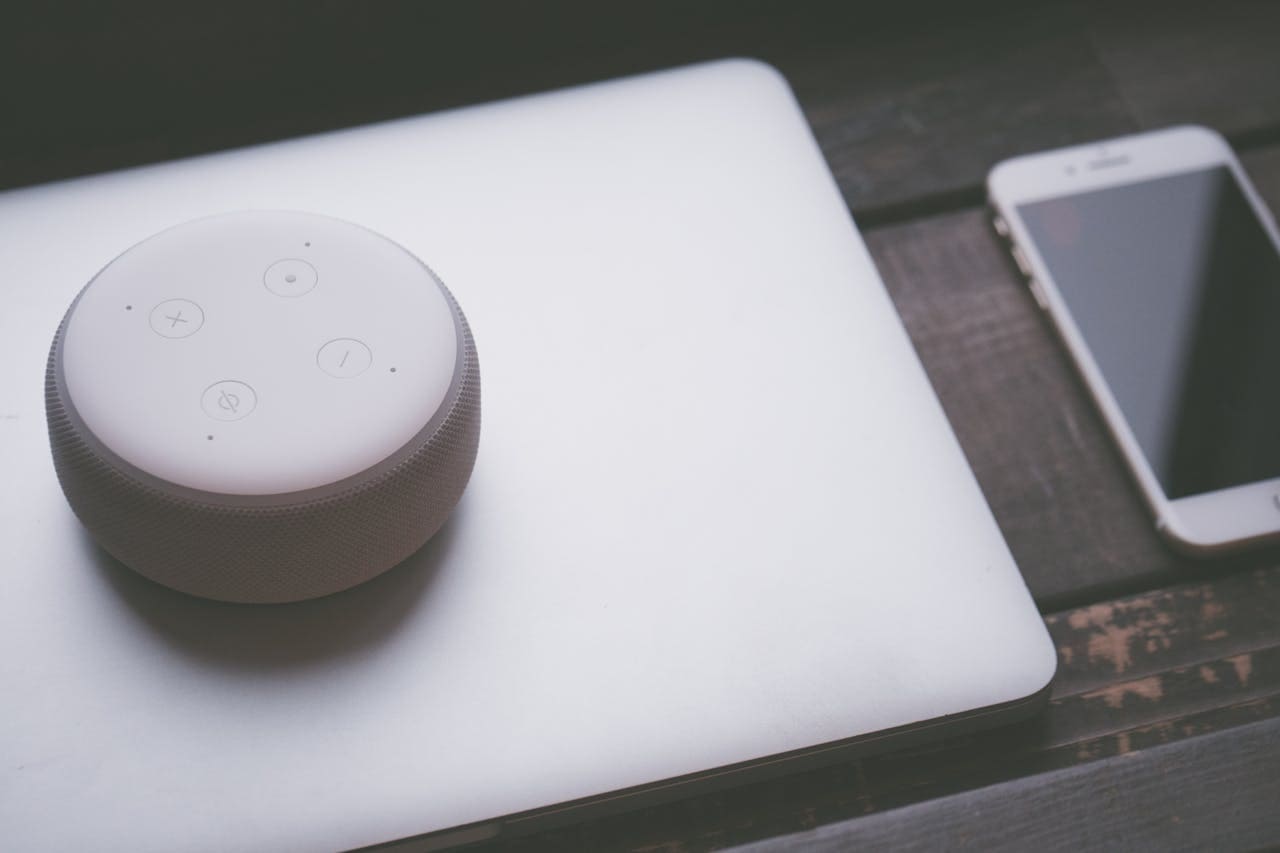
If your Alexa clock is not working, it can be frustrating when it stops showing the time or responding correctly.
The most common fix is to check the power connection, make sure the display is turned on, and adjust the brightness through the Alexa app. Sometimes, simply restarting your device or toggling the display settings can bring the clock back to life.
You may also need to reset your Echo Wall Clock by using the pairing button or removing and re-pairing the clock in the Alexa app. These steps often solve freezing or unresponsiveness issues without needing advanced troubleshooting. Understanding these simple fixes can save you time and help your Alexa clock run smoothly again.

Common Causes of Alexa Clock Issues
When your Alexa clock stops working or shows the wrong time, it usually comes down to a few key problems. These include issues with power, internet connection, software errors, or outdated device firmware.
Power Supply Problems
Your Alexa device needs a steady power source to keep the clock running. If the power adapter is loose or damaged, the clock may not display correctly or the device may restart unexpectedly.
Check that the power cable is firmly plugged into both the device and the outlet. Avoid using third-party chargers that might not provide stable voltage. Power surges or outages can also cause the clock to reset or stop working until power returns.
If your device is battery-operated or uses a backup battery, ensure the batteries have enough charge. Low power can make the display dim or unresponsive. Consistent power supply is essential for the clock to keep accurate time.
Wi-Fi Connectivity Errors
Alexa depends on Wi-Fi to sync the time with Amazon’s servers. If your Wi-Fi connection is weak, unstable, or disconnected, the clock may show the wrong time or stop updating.
Make sure your device is connected to a stable Wi-Fi network. You can use the Alexa app to check the connection status and try reconnecting if needed. Sometimes, restarting your router or device can fix minor drops in connectivity.
Be aware of network interference from other devices. This can cause Alexa to lose connection temporarily, affecting clock accuracy. Also, double-check your Wi-Fi login details if you’ve recently changed your password.
Software Glitches
Software errors can cause the Alexa clock to freeze, not display, or behave oddly. These glitches happen when Alexa’s system encounters bugs or temporary faults during operation.
Restarting your Echo device often clears these glitches. If restarting doesn’t help, try a factory reset to restore default settings. However, backups of your settings are lost during a full reset.
You may also notice problems if the Alexa app or the device’s software isn’t working smoothly. Clearing the app cache or reinstalling the app might resolve certain issues causing the clock to malfunction.
Outdated Firmware
Your Echo Dot’s firmware controls its core functions, including the clock display. If your device firmware is old, it might have bugs or compatibility problems that cause clock errors.
Check if your device firmware is up to date through the Alexa app. The device usually updates automatically when connected to Wi-Fi, but delays can occur. Staying updated ensures bug fixes and new features improve your device.
If you experience clock problems, manually triggering an update can help. Firmware updates can fix known issues related to timekeeping and display responsiveness.
Troubleshooting Alexa Clock Not Displaying
You need to check a few specific things when your Alexa clock is not showing the time. Paying attention to the device’s power state, display controls, and the time settings can help fix the issue.
Restarting the Device
Start by unplugging your Echo device from the power source. Wait about 30 seconds before plugging it back in. This simple reboot often clears temporary issues.
If the clock still does not display, try a soft reset. Hold down the action button on your Echo Dot for about 25 seconds until the light ring turns orange, then blue. The device will restart and may fix display glitches.
Make sure the device is fully updated by connecting it to Wi-Fi. Updates can improve performance and fix bugs related to the clock display.
Checking Display Settings
Open the Alexa app on your smartphone or tablet. Navigate to Devices, then select your Echo Dot with Clock.
Look for the LED Display or clock display option. Toggle it off and on again to reset the display settings.
Ensure the brightness level is not set too low. You can adjust the brightness slider in the app or say, “Alexa, increase the brightness.”
Also, verify that you are using the original power adapter included with your Echo Dot. Using a different adapter or low-power source can cause the display to malfunction.
Verifying Time Zone Configuration
In the Alexa app, go to your device settings and find the Time Zone option. Confirm it matches your current location.
If the time zone is incorrect, your clock may appear wrong or blank. Choose the correct city or time zone from the list.
Enable automatic time updates if you haven’t already. This setting allows Alexa to adjust the time during daylight saving changes or if you travel.
If you set the time manually, double-check it is accurate to avoid display errors.
Fixing Alexa Clock Sync Problems
If your Alexa clock shows the wrong time or does not update correctly, you need to check the connection, device settings, and time settings. Several specific steps can help get your clock syncing properly again.
Manually Syncing Time
To fix time sync issues, first check the time on your Echo device that the clock pairs with. If the Echo has the wrong time, the clock will also be incorrect.
You can try resetting the clock’s hands if they seem stuck or loose. Sometimes the hands detach or get misaligned.
After ensuring the Echo shows the correct time, say, “Alexa, set up my Echo Wall Clock” to start a fresh sync. This will force the clock to update and align its hands with the current time.
Replacing the clock batteries can also help. Weak batteries might cause the hands to stop moving or lag behind.
Network Synchronization Steps
Your Echo device and clock both need a stable Wi-Fi connection to sync time automatically.
Check your Wi-Fi network for any interruptions. Restart your router if the connection is weak or dropping.
Make sure your Echo device is connected to the same Wi-Fi network as your phone’s Alexa app. Mismatched networks can cause syncing issues.
You should also refresh your Alexa app by closing and reopening it, then navigating to Devices > Echo & Alexa > Bluetooth Devices to check if the clock is correctly connected.
If problems continue, reboot your Echo device by unplugging it for 30 seconds, then plug it back in and try syncing again.
Resolving Device Pairing Failures
Unpairing and repairing your Alexa clock often fixes sync problems caused by bad connections.
In the Alexa app, go to Devices > Echo & Alexa > Bluetooth Devices, find your Echo Wall Clock, and select Forget Device. Then, unpair it from any connected devices.
Reset the clock by pressing the pairing button five times, which clears its memory and prepares it for repair mode.
Hold the pairing button until the clock’s light turns orange, then use the app to pair the clock again. This complete reset often resolves hidden pairing glitches.
If you try pairing the clock with different Echo devices and the issue persists, check for physical damage to the clock hands or battery problems.
Resolving Voice Command Recognition for Clock Functions
To get your Alexa clock responding well to voice commands, focus on how clearly it hears you, manage your voice data, and improve how the device understands your speech. These steps can help fix issues with setting alarms, timers, or checking the time.
Assessing Microphone Sensitivity
Your Echo Dot with clock depends on its microphone to catch your commands. If Alexa isn’t responding, first check if the microphone is on. The microphone button usually has an icon that lights up when off.
Make sure nothing is blocking the microphone holes. Dust or dirt can reduce sensitivity. Try cleaning the device gently with a dry cloth.
If you live in a noisy environment, speak closer to the device or reduce background noise. Alexa’s microphones are designed to pick up voices from a distance, but loud sounds can interfere.
You can also test the mic by saying something simple like, “Alexa, what time is it?” If there’s no response and the mic is on, restart your device or check for updates.
Clearing Voice History
Alexa uses your voice history to improve recognition. Sometimes, old or corrupted voice data can cause misunderstandings.
To clear your voice history:
- Open the Alexa app.
- Go to Settings > Alexa Privacy.
- Select Review Voice History.
- Choose a date range or “All History.”
- Tap Delete.
Deleting voice history forces Alexa to relearn your voice commands with fresh data. This reset can improve recognition for clock functions like alarms and timers.
Be aware this may temporarily affect Alexa’s personalized responses until it relearns your voice patterns.
Improving Voice Command Accuracy
Clear and precise commands help Alexa understand you better. Use simple phrases such as “Set alarm for 7 AM” or “What time is it?”
Speak at a normal pace and avoid mumbling. If Alexa often misses commands, try emphasizing key words like “alarm” or “timer.”
You can also train Alexa to recognize your accent better by repeating commands multiple times in the Alexa app’s settings under Voice Training.
Make sure your device’s software is up to date. Firmware updates often include improvements to voice recognition technology.
Finally, place your device where it can clearly hear you without obstructions, typically in an open space rather than inside cabinets or behind furniture.
Addressing Alarm and Timer Malfunctions
You need to check how alarms and timers are set, confirm they work properly, and manage sound and volume settings to fix problems. Making small adjustments in these areas often restores proper function.
Setting and Editing Alarms
Start by verifying the alarm time and settings in the Alexa app or by asking Alexa directly. Check that the alarm is set for the correct time and day, and confirm repeat or snooze options are properly configured.
If you find the alarm isn’t set correctly, delete it and create a new one. Sometimes, a bug or outdated app version can cause issues, so make sure your Alexa app is updated.
Also, your device’s time zone should match your current location. Incorrect time zones cause alarms to go off at wrong times or not at all. You can fix this in the Alexa app under device settings.
Ensuring Timers Work Reliably
Make sure your Alexa device is connected to a steady Wi-Fi network. A weak or dropped connection can stop timers from activating at the right time.
If timers start but immediately ring or don’t ring at all, try rebooting the device. Unplug it for 30 seconds and plug it back in to refresh the system.
In the app, check the timers section and confirm they display correctly. If your timers aren’t showing or syncing, resetting the device might be necessary to clear glitches.
Alarm Sound and Volume Issues
Alarm sound problems happen if the volume is too low or the sound is set to silent. Check volume levels by asking Alexa to “set volume to 7” or adjusting it manually on the device.
You can change the alarm sound within the app to a tone you clearly hear. Some custom sounds or alarms may have bugs, so use a default sound if you experience trouble.
If you use a Bluetooth speaker or external device, verify it is connected and working. Sometimes the alarm plays through a different output, making it seem like it’s not going off.
Resetting and Reinstalling the Alexa Device
If your Alexa clock is not working, resetting it often solves many issues. You will need to carefully reset the device to its factory settings and then reconnect it to your Amazon account for full functionality.
Factory Reset Procedures
To reset your Alexa clock, first, open the Alexa app on your phone. Go to Devices, then select your Echo device.
Next, find the Bluetooth Devices section. Look for your Alexa clock and select the option to Forget Device or Unpair.
After unpairing the clock, press the pairing button on the clock itself five times. This step resets the clock to factory settings and will cause the center post to move to the 12:00 position.
If the reset does not work, try restarting both your Alexa device and your phone. The factory reset clears any previous connections and settings, allowing you to start fresh.
Reconnecting to Amazon Account
Once the clock is reset, you need to reconnect it through the Alexa app.
Open the app, go back to Devices and select your Echo device.
Choose Bluetooth Devices, then look for the option to add a new device or specifically add your Alexa clock.
Follow the on-screen instructions to pair the clock with your Echo and ensure it is connected to your Amazon account.
Make sure your Echo device is online and connected to Wi-Fi during this process.
After pairing, your Alexa clock should sync with your Echo and start working properly again.
When to Seek Professional Help
If your Alexa clock keeps having problems despite basic fixes, it’s important to recognize when the issue might be more than just software. You should also know how to get reliable support when you can’t fix the problem yourself.
Identifying Hardware Failures
If your Alexa clock’s display stays blank or flickers even after restarting and resetting, it could be a hardware problem. Signs include cracked screens, unresponsive buttons, or issues that don’t improve after reconnecting to power or Wi-Fi.
You should also watch for unusual sounds, overheating, or if the clock does not charge correctly. These are clear indicators the device might need repair or replacement.
Before assuming it’s hardware, make sure you’ve tried basic troubleshooting steps like resetting the device or checking the power source. If none of those help, you might be facing a physical failure.
Contacting Amazon Support
When you determine the problem is beyond what you can fix, reach out to Amazon Support for help. They can guide you through advanced troubleshooting or decide if your device qualifies for repair or replacement.
Have your device details ready, like model number and purchase date, to speed up the process. You can contact them through the Alexa app, Amazon’s website, or by phone.
Support can also help if your Echo Wall Clock won’t pair or respond properly. They may offer warranty service or solutions that you can’t do at home.
Read More:
- Why Alexa Is Red? Fix Your Echo Device in Minutes
- Why Alexa is Not Responding (7 Quick Fixes That Work)
- Why Alexa Is Yellow? (Fix Flashing Light in Seconds)