
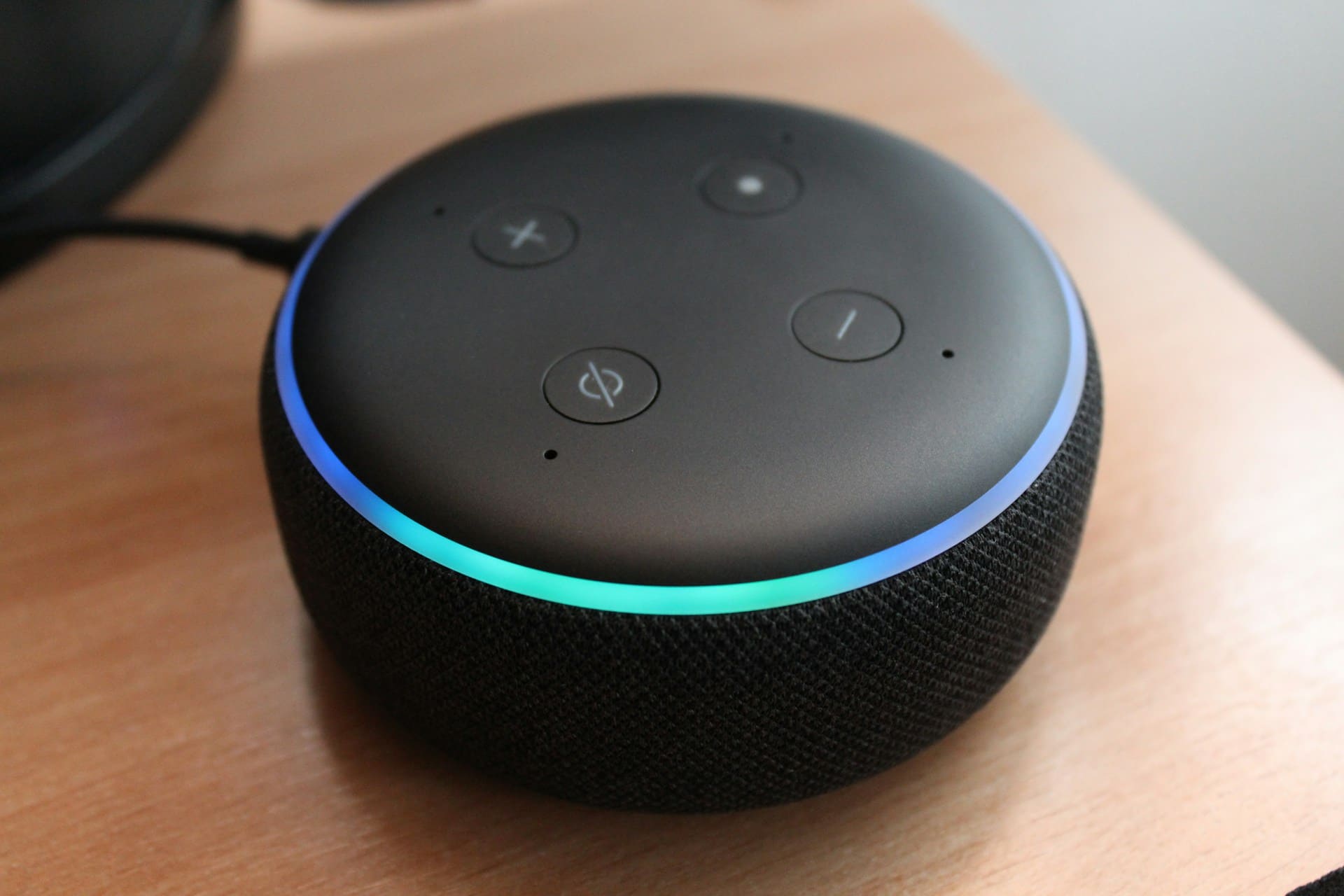
When your Alexa suddenly stops responding to your voice commands, it can be incredibly frustrating. Whether you’re trying to play music, check the weather, or control smart home devices, a malfunctioning microphone essentially renders your Echo device useless.
The most common Alexa microphone problems stem from muted microphones, Wi-Fi connectivity issues, or incorrect device placement. Simple solutions like checking the mute button, restarting your device, or repositioning your Echo can resolve 80% of microphone-related issues.
Understanding Alexa Microphone
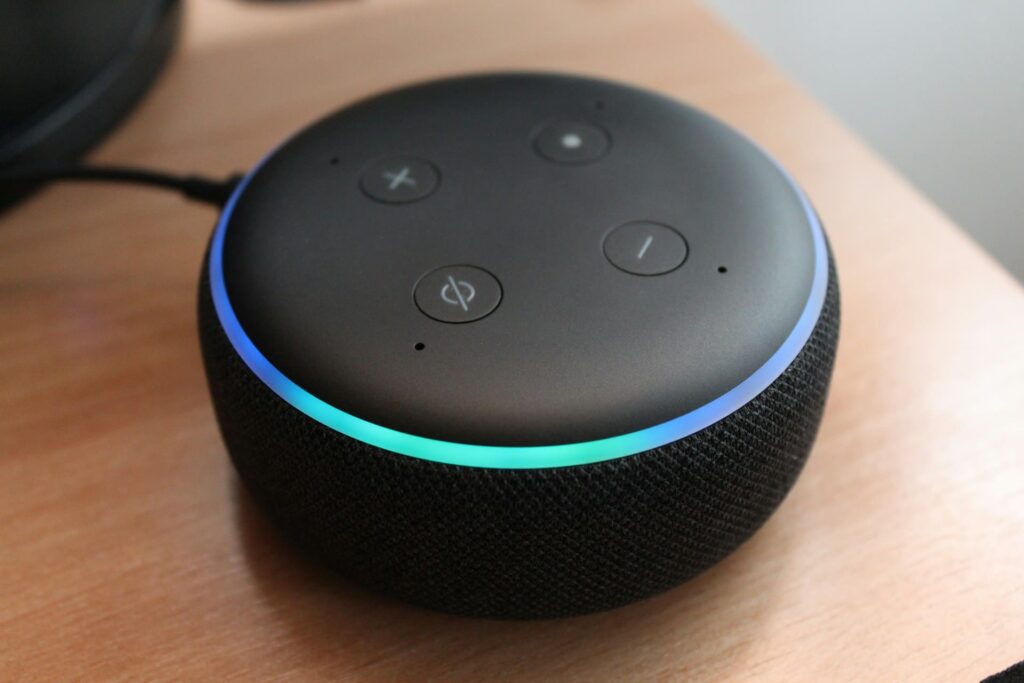
Your Amazon Echo device relies on sophisticated far-field microphones to detect your voice commands from across the room. These microphones work in tandem with Amazon’s cloud-based speech recognition technology to process your requests. When microphones malfunction, the entire communication chain breaks down.
Modern Echo devices feature multiple microphones arranged in an array pattern. This design allows the device to pinpoint your voice direction and filter out background noise. However, this complex system can encounter various issues that prevent proper functionality.
The microphone system connects directly to your device’s main processor, which then communicates with Amazon’s servers through your internet connection. Any interruption in this process can cause microphone problems that seem mysterious but often have straightforward solutions.
Causes of Microphone Failure
Several factors can cause your Alexa microphone to malfunction. Understanding these causes helps you identify the right solution faster.
Microphone muting represents the most frequent culprit behind apparent microphone failures. When you accidentally press the mute button, your Echo device displays a solid red light ring, indicating that the microphone is disabled. This simple oversight accounts for approximately 40% of all “broken” microphone reports.
Network connectivity issues create another common scenario where microphones appear to fail. Your Echo device might hear your commands perfectly but cannot process them due to poor Wi-Fi connections. This situation often confuses users who assume their microphone has stopped working.
Physical obstructions and environmental factors also impact microphone performance significantly. Dust accumulation, moisture exposure, or placement near electronic interference sources can degrade microphone sensitivity over time.
Simple Solutions That Work
Most Alexa microphone problems resolve with basic troubleshooting steps that require no technical expertise. These straightforward solutions address the majority of common issues users encounter daily.
Power cycling your Echo device often resolves temporary glitches affecting microphone functionality. This process refreshes the device’s internal systems and clears minor software conflicts that can interfere with voice recognition.
Simply unplug your device for 30 seconds, then plug it back in and wait for the startup sequence to complete. You’ll know the reset worked when you see the familiar light ring pattern during bootup.
While power cycling addresses software issues, the most frequent cause of microphone problems is surprisingly simple. Checking the mute button represents the most obvious but frequently overlooked solution.
Look for a red light ring or red microphone button on your device. A solid red light indicates your microphone is intentionally disabled, preventing Alexa from hearing any commands.
“When the microphone on/off button is pressed, the device microphone is disconnected and Alexa is not listening.” Amazon Support Documentation
Press the microphone button once to unmute your device. The red light should disappear immediately, indicating that the microphone is active again. This simple action resolves approximately 40% of all reported microphone issues, making it the first step in any troubleshooting process.
Even when your microphone functions properly, its effectiveness depends heavily on environmental factors. Repositioning your Echo device can dramatically improve microphone performance by eliminating interference and optimizing sound reception. Move your device away from walls, other electronics, and sources of background noise that can confuse the voice recognition system.
The optimal placement puts your Echo device at approximately waist height in a central location within the room. This positioning allows the microphone array to capture your voice from multiple angles while minimizing echo and reverberation. Avoid placing it inside cabinets, near speakers, or close to appliances that generate electromagnetic interference, as these locations can significantly reduce microphone sensitivity.
Advanced Troubleshooting
When basic solutions fail to resolve your microphone issues, more advanced troubleshooting techniques can identify and fix deeper problems that require systematic approaches.
Factory resetting your Echo device provides a comprehensive solution for persistent microphone problems that resist simpler fixes. This process erases all settings and returns your device to its original state, eliminating any configuration conflicts or corrupted data affecting microphone performance. However, you’ll need to reconfigure all your smart home connections and personalized settings afterward.
“If your Echo device is unresponsive, or you want to erase your device settings, factory reset your device.” Amazon Official Guide
To perform a factory reset, locate the reset button on your Echo device, which appears as a small recessed button on most models. Press and hold this button for 15-20 seconds until you see the orange light ring appear. Wait for the setup process to begin, then follow the instructions in your Alexa app to restore your device to working condition.
Software updates represent another crucial aspect of maintaining optimal microphone performance. Amazon regularly releases firmware updates that include microphone improvements, bug fixes, and enhanced voice recognition capabilities. Most updates install automatically during off-peak hours, but you can force an update by saying “Alexa, check for software updates” or accessing the settings through your Alexa app.
Physical maintenance also plays a vital role in preserving microphone functionality over time. Cleaning your Echo device removes dust and debris that can interfere with microphone performance and gradually reduce sensitivity. Use a soft, dry cloth to gently wipe the device exterior, paying special attention to the microphone grilles on top of the device where dust commonly accumulates.
For stubborn microphone issues that persist despite cleaning and updates, creating a new voice profile often provides the breakthrough needed. This process teaches Alexa to better recognize your specific voice patterns and speaking style, which can improve response accuracy dramatically. Navigate to Settings, then Voice Profiles in your Alexa app and follow the setup instructions to establish a fresh voice recognition baseline.
Network and Connectivity Fixes
Network problems often masquerade as microphone issues, creating confusion when your Echo device appears to hear commands but fails to respond appropriately. Understanding these connectivity relationships helps distinguish between actual microphone failures and network-related problems.
Wi-Fi signal strength directly impacts your Echo’s ability to process voice commands through Amazon’s cloud services. Even when your microphone captures your voice perfectly, weak signals can cause delays, timeouts, or complete failures to respond. Check your Wi-Fi strength by opening the Alexa app and viewing your device settings, where signal strength appears as bars or percentage indicators.
“Make sure you have an active internet connection. Check that your device isn’t muted.” Amazon Troubleshooting Guide
If your signal strength shows as poor or weak, several solutions can improve connectivity without requiring expensive equipment upgrades. Consider moving your router closer to your Echo device or relocating your Echo to a position with better Wi-Fi coverage. Sometimes simply elevating your router or removing physical obstructions between devices can significantly boost signal strength.
Router restart procedures can resolve network conflicts that interfere with Echo device communication in ways that aren’t immediately obvious. These conflicts often develop gradually over time as your router’s memory fills with connection data and temporary files. Unplug your router for 30 seconds, then plug it back in and wait for full connectivity restoration, which typically takes 2-3 minutes.
Bandwidth limitations create another layer of complexity that can cause microphone processing delays appearing as device failures. When multiple devices consume significant bandwidth simultaneously, your Echo might struggle to maintain consistent cloud connectivity required for voice processing. Gaming consoles, streaming services, and video calls can all compete for the bandwidth your Echo needs to function properly.
Hardware-Related Issues
Some microphone problems stem from hardware-level issues that require different approaches than software-based solutions. Recognizing these hardware symptoms helps you avoid wasting time on ineffective troubleshooting methods.
Physical damage to microphone components can occur from drops, spills, or excessive moisture exposure that compromises the delicate internal systems. Signs of hardware damage include consistently poor voice recognition despite optimal placement, intermittent microphone function that comes and goes unpredictably, or complete failure to respond to voice commands even when the device appears to function normally through button presses.
Water damage represents a particularly serious threat to microphone functionality, as moisture can corrode internal connections and damage sensitive electronic components. If your Echo device has been exposed to liquids, immediately unplug it and contact Amazon customer service for guidance. Some devices recover after thorough drying, but microphone sensitivity may remain permanently reduced even after apparent recovery.
“Check that your microphone hardware isn’t damaged by trying it on another program or computer.” Amazon PC Support
Microphone sensitivity degradation happens gradually over time, especially in dusty environments or locations with high humidity. This issue manifests as requiring increasingly louder voice commands or positioning yourself closer to the device for recognition. Unlike sudden failures, degradation develops slowly and might go unnoticed until the reduction becomes significant.
Age-related component wear affects all electronic devices, and Echo microphones are no exception to this natural process. Older devices may experience reduced sensitivity, increased background noise, or difficulty distinguishing commands from ambient sounds. While you cannot repair internal microphone components yourself, understanding these limitations helps set realistic expectations for device performance.
Environmental factors also contribute to hardware-related problems in ways that aren’t immediately apparent. Extreme temperatures, high humidity, or exposure to electromagnetic interference from other devices can gradually degrade microphone performance over months or years of use.
Professional Solutions
Some microphone problems require professional attention or device replacement when standard troubleshooting methods prove insufficient. Knowing when to escalate your troubleshooting efforts saves time and prevents potential damage from attempting inappropriate repair methods.
Warranty replacement becomes necessary when hardware failures occur within the warranty period, which varies by device model and purchase date. Amazon typically offers replacement devices for confirmed hardware defects, but you’ll need to provide proof of purchase and demonstrate that you’ve attempted basic troubleshooting steps before requesting replacement.
“Try unplugging the plug from the side of the unit, wait 30 seconds, and then plug it back in.” Amazon Customer Support Response
Amazon customer support provides advanced troubleshooting assistance for complex microphone issues that exceed standard user repair capabilities. Their technical team can perform remote diagnostics through your device’s internet connection and guide you through specialized repair procedures not available in standard documentation. This service proves particularly valuable for intermittent problems that are difficult to reproduce consistently.
Contact support when you’ve exhausted all basic troubleshooting steps and your device still fails to respond to voice commands despite showing normal operation otherwise. Document your troubleshooting attempts, including specific steps taken and results observed, as this information helps support representatives diagnose your problem more efficiently.
Professional repair services offer an alternative for out-of-warranty devices with sentimental value or specialized configurations that would be expensive to replace. However, replacement often costs less than professional repair for most Echo models, making economic sense the primary consideration in this decision.
The cost-benefit analysis becomes more complex when considering data migration, smart home integration, and setup time required for replacement devices. Sometimes paying for professional repair makes sense when the total cost of replacement includes significant time investment in reconfiguration and setup.
Video Credit: Helpful Solutions / YouTube
Frequently Asked Questions
Why does my Alexa microphone stop working randomly?
Random microphone failures often result from temporary software glitches, network connectivity issues, or interference from other electronic devices. Most cases resolve with a simple power cycle or device restart. Environmental factors like humidity changes or dust accumulation can also cause intermittent microphone problems.
If random failures persist, check your Wi-Fi connection stability and consider updating your device software. Sometimes background processes or memory issues cause temporary microphone malfunctions that clear up after restarting your Echo device.
Can I fix a physically damaged Alexa microphone myself?
Physical microphone damage typically requires professional repair or device replacement. Echo devices use integrated microphone arrays that cannot be easily replaced by consumers. Attempting DIY repairs usually voids warranties and can cause additional damage.
If your device suffered liquid damage, immediately unplug it and contact Amazon support. Sometimes devices recover after thorough drying, but microphone sensitivity may remain permanently reduced.
How do I know if my microphone is muted or broken?
A muted microphone displays a solid red light ring on most Echo devices. Press the microphone button once to unmute and restore functionality. If the red light persists or you see no lights at all, the issue likely involves hardware problems or power supply issues.
Broken microphones typically show no response to voice commands even when the device appears to function normally through button presses or app controls. Test by speaking directly into the device at various volumes to distinguish between muting and hardware failure.
Why won’t my Echo respond even when the microphone isn’t muted?
Non-muted devices that don’t respond to voice commands often have network connectivity problems or incorrect wake word settings. Check your Wi-Fi connection and ensure your device shows as online in the Alexa app.
Verify your wake word settings haven’t changed accidentally. Some users inadvertently switch from “Alexa” to “Echo,” “Amazon,” or “Computer,” causing apparent microphone failures when using the wrong wake word.
How often should I clean my Echo device to prevent microphone problems?
Clean your Echo device weekly in dusty environments or monthly in cleaner spaces. Use a soft, dry cloth to remove dust from the exterior, paying special attention to the microphone grilles on top of the device.
Avoid using liquids, compressed air, or harsh cleaning products that can damage sensitive microphone components. Regular cleaning prevents dust accumulation that can gradually degrade microphone sensitivity over time.
Meta Description: Fix Alexa microphone problems with proven solutions. Learn troubleshooting steps, common causes, and when to seek professional help for Echo devices.
Sources:
- Amazon Official Support – Alexa Microphone Issues
- Pocket-lint – Amazon Echo Mic Problems
- The Ambient – How to Fix Echo Microphone Problems
- Digital Trends – Alexa Red Ring Meaning
- Asurion – Fix Alexa Not Responding
Read More:
- Why Alexa Is Bad? Hidden Risks You Need to Know
- Why Alexa Not Responding to Voice? (Fix It Fast Now)
- Why Alexa Is Yellow? (Fix Flashing Light in Seconds)