
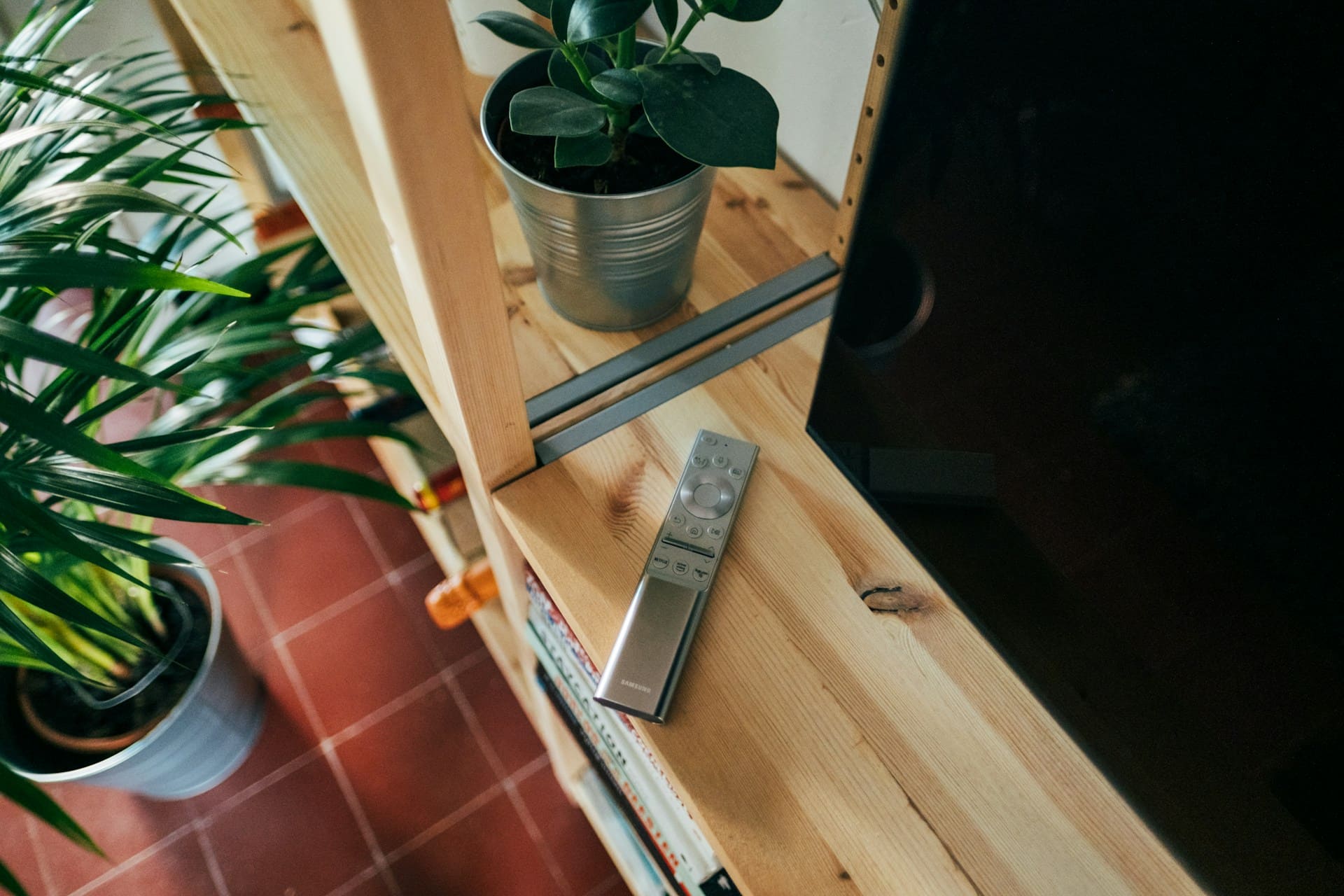
If Alexa is not working on your Samsung TV, it’s often due to connectivity issues between Alexa and the SmartThings app or a problem with your internet connection. The most common cause is that Alexa has lost its connection to SmartThings, which stops it from controlling your TV and other smart devices. Ensuring your TV is properly linked to both SmartThings and Alexa is key to solving this problem.
Your Samsung TV must be compatible and paired correctly, especially if it was made after 2018 for full Alexa support. If your TV is older, some voice control features might not work. In many cases, updating your software and checking your Wi-Fi connection can restore Alexa’s functionality on your TV.

Causes of Alexa Not Working on Samsung TV
Several specific issues can prevent Alexa from working properly with your Samsung TV. Problems with network connections, software settings, account links, and outdated firmware are frequent causes that affect Alexa’s performance.

Amazon Fire TV Stick HD
Turn Any TV to a Smart TV. Stream Netflix, Prime Video & More. Alexa Voice Remote Included. Easy Plug & Play Setup.
Shop on AmazonConnectivity Issues
Alexa and your Samsung TV must be on the same Wi-Fi network to communicate. If either device has a weak or unstable internet connection, Alexa may fail to respond or control the TV.
Check your Wi-Fi signal strength on both the TV and the Alexa device. Restart your router if needed. Avoid using separate networks like one on 2.4 GHz and the other on 5 GHz bands, as this can cause connection breaks.
Also, ensure no firewall or network restrictions block communication between devices. A consistent network connection is critical for Alexa commands to reach your TV without delay or failure.
Software Incompatibility
Alexa might not work if your Samsung TV or Alexa device runs incompatible software versions. This is common when updates for either product are skipped or not installed properly.
Verify that your TV supports Alexa integration, as some older Samsung models don’t. You should also ensure your SmartThings app or Alexa app skill is compatible and correctly installed on your smartphone or tablet.
If Alexa launches but fails to recognize voice commands, a recent software update on your TV or Alexa device might have caused a temporary bug. Check for new patches or temporary workarounds provided by Samsung or Amazon.
Account Linking Problems
Alexa needs the correct account setup to control your Samsung TV. You must link your Samsung account with the Alexa app through SmartThings for voice commands to work.
If this link is broken or not authorized properly, Alexa won’t recognize your TV. You may need to unlink and relink your accounts in the Alexa app and SmartThings app.
Make sure you use the same Amazon account across the Alexa app and the linked Samsung account. Mismatched accounts or expired login sessions often cause failure in voice control.
Outdated Firmware
Running outdated firmware on either your Samsung TV or Alexa device can cause communication issues. Firmware updates often include fixes for connectivity and voice command features.
Regularly check for updates on your Samsung TV’s settings menu and the Alexa device software. If either device is delayed in updating, Alexa might not launch correctly, or commands won’t register.
Keep both devices updated to the latest versions to avoid bugs and improve compatibility. Some features may not work at all on older software versions, forcing you to update to continue using Alexa properly.
How to Troubleshoot Alexa Integration
If Alexa is not working with your Samsung TV, focus on checking your network, restarting your devices, and re-enabling Alexa. Each step helps identify common problems that stop Alexa from connecting or responding.
Verifying Network Connection
Your TV and Alexa device must connect to the same Wi-Fi network for integration to work. Open the network settings on both your TV and Alexa device to verify the Wi-Fi name matches exactly.
If they are on different networks, Alexa won’t communicate with your TV. Also, check your Wi-Fi signal strength on both devices. Weak signals or frequent drops can cause connection issues.
Make sure your internet router is functioning well. Restart the router if needed. Sometimes, a simple restart fixes temporary network problems.
Restarting Devices
Turn off your Samsung TV and Alexa device. Unplug them from power for at least 30 seconds.
This resets temporary glitches in software or hardware that may block Alexa commands. After unplugging, plug the devices back in and turn them on.
Also, restart your Wi-Fi router during this time. This helps clear network issues affecting device connections.
After all devices are restarted, test Alexa to see if it responds to commands and controls your TV.
Re-Enabling Alexa Service
Open the SmartThings app on your phone. Check under “Devices” to see if your Samsung TV is connected.
If the connection is lost, select the TV and use the “connect” option. This will restore the link between Alexa and your TV.
Next, open the Alexa app. Disable the Samsung SmartThings skill, then enable it again. Sign in with your Samsung account when prompted.
This step refreshes Alexa’s access to control your TV and can fix issues caused by expired or broken connections.
Resetting and Re-Linking Alexa to Samsung TV
If Alexa is not responding on your Samsung TV, you may need to reset connections between your TV and Alexa. This often involves unlinking and relinking accounts, resetting the TV itself, and possibly resetting the Alexa app to clear any software glitches.
Unlinking and Relinking Accounts
Start by unlinking your Samsung SmartThings account from the Alexa app. Open the Alexa app on your phone, go to Skills & Games, then find SmartThings. Disable the skill and confirm unlinking.
Next, open the SmartThings app. Remove the Samsung TV from your list of connected devices.
After this, reopen the Alexa app and re-enable the SmartThings skill. Follow the prompts to log back into your Samsung account and give Alexa permission to control your TV.
This refreshes the link between Alexa and your TV. It helps if there were authorization or connection errors.
Performing a TV Reset
Power off your Samsung TV and unplug it from the outlet. Wait at least 60 seconds to clear temporary memory.
Press and hold the Power button on the TV (not the remote) for about 10-15 seconds to fully reset hardware settings.
Plug the TV back in and turn it on. Navigate to Settings > General > Reset to perform a factory reset if basic restart doesn’t help.
This clears glitches affecting Alexa’s control features. Make sure you know your network and login info before a full reset.
Resetting Alexa App
Force close the Alexa app on your smartphone or tablet to stop any stuck processes. On Android, use the app manager to clear cache and data. On iOS, reinstall the app if needed.
After reopening, log back into your Amazon account. Check that Alexa has permission to access SmartThings and devices.
This step is important if Alexa commands fail due to app bugs or outdated settings.
By following these steps, you help ensure Alexa and your Samsung TV can communicate smoothly.
Checking Device Compatibility and Requirements
To use Alexa with your Samsung TV, you need to confirm that your TV model supports Alexa and that your Alexa device meets certain criteria. Both the TV and the Alexa device must be ready for integration to work smoothly.
Supported Samsung TV Models
Not all Samsung TVs support Alexa. Typically, Samsung smart TVs from 2018 and later include Alexa compatibility. Models with the Tizen operating system often have built-in Alexa or allow Alexa control through the SmartThings app.
You can check your TV’s manual or product specs to see if Alexa is supported. Some older models or budget versions might not support voice control features.
If your TV does not have Alexa built-in, you can still control it using an external Alexa device like an Echo speaker. However, integration features might be limited without built-in support.
Alexa-Enabled Device Prerequisites
Your Alexa device must be set up and connected to the same Wi-Fi network as your Samsung TV. Ensure your Alexa device is updated with the latest software for best compatibility.
You also need the Amazon Alexa app and the SmartThings app installed on your smartphone. These apps handle device connections and permissions. Signing into both apps with the same account you use on your TV and Alexa device helps avoid connection errors.
Finally, confirm your Alexa device supports smart home control features required to interact with your Samsung TV. Basic Alexa devices will control common functions like power and volume but may lack advanced commands.
Updating Software and Firmware
To fix Alexa issues on your Samsung TV, it’s important to have the latest software and firmware installed. This keeps your TV compatible with Alexa and can solve many common problems related to voice control and connectivity.
Updating Samsung TV Software
Start by going to your Samsung TV’s Settings menu. Look for the Support or Software Update option.
Select Update Now to check if a new version is available. If there is, download and install it.
Keep your TV connected to a stable internet connection during this process to avoid interruptions.
Updating the software fixes bugs and compatibility problems that might stop Alexa from working properly.
If the automatic update does not work, you can visit Samsung’s website to download the latest firmware and update your TV using a USB drive.
Ensuring Alexa App is Up to Date
Alexa’s firmware or app must also be current for smooth interaction with your TV.
Open the Alexa app on your phone or tablet.
Check for any available updates in your device’s app store.
Updating the app can fix bugs that affect voice recognition and communication with your Samsung TV.
Make sure your Alexa device itself is running the latest software. This is often done automatically but can also be checked in the device settings of the Alexa app.
Having both your TV and Alexa app updated is critical for reliable voice command performance.
Configuring Alexa and Samsung Account Settings
To use Alexa with your Samsung TV, you need to adjust certain settings in both your Alexa app and Samsung account. This includes checking permissions and managing the services linked to your accounts. Making these changes helps ensure smooth communication between Alexa and your TV.
Reviewing Permissions
Start by opening the Alexa app on your phone or tablet. Go to the Devices section and find your Samsung TV.
Check if Alexa has permission to access your device and control its functions. You may need to approve permissions for things like voice control, channel changes, and power on/off.
Also, verify permissions in your Samsung account by signing in on a web browser or the Samsung SmartThings app. Make sure that the Alexa skill is enabled and allowed to access your TV settings.
If you recently updated your TV or apps, revisit permissions because updates can reset or change them.
Managing Linked Services
Linking your Samsung account and Alexa correctly is key to controlling the TV with voice commands. You need to connect your Samsung SmartThings app with Alexa.
In the Alexa app, visit Skills & Games and search for the Samsung SmartThings skill. Enable it and sign in with your Samsung account credentials.
Once linked, your TV will appear in Alexa’s device list if it’s properly connected to SmartThings. Ensure both devices are on the same Wi-Fi network for this to work.
Regularly check for software updates on both your TV and apps to avoid compatibility issues with linked services. If disconnections happen, unlinking and relinking the accounts can fix many problems.
Resolving Voice Command Recognition Problems
Voice command issues usually happen because the TV’s microphone isn’t picking up your speech well or because the wake word sensitivity is set too low. Fixing these two areas improves how Alexa hears and responds to your commands.
Improving Microphone Accuracy
Your TV’s microphone must clearly receive your voice to respond correctly. Start by checking for any dirt, dust, or obstructions covering the microphone area on your remote or TV. Clean it gently if needed.
Speak clearly and at a normal volume near the remote or microphone. Avoid background noise like TVs, music, or conversations while giving commands.
If your Samsung TV uses a separate remote with a microphone button, press and hold the button while speaking. Make sure the remote is fully charged or has fresh batteries.
You can also update your TV’s software to improve microphone performance. Go to the Settings menu and check for any available updates.
Adjusting Wake Word Sensitivity
Your TV needs to detect the wake word (“Alexa”) before it listens to commands. If sensitivity is too low, it may not respond.
Adjust the wake word sensitivity in the Alexa app under Settings > Devices > [Your TV] > Wake Word Sensitivity. Increasing sensitivity lets Alexa catch your voice from further away, but setting it too high can cause false triggers.
Test different sensitivity levels by giving commands at varying distances from the TV. Find a balance where Alexa activates reliably without picking up unwanted sounds.
If your TV uses Samsung SmartThings alongside Alexa, make sure both apps are synced and connected on the same Wi-Fi network for smooth voice control.
Advanced Solutions and Support Options
If basic troubleshooting does not fix Alexa on your Samsung TV, you can try some advanced steps. First, check that your TV firmware and Alexa app are both updated to the latest versions. Outdated software often causes connectivity issues.
Next, confirm that the SmartThings app is properly connected to your TV. Open the app, go to the Devices section, and verify your TV is listed and online. If not, reconnect the device through SmartThings.
You should also check your network settings. A weak or unstable Wi-Fi connection can break the link between Alexa and your TV. Try restarting your router or connecting via Ethernet for a more stable setup.
If your TV was made before 2018, remember that Alexa may have limited functionality or might not support certain voice commands.
When these steps don’t resolve the problem, contact Samsung or Amazon support. They can provide tailored help based on your device model and software version.
Quick checklist for advanced troubleshooting:
| Step | Action |
|---|---|
| Firmware & apps | Update both TV firmware and Alexa/SmartThings apps |
| SmartThings connection | Verify your TV is connected in the devices list |
| Network check | Restart router or use Ethernet connection |
| Device compatibility | Confirm your TV model supports Alexa fully |
| Support | Reach out to Samsung or Amazon customer service |
Use these options to help restore Alexa’s full functionality on your Samsung TV.