

If Alexa is not working on your Sonos speaker, it could be due to several common issues like a muted microphone, an unlinked Sonos skill, outdated apps, connection problems, or service interruptions. The key to fixing this problem is to check these areas one by one and make sure your devices and apps are properly connected and updated.
You might find that your Sonos speakers show offline in the Alexa app or that Alexa stops responding to voice commands even though the speakers play music through other devices. These problems often come from minor bugs or setup errors that can be resolved by restarting your devices, relinking skills, or updating apps.
Understanding these basics will help you troubleshoot quickly and get Alexa back on your Sonos speaker working as it should. Reading on will guide you through simple steps to fix the issues so you can enjoy hands-free control again.
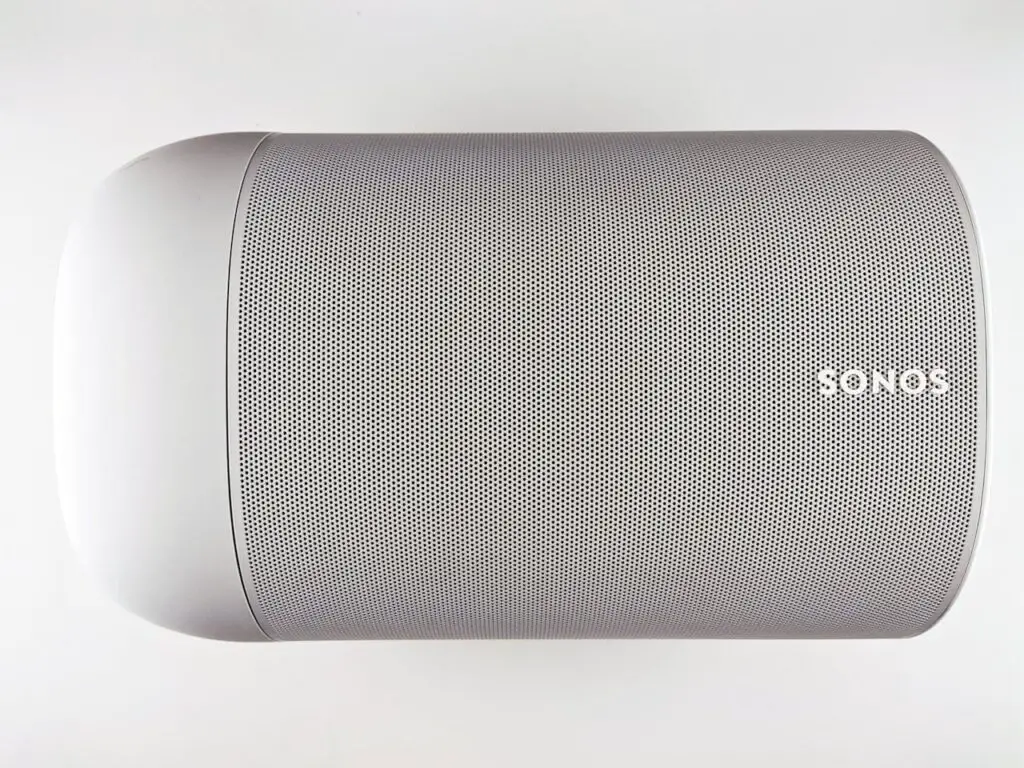
Reasons Why Alexa Is Not Working on Sonos
When Alexa stops working on your Sonos device, it usually comes down to a few key issues. These often include problems with your network connection, difficulties linking your Amazon or music service accounts, or outdated software. Knowing what to check can help you fix the problem faster.
Connectivity Issues
Your Sonos and Alexa need a stable internet connection to work correctly. If your Wi-Fi signal is weak or disconnecting, Alexa commands may not reach the Sonos speaker. Also, if your router has security settings blocking certain devices, you might see Alexa not responding.
Make sure both your Sonos speaker and Alexa device are connected to the same Wi-Fi network. Restarting your router and Sonos device can clear temporary connection problems. If your speaker appears offline in the Alexa app, this is a sign of a connectivity issue.
Account Linking Problems
Alexa requires proper linking to your Sonos account and other services like Amazon Music or BBC Sounds. If the Sonos skill in the Alexa app is not enabled or is disabled, Alexa won’t control your Sonos speaker.
Sometimes the skill gets unlinked due to app updates or minor bugs. You may also see errors if your music service accounts aren’t linked correctly, even if the app shows them as connected. Re-link the Sonos skill in the Alexa app and check that all your music accounts are active and authorized.
Software or Firmware Outdated
Running old versions of the Sonos app, Alexa app, or the speaker’s firmware can cause features to stop working. Updates often fix bugs and improve compatibility.
Regularly check for updates on your Sonos app and Alexa app. Your Sonos speaker’s firmware should also be current; outdated firmware can cause Alexa commands to fail. If you are having issues, try restarting the apps after updating. This can often restore full functionality.
How to Diagnose Alexa Issues on Sonos
Start by checking your network connection and the way your Sonos speaker communicates with Alexa. Make sure voice commands are heard clearly and that relevant app settings allow Alexa to work properly. Each step helps narrow down the problem and find a fix quickly.
Checking Wi-Fi Connection
Your Sonos speaker and Alexa rely on a stable Wi-Fi connection. First, verify your speaker is connected to the right Wi-Fi network. Use the Sonos app to check connection status or signal strength.
If the connection is weak or unstable, move the speaker closer to the router. Restart your router and speaker to refresh the network. Avoid using guest or public Wi-Fi since these can block device communication.
Make sure your internet is working by testing other devices. If your Wi-Fi is fine but Alexa still fails, look for interference from other electronics or crowded Wi-Fi channels.
Testing Voice Commands
Test how Alexa responds to your voice commands through Sonos. Speak clearly and in a quiet room to reduce background noise.
Try basic commands like “Alexa, what’s the weather?” or “Alexa, play music.” If Alexa doesn’t respond or misunderstands, check if the microphone on the speaker is muted.
Repeat testing from different distances and angles. If commands are inconsistent, try resetting the voice assistant on the Sonos app. This refreshes Alexa’s connection to the speaker.
Reviewing Sonos App Settings
Open the Sonos app and go to the speaker settings. Confirm Alexa is enabled under Voice Assistants. If not, add Alexa from the app by following the setup steps.
Check if the Sonos skill is linked to your Alexa app. If it’s missing or unlinked, relink the skill from the Alexa app by enabling Sonos under Skills & Games.
Look for app updates for both Sonos and Alexa. Outdated versions can cause communication errors. Also, review any permissions related to Alexa on the app and allow access as needed.
Steps to Fix Alexa Not Responding on Sonos
If Alexa on your Sonos device is not responding, there are key actions you can take. These include restarting the devices to refresh connections, relinking your Alexa account to fix authorization issues, and making sure both Sonos and Alexa apps are fully updated.
Restarting Devices
Begin by restarting your Sonos speaker and the device running the Alexa app. Power off each device, wait about 30 seconds, then power them back on. This resets any temporary glitches or connection problems.
Unplug your Sonos device from the power source before plugging it back in. Also, restart your phone or tablet where you control Alexa. A fresh start often solves issues like the microphone being unresponsive or commands not being understood.
Make sure both devices reconnect to the same Wi-Fi network after restarting. Interruptions in the network or weak signals can cause Alexa to stop working on Sonos.
Relinking Alexa Account
If restarting does not help, try relinking your Alexa account with Sonos. This step fixes many communication errors between the services.
Open the Alexa app on your phone. Go to Skills & Games, find the Sonos skill, then tap Disable Skill. After that, enable the Sonos skill again and follow the prompts to sign in.
Check that your Sonos account and Alexa account are properly connected. Sometimes, signing out and back in can refresh the authorization. Testing voice commands after this can show if the issue is resolved.
Updating Sonos and Alexa
Using outdated apps can cause Alexa not to respond on Sonos. Make sure both the Sonos app and Alexa app are up to date.
Visit your device’s app store and check for updates to both apps. Install any available updates before testing Alexa again.
Updating your Sonos speaker’s system software is also important. Open the Sonos app, go to Settings > System > System Updates, and install any pending updates.
Running the latest software helps keep voice commands working correctly and fixes bugs that might stop Alexa from responding.
Voice Service Settings for Alexa on Sonos
To get Alexa working smoothly on your Sonos device, you must focus on how the voice assistant is set up in your app. This includes choosing the right default assistant for your speakers and making sure the location and language settings are correct for your region.
Configuring Default Voice Assistant
Open the Sonos app and go to Settings > System > Voice Assistants. Here, you will see a list of Sonos products that support Alexa. Select the speaker you want to use.
Next, choose Alexa as the default voice assistant for that speaker. If Alexa was already added, try removing it and then adding it again to reset the service. This can fix many issues.
Make sure your Sonos app is fully updated to support the latest Alexa features. You may also need to log out and back in to your Amazon account in the Alexa app to sync it properly.
Verifying Location and Language Settings
Alexa depends on your device’s location and language settings to work correctly. In the Sonos app, check that your speaker’s location is set accurately under Settings > System > Room Settings. Incorrect location data can cause Alexa to fail responding or misunderstand commands.
Next, open the Alexa app and verify the language matches your preferred voice settings. For example, if you use English (US) on Sonos, your Alexa language should not be set to English (UK).
If you update either setting, restart both the Sonos device and Alexa app to apply changes. This ensures voice commands are recognized without errors.
Advanced Troubleshooting for Persistent Problems
If Alexa on your Sonos keeps acting up after basic fixes, you will need to try deeper steps. These involve resetting your devices and making sure your Amazon account settings are correct.
Resetting Sonos Speakers
Resetting your Sonos speaker can clear out any bugs causing Alexa to fail.
Start by removing Alexa from the Sonos app:
- Open the Sonos app.
- Go to Settings > Services & Voice.
- Select Amazon Alexa and choose to remove the service.
Next, restart your Sonos speaker by unplugging it for 10 seconds and plugging it back in.
Finally, add Alexa back into the Sonos app and sign in with your Amazon account. This often fixes issues from corrupted data or connection errors.
Make sure the speaker’s microphone is turned on, as Alexa won’t respond if it’s muted.
Checking for Amazon Account Issues
Your Alexa commands may not work if your Amazon account or linked music services have problems.
Check that your Amazon Music and other services like BBC Sounds are correctly linked to your Alexa account via the Alexa app.
Go to Settings > Music & Podcasts in the Alexa app and verify the accounts are connected and active.
If Alexa says accounts aren’t linked despite showing linked in the app, unlink and re-link the accounts.
Also, confirm your Amazon account is in good standing without any service restrictions or payment issues.
Keeping your Amazon account updated and correctly linked helps Alexa communicate smoothly with Sonos.
Known Compatibility and Feature Limitations
When using Alexa with Sonos, you may face some compatibility and feature limits. Sonos currently keeps Alexa integration in a beta stage, which means some features might not work as expected.
Certain Alexa functions depend on your region. Some language skills and streaming services may not be available in your location. You should check if your area supports the Alexa features you want to use.
Sonos devices sometimes have trouble maintaining a solid connection with Alexa. This can cause delays or failures in voice commands. If your commands don’t register, the cause might be connectivity issues.
Also, Alexa on Sonos may not support every voice command you try. For example, some music controls like stop, skip, or specific service requests may fail or respond incorrectly.
Here are key points to watch:
| Limitation | Details |
|---|---|
| Region Restrictions | Some Alexa features may be blocked or missing in your country. |
| Connection Issues | Network problems cause voice command delays and failures. |
| Limited Commands | Not all Alexa voice commands work perfectly on Sonos devices. |
| Feature Beta Status | Alexa integration on Sonos is still in beta and may have bugs. |
Keep your Sonos app and Alexa skill updated to minimize issues. Also, make sure the microphone on your Sonos device is not muted to allow Alexa to hear you properly.
When to Contact Sonos or Amazon Support
You should contact Sonos support if your speaker has hardware issues. For example, if it won’t turn on, or the microphone is not responding even after troubleshooting.
Reach out to Amazon support when the problem is related to your Alexa account or the Alexa app itself. This includes issues like skill linking errors or problems with your Amazon Music or BBC Sounds accounts in Alexa.
Try these steps before contacting support:
- Restart your Sonos device and router
- Re-link the Alexa skill in the Sonos app
- Make sure all apps are updated
- Check your internet connection
If Alexa commands still don’t work after these steps, it’s time to get help.
If you see error messages about account linking or service availability, Amazon support can help fix those.
If your Sonos speaker won’t respond to any Alexa commands, and you’ve confirmed the microphone is not muted, Sonos support can guide you further.
Keep your device details and any error messages handy. This will help both support teams diagnose the problem faster.