
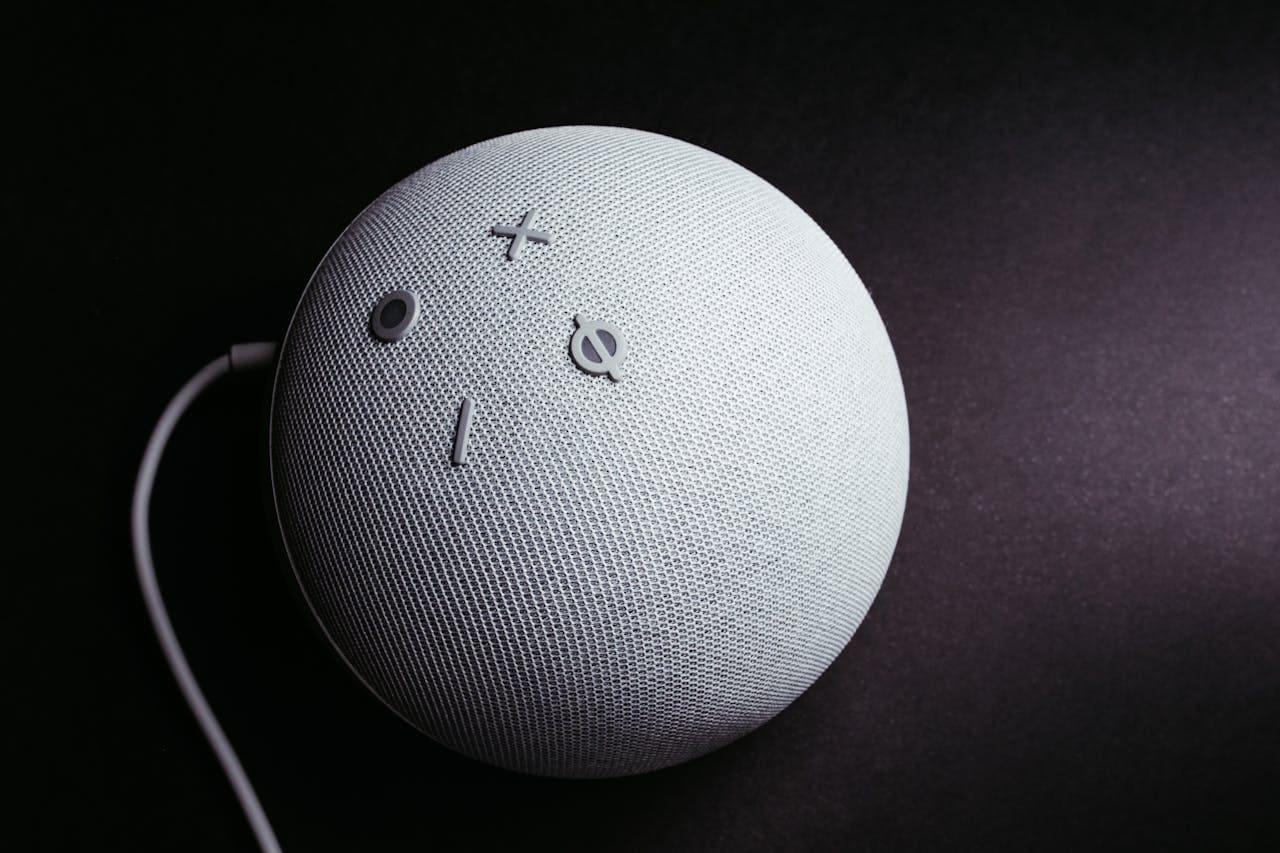
If your Alexa speaker is not working, it can be frustrating when it won’t respond or play sound as expected. The most common fixes include restarting the device, checking your Wi-Fi connection, and making sure Alexa isn’t muted. These simple steps often bring your smart speaker back to normal without needing technical help.
Sometimes Alexa stops responding because of internet problems or voice recognition errors. Knowing which quick fixes to try can save you time and get your device working again fast. This guide will walk you through easy solutions that work for most Alexa issues.

Check Basic Alexa Speaker Functionality
Before trying advanced fixes, make sure your Alexa device is set up correctly and ready to respond. Focus on power, microphone settings, and internet connection. These are the most common causes when your Alexa speaker is not working.
Ensure the Device Is Powered On
First, check if your Alexa device is plugged into a power outlet securely.
Look for the power ring or light on your device. If it’s off or flashing unusually, this could indicate no power or a startup issue. Use a different power outlet or cable if you suspect a problem with the power source.
If the device does not turn on despite checking power, it may need a reset or professional support.
Verify Microphone Status
Your Alexa speaker won’t respond if its microphone is muted.
Check the microphone button, usually marked with a microphone icon. If it’s red or the light indicates mute, press it once to turn the mic back on.
Try speaking to Alexa after unmuting. If it still isn’t responding, the microphone could be faulty or blocked by dirt or damage.
You can also test the microphone settings in the Alexa app to confirm it’s enabled and working.
Check Internet Connectivity
Alexa requires a stable internet connection to work correctly. Check your Wi-Fi router and ensure it’s on and distributing internet. Use the Alexa app to verify the device’s Wi-Fi status. It should show as connected to your network.
If disconnected, reboot your router and reconnect Alexa to Wi-Fi.
Slow or unstable internet can cause Alexa to freeze or not respond. Running a speed test can help confirm your connection quality.
Restart Alexa Speaker
Restarting your Alexa speaker can often fix many common issues quickly. You’ll learn how to power cycle your device and the difference between a soft reset and a hard reset, so you can choose the right method for your problem.
Power Cycle the Device
Power cycling means turning your Alexa speaker off and then back on. To do this, unplug the device from the power source. Wait at least 30 seconds to let it fully turn off. Then, plug it back in and wait for the light ring to turn on and become steady.
This simple step can clear minor glitches. It refreshes the speaker’s software and re-establishes network connections. Many times, this alone can solve issues where Alexa is not responding to commands or sounds stuck.
Soft Reset vs Hard Reset
A soft reset reboots your Alexa without erasing any data or settings. You do this by either unplugging the device or using the Alexa app to restart it. This is safe if you want to keep your Wi-Fi and account info.
A hard reset, on the other hand, erases everything saved on the device and returns it to factory settings. You usually do this by holding down buttons on the device itself. Only do a hard reset if other fixes fail because you’ll have to set up Alexa again from scratch afterward.
Update Alexa Device and App
Keeping your Alexa device and the mobile app up to date is critical to fixing many common issues. New software often includes bug fixes and performance improvements that help Alexa work better and respond faster.
Check for Firmware Updates
Alexa devices update their firmware automatically when connected to Wi-Fi. To check if your device is up to date, look for a pulsing blue light on the device. This means the update is installing, which can take up to 15 minutes.
You can also use the Alexa app to check the device status:
- Open the Alexa app
- Go to Devices > Echo & Alexa > Select your device
- Scroll to find the current software version
If you suspect the device is stuck or not updating, restart it and ensure your Wi-Fi is stable. Avoid using the device or app during the update process, as interruptions can cause the update to fail.
Update Alexa Mobile App
Your Alexa app controls your device and must be current to avoid connection or response problems.
To update the app:
- On iOS, open the App Store
- On Android, open the Google Play Store
- Search for “Amazon Alexa”
- Tap Update if available
Regular updates provide new features and fix bugs that may cause app crashes or unresponsiveness. If the app is outdated, Alexa might not connect properly to your speaker, causing delays or no response to voice commands. Check for updates frequently to keep your Alexa system running smoothly.
Resolve Wi-Fi and Network Issues
You need to check your network connection and device status carefully. Some fixes involve reconnecting to the Wi-Fi, restarting your router or modem, or adjusting settings in the Alexa app. These steps often solve most connection problems quickly.
Reconnect to Wi-Fi
Start by making sure your Alexa device is connected to the right Wi-Fi network. Open the Alexa app on your phone.
Go to Devices > Echo & Alexa > [Your Device] > Change under Wi-Fi Network. Select your current network and enter the correct password.
If the network is missing, your router might be blocking the device or the signal could be weak. Move the Alexa speaker closer to the router and try again.
Make sure your Wi-Fi password is correct. Incorrect passwords and network name changes are common causes of connection problems.
Reboot Router or Modem
Your router or modem could be causing the issue. Turn off the router and modem by unplugging them from power.
Wait at least 30 seconds to 1 minute before plugging them back in. This clears temporary glitches. After the devices restart, check if your Alexa speaker reconnects on its own. If not, reconnect it manually using the Alexa app.
Rebooting your network gear often fixes weak signals, IP address conflicts, or firmware bugs that block Alexa from connecting.
Remove and Re-add Device in App
If reconnecting Wi-Fi and rebooting the router don’t work, try removing the device from the Alexa app.
Open the app, select your Alexa device, and choose Remove Device or Forget.
After removal, go through the setup process again as if it were a new device. This can reset faulty settings or corrupt data causing the issue.
Make sure your app is updated before re-adding the device. This step often helps when Alexa won’t connect despite good network conditions.
Address Audio Output and Volume Problems
Audio issues on your Alexa speaker often come down to volume settings, connections, or hardware. Checking these areas carefully can help you find the problem fast.
Adjust Speaker Volume
Make sure your Alexa speaker’s volume is not muted or set too low. You can adjust the volume by saying commands like, “Alexa, volume up” or “Alexa, set volume to 5”. The volume levels range from 0 to 10, with 0 being mute.
Also, check if your speaker is muted. Some devices have a physical mute button that stops sound. Look for a red ring or indicator light on top of the device when muted.
If you use the Alexa app, you can control volume settings from there, which is useful if voice commands don’t respond. Always test sound by playing music or asking Alexa a question.
Check Bluetooth or Auxiliary Connections
If your Alexa speaker is paired with external devices, such as Bluetooth speakers or wired aux cables, check those connections carefully.
When Bluetooth is active, Alexa may send sound to the paired device instead of the built-in speaker. To fix this, open the Alexa app, go to Devices > Echo & Alexa > Your Device > Bluetooth Devices, and disconnect or select the correct speaker for output.
For aux cables, make sure the plug is fully inserted. Sometimes, a headset jack or unused cable inserted into the output jack physically disconnects the internal speaker contacts. Removing it reconnects the speaker.
Inspect for Hardware Damage
Hardware damage may cause no sound or poor sound quality. Look for visible signs such as dents, cracks, or dirt covering speaker grills.
Check if the speaker feels loose or if the device overheats. These could affect performance.
If you have tried all fixes but audio still does not work, consider testing the speaker with a factory reset or contacting customer support. Physical damage often requires repair or replacement.
Reset Alexa Speaker to Factory Defaults
Resetting your Alexa speaker to factory defaults removes all settings, including your Wi-Fi connection and personal preferences. This step often solves persistent issues that other fixes don’t. Knowing when and how to do this reset is important to get your device working again.
When to Perform a Factory Reset
You should perform a factory reset if your Alexa speaker is unresponsive or keeps having glitches after other troubleshooting steps. It’s useful when you want to erase all saved data before giving away or selling your device.
A factory reset is also necessary when you want to clear your Wi-Fi settings and start fresh. Keep in mind, after resetting, your Alexa speaker will not work until you set it up again completely.
Steps to Reset Alexa Speaker
The reset method varies by device model, but for most 2nd generation Echo speakers:
- Press and hold the Microphone Off and Volume Down buttons at the same time.
- Hold both buttons for 20 seconds until the light ring turns orange.
- Wait for the device to reboot; the light ring will turn blue, then orange.
- Your Alexa speaker is now reset to factory settings.
For Echo Show devices, you can reset through the screen by navigating to:
- Settings > Device Options > Reset to Factory Defaults
You can also reset your Alexa speaker via the Alexa app or Amazon’s website if physical buttons aren’t available.
Contact Amazon Support for Further Assistance
If your Alexa speaker still isn’t working after trying quick fixes, you should contact Amazon Support. They can help diagnose issues that you might not be able to fix on your own.
You can reach out to Amazon Support through their website or app. Use the Amazon Customer Service section to start a chat, request a call, or send an email.
Before you contact them, have this information ready:
- Your device model
- A description of the problem
- Steps you’ve already tried
This helps speed up the support process.
Amazon Support can guide you through advanced troubleshooting or arrange repairs if your device is faulty. If your Echo speaker’s internal sound isn’t working, but it plays through external speakers, this could mean a hardware problem. Support will know how to help.
Remember, keeping your Alexa app updated and logged into the same Amazon account as the device makes troubleshooting easier when speaking with support.
Read More:
- Why Alexa Is Yellow? (Fix Flashing Light in Seconds)
- Why Alexa Not Responding to Voice? (Fix It Fast Now)
- Why Alexa Is Bad? Hidden Risks You Need to Know