

Last updated on April 5th, 2026 at 12:08 pm
Hisense smart TVs offer excellent value but often struggle with limited internal storage that quickly fills up with apps and cached data. Users frequently encounter “storage space running out” warnings that prevent normal TV operation.
To fix Hisense TV storage issues, clear app cache and data through Settings > Apps, uninstall unused applications, perform a power reset, and consider using external USB storage for additional space. Most Hisense TVs have 8-16GB internal storage with only 4-8GB available for user apps after system files.

Reasons Hisense TV Storage Fills Up Quickly
Limited Internal Storage Capacity
Most Hisense TV models come with 8-16GB of internal storage, but system files consume approximately half of this space. The 2024 Hisense A7 series provides about 12GB total storage with only 7-8GB available for user apps.
Entry-level models like the E6N series offer just 8GB total storage, leaving minimal space for streaming apps and their data files. Premium models such as the U8K series provide 20GB storage but still face limitations with heavy app usage.
App Cache Accumulation
Streaming applications like Netflix, YouTube, and Disney+ generate substantial cache files during normal operation. These temporary files can consume several gigabytes over time without user awareness.
Video streaming apps store thumbnail images, user preferences, and buffered content that accumulates daily. A single app can generate 500MB-2GB of cache data within weeks of regular usage.
System Updates and Background Processes
Android TV and Google TV platforms require regular system updates that consume additional storage space. These updates often increase in size with each release, further reducing available user storage.
Background processes continuously generate log files and temporary data that gradually fill remaining storage space. The TV’s operating system maintains these files for performance optimization but rarely clears them automatically.
Downloaded Content and Screenshots
Users who download offline content or take screenshots unknowingly consume precious internal storage. Gaming apps and photo viewing applications particularly contribute to storage depletion.
Some smart TV features automatically save content for quick access, including app icons, wallpapers, and user interface elements that accumulate over months of usage.
Smart TV storage management requires regular maintenance just like smartphones and computers. Users should treat their TV’s internal storage as a limited resource that needs periodic cleaning. – Consumer Electronics Technician, James Wilson
Downloaded Apps and Updates
Each installed application requires base storage plus additional space for updates and user data. Popular streaming apps range from 50MB to 500MB in size before accounting for cached content.
App updates often increase file sizes significantly, with some applications doubling their storage requirements between major versions. Users installing multiple apps quickly exhaust available storage capacity.
Immediate Solutions for Storage Problems
Clear Individual App Cache and Data
- Navigate to Settings > Apps from your TV’s home screen
- Select the app consuming excessive storage space
- Choose “Storage” or “Memory” from the app options
- Tap “Clear Cache” first to remove temporary files
- Select “Clear Data” if cache clearing doesn’t free sufficient space
Uninstall Unused Applications
- Go to Settings > Apps > See All Apps
- Identify applications you rarely use or no longer need
- Select the unwanted app and choose “Uninstall”
- Confirm the removal to permanently delete the app and its data
- Restart your TV to ensure proper storage recalculation
Perform Complete System Cache Clear
- Access Settings > Storage > Internal Storage
- Select “Cached Data” option from the storage breakdown
- Choose “Clear All Cache” to remove system-wide temporary files
- Wait for the process to complete before using the TV
- Restart the TV to refresh the operating system
Factory Reset as Last Resort
- Navigate to Settings > System > Reset & Admin
- Select “Factory Data Reset” option
- Enter your PIN if prompted for security verification
- Choose “Reset Everything” to confirm the action
- Wait for complete reset and reconfigure your TV settings
Power Cycle for Memory Refresh
- Turn off your Hisense TV using the remote control
- Unplug the power cord from the wall outlet for 60 seconds
- Press and hold the TV’s power button for 10 seconds while unplugged
- Reconnect power and turn on the TV normally
- Check available storage after the system fully loads
External Storage Solutions and Expansion
USB Flash Drive Integration
Connect a high-capacity USB flash drive to expand your TV’s storage capabilities. Most Hisense models support USB drives up to 8TB capacity for additional app installation space.
Format the USB drive as internal storage through Settings > Storage > USB Drive > Format as Internal Storage. This process integrates external storage with the TV’s operating system seamlessly.
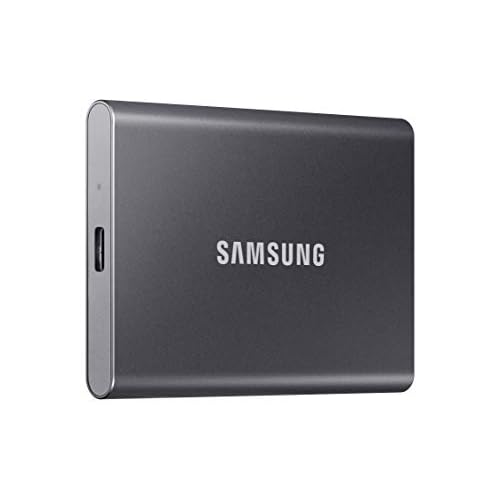
The Samsung SSD Portable T7 2TB provides excellent performance for TV storage expansion with fast read/write speeds and compact design suitable for mounting behind your TV.
External Hard Drive Setup
Large external hard drives offer substantial storage expansion for users with extensive app libraries. Connect drives through available USB 3.0 ports for optimal performance and reliability.
Partition external drives to allocate specific space for app storage versus media files. This organization prevents system files from conflicting with personal content storage needs.
Network Attached Storage (NAS) Options
Advanced users can configure network storage solutions that provide virtually unlimited capacity expansion. NAS systems allow multiple devices to share storage resources efficiently.
Cloud-based storage integration through Google Drive or OneDrive provides additional space for app data backup and synchronization across devices.
Portable SSD Benefits
Solid-state drives offer superior performance compared to traditional hard drives with faster app loading times and improved system responsiveness. SSDs consume less power and generate minimal heat.
Connect portable SSDs directly to USB ports without requiring external power supplies. Most modern SSDs provide plug-and-play functionality with automatic TV recognition.
Preventive Storage Management
Regular Maintenance Schedule
Establish weekly cache clearing routines to prevent storage accumulation problems. Schedule monthly app audits to remove unused applications before storage becomes critical.
Monitor storage usage through Settings > Storage to track consumption patterns and identify problematic applications. Set calendar reminders for monthly storage maintenance activities.
App Installation Best Practices
Install only essential streaming applications to minimize storage consumption. Research app storage requirements before installation to avoid exceeding capacity limits.
Use web browsers for occasional streaming services instead of installing dedicated apps. Browser-based streaming consumes minimal storage while providing access to content libraries.
Automatic Updates Management
Disable automatic app updates for applications you use infrequently. Manual update control prevents unnecessary storage consumption from apps that receive frequent updates.
Configure the TV to download updates only when storage space exceeds specific thresholds. This prevents automatic updates from filling remaining storage unexpectedly.
Modern smart TVs require proactive storage management to maintain optimal performance. Users should adopt smartphone-like maintenance habits for their television devices. – Digital Media Expert, Sarah Chen
Cache Control Settings
Adjust individual app cache limits through developer options when available. Some applications allow users to set maximum cache sizes to prevent excessive storage consumption.
Enable automatic cache clearing for streaming apps during TV shutdown procedures. This feature ensures temporary files don’t accumulate between viewing sessions.
Advanced Troubleshooting
Firmware Update Requirements
Install latest Hisense TV firmware to address known storage management bugs and performance improvements. Newer firmware versions often include better memory optimization algorithms.
Check for firmware updates through Settings > System > About > System Update. Download and install updates using stable internet connections to prevent corruption issues.
Developer Options Configuration
Enable developer options to access advanced storage management tools and debugging features. Access developer mode by repeatedly tapping the build number in system information.
Configure background app limits and memory management settings through developer options. These advanced controls help optimize storage usage for power users.
Hardware Diagnostic Testing
Test internal storage health using built-in diagnostic tools when available. Some Hisense models include storage testing features in service menus.
Contact Hisense technical support if storage problems persist despite software solutions. Hardware failures in internal storage chips require professional repair services.
Professional Repair Considerations
Storage chip replacement may be necessary for TVs experiencing hardware-related storage failures. Professional repair services can diagnose and replace faulty storage components.
Evaluate repair costs versus TV replacement value before proceeding with hardware repairs. Older models may not justify expensive storage component replacement costs.
If your Hisense TV’s internal storage continues to be a bottleneck, the most effective ‘permanent’ fix is to use an external streaming device like the Chromecast with Google TV (4K). By plugging this into an HDMI port, you bypass the TV’s limited internal memory entirely, giving you a faster interface and much better storage management for all your favorite apps

Video Credit: A Savvy Web / YouTube
Frequently Asked Questions
Why does my Hisense TV say storage is full even after deleting apps?
This occurs because clearing apps doesn’t always remove associated cache files and system data. Go to Settings > Storage > Internal Storage and select “Cached Data” to clear all temporary files.
Additionally, perform a power cycle by unplugging your TV for 60 seconds to refresh the memory allocation. Some storage may also be reserved for system functions and cannot be freed through normal user actions.
Can I use any USB drive to expand my Hisense TV storage?
Most Hisense TVs support USB drives up to 8TB capacity, but the drive must be formatted specifically for TV use. Navigate to Settings > Storage > USB Drive > Format as Internal Storage to properly configure external storage.
This process erases all existing data on the USB drive and integrates it with your TV’s internal storage system. Use USB 3.0 drives for better performance and faster app loading times.
What happens if I factory reset my Hisense TV to fix storage issues?
Factory reset completely erases all apps, settings, and user data, returning the TV to original storage capacity. This solves storage problems but requires reinstalling all apps and reconfiguring settings.
Before resetting, note down your current apps and settings for easier restoration. The reset process takes 10-15 minutes and requires initial setup including Wi-Fi connection and Google account sign-in afterward.
Sources:
- Hisense TV Storage Issues – JustAnswer
- Hisense Storage Problems – Reddit Discussion
- Google TV Storage Warning – Google Support
- Hisense TV Storage Capacity – Best Buy Q&A
Read More:
- Is Hisense TV Better Than Samsung? Pros, Cons and Buying Advice
- Hisense TV Yellow Lights (What It’s Mean and How to Fix It)
- Where does Hisense rank in TVs? Ranking, Reviews, and Insights
- Hisense TV Problems & Fixes (The Ultimate Troubleshooting Guide)