
Last updated on April 5th, 2026 at 09:13 pm
If your Anker power bank is not charging or acting strangely, resetting it might fix the problem. To reset your Anker power bank, locate the small reset button, usually a tiny hole, then use a pin or paperclip to press and hold it for about 10 seconds. This can help restore the device to normal working order without needing a replacement.
Make sure your power bank is charged and unplugged from any devices before you do this. Resetting is a simple step that often solves common issues like charging errors or unresponsive buttons, so it’s worth trying before looking for other solutions.

Identifying Anker Power Bank Model
Knowing the exact model of your Anker power bank helps you follow the right reset steps and troubleshooting tips. Details like the model number, LED behavior, and compatibility with cables or devices matter for effective use and maintenance.
Checking the Model Number
First, locate the model number on your power bank. It is usually printed on the back or underside of the device in small text.
The model number often starts with letters like “A” followed by numbers (e.g., A1277). This unique code identifies your power bank’s capacity and features.
Write it down or take a clear picture for reference. This is key when searching for manuals, warranty support, or firmware updates.
If you can’t find the model number, check the original packaging or your purchase receipt. Accurate identification ensures you apply the correct reset method.
Understanding LED Indicators
Your Anker power bank uses LED lights to show its status, like charging, power levels, or errors.
Typically, 4-5 LED lights display how much battery remains. A flashing light might mean low battery or a fault.
During reset, these lights give clues. For example, if LEDs blink repeatedly after pressing the power button for 10 seconds, it signals a successful reset.
Understanding these indicators helps you know when to reset or recharge. Refer to your model’s user guide for exact LED meanings.
Compatibility Considerations
Your power bank model dictates which cables and devices work best. Using incompatible accessories may cause charging failure or reset issues.
For example, some Anker power banks support Power Delivery (PD) or Quick Charge, requiring specific cables.
Check if your model needs USB-C or micro-USB for input. Using the wrong cable can prevent proper charging or draining battery.
When resetting, ensure you use an official or compatible charger to avoid errors during the process.
Matching accessories to your exact model helps maintain functionality and extends your power bank’s life.
When To Reset Anker Power Bank
Resetting your Anker power bank can fix specific problems related to charging and operation. Knowing what issues need a reset and how to spot them helps you decide if a reset is necessary.
Common Issues That Require Reset
You should consider resetting your Anker power bank if it faces charging problems, like not holding a charge or failing to charge connected devices. Sometimes the device overheats or the LED indicators stop working correctly.
Other issues include the power bank not turning on despite being charged, or it shutting off randomly. These problems often mean the internal system needs restarting. A reset can clear minor electronic glitches without damaging the device.
If your power bank continues to fail despite multiple resets, the issue might be a worn-out charging port or a faulty cable. Upgrading to a model like the Anker Nano Power Bank can prevent these headaches, as it features a built-in USB-C connector that eliminates the need for external cables entirely.

Resetting is a helpful first step before thinking about replacement or repairs. It restores the power bank to normal function in many cases.
Signs You Need to Perform a Reset
Look for signs like unresponsive power buttons or incorrect LED light behavior. If the LEDs don’t show the right battery level or blink constantly, a reset can fix the issue.
When your power bank does not charge your phone or other devices reliably, this is another clear sign. Also, if your power bank feels unusually warm or overheats, reset it to prevent further damage.
If your power bank turns off immediately after turning it on, or if it refuses to turn on despite being charged, a reset can often solve the problem. These signs indicate the device’s software may be frozen and needs rebooting.
How To Reset It Safely
Resetting your Anker power bank can fix charging problems and restore normal function. You need to follow specific steps carefully to avoid damaging the device. Proper preparation and careful handling during reset are essential.
Manual Reset Steps
To manually reset your Anker power bank, first disconnect all devices and cables. Then, connect the power bank’s two USB ports with a short USB cable or adapter. This action sends a signal that triggers the reset process.
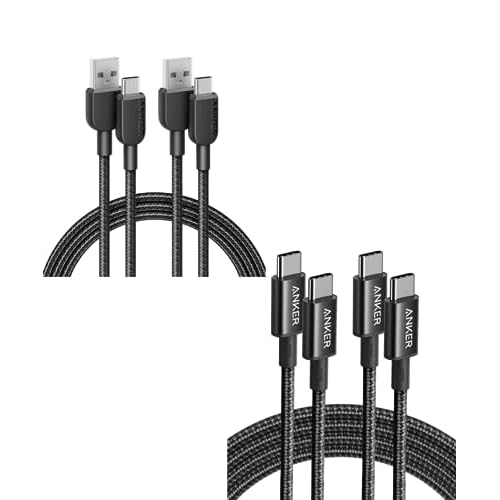
To ensure the reset signal is sent correctly, use a high-quality cable like the Anker USB-C to USB-C 2-Pack. These cables are reinforced with aramid fiber to withstand the tight loops required for a manual reset, and having a spare ensures you always have a reliable way to jumpstart your device if it freezes again.
When the reset starts, the blue indicator lights on the power bank should all light up. Leave the ports connected for about 10 to 15 seconds. After that, unplug the cable and check if the power bank charges correctly.
Manually resetting in this way often resolves minor issues without needing a full disassembly or special tools.
Resetting With The Reset Button
Some Anker power banks include a dedicated reset button. To use it, make sure your power bank is unplugged and not connected to devices. Find the small reset button usually located near the USB ports or on the side.
Press and hold this reset button for about 10 to 15 seconds. You may need a thin object like a paperclip to press it. Release the button once the lights flash or turn off, signaling the reset is complete.
This method can fix more persistent problems by restoring the device’s internal settings.
Precautions Before Resetting
Before resetting, fully charge your power bank to avoid interruptions during the process. Unplug any devices connected to it to prevent power surges or data issues.
Avoid using excessive force to press buttons or connect ports, as this can damage the hardware. Also, never open the power bank yourself, as this voids the warranty and can be unsafe.
Make sure to read your specific model’s manual. Different Anker models may have slight variations in reset procedures or warnings.
Post-Reset Troubleshooting
After resetting your Anker power bank, you need to check if it works correctly. If it still has problems, there are clear steps you can follow to fix common issues. This ensures your device charges well and performs as expected.
Verifying Successful Reset
First, connect your power bank to a device using a USB cable. Check if your device begins to charge normally. All the blue indicator lights on your power bank should turn on or flash, showing it has power.
If the lights don’t appear or your device does not charge, the reset might not have worked. Also, make sure your power bank is fully charged by plugging it into a reliable power source for a few hours before testing.
Monitor your power bank for a few minutes to confirm consistent charging. If the lights remain stable and your device continues to gain power, the reset was successful.
Resolving Persistent Problems
If your power bank still isn’t working right, try a few more fixes. Disconnect all cables and leave the power bank alone for 15-30 minutes to cool down. Sometimes the device needs a rest to recover.
Next, repeat the reset step by connecting the two USB ports briefly, if your model supports this. If it still won’t charge, test with different charging cables and devices to rule out external issues.
If none of these steps help, the battery inside may be damaged, or there could be a hardware fault. In this case, contacting Anker customer support or seeking a replacement might be necessary.
Maintaining Optimal Performance
After resetting your Anker power bank, taking care of how you charge and store it will keep it working well for longer. Proper charging habits and careful storage help avoid common problems like overcharging or damage from extreme conditions.
Charging Best Practices
Always use the original charger or a charger with the correct voltage and current rating. Avoid chargers with higher power output than recommended, as this can damage the battery.
Unplug your power bank once it reaches 100% charge. Keeping it plugged in for long periods can cause the battery to overheat or degrade faster.
Charge it in a cool, ventilated area away from direct sunlight. Heat can reduce battery life and cause performance issues.
Do not use the power bank while it is charging. This can create extra heat and stress on the battery, lowering its lifespan.
Storage And Care Guidelines
Store your power bank in a dry, cool place when not in use. Avoid leaving it in hot cars or damp areas as moisture and heat can damage internal components.
Keep the USB ports clean and free of dust. Use compressed air or a soft brush to clear debris, which can interfere with connections.
Charge your power bank at least once every three months if you don’t use it often. Batteries lose charge over time and storing them completely empty can harm their capacity.
Check the manufacturer’s website for firmware updates. These updates can improve battery management and safety features.
When To Contact Anker Support
If you have tried resetting your Anker power bank but it still does not work, it may be time to contact Anker support. This is especially true if your device shows no signs of charging or powering on.
You should also reach out if the power bank gets unusually hot, emits strange smells, or shows physical damage. These issues can be safety risks and need professional attention.
If you encounter problems like the power bank not holding a charge after multiple resets, or inconsistent charging performance, support can help. They might offer repair, replacement, or troubleshooting specific to your model.
Before contacting them, have these details ready:
- Model number
- Purchase date
- Description of the issue
- Steps you’ve already tried
You can contact Anker support through their official website or customer service channels. They usually respond with tailored advice or next steps for repair or replacement.
This sleek and portable Anker power bank comes with a built-in USB-C cable, eliminating the hassle of keeping track of extra cords. Perfect for readers who want a reliable backup battery that’s always ready—and navigating reset instructions on your page is even easier when the cable is genuinely always attached.
Video Credit: Tool Croze/ YouTube
Source:
- Solving Power Bank Charging Issues: How to Reset Power Bank
- Battery Bank Reset? Anker Community Forum
- How to Reset Power Bank? And Power Bank Care Advice