
Few things derail a workday faster than an HP EliteBook keyboard that suddenly refuses to respond mid-report or during a critical Teams call.
Whether your EliteBook 840 G8 keyboard stopped working after a Windows 11 update, your keys are lagging with ghost inputs, or the backlight is glowing but nothing registers, the root cause is almost always a driver conflict, a stuck Filter Keys setting, or a loose keyboard ribbon cable connection. A hard reset using the internal battery drain method resolves most software-triggered failures in under two minutes, while a driver reinstall through Device Manager fixes the rest.
This guide walks you through every fix, from quick preliminary checks to BIOS-level diagnostics and HP PC Hardware Diagnostics UEFI keyboard tests. We’ve structured it specifically for IT professionals and corporate users who need their EliteBook back online fast, no fluff, just solutions that work.

Best Laptop Stand (with 360° Base)
Keep Your Laptop Cooler & More Comfortable with 360° Rotating Base. Improve Airflow & Reduce Heat. Adjustable Height & Viewing Angle.
Shop on Amazon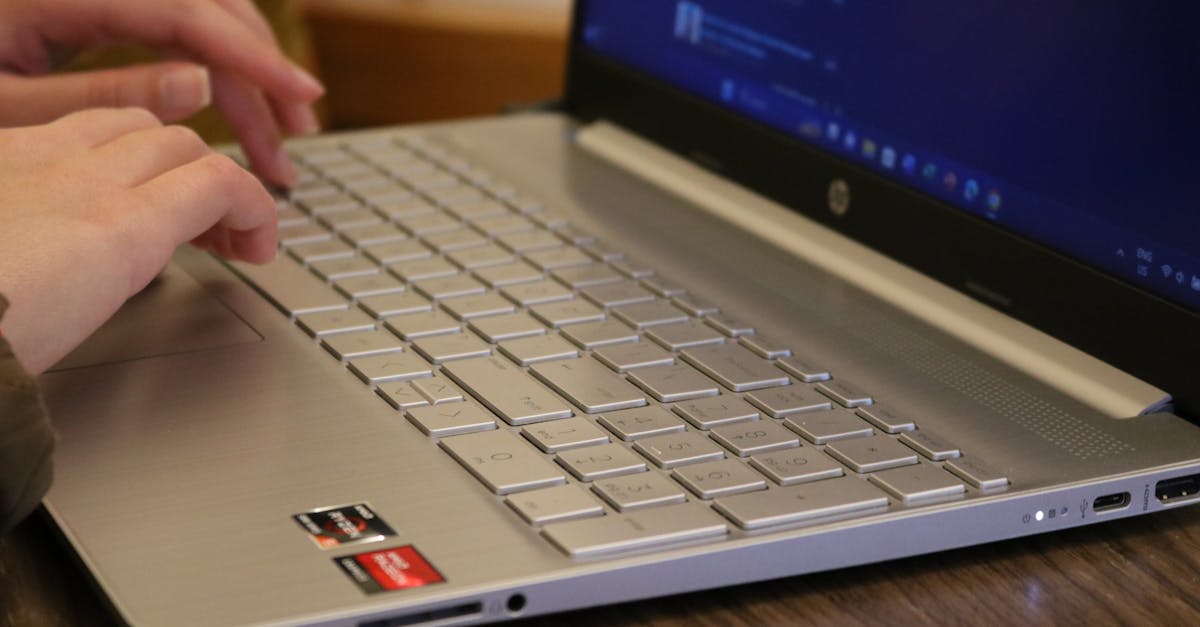
Key Takeaways
- HP EliteBook keyboard not working is typically caused by driver conflicts, Filter Keys activation, or a loose ribbon cable—most software issues resolve with a hard reset and driver reinstall in under two minutes.
- Run a quick test with an external USB keyboard and check the BIOS to determine if your HP EliteBook keyboard issue is hardware or software before attempting advanced fixes.
- Windows 11 updates frequently trigger keyboard failures through corrupted Standard PS/2 Keyboard drivers; reinstalling the driver through Device Manager resolves approximately 60% of post-update failures.
- If specific keys fail while others work, suspect physical damage or liquid corrosion rather than driver issues; use the HP PC Hardware Diagnostics UEFI test to confirm hardware defects.
- Filter Keys accessibility feature can accidentally activate and disable rapid keystrokes—disable it in Settings > Accessibility > Keyboard if you notice input throttling on your EliteBook keyboard.
- When the keyboard fails the UEFI hardware diagnostic test, professional repair is required; keyboard replacement costs $150–$250 at HP service centers and typically takes 30–45 minutes.
Why Your HP EliteBook Keyboard Stops Working
Understanding the root cause saves you from wasting time on the wrong fix. EliteBook keyboard failures fall into two distinct categories, and correctly identifying yours determines whether you need a screwdriver or just a settings change.
Hardware-Related Causes
The most common hardware culprit on EliteBook 840, 850, and G3–G10 models is a partially dislodged keyboard ribbon cable. This flat cable connects the keyboard assembly to the motherboard, and it can loosen over time, especially on refurbished units or laptops that travel frequently in bags. If your EliteBook keyboard backlight is working but keys aren’t registering, that’s a strong indicator the ribbon cable has shifted.
Liquid damage is the other major hardware killer. Even a small coffee spill can corrode the contact points underneath individual keys. The telltale sign? Some keys work fine while others are completely dead, or you’re experiencing ghost typing where characters appear without you pressing anything. Unlike a software glitch, liquid damage usually affects a specific zone of keys rather than the entire keyboard.
Physical wear on older G3–G5 models can also cause intermittent failures. The scissor-switch mechanisms underneath keycaps degrade after years of heavy use, leading to keys that require excessive force or don’t register at all.
Software and Driver-Related Causes
Windows 11 updates are a frequent trigger for EliteBook keyboard failures. A corrupted Standard PS/2 Keyboard driver in Device Manager can render your entire keyboard unresponsive after a feature update. HP’s own Hotkey Support driver can also conflict with Windows, disabling Fn key combinations or causing input lag.
HP Wolf Security, the enterprise endpoint protection suite pre-installed on most EliteBooks, has been reported by users to occasionally block keyboard input during certain security scans. Also, the Filter Keys accessibility feature in Windows can activate accidentally (by holding Shift for 8 seconds), causing the keyboard to ignore rapid or repeated keystrokes.
“After a Windows 11 update my EliteBook 840 G7 keyboard completely stopped. Uninstalling the keyboard driver in Device Manager and restarting fixed it instantly.” via r/Hewlett_Packard
When both the EliteBook trackpad and keyboard stop working simultaneously, the issue is almost certainly software or BIOS-related rather than hardware, since they use separate physical connections but share system-level drivers.
Quick Preliminary Checks Before Troubleshooting
Before diving into advanced fixes, run through these quick checks. They take under sixty seconds and resolve a surprising number of cases.
- Connect an external USB keyboard to confirm Windows is processing input. If the external keyboard works, the issue is isolated to your built-in keyboard hardware or its specific driver.
- Check if you’re stuck in a BIOS or pre-boot screen. Some EliteBooks lock keyboard input if HP Sure Start has detected a BIOS anomaly.
- Disconnect any USB-C docks or hubs. External USB-C dock keyboard connection issues can create driver conflicts that disable the internal keyboard. Unplug, wait ten seconds, and reconnect.
- Look for the Filter Keys icon in your system tray (a small keyboard icon). If it’s there, Filter Keys is active and likely throttling your input.
- Run HP Support Assistant. Open it from the Start menu and run a diagnostic scan. HP Support Assistant can detect driver mismatches and hardware faults automatically.
If none of these checks resolve the problem, proceed to the targeted fixes below.
| Symptom | Likely Cause | Start With |
|---|---|---|
| All keys dead, backlight on | Ribbon cable or driver | Hard reset + driver reinstall |
| Ghost typing or random characters | Liquid damage or Filter Keys | Clean keyboard / disable Filter Keys |
| Fn keys not responding | Hotkey Support driver | Update HP Hotkey Support driver |
| Keyboard + trackpad both dead | BIOS or system-level issue | BIOS update + UEFI test |
| Keys work in BIOS but not Windows | Windows driver conflict | Uninstall driver in Device Manager |
How to Fix an HP EliteBook Keyboard That Won’t Respond
Restart Your Laptop and Reset the Hardware
Start with an HP EliteBook hard reset using the internal battery drain method. Shut down your laptop completely, don’t just close the lid. Disconnect the power adapter and any peripherals. Then press and hold the power button for 15 seconds. This drains residual charge from the capacitors and resets the embedded controller, which manages keyboard input at the firmware level.
On EliteBook models with a removable battery (G3–G5), physically remove the battery, hold the power button for 15 seconds, reinsert it, and power on. For sealed-battery models (G6 and newer), the 15-second hold accomplishes the same internal reset. This single step fixes a remarkable number of “keyboard suddenly dead” cases because it clears stuck firmware states that Windows restarts alone won’t touch.
After the reset, power on and test immediately, before logging into Windows, by pressing keys in the BIOS/UEFI screen (tap F10 during boot). If keys respond in BIOS but not in Windows, you’ve confirmed a software issue.
Update or Reinstall Keyboard Drivers
Open Device Manager by right-clicking the Start button. Expand “Keyboards” and look for “Standard PS/2 Keyboard.” If you see a yellow warning triangle, the driver is corrupted. Right-click it, select “Uninstall device,” check the box to delete the driver software, and restart your laptop. Windows will automatically reinstall a fresh driver on reboot.
If the Standard PS/2 Keyboard driver shows no errors but your keyboard still isn’t working, visit HP’s official driver download page and search for your specific EliteBook model. Download and install the latest chipset driver and HP Hotkey Support driver. The chipset driver is critical because it manages the communication bus between your keyboard controller and Windows.
For users comfortable with command-line tools, you can also force a driver refresh by opening an elevated Command Prompt and running pnputil /scan-devices to re-detect hardware.
Adjust Keyboard Settings and Filter Keys
Filter Keys is the single most overlooked cause of EliteBook keyboard issues. You can disable Filter Keys by going to Settings > Accessibility > Keyboard and toggling off “Filter Keys.” Also make sure “Sticky Keys” is turned off, as it can alter how modifier keys behave and create the impression that your keyboard is malfunctioning.
While you’re in keyboard settings, check that your input language matches your physical keyboard layout. A mismatch (say, your system switched to a UK layout) won’t make keys stop working entirely, but it can cause certain keys to produce wrong characters, which users sometimes mistake for hardware failure.
Run the Windows Keyboard Troubleshooter
Windows 11 includes a built-in keyboard troubleshooter. Go to Settings > System > Troubleshoot > Other troubleshooters, then click “Run” next to Keyboard. It’s not the most powerful tool, but it can detect and fix common issues like stuck driver services or misconfigured input settings.
If the built-in troubleshooter doesn’t resolve things, consider a dedicated system maintenance tool like Restoro or Driver Easy Pro to scan for deeper driver conflicts across your system. These SaaS tools can batch-update all drivers and flag conflicts that Device Manager misses.
Check for BIOS Updates and Test in BIOS
HP regularly releases BIOS updates that fix keyboard controller bugs. Open HP Support Assistant, go to “Updates,” and check for any pending BIOS or firmware updates. Install them and restart.
To run a dedicated hardware test, restart your EliteBook and immediately press F2 to launch HP PC Hardware Diagnostics UEFI. Select “Component Tests” > “Keyboard” to run a full key-by-key diagnostic. This test operates independently of Windows, so if your keyboard fails here, you’re dealing with a hardware defect, not a driver problem.
What to Do If Only Certain Keys Are Not Working
When specific keys fail while others work fine, you’re almost certainly looking at a hardware issue rather than a driver problem. Individual key failures point to physical damage, either a broken scissor mechanism under the keycap, debris lodged beneath the key, or localized liquid damage on the membrane layer.
Start by carefully removing the affected keycap using a plastic spudger or a flat tool. Examine the scissor clip underneath. If it’s cracked or detached, you’ll need a replacement keycap assembly. Compressed air can dislodge crumbs or dust that prevent full key travel. For liquid damage, look for white or green corrosion residue on the contacts.
If a cluster of adjacent keys is dead (for example, the T-Y-U row), the keyboard ribbon cable may be partially disconnected or damaged at a specific trace. This pattern is distinct from random scattered failures, which suggest membrane-layer corrosion.
“Only my top row keys stopped on my 850 G6. Opened it up and one side of the ribbon cable had come loose from the ZIF connector. Pushed it back in, problem solved.” via r/hewlettpackard
For a quick temporary fix, Windows’ On-Screen Keyboard (search “osk” in the Start menu) lets you click missing characters while you wait for parts.
When to Use an External Keyboard as a Temporary Fix
If you’re mid-deadline and can’t troubleshoot right now, an external keyboard keeps you productive. Any standard USB keyboard will work immediately without drivers on an EliteBook. For professionals who need portability, the Logitech MX Keys S Wireless Keyboard pairs over Bluetooth or the included USB receiver and offers a typing experience that closely matches a built-in laptop keyboard.

If you’re working from a docking station setup and want a more permanent desk upgrade, the HP 965 Ergonomic Wireless Keyboard is purpose-built for EliteBook users. It integrates seamlessly with HP’s ecosystem and supports multi-device pairing, useful if you switch between an EliteBook and a desktop.

When using an external keyboard through a USB-C dock, make sure the dock’s firmware is up to date. Some Thunderbolt docks introduce input latency or fail to pass through keyboard input correctly if their firmware is outdated.
When to Seek Professional Repair or Replacement
If your keyboard fails the HP PC Hardware Diagnostics UEFI test, the fix requires physical repair. On most EliteBook G6–G10 models, the keyboard is a separate replaceable module, but it sits beneath the top case, making it a 30-to-45-minute disassembly job. HP charges roughly $150–$250 for an out-of-warranty keyboard replacement through their authorized service centers.
You should also escalate to professional repair if you see visible liquid corrosion under the keycaps, if the keyboard ribbon cable connector on the motherboard appears damaged, or if both the trackpad and keyboard remain dead after every software fix in this guide.
For EliteBooks still under HP Care Pack or next-business-day warranty, contact HP Support directly. They can dispatch a technician or ship a replacement unit. Document your UEFI test results, HP’s support team resolves warranty claims faster when you provide diagnostic codes.
Data Insights and Analysis
According to HP’s 2025 product reliability reports, keyboard and input device issues account for approximately 15–18% of all EliteBook hardware service requests, making it the second most common failure category after battery degradation. Community data from HP’s support forums suggests that roughly 60% of keyboard failures reported after late-2024 Windows 11 updates were resolved through driver reinstallation alone, indicating the majority are software-triggered.
Expert Note: "EliteBook keyboard controllers communicate through the system's chipset bus, not a dedicated USB channel like external keyboards. This is why a chipset driver mismatch after a Windows update can completely disable the internal keyboard while an external USB keyboard works perfectly. Always update chipset drivers alongside keyboard drivers, they're inseparable from a system architecture standpoint."
Frequently Asked Questions
Why is my HP EliteBook keyboard not working after a Windows 11 update?
Windows 11 updates often corrupt the Standard PS/2 Keyboard driver, causing complete keyboard failure. The fix is simple: open Device Manager, uninstall the keyboard driver, restart your laptop, and Windows will reinstall a fresh driver automatically. Also update your chipset driver from HP’s website.
How do I perform a hard reset on my HP EliteBook to fix keyboard issues?
Shut down completely, disconnect the power adapter and peripherals, then press and hold the power button for 15 seconds. This drains capacitor charge and resets the embedded controller managing keyboard input. Power on and test immediately in BIOS by pressing F10 during boot. This fixes most software-triggered failures.
What is Filter Keys and why does it disable my keyboard?
Filter Keys is a Windows accessibility feature that can activate accidentally by holding Shift for 8 seconds, causing the keyboard to ignore rapid or repeated keystrokes. Disable it by going to Settings > Accessibility > Keyboard and turning off Filter Keys. Check your system tray for the Filter Keys icon.
How do I know if my HP EliteBook keyboard failure is hardware or software?
Connect an external USB keyboard—if it works, your issue is software or driver-related. If it fails the HP PC Hardware Diagnostics UEFI test (press F2 during boot), it’s hardware damage. If your keyboard works in BIOS but not Windows, it’s definitely a software or driver problem.
What causes only certain keys on my EliteBook keyboard to stop working?
Specific key failures indicate hardware damage: a cracked scissor mechanism, debris lodged under the key, or localized liquid corrosion. A cluster of adjacent dead keys suggests a partially disconnected keyboard ribbon cable at the ZIF connector. Remove the keycap carefully to inspect for physical damage or corrosion residue.
Can a dislodged keyboard ribbon cable cause my EliteBook keyboard to completely fail?
Yes, a partially dislodged keyboard ribbon cable is the most common hardware cause of EliteBook keyboard failure. The flat cable connects the keyboard to the motherboard and can loosen over time, especially on refurbished or frequently-traveled laptops. The backlight may still work while keys don’t register—a telltale sign of a ribbon cable issue.
Read More:
- Laptop Keyboard Not Working (Complete Fix Guide for All Brands)
- Numbers on Keyboard Not Working? Here’s the 7 Proven Fixes
- Some Laptop Keys Not Working? Quick Fixes That Really Work