
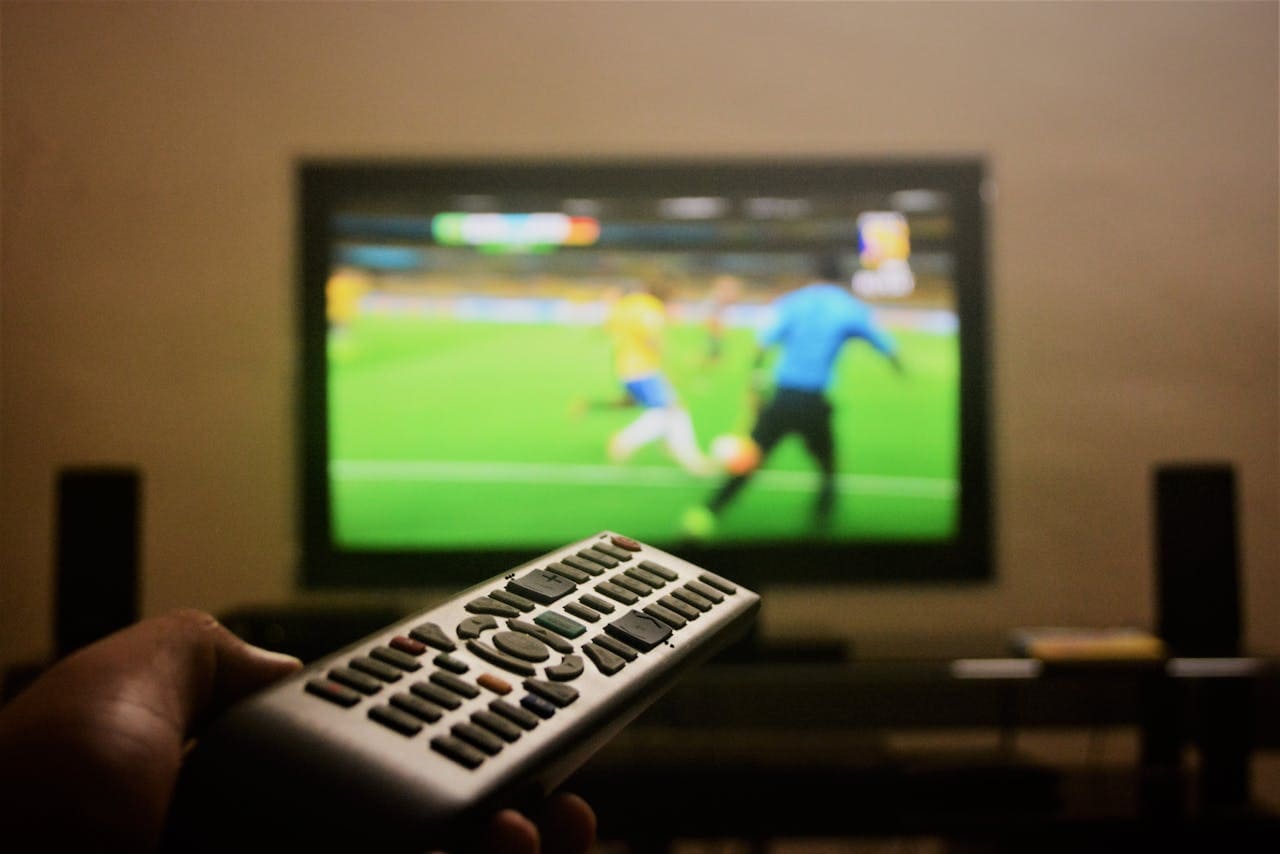
When your Insignia TV keeps going to sleep or turning off unexpectedly, it can be incredibly frustrating. This issue affects many users and can disrupt your viewing experience significantly.
Your Insignia TV goes to sleep due to enabled sleep timer settings, power-saving features, or automatic shutdown functions designed to save energy. These settings can be adjusted or disabled through your TV’s menu system, remote control shortcuts, or power management options.

Reasons Your Insignia TV Goes to Sleep
Several factors can cause your Insignia TV to enter sleep mode automatically. Understanding these causes helps you identify the right solution for your specific situation.

Amazon Fire TV Stick HD
Turn Any TV to a Smart TV. Stream Netflix, Prime Video & More. Alexa Voice Remote Included. Easy Plug & Play Setup.
Shop on AmazonSleep timer settings are the most common culprit behind unexpected TV shutdowns. Most Insignia TVs come with pre-configured sleep timers that automatically turn off the display after periods of inactivity. These settings are often enabled by default and can range from 5 minutes to several hours.
Power-saving features also contribute to automatic sleep behavior. Modern Insignia TVs include eco-friendly settings that reduce energy consumption by powering down when no activity is detected. These features monitor for remote input, audio changes, or other user interactions.
In addition, faulty remote controls can trigger sleep mode unexpectedly. When remote buttons stick or send erratic signals, they may inadvertently activate sleep functions. This is particularly common with older remotes or those with worn-out buttons.
Furthermore, system software glitches can cause irregular sleep patterns. Outdated firmware or corrupted system files may trigger unexpected shutdowns or sleep activation. Regular software updates help prevent these issues.
Sleep timers are designed to save energy and prevent screen burn-in, but they can become problematic when set too aggressively for your viewing habits.
Cable connection issues can also simulate sleep mode problems. Loose HDMI cables or poor signal quality may cause the TV to enter standby mode when it loses input signal. Similarly, overheating can trigger automatic shutdown features designed to protect internal components.
Hardware malfunctions in power supply units or main boards can manifest as sleep-related issues. These problems typically require professional diagnosis and repair.
How to Turn Off Sleep Timer on Insignia TV
The quickest way to disable sleep timer on your Insignia TV is through the remote control shortcut. Press and hold the Home button on your Fire TV remote for 3 seconds until the Quick Access Menu appears. Scroll down and select “Sleep Timer” to adjust or disable this feature.
For more comprehensive sleep timer management, navigate through the main settings menu. Go to Settings > Device > Sleep (for Fire TV models) or Settings > Display & Sounds > Screen Saver > Sleep Timer (for certain models). Here you can set the timer to “Off” or adjust it to your preferred duration.
The sleep timer options typically include:
- 15 minutes
- 30 minutes
- 1 hour
- 2 hours
- 4 hours
- Off (disabled)
Disabling the sleep timer completely means your TV will stay on indefinitely unless manually turned off, which can increase energy consumption.
Some Insignia models require different navigation paths. For older models, try accessing Timer settings through the Menu > System > Sleep Timer path. Always check your specific model’s user manual for exact menu locations.
Additionally, verify that screensaver settings aren’t conflicting with sleep timer preferences. Navigate to Settings > Display & Sounds > Screen Saver and ensure the screensaver timeout doesn’t trigger before your desired sleep timer duration.
Power-Saving Settings and Eco Mode
Power-saving features on Insignia TVs can cause automatic sleep behavior even when sleep timers are disabled. These settings monitor for user activity and power down the display to reduce energy consumption.
To access power-saving options on Fire TV models, go to Settings > Device > Power Options. Look for settings like “Auto Power Off” or “Energy Saver Mode” and adjust them according to your preferences. Disabling these features prevents automatic shutdown during periods of inactivity.
For Roku-based Insignia TVs, navigate to Settings > System > Power and select “Auto power off.” You can choose to disable this feature or extend the timeout period to several hours.
Some models include motion detection features that keep the TV active when movement is detected in the room. While this can be helpful, it may not work reliably in all environments. Consider disabling motion-based power saving if your TV continues to sleep unexpectedly.
Eco mode settings can also affect sleep behavior. These environmentally conscious features reduce power consumption by dimming the display or entering low-power states. Access eco mode through Settings > Display or Settings > Device Options depending on your model.
In addition, check for any “Auto Sleep” or “Inactivity Timer” settings in your TV’s menu system. These may be separate from the main sleep timer and can cause confusion when troubleshooting sleep issues.
Troubleshooting Remote Control Issues
Remote control problems can trigger unwanted sleep mode activation on your Insignia TV. Faulty buttons, interference, or connectivity issues may send unintended commands to your television.
First, examine your remote for physically stuck buttons, particularly the power and sleep timer buttons. Clean around button edges with a soft cloth and compressed air to remove debris that might cause buttons to stick. Replace batteries with fresh ones to ensure proper signal transmission.
Test your remote’s functionality by using each button individually. If certain buttons are unresponsive or overly sensitive, the remote may need replacement. Insignia TV remotes are available through various retailers, with prices ranging from $6.99 to $29.99 depending on the model and features.
Consider using the Amazon Fire TV app on your smartphone as an alternative remote control. This app connects to your TV via Wi-Fi and provides full remote functionality without the potential hardware issues of physical remotes.
For persistent remote issues, try re-pairing your remote with your TV. Hold the Home button for 10 seconds to enter pairing mode, then follow the on-screen instructions to establish a new connection.
Furthermore, check for interference from other electronic devices. Fluorescent lights, wireless routers, and other remotes can interfere with infrared signals. Ensure clear line-of-sight between your remote and TV, and remove potential sources of interference.
Advanced Troubleshooting Methods
When basic sleep timer adjustments don’t resolve the issue, more advanced troubleshooting techniques may be necessary. These methods address deeper system problems that can cause sleep-related malfunctions.
Power Cycle Your TV
Perform a complete power cycle by unplugging your Insignia TV from the power outlet for at least 60 seconds. While unplugged, press and hold the power button on the TV (not the remote) for 30 seconds to discharge any residual power. Plug the TV back in and test if the sleep issue persists.
Check HDMI-CEC Settings
HDMI-CEC (Consumer Electronics Control) allows connected devices to control your TV’s power state. Disable HDMI-CEC if external devices are inadvertently triggering sleep mode. Navigate to Settings > Display & Sounds > HDMI CEC Device Control and turn off this feature.
Update System Software
Outdated firmware can cause various operational issues, including irregular sleep behavior. Go to Settings > Device Options > About > Check for System Update to ensure your TV runs the latest software version. Install any available updates and restart your TV.
Factory Reset (Last Resort)
If other methods fail, consider performing a factory reset. This will restore your TV to original settings but will erase all personalized configurations. Navigate to Settings > Device Options > Reset to Factory Defaults and follow the prompts.
Factory resets should be your last resort as they remove all custom settings, installed apps, and saved preferences.
For hardware-related issues, contact Insignia customer support or consult a qualified TV repair technician. Internal power supply problems or main board failures require professional diagnosis and repair.
Alternative Solutions and Workarounds
When sleep timer settings and power-saving features can’t be completely disabled, several workarounds can help maintain your viewing experience.
Use External Streaming Devices
Connect a dedicated streaming device like a Fire TV Stick, Roku, or Apple TV to your Insignia TV. These devices often have more flexible power management options and can keep your TV active even when the built-in smart features would normally trigger sleep mode.
Implement Activity Simulation
Some users employ HDMI signal generators or media players that continuously output video signals to prevent inactivity detection. These devices trick your TV into thinking content is actively playing, preventing automatic sleep activation.
Optimize Viewing Habits
Adjust your viewing patterns to work with your TV’s sleep settings rather than against them. For example, if your TV sleeps after 30 minutes of inactivity, set reminders to interact with the remote or pause/resume content periodically.
Third-Party Remote Apps
Consider using third-party remote control apps that offer more frequent “keep-alive” signals. Some apps can be configured to send periodic commands to your TV, maintaining activity status without disrupting your viewing experience.
Additionally, smart home integration platforms like Alexa or Google Assistant can provide voice control alternatives that don’t rely on physical remote buttons that might malfunction.
Video Credit: Juan Camacho / YouTube
Frequently Asked Questions
Why does my Insignia TV keep turning off every 15 minutes?
Your Insignia TV likely has a sleep timer set to 15 minutes, which is a common default setting for energy conservation. This automatic shutdown feature activates when no remote input or signal changes are detected for the specified duration. To resolve this, press and hold the Home button on your remote for 3 seconds to access the Quick Settings menu, then select “Sleep Timer” and either disable it or extend the timeout period.
You can also navigate to Settings > Device > Sleep on Fire TV models or Settings > Display & Sounds > Screen Saver > Sleep Timer on other models. Additionally, check if power-saving features or eco mode settings are enabled, as these can cause similar behavior even when sleep timers are disabled.
How do I permanently disable sleep mode on my Insignia Fire TV?
Complete sleep mode disabling isn’t always possible through standard Fire TV settings, but you can maximize the timeout period and disable related power-saving features. Access Settings > Device > Sleep and set the timer to the longest available option (usually 4 hours) or “Off” if available. Then go to Settings > Device > Power Options and disable auto power-off features.
Some models allow you to set extremely long timeout periods (up to 240 minutes) which effectively disables sleep mode for most viewing sessions. However, completely eliminating all power management features may not be supported due to energy efficiency requirements and hardware protection mechanisms.
Can a faulty remote cause my TV to go to sleep randomly?
Yes, a malfunctioning remote control can definitely trigger unexpected sleep mode activation on your Insignia TV. Stuck buttons, particularly the power or sleep timer buttons, can send continuous signals that activate sleep functions. Weak batteries can also cause erratic signal transmission that might be interpreted as sleep commands.
To troubleshoot this issue, remove the batteries from your remote and observe if the TV continues to sleep unexpectedly. If the problem stops, replace the batteries and clean the remote buttons. Consider using the Fire TV smartphone app as an alternative remote to confirm if the physical remote is causing the issue.
Why does my Insignia TV turn off when I pause content?
This behavior is typically caused by inactivity detection features that monitor for user interaction and content playback. When you pause content, the TV may interpret this as the beginning of an inactive period and start the sleep timer countdown. This is especially common with streaming services that don’t maintain active signals during pause states.
To prevent this, adjust your sleep timer to a longer duration or disable inactivity-based power saving features. You can also try using the remote periodically during pause states to reset the inactivity timer. Some models allow you to configure different timeout periods for active content versus paused content.
Is there a way to keep my Insignia TV on all night?
While it’s possible to extend your TV’s active time significantly, keeping it on continuously isn’t recommended for energy efficiency and hardware longevity. However, you can set sleep timers to maximum durations (4+ hours) and disable power-saving features to minimize automatic shutdowns. Access Settings > Device > Sleep and select the longest available timeout period.
For situations where you need extended operation, consider using external streaming devices that maintain more consistent signals or implementing periodic remote interaction to reset sleep timers. Remember that prolonged operation without sleep modes can increase energy consumption and potentially reduce your TV’s lifespan due to heat buildup and component wear.
Sources:
- Amazon Forum – Insignia Fire TV Sleep Issues
- Best Buy Community – Insignia TV Sleep Timer Questions
- Tech Junctions – Insignia TV Sleep Mode Guide
- Smart TVs – Insignia TV Troubleshooting