
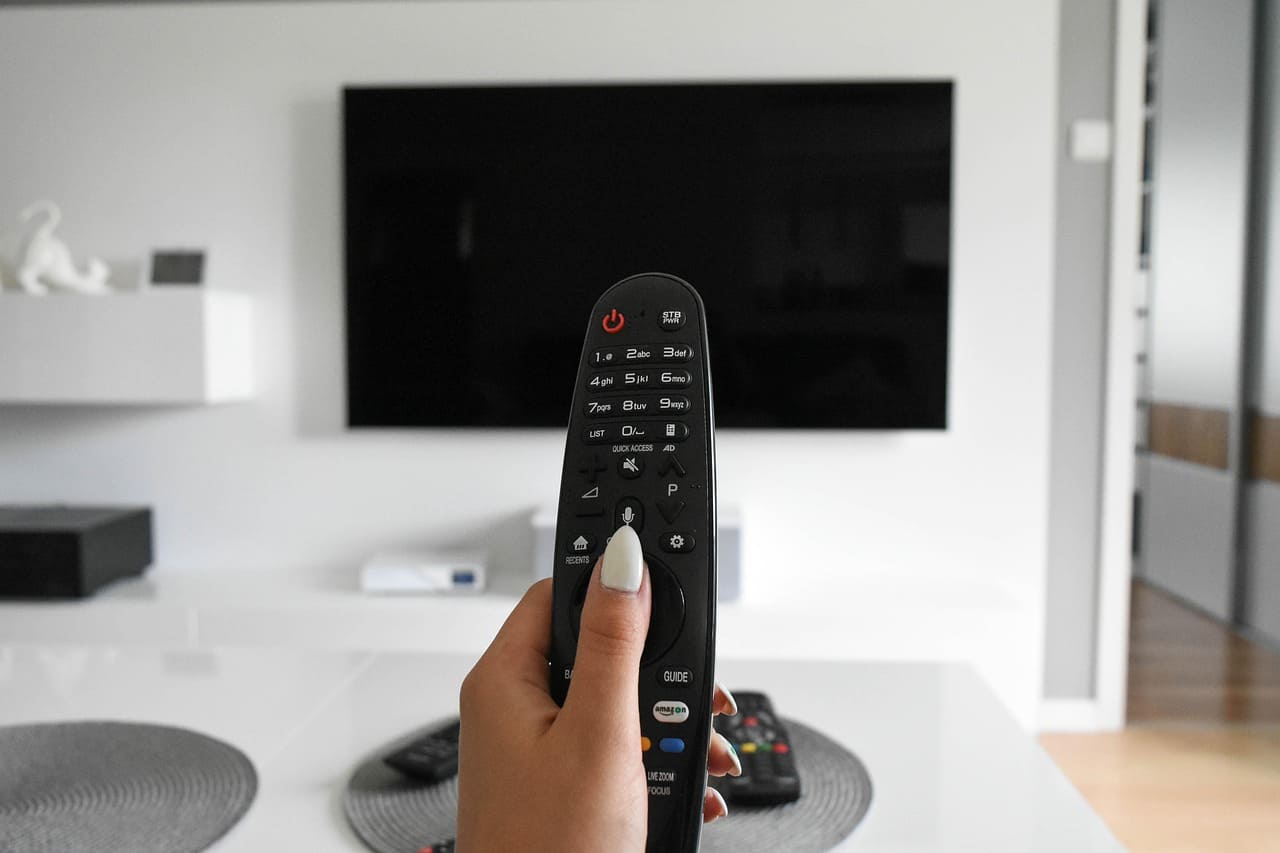
Your Insignia TV displays “no signal” when it cannot detect a video source from connected devices. This common issue typically stems from loose cable connections, incorrect input selection, or device compatibility problems.
An Insignia TV shows "no signal" due to disconnected HDMI cables, wrong input source selection, powered-off devices, or faulty cables. Start by checking that your HDMI cable is securely connected to both your TV and source device, then verify you've selected the correct input (HDMI 1, 2, 3, etc.) using your remote's Input or Source button. Ensure your connected device (cable box, gaming console, streaming device) is powered on and functioning properly.
Cable Connection Problems
The most frequent cause of “no signal” errors involves physical connection issues between your TV and external devices. Even slightly loose connections can prevent proper signal transmission, resulting in the frustrating no signal message.
Loose HDMI Connections

Amazon Fire TV Stick HD
Turn Any TV to a Smart TV. Stream Netflix, Prime Video & More. Alexa Voice Remote Included. Easy Plug & Play Setup.
Shop on AmazonHDMI cables can work themselves loose over time due to vibration, movement, or simply inadequate initial connection. A connection that appears secure may still be loose enough to cause signal interruption.
Check both ends of your HDMI cable, ensuring they’re firmly seated in their respective ports. The cable should click into place and feel secure when properly connected. Remove and reconnect each HDMI cable to establish a fresh connection.
Additionally, gently wiggle the HDMI cable at both connection points while watching your TV. If the signal appears or disappears during this test, you’ve identified a loose connection that needs attention.
Damaged or Faulty Cables
HDMI cables can suffer internal damage that isn’t visible externally. Bending, crushing, or general wear can break internal wires while leaving the outer jacket intact.
Inspect your HDMI cables for obvious physical damage such as kinks, cuts, sharp bends, or damaged connectors. Pay particular attention to areas where cables might have been pinched by furniture or stepped on.
HDMI cables are more fragile than they appear and can fail internally while looking perfectly fine on the outside, making cable testing essential for troubleshooting.
Test your setup using a different HDMI cable to determine if the original cable is faulty. Many “no signal” issues resolve immediately when replacing a damaged cable with a known working one.
Port-Specific Issues
Individual HDMI ports on your Insignia TV can malfunction while others continue working normally. Dust accumulation, electrical damage, or manufacturing defects can affect specific ports.
Try connecting your device to a different HDMI port on your TV. If the signal works on HDMI 2 but not HDMI 1, the original port may be damaged or dirty.
Clean HDMI ports carefully using compressed air to remove dust and debris. Avoid inserting anything into the ports that could cause damage to the delicate connectors inside.
Input Source Selection Issues
Many “no signal” problems result from selecting the wrong input source on your TV. With multiple HDMI ports and input options, it’s easy to select the wrong source and receive a no signal message.
Wrong Input Selected
Your TV must be set to the same input where your device is connected. If your cable box connects to HDMI 2, your TV must be set to HDMI 2 input to receive the signal.
Use your TV remote’s Input, Source, or similar button to cycle through available inputs. Most Insignia TVs display a list of available inputs on screen when you press this button.
Take note of which HDMI port you’re using for each device and label them if necessary. This prevents confusion when switching between different input sources.
Auto-Detection Problems
Some Insignia TV models have automatic input detection that should switch to active inputs automatically. When this feature malfunctions, it may not detect active signals properly.
Disable automatic input switching in your TV’s settings if available. Navigate to Settings > Display > Input Settings and look for options related to auto-detection or automatic input switching.
Manually select the correct input instead of relying on automatic detection. This ensures your TV stays on the proper input regardless of auto-detection functionality.
Input Labeling Confusion
Many users become confused when inputs are labeled differently than expected or when custom names have been assigned to HDMI ports.
Check your TV’s input list to see how each HDMI port is labeled. Some may show as “Cable Box,” “Game Console,” or other custom names instead of simply “HDMI 1.”
Reset input labels to default names if custom labeling is causing confusion. This makes it easier to match physical connections with on-screen input selections.
Device Power and Setup Issues
Connected devices must be powered on and properly configured to send signals to your TV. Device-related issues often cause no signal errors that appear to be TV problems.
Device Not Powered On
Your source device (cable box, gaming console, streaming device) must be fully powered on to send a signal to your TV. Devices in standby mode typically don’t transmit video signals.
Verify that your connected device is actually turned on and not just in standby mode. Look for power indicators, display lights, or other signs that the device is actively running.
Some devices require additional setup or activation after powering on. Cable boxes, for example, may need time to establish a connection with your service provider before transmitting signals.
Device Configuration Problems
Source devices may have output settings that don’t match your TV’s capabilities, resulting in no signal detection even when everything is properly connected.
Check your device’s video output settings to ensure they’re compatible with your TV. Look for resolution settings (1080p, 4K), refresh rate options, or HDMI output configurations.
Moreover, some devices have multiple output modes or may need to be manually configured for HDMI output instead of other connection types.
Gaming consoles and computers often have specific HDMI output settings that must be configured correctly for your TV to detect and display the signal properly.
HDMI Handshake Issues
HDMI devices use a “handshake” process to establish communication and determine optimal settings. When this process fails, your TV may not detect any signal from the connected device.
Power cycle both your TV and the connected device to reset the HDMI handshake. Turn off both devices, unplug them for 30 seconds, then power them back on in sequence.
Try turning on your source device first, allow it to fully boot, then turn on your TV. This can help establish proper HDMI communication between devices.
TV Settings and Configuration
Your Insignia TV’s internal settings can sometimes prevent proper signal detection even when connections and devices are working correctly. Understanding these settings helps resolve persistent no signal issues.
HDMI Port Settings
Some Insignia TV models have individual settings for each HDMI port that can affect signal detection and compatibility with connected devices.
Navigate to Settings > Display > HDMI Settings and check configuration options for the problematic HDMI port. Look for settings related to HDMI mode, signal format, or enhanced features.
Try changing HDMI mode from “Auto” to a specific setting like “HDMI 1.4” or “HDMI 2.0” depending on your connected device’s capabilities.
Resolution and Format Settings
Your TV may be set to detect only specific resolution formats, causing it to miss signals that don’t match these parameters.
Check your TV’s supported resolution settings and ensure they’re compatible with your source device’s output. Most modern devices output 1080p or 4K signals.
Reset video settings to default values if you suspect incorrect configuration is preventing signal detection. This returns all display settings to factory defaults.
Enhanced HDMI Features
Advanced HDMI features like Enhanced Format, HDMI 2.1 support, or variable refresh rate can sometimes interfere with basic signal detection from older devices.
Disable enhanced HDMI features temporarily to see if this resolves signal detection issues. These features aren’t necessary for basic video transmission and can cause compatibility problems.
Some devices work better with simplified HDMI settings rather than advanced features that may not be fully supported.
Power Reset and Hardware Solutions
Hardware-related issues within your TV or connected devices can cause persistent no signal problems that require more intensive troubleshooting approaches.
TV Power Reset Procedure
A complete power reset can resolve internal system issues that prevent proper signal detection and processing.
- Turn off your Insignia TV using the remote control
- Unplug the TV from the power outlet completely
- Press and hold the TV’s power button for 15 seconds while unplugged
- Wait an additional 60 seconds before plugging the TV back in
- Turn on the TV and test signal detection on each HDMI port
- Allow the TV to fully boot before connecting any devices
HDMI Port Reset
Individual HDMI ports can sometimes be reset separately from the entire TV system, which may resolve port-specific signal detection issues.
Unplug all HDMI devices from your TV and leave them disconnected for at least 5 minutes. This allows the HDMI ports to fully reset their detection circuits.
Reconnect devices one at a time, testing each connection before adding the next device. This helps identify if specific device combinations cause signal detection problems.
A complete power reset resolves approximately 60% of no signal issues by clearing temporary system glitches and resetting HDMI communication protocols.
Internal Hardware Considerations
Persistent no signal issues affecting all HDMI ports may indicate internal hardware problems requiring professional diagnosis or repair.
If no HDMI ports detect signals from any device, the problem likely involves your TV’s main board or HDMI processing circuitry rather than individual port failures.
Contact Insignia customer support if your TV is still under warranty and multiple troubleshooting attempts haven’t resolved the issue. Hardware failures may be covered under warranty terms.
Step-by-Step Troubleshooting Guide
Follow this systematic approach to identify and resolve your Insignia TV’s no signal problem efficiently. Start with the simplest solutions before progressing to more complex fixes.
Basic Connection Check
- Verify your HDMI cable is firmly connected to both TV and device
- Ensure the connected device (cable box, console, etc.) is powered on
- Check that you’ve selected the correct input source on your TV
- Look for any obvious damage to cables or connectors
- Try wiggling the HDMI cable gently to test connection stability
- Observe if the no signal message changes during cable movement
Input Source Verification
- Press the Input, Source, or similar button on your TV remote
- Cycle through all available input options (HDMI 1, 2, 3, etc.)
- Allow 5-10 seconds on each input for signal detection
- Note which HDMI port your device is actually connected to
- Match the physical connection to the on-screen input selection
- Try multiple input sources to isolate the problem
Device Testing Procedure
- Turn off your source device completely (not standby mode)
- Wait 30 seconds, then power the device back on
- Allow the device to fully boot before testing TV signal
- Check device output settings for HDMI compatibility
- Try connecting the device to a different HDMI port
- Test with a different device if available to isolate the problem
Cable Replacement Test
- Disconnect the current HDMI cable from both TV and device
- Clean both HDMI ports with compressed air if available
- Connect a known working HDMI cable to the same ports
- Test signal detection with the replacement cable
- If signal works, the original cable was faulty and needs replacement
- Purchase a high-quality HDMI cable if the replacement cable resolves the issue
Complete System Reset
- Turn off all connected devices and your TV
- Unplug everything from power for exactly 60 seconds
- Disconnect all HDMI cables from your TV
- Plug in and turn on your TV first, without any devices connected
- Reconnect one device at a time, testing each connection
- Add additional devices only after confirming each one works individually
Advanced Troubleshooting
When standard troubleshooting doesn’t resolve the no signal issue, these advanced techniques can address more complex hardware and software problems.
HDMI Handshake Reset
The HDMI handshake process establishes communication between devices and can become corrupted, preventing signal detection even with proper connections.
Perform a complete handshake reset by unplugging both your TV and source device from power for at least 5 minutes. This ensures all HDMI communication protocols are completely reset.
When reconnecting, power on your source device first and allow it to fully boot. Then power on your TV and immediately select the correct input source before the TV attempts auto-detection.
Firmware and Software Updates
Outdated TV firmware can cause compatibility issues with newer devices or HDMI standards, resulting in signal detection problems.
Check for available firmware updates by going to Settings > System > About > Check for Updates. Allow any available updates to download and install completely.
Some HDMI-related bugs are resolved through firmware updates, particularly issues related to newer device compatibility or enhanced HDMI features.
Professional Hardware Diagnosis
Persistent no signal issues affecting multiple inputs and devices may indicate internal hardware failure requiring professional diagnosis.
Document which specific symptoms you’re experiencing: whether all HDMI ports are affected, if the issue occurs with all devices, and whether any temporary fixes provide partial relief.
Contact Insignia customer support with detailed information about your troubleshooting attempts. This helps them determine whether the issue requires warranty service or professional repair.
If your TV is out of warranty, get quotes from certified repair technicians who specialize in Insignia or Fire TV devices. Compare repair costs against replacement costs to make an informed decision.
Alternative Connection Methods
Consider using alternative connection methods temporarily while resolving HDMI issues, particularly for devices that support multiple output types.
Some devices offer component video, composite, or other analog connections that can provide basic functionality while troubleshooting HDMI problems.
Streaming devices and gaming consoles may also support wireless display technologies that bypass HDMI connections entirely, providing an alternative signal path to your TV.
Video Credit: Fix369 / YouTube
Frequently Asked Questions
Why does my Insignia TV say no signal when everything is connected properly?
Even with proper physical connections, several factors can cause no signal errors. The most common issue is selecting the wrong input source on your TV – ensure you’ve chosen the correct HDMI input that matches where your device is connected.
Device compatibility problems can also cause signal detection issues. Some older devices may not handshake properly with newer TVs, requiring specific HDMI settings or power cycling procedures to establish communication.
Additionally, damaged HDMI cables can appear connected while having internal breaks that prevent signal transmission. Try replacing the HDMI cable with a known working one to eliminate this possibility.
How do I fix no signal on HDMI 1 but other ports work fine?
When specific HDMI ports fail while others work normally, the problem typically involves that individual port rather than your TV’s overall HDMI system. Try cleaning the problematic port with compressed air to remove dust or debris that might interfere with connections.
Check your TV’s HDMI port settings for the specific port experiencing issues. Some Insignia models have individual settings for each HDMI port that can be reset or reconfigured to restore functionality.
If cleaning and settings adjustment don’t resolve the issue, the HDMI port may have internal damage requiring professional repair. Use a working port as a temporary solution while deciding whether to pursue repair or replacement options.
Can a bad power supply cause no signal issues on my Insignia TV?
Yes, power supply problems can definitely cause no signal detection issues. Insufficient or unstable power delivery can prevent your TV’s HDMI processing circuits from functioning properly, even when physical connections are secure.
Signs of power-related no signal issues include intermittent signal detection, problems that worsen when additional devices are connected, or issues that correlate with other electrical device usage in your home.
Try connecting your TV directly to a wall outlet, bypassing any power strips or surge protectors. If this improves signal detection, your power delivery system needs attention or replacement with a higher-quality power management solution.
What should I do if my Insignia TV shows no signal from my cable box?
Cable box no signal issues often relate to the cable box itself rather than your TV. Ensure your cable box is fully powered on (not in standby mode) and has completed its startup sequence, which can take several minutes.
Check all connections between your cable box and TV, including both HDMI and coaxial cables if applicable. Cable boxes sometimes require both power and signal connections to function properly.
Contact your cable provider if the cable box appears to be malfunctioning or if you’re experiencing service interruptions. They can test your signal remotely and determine if the problem originates from their equipment or service delivery.
How do I reset my Insignia TV when it shows no signal on all inputs?
When all HDMI inputs show no signal, perform a complete factory reset to address potential system-wide issues. Navigate to Settings > System > Reset to Factory Defaults, though you may need to access this through your TV’s physical buttons if the display is completely blank.
For TVs that won’t display anything at all, locate the reset button (usually a small recessed button) on the back of your TV. Press and hold this button for 15-30 seconds while the TV is unplugged, then plug it back in and attempt normal operation.
If factory reset doesn’t restore signal detection capability, the problem likely involves hardware failure requiring professional diagnosis. Consider replacement HDMI cables as a final troubleshooting step before seeking professional repair services.
Sources:
- JustAnswer Insignia TV Troubleshooting
- Amazon Forum Fire TV Support
- iFixit Insignia TV Repair Guide
- Smart TVs HDMI Troubleshooting Guide