
Last updated on April 5th, 2026 at 06:11 am
If your Jeep Grand Cherokee’s Apple CarPlay isn’t working, the problem often comes down to simple issues like outdated software, faulty cables, or incorrect settings. The fastest way to fix CarPlay problems is to update your iPhone and vehicle’s software, check your USB cable or wireless connection, and make sure CarPlay is properly enabled. These steps clear up the most common causes of CarPlay failures.
Sometimes, your iPhone’s charging port or the car’s USB ports may have dirt or damage that interrupts the connection. Using an Apple-certified cable and restarting your phone can help. If the problem continues, resetting the CarPlay system in your Jeep might be necessary to clear any glitches.

Best Bluetooth OBD2 Scanner
Detect 39,000+ Issues With Enhanced Codes. Save $1000s on car repairs & buying used vehicles by diagnosing problems yourself.
Shop on AmazonUnderstanding these basic checks can save you time and frustration. This guide will walk you through easy fixes and what to do if those don’t work, so you can get back to using CarPlay smoothly in your Jeep Grand Cherokee.

Causes Jeep Grand Cherokee CarPlay Is Not Working
Several issues can stop CarPlay from working properly in your Jeep Grand Cherokee. These can involve software problems, outdated system firmware, or hardware like cables and ports. Identifying the right cause helps you fix the problem faster.
Software Compatibility Issues
Your iPhone needs to run iOS 7.1 or later to support CarPlay in the Jeep Grand Cherokee. If your phone’s software is outdated or some installed apps are not compatible, CarPlay may not launch or connect properly.
Sometimes, your phone and the Jeep’s Uconnect system might not sync due to software mismatches. This can happen if you recently updated one but not the other. To avoid this, keep your iPhone and your Jeep’s software up to date.
Also, some older Jeep models may not support the latest CarPlay features. Check your vehicle’s specs and Uconnect version to ensure compatibility. If your phone’s software or apps are causing the issue, restarting your phone often helps reset the connection.
Outdated Firmware
The firmware in your Jeep’s Uconnect system controls CarPlay functions. If the firmware is outdated, it can cause connection or responsiveness problems.
Manufacturers release updates to fix bugs and add better support for devices like the iPhone. If you haven’t updated your Uconnect firmware recently, you should. Updates can be done through a dealership or, in some cases, via USB.
Running the newest firmware improves stability and may resolve issues like CarPlay not loading, freezing, or disconnecting during use. Checking for the latest update regularly is key to smooth CarPlay operation.
Faulty USB Cables or Ports
CarPlay often connects via a USB cable in the Jeep Grand Cherokee. If the cable is damaged or low quality, it can cause unstable connections or prevent CarPlay from starting.
Make sure you use a high-quality, certified USB cable. Avoid cheap, worn-out, or bent cables because they can lead to intermittent connection problems.
Additionally, check the USB ports in your Jeep. Dirt, debris, or loose connectors can stop CarPlay signals from passing through. Inspect ports for damage or looseness and try using a different USB port if available.
If wired CarPlay still doesn’t work, try switching to wireless CarPlay if your model supports it. This can bypass cable and port issues altogether.
Initial Troubleshooting Steps
Start by checking simple fixes that can restore CarPlay in your Jeep Grand Cherokee quickly. These include restarting the system, reconnecting your iPhone, and making sure your devices have the latest updates. These steps often solve common connection and software issues.
Restarting the Infotainment System
Turn off your Jeep Grand Cherokee completely. Wait for about 2-3 minutes before turning it back on. This lets the infotainment system reset and clear temporary glitches.
If you can, perform a soft reset through the settings menu of your vehicle’s infotainment system. Look for an option like “Reset” or “Restart” under system or display settings.
A full power cycle or reset often fixes frozen screens or unresponsive CarPlay. Avoid skipping this step before trying other fixes.
Reconnecting Your iPhone
Open your iPhone’s Settings app and tap on General > CarPlay.
Find your Jeep Grand Cherokee in the list of connected cars. Tap it and select Forget This Car.
Connect your iPhone to the USB port again using an Apple-certified cable. If you use wireless CarPlay, turn Bluetooth and Wi-Fi off and on then connect.
Follow the prompts on your iPhone and the car screen to set up CarPlay freshly. This clears minor connection issues.
Checking for Operating System Updates
On your iPhone, go to Settings > General > Software Update. Install any available updates. New iOS versions often fix bugs causing CarPlay problems.
In your Jeep, access the infotainment system settings menu. Look for Software Update or System Update and follow the steps to check and install updates.
Keeping both your iPhone and Jeep’s software versions current ensures better CarPlay compatibility and fewer connection issues.
CarPlay Settings and Configuration
Setting up Apple CarPlay correctly in your Jeep Grand Cherokee requires enabling the system in the vehicle, adjusting settings on your iPhone, and sometimes refreshing your network connections. Each step ensures your phone can communicate properly with the Jeep’s Uconnect system.
Enabling CarPlay in Uconnect
First, you need to activate CarPlay within your Jeep’s Uconnect system. Start by turning on your vehicle and accessing the main infotainment screen.
Go to Settings > Connections or Smartphone Settings. Look for the Apple CarPlay option and make sure it is enabled. If it’s off, toggle it on.
You may need to connect your iPhone via the USB cable supplied by Apple or use wireless CarPlay if your model supports it. For wireless setup, ensure Bluetooth and Wi-Fi are active on your phone.
If CarPlay does not appear, check that your Uconnect software is updated to avoid compatibility issues.
Allowing CarPlay on iPhone
On your iPhone, CarPlay needs permission to connect with your vehicle. Open Settings > General > CarPlay.
Find your Jeep Grand Cherokee in the list of connected or available vehicles. Tap it to allow access.
Make sure CarPlay is enabled while your phone is locked. This prevents connection problems when you start your trip.
Also, ensure Siri is turned on, as voice commands require it. Go to Settings > Siri & Search, then turn on “Listen for ‘Hey Siri’” and “Press Side Button for Siri.”
Resetting Network Settings
If CarPlay still isn’t working, resetting your iPhone’s network settings can help fix connection issues.
On your iPhone, go to Settings > General > Reset > Reset Network Settings.
This will erase saved Wi-Fi networks, Bluetooth pairings, and VPN settings, so you will need to reconnect to Wi-Fi and Bluetooth afterward.
After the reset, pair your phone with the Jeep Uconnect system again, making sure Bluetooth and Wi-Fi are enabled during the process. This often clears glitches blocking CarPlay from connecting properly.
Resolving Connectivity Problems
To fix CarPlay problems in your Jeep Grand Cherokee, you need to check how your phone connects to the car. Look at Bluetooth settings, try switching between a wired or wireless connection, and watch for devices that might cause interference.
Diagnosing Bluetooth Issues
Start by making sure Bluetooth is turned on for both your iPhone and your Jeep. If CarPlay won’t connect, try forgetting your Jeep in your phone’s Bluetooth settings, then reconnect.
Check if other Bluetooth devices nearby are paired with your Jeep. Sometimes, they can cause conflicts. Turning off other devices or disconnecting them might help.
Restart both your iPhone and your Jeep’s infotainment system. This can reset any temporary Bluetooth bugs. Also, confirm your iPhone software and your Jeep’s infotainment software are updated to the latest versions.
Switching Between Wired and Wireless CarPlay
If wireless CarPlay isn’t connecting well, try using a high-quality Lightning cable. Make sure the USB port and cable aren’t loose or damaged. Sometimes replacing the cable fixes the issue.
When going wireless, ensure your iPhone’s WiFi and Bluetooth are on. Pair your phone with the Jeep’s Uconnect system again if needed. Wireless connections are more sensitive to signal issues, so keep your phone near the dashboard.
To switch connection types, unplug the cable if connected and manually select CarPlay on your Jeep screen. Switching back and forth can help reset the connection.
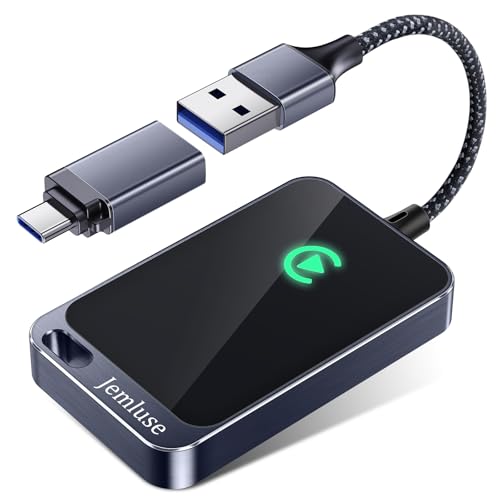
If you’re tired of fighting with loose USB ports, you can convert your wired system into a wireless one. A Wireless CarPlay Adapter plugs into your USB port once and allows your iPhone to connect automatically via Bluetooth every time you start your Jeep.
Addressing Interference from Other Devices
Other wireless devices like smartwatches, wireless earbuds, or multiple phones nearby can disrupt CarPlay’s Bluetooth or WiFi.
Move these devices away or turn them off to see if CarPlay improves. If you are using wireless CarPlay, reduce the number of active wireless signals around.
Sometimes phone calls or notifications interrupt CarPlay. Use “Do Not Disturb” mode on your iPhone to minimize these interruptions when connected. This keeps your connection cleaner and more stable.
Hardware Problems Affecting CarPlay Functionality
If CarPlay is not working in your Jeep Grand Cherokee, hardware issues with your USB ports or cables are often the cause. Checking for damage and trying different accessories can help you identify the problem quickly.
Inspecting USB Ports for Damage
Start by looking closely at the USB ports in your Jeep. Dirt, debris, or physical damage inside the port can stop your iPhone from connecting properly.
Use a flashlight to see inside the port. If you spot dirt or lint, gently clean it out with a soft brush or compressed air. Avoid using sharp objects that could cause damage.
Also, check for bent or broken pins inside the port. If the port is damaged, it may need professional repair or replacement for CarPlay to work correctly.
Testing with Different USB Cables
Using a faulty or incompatible USB cable is a common reason CarPlay fails to connect. Try a different cable, preferably an Apple MFI-certified one made for iPhones.
Avoid cheap or unofficial cables as they might not support data transfer, only charging. Test with multiple cables to make sure the issue is not cable-related.
To rule out cable interference for good, use a Heavy-Duty MFi Certified Lightning Cable. These are designed to handle the heat and constant movement inside a vehicle cabin, providing a much more stable data connection than standard white charging cables.
![Durcord iPhone Charger, [MFi Certified] 3Pack 10FT USB A Cable for Long Lightning Charger Cable, Fast iPhone Charging Cord for iPhone Xs Max/XS/XR/X/8/7/6S/6/Plus/SE/iPad(Silver)](https://m.media-amazon.com/images/I/41E+172r9vL._SS500_.jpg)
If car connection improves with a new cable, replace your current one. Keeping cables in good condition—no frays or kinks—is important to maintain a stable connection.
Advanced Solutions for Persistent CarPlay Issues
If basic fixes don’t solve your CarPlay problem, more detailed steps might be needed. These include resetting your Uconnect system to clear deeper software glitches and seeking professional help for hardware or software issues beyond your control.
Performing a Factory Reset on Uconnect
A factory reset can restore your Uconnect system to original settings and remove stored data that might cause connection problems. To do this, start by turning on your vehicle and Uconnect system.
Next, go to the settings menu on the touchscreen. Look for options related to system or infotainment reset. Follow the prompts carefully, as this will erase all saved personal settings and paired devices, including CarPlay connections.
After the reset, reconnect your iPhone by pairing it again using a good-quality Apple-certified USB cable. Make sure your iPhone software is up to date to avoid compatibility issues. This method often resolves stubborn software conflicts interrupting CarPlay.
Consulting Authorized Jeep Service
If the factory reset doesn’t restore CarPlay, visit an authorized Jeep dealer or service center. They can update or reinstall the Uconnect software using the latest official versions.
Dealers also check for potential hardware faults like USB port damage or wiring issues. Professionals have diagnostic tools to identify and fix problems that are not visible or fixable through simple resets.
When you bring your vehicle in, mention the specific CarPlay issues and any steps you’ve already taken. This helps them target the issue faster and reduces overall repair time.
Preventing Future CarPlay Problems
To keep Apple CarPlay working smoothly in your Jeep Grand Cherokee, you need to stay on top of software updates and follow certain connection habits. These steps help avoid common glitches and connection failures.
Regular Infotainment Updates
Make sure your Jeep’s Uconnect system is always running the latest software version. Jeep often releases updates to fix bugs and improve CarPlay compatibility.
Check for updates by going to Settings > Software Update in your vehicle’s infotainment menu. You can download updates over Wi-Fi or using a USB drive.
Keep your iPhone updated too. Apple regularly releases iOS updates that improve CarPlay stability.
Updating both your car and phone reduces the chance of bugs and connection errors. Set a reminder to check for updates monthly or whenever an issue arises.
Best Practices for Device Connections
Use high-quality, Apple-certified Lightning cables when connecting your iPhone by USB to avoid connection drops. Avoid using worn or cheap third-party cables.
If you use wireless CarPlay, make sure Bluetooth and Wi-Fi on your iPhone are enabled and your phone is close to the vehicle’s system.
Avoid switching drivers with different phones frequently without restarting the system. This can confuse Uconnect and cause CarPlay not to connect.
If a connection fails, try turning off CarPlay, disconnecting the phone, then reconnecting. Restarting your Jeep’s system by turning it off and on again can also help solve temporary glitches.
Read More:
- Range Rover CarPlay Not Working? Here’s the Fixing Guide
- Apple CarPlay Not Working (Troubleshooting, Causes & Solutions)
- Peugeot Carplay Not Working? Troubleshooting and Fixes Guide