
Last updated on October 8th, 2026 at 01:26 pm
If your Lenovo touchpad suddenly stops working, it can disrupt your workflow and cause frustration. The most common reasons for a non-responsive touchpad on Lenovo laptops are outdated drivers, disabled touchpad settings, or conflicts from recent system updates. Knowing this helps you focus on key troubleshooting steps that can restore functionality quickly.
You might find that your touchpad is accidentally disabled via a keyboard shortcut or in your system’s settings. In some cases, driver issues or BIOS settings may prevent the touchpad from responding. Understanding these causes puts you in control to fix the problem without unnecessary delays or repairs.

Immediate Steps to Enable Lenovo Touchpad
If your Lenovo laptop touchpad suddenly stops responding, start by checking simple settings and shortcuts before diving into more complex fixes. Ensuring the touchpad is enabled in both hardware and software settings typically resolves most issues quickly.
Check Function Key Combinations (Fn + F6, Fn + F8)
Many Lenovo laptops have dedicated function keys that toggle the touchpad on or off. You can usually activate or disable the touchpad by pressing Fn + F6 or Fn + F8, depending on your model. Look for a key with a touchpad icon on your keyboard.
If pressing these keys doesn’t work, try holding down the Fn key and pressing the function key multiple times, as some models require cycling through modes. Ensure the Fn key itself isn’t stuck or disabled in BIOS.
Using these shortcuts can instantly re-enable your touchpad if it was accidentally disabled, saving you from more complicated troubleshooting.
Enable Touchpad in Windows Settings
If the function keys don’t restore your touchpad, check your Windows 11 settings. Go to Settings > Bluetooth & devices > Touchpad, then make sure the touchpad toggle is set to On.
You can also adjust sensitivity and gestures here, which might help if your touchpad is poorly responsive but not completely disabled.
If the touchpad option is missing or greyed out, your drivers might be outdated or corrupted, and updating or reinstalling drivers may be necessary.
Verify Touchpad Settings in Lenovo Vantage
Lenovo Vantage provides hardware-specific controls for your touchpad that Windows settings don’t cover. Open the Lenovo Vantage app and navigate to the Input & Accessories section.
Look specifically for touchpad settings to confirm it’s enabled and check customization options like gesture controls or palm rejection, which might affect functionality.
If the touchpad is disabled here, toggle it on. If settings appear correct but the touchpad still doesn’t work, restart your laptop and revisit these settings to ensure changes take effect.
Using Lenovo Vantage lets you manage device-specific features and can address issues that Windows alone cannot solve.
Driver and Software Troubleshooting
Fixing your Lenovo touchpad often involves checking and managing drivers and system updates. These steps ensure your touchpad hardware communicates correctly with Windows and helps resolve common software conflicts without extra tools.
Reinstall or Update Touchpad Driver
First, try reinstalling or updating the touchpad driver. Open Device Manager by right-clicking the Start button and selecting it from the menu. Expand “Mice and other pointing devices” and locate your touchpad, usually named HID-compliant touchpad or Synaptics touchpad.
Right-click the device and choose Update driver. Select Search automatically for updated driver software to let Windows find the latest driver. If this fails, download the current driver directly from Lenovo’s website to ensure compatibility. You can also uninstall the touchpad driver here and restart your laptop. Windows will attempt to reinstall the driver automatically, which can fix corrupted files.
Use Device Manager to Check Touchpad Status
In Device Manager, check if the touchpad is enabled and working properly. A yellow warning icon indicates a problem such as a disabled device or driver conflict.
If the device shows as disabled, right-click and select Enable device. You can also check properties to see error codes that help identify specific issues. Look under the Driver tab to verify driver details and rollback options if recent updates caused problems. This method helps confirm the device’s operational status and identifies if driver or hardware conflicts need attention.
Update Windows and Lenovo Drivers
Keeping Windows and Lenovo drivers updated is critical. Go to Settings > Update & Security > Windows Update and check for updates. Windows 11 updates often include essential drivers and bug fixes for hardware compatibility.
Additionally, install Lenovo system updates through the Lenovo Vantage app or the official Lenovo support site. These updates target Lenovo-specific hardware including the touchpad. Using both Windows Update and Lenovo’s tools ensures your drivers and firmware are current, reducing conflicts and improving touchpad reliability.
For detailed step-by-step fixes, you can see how to troubleshoot Lenovo touchpad issues on Lenovo’s support site.
Advanced Fixes and Hardware Checks
To troubleshoot deeper issues with your Lenovo touchpad, focus on inspecting BIOS settings, performing hardware resets, and ruling out physical faults. These steps require careful attention and can resolve problems beyond simple driver updates or software tweaks.
Review BIOS Touchpad Settings
Start by entering your BIOS or UEFI firmware setup during boot (usually by pressing F2, F10, or the NOVO button, depending on your Lenovo model). Navigate to the input or peripheral device section to locate touchpad settings. Ensure the touchpad is enabled here, as disabling it in BIOS will prevent it from functioning regardless of the operating system.
If available, check for options like “Advanced” or “Basic” mode for the touchpad. Switching modes can fix compatibility problems. Avoid making unrelated BIOS changes to reduce risk.
After enabling the touchpad, save changes and exit. If your touchpad still won’t work, consider restoring the BIOS to default settings or updating it cautiously, keeping a restore point handy if you decide to revert later.
Hard Reset or NOVO Button Use
A hard reset can clear hardware conflicts causing your touchpad to stop responding. To perform this, shut down your laptop completely. Disconnect all power sources, including the AC adapter and any external or Bluetooth mouse. Remove the battery if it’s removable.
Hold the power button down for about 30 seconds to drain residual power. Reconnect the battery and power adapter, then restart your system.
For Lenovo devices equipped with a NOVO button, pressing it (usually a small button next to the power input or side panel) will launch special boot options. Use this to access BIOS setup or system recovery tools. You can restore your system to a previous restore point if recent updates caused the touchpad issue.
Address Possible Hardware Issues
If all software and BIOS settings checks fail, the touchpad may suffer hardware faults. Start by inspecting the physical touchpad surface for damage or debris that might block sensor response.
Try connecting an external mouse (wired or Bluetooth). If the external device works while the touchpad does not, it confirms a hardware-specific problem.
Hardware issues could include loose internal connections or defective touchpad components. If your device is under warranty, seek professional hardware repair to avoid accidental damage. In some situations, a repair shop can open your laptop to reseat the touchpad cable or replace the component if necessary.
Maintaining Smooth Touchpad Functionality
Keeping your Lenovo touchpad working properly requires a mix of careful configuration, regular updates, and having practical alternatives on hand. You should take proactive steps to avoid common issues and also prepare backup options to ensure uninterrupted productivity when problems arise.
Preventing Future Touchpad Problems
To reduce the risk of touchpad failures, regularly update your drivers through the Lenovo support website or via Windows Update. Outdated drivers often cause unresponsiveness or erratic behavior. Setting a system restore point before major updates is useful; it allows you to revert to a stable state if an update causes touchpad issues.
Check your touchpad settings frequently to confirm it hasn’t been disabled accidentally via function key shortcuts (often Fn + F6 or another F key with a touchpad icon). Also, avoid installing conflicting third-party mouse or touchpad utilities.
Keep your touchpad clean and free of dust or moisture, as physical obstructions can interfere with sensitivity. Using Lenovo’s built-in troubleshooter tools can help identify software glitches early, preventing prolonged downtime.
To safely remove skin oils and debris without damaging the sensor, use a specialized Electronics Cleaning Kit; its non-streaking solution and precision brushes help maintain the conductive surface of your Lenovo touchpad for better gesture accuracy.

Using an External Mouse as a Backup
An external mouse, whether wired or Bluetooth, serves as an essential backup when the Lenovo touchpad malfunctions. A Bluetooth mouse offers wireless convenience but requires maintaining Bluetooth drivers and firmware updates to ensure smooth connectivity.
Keep a basic USB mouse handy for quick plug-and-play access. This simple step avoids interruptions during critical tasks if your touchpad stops responding. You can quickly switch to an external mouse without restarting your device or troubleshooting immediately.
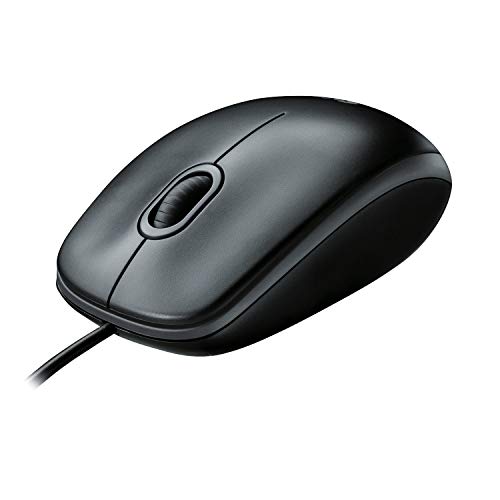
A reliable option like the Logitech B100 Corded Mouse is perfect for this because it requires no setup or batteries, allowing you to immediately navigate your settings and finish these troubleshooting steps even if your touchpad remains completely unresponsive.
Configuring your system to recognize an external mouse automatically prevents conflicts or lag when switching between input devices. You can customize pointer settings to mirror your usual touchpad sensitivity, ensuring minimal adjustment in workflow.