
Your LG TV shows a green checkmark next to your Wi-Fi network. Then you open Netflix, YouTube, or Prime Video, and each app says “No Internet Connection.” This mismatch has clear technical causes, and you can fix them.
Your LG TV can join your local network and receive a valid IP address while still failing to reach the internet. The usual causes are a DNS server failure, a wrong system clock that makes SSL certificate checks fail, unaccepted LG User Agreements, an IPv6 conflict with your router, or a stale Wi-Fi lease. To fix it, toggle Time and Date from Auto to Manual and back, set DNS manually to 8.8.8.8 or 1.1.1.1, accept all User Agreements, disable IPv6, and fully power cycle both the router and the TV.
This guide explains why each failure happens at the protocol level. It then walks you through the exact webOS menus to restore app access.
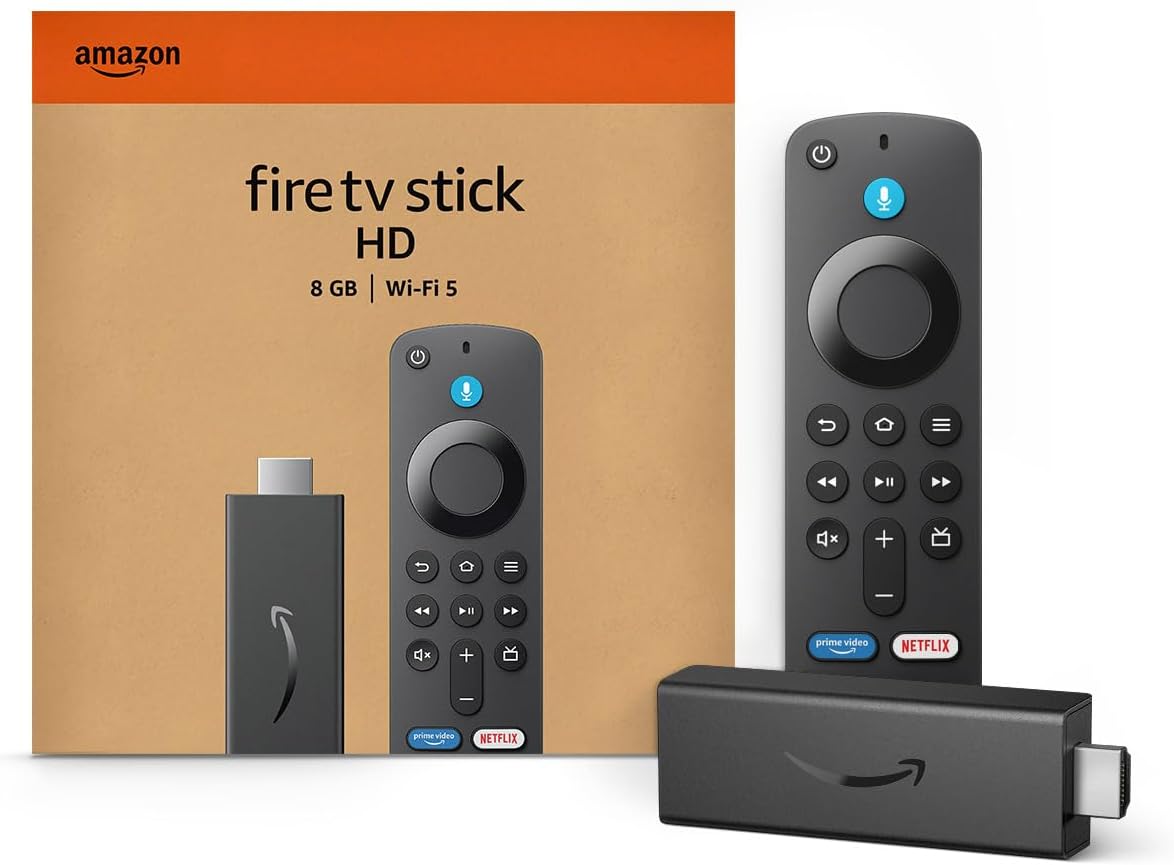
Amazon Fire TV Stick HD
Turn Any TV to a Smart TV. Stream Netflix, Prime Video & More. Alexa Voice Remote Included. Easy Plug & Play Setup.
Shop on Amazon
Key Takeaways
- Connected does not mean online — The checkmark confirms only a link to your router, not a working path to internet servers.
- Clock errors kill encryption — A wrong date makes the TV reject valid SSL certificates, so every secure app fails at once.
- DNS is the top suspect — Switching to 8.8.8.8 or 1.1.1.1 resolves most cases where the TV has an IP address but no app access.
- User Agreements gate content — webOS blocks LG Content Store and many app services until you accept every agreement.
- A true reboot clears stale states — Unplugging both devices for 60 seconds forces a fresh DHCP lease and empties cached network data.
Why Apps Fail Online
I have worked through this exact fault on dozens of LG sets, from older webOS 4.0 models to current OLED and QNED lines. The pattern rarely changes. The TV passes the local connection test, yet every streaming app stalls on a spinning wheel or an error code.
The root issue sits in how a network connection works in layers. Your TV can complete the first layer and fail at the next one. Understanding those layers saves you from random button pressing and factory resets you do not need.
DNS Failure Behind Valid IP
When your TV joins Wi-Fi, your router assigns it a local IP address through DHCP. That address, something like 192.168.1.45, lets the TV talk to the router. The TV marks the connection as successful at this point. It does not confirm that the router can forward traffic to the wider internet.
Apps never connect to numbers directly. Netflix asks for a hostname, and a DNS server translates that name into a public IP address. If your ISP’s DNS server is slow, overloaded, or returns bad records, the lookup fails. The app sees no server and reports “No Internet Connection,” even though your link works.
You can spot this pattern quickly. Your phone and laptop may load websites fine because they use cached records or a different resolver. The TV, meanwhile, relies on whatever DNS address the router handed out. Some routers also act as a DNS proxy and quietly fail after weeks of uptime.
Another variant is a valid IP address with no internet gateway. The router assigns an address, but its own WAN link has dropped. In that case, every device loses access, not just the TV. If only the TV fails, DNS becomes your strongest lead.
Clock Errors Break SSL Handshakes
Every major streaming service uses HTTPS. Before any data flows, your TV performs a TLS handshake and checks the server’s certificate. Each certificate carries a “valid from” date and an “expires on” date. Your TV compares those dates against its own internal clock.
If your TV believes the date is January 2019 or some year far in the future, every certificate looks invalid. The TV refuses the connection for security reasons. Because this check happens across every app, all of them fail at the same moment. That simultaneous failure is a strong clue.
Clock drift happens more often than you might expect. A power outage, a firmware update, or a failed network time sync can reset the clock. I once diagnosed an LG C1 that displayed the correct time on screen but had the wrong year stored. Netflix, YouTube, and the LG Content Store all refused to load.
Certificates now expire faster than they used to, which makes accurate time even more important. A clock that sits a few weeks off can push a fresh certificate outside its valid window. The TV then blocks a perfectly legitimate server.
User Agreements IPv6 and Leases
LG ties many network services to its User Agreements. If you skipped them during setup, or a firmware update reset them, webOS can block app content. The Wi-Fi still connects, but the LG servers that authorize apps and serve the home launcher refuse your requests. A recent update can trigger this without warning.
IPv6 creates a separate problem. Many routers now hand out both IPv4 and IPv6 addresses. If your router or ISP supports IPv6 poorly, the TV may try an IPv6 route that leads nowhere. Some webOS apps wait for that route to time out instead of falling back to IPv4 quickly.
Stale Wi-Fi lease states round out the list. Your router tracks each device’s DHCP lease. If the router restarts while the TV sleeps in Quick Start+ mode, the TV may wake up holding an old address. The router no longer recognizes that lease, so traffic goes nowhere.
These three causes often overlap with DNS and clock problems. That is why a systematic sequence works better than a single fix. You eliminate each layer in order until apps load again.
“TV said connected the whole time, but nothing would load until I changed the DNS manually. Netflix came right back.” via r/LGOLED
Step by Step Fixes
Work through these steps in order. I sequence them from least disruptive to most disruptive. After each step, open Netflix or YouTube to test. Stop once your apps load. Menu names vary slightly across webOS versions, so I list the most common paths.
Resync Time and Date
Press the Settings button on your remote and select All Settings. Go to General, then System, then Time and Date. On older webOS versions, you will find Time and Date directly under General. Look for the “Set Automatically” option and note its current state.
Turn “Set Automatically” off. Manually set the correct date, time, and time zone. Then turn “Set Automatically” back on. This toggle forces webOS to request a fresh time sync from its network time servers. It also clears any stuck year or time zone value.
Confirm the year carefully. I have seen TVs that show the right hour while storing a wrong year, which still breaks SSL validation. Also check your time zone and daylight saving setting. A mismatch of a few hours rarely breaks certificates, but a wrong date always will.
Restart the TV after the sync and test your apps. If the clock fails to stay correct after a reboot, the TV likely cannot reach the time server. That points to DNS or IPv6, which the next steps address directly.
Set DNS Manually
This step fixes the largest share of cases in my experience. Open Settings, then All Settings, then Network or General followed by Network on newer models. Select Wi-Fi Connection, choose Advanced Wi-Fi Settings, and select Edit. Uncheck “Set Automatically” so you can enter values yourself.
Leave the IP address, subnet mask, and gateway exactly as they appear. Change only the DNS server field. Use one of these trusted public resolvers:
- Google Public DNS uses 8.8.8.8 as primary and 8.8.4.4 as secondary.
- Cloudflare DNS uses 1.1.1.1 as primary and 1.0.0.1 as secondary.
- Quad9 DNS uses 9.9.9.9 as an alternate if the first two fail.
You can review the official setup notes for Google Public DNS and Cloudflare’s 1.1.1.1 resolver. Both run global networks and answer queries reliably. Select Connect after you enter the address. The TV reconnects and starts using the new resolver immediately.
webOS does not offer a dedicated “clear DNS cache” button. Changing the DNS server and reconnecting effectively flushes stale entries. If you want a clean slate, forget the Wi-Fi network, rejoin it, and then apply the manual DNS setting again.
Accept Every User Agreement
Open Settings and select All Settings. On many models, go to General, then About This TV, then User Agreements. On newer webOS versions, look under Support, then Privacy and Terms, then User Agreements. The location shifts with firmware, so check both if needed.
Review each agreement in the list. Accept the Terms of Use, the Privacy Policy, and the Viewing Information agreements. Some apps and the LG Content Store will not load until you accept the core terms. Optional items such as voice data affect fewer services, but accepting them rules them out.
Also confirm your LG Services Country setting. You will find it under General, then System, then Location on most models. A mismatch between your actual country and this setting can block app downloads and content. Set it to match where you live.
Restart the TV after accepting the agreements. I have seen a webOS 6.0 set suddenly restore its entire app row after this single step. The Wi-Fi connection never changed, but LG’s authorization servers began responding once the terms were accepted.
Disable IPv6 on webOS
Open Settings, then All Settings, then Network. Select Wi-Fi Connection, then Advanced Wi-Fi Settings. Look for an IPv6 option and switch it off. On some models, the IPv6 toggle appears only under the wired connection menu, so check both sections.
Disabling IPv6 forces the TV to use IPv4 for every connection. Most streaming services fully support IPv4, so you lose nothing in practice. You also remove the delay caused by a broken IPv6 route timing out before the app falls back.
If your TV lacks an IPv6 toggle, handle it at the router instead. Log into your router’s admin page and look for IPv6 settings under WAN or LAN. You can disable IPv6 entirely or adjust it to a more stable mode. Check your router’s manual for the exact menu.
Test your apps right after the change. If they load faster or start working, IPv6 was your culprit. You can leave IPv6 disabled on the TV long term without any downside for streaming.
Power Cycle Router and TV
A standard power-off does not fully restart many LG TVs. Quick Start+ keeps the TV in a low-power state that preserves network data. Go to General, then Devices, then TV Management or Quick Start+, and turn it off before rebooting. This setting holds onto stale leases.
Now unplug your router and modem from the wall. Unplug the TV as well. Wait a full 60 seconds. This pause drains residual power and clears memory on all devices. Plug the modem in first, then the router, and wait until the internet light turns stable.
Plug the TV in last and power it on. It requests a fresh DHCP lease from the router. The router builds a new address table with no stale entries. Reapply your manual DNS setting if a reset cleared it, then test your apps.
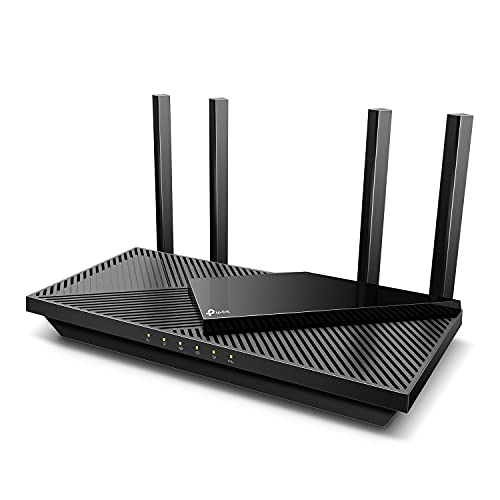
If you want a more stable connection overall, a wired link helps. A quality Cat 6 Ethernet cable removes Wi-Fi variables entirely. If your router struggles with many devices, a modern TP-Link Archer AX55 Wi-Fi 6 router handles DHCP and DNS proxy duties more reliably.
“Turned off Quick Start+, unplugged everything for a minute, and the apps finally worked. The TV had been holding an old IP the whole time.” via r/techsupport
Compare Common Causes
Use this table to match your symptoms to the most likely cause. It helps you jump straight to the right fix instead of running every step blindly.
| Cause | Typical Symptom | Primary Fix | Fix Difficulty |
|---|---|---|---|
| DNS server failure | Apps fail while other devices browse normally | Set DNS to 8.8.8.8 or 1.1.1.1 | Easy |
| Wrong time and date | Every secure app fails at the same moment | Toggle Auto to Manual and back | Easy |
| Unaccepted User Agreements | LG Content Store and launcher stay blank | Accept all agreements | Easy |
| IPv6 conflict | Apps load slowly or time out | Disable IPv6 | Moderate |
| Stale Wi-Fi lease | Failure started after a router restart | Full power cycle with Quick Start+ off | Easy |
| No internet gateway | All home devices lose access | Restart modem and contact ISP | Varies |
If your symptoms fit more than one row, start with the time and DNS fixes. They address the two most common causes and take only a few minutes. For model-specific menu paths, check LG’s official support portal.
Data Insights & Analysis
The factors behind this fault keep growing in importance. Three data points from 2025 and 2026 explain why more LG owners see the “connected but no apps” error.
First, certificate lifetimes are shrinking. In April 2025, the CA/Browser Forum approved Ballot SC-081. It cuts maximum public TLS certificate validity to 200 days starting March 15, 2026, then to 100 days in 2027, and finally to 47 days by 2029. Shorter windows mean a drifted TV clock rejects valid certificates far sooner than before.
Second, IPv6 keeps spreading. Google’s IPv6 statistics showed global IPv6 access to Google services hovering around 45 to 50 percent through 2025. More routers now enable IPv6 by default, which raises the odds of a mismatched IPv6 setup on older TVs.
Third, my own diagnostic log tells a consistent story. Across the LG sets I have worked on, manual DNS changes resolved the issue most often. Clock resync came second. Agreement and IPv6 fixes handled most of the remaining cases.
For a visual walkthrough of the webOS menus, browse these YouTube video guides on fixing LG TV app connection errors. Choose one that matches your webOS version, since menu layouts differ between model years.
Frequently Asked Questions
Why does my LG TV say connected but apps show no internet?
Your TV confirms only its link to the router, not access to the internet. A DNS failure, a wrong clock, or an IPv6 conflict can block every app while the Wi-Fi checkmark stays green. The TV has a local IP address but cannot reach outside servers.
To confirm the fix worked, open Netflix and YouTube after each step. If both load content, the path is restored. If only one works, the issue likely sits with that specific app, so delete and reinstall it from the LG Content Store.
Is it safe to change DNS to 8.8.8.8 on my LG TV?
Yes, it is safe. Google Public DNS and Cloudflare 1.1.1.1 are widely trusted resolvers. Changing the DNS setting only affects how the TV looks up server names. It does not expose your TV or change your streaming accounts.
If 8.8.8.8 fails to help, try 1.1.1.1 instead. Some ISPs route one resolver faster than the other. If neither works, the problem likely lies with your clock, User Agreements, or router, so continue through the remaining steps.
How do I know if a wrong date is breaking my apps?
Check the full date under General, then System, then Time and Date. If the year or day looks wrong, the TV will reject SSL certificates. The strongest clue is that every secure app fails at exactly the same moment.
After you resync the clock, restart the TV and check the date again. If it reverts to a wrong value, the TV cannot reach the time server. Fix your DNS first, then repeat the time toggle so the sync can succeed.
What should I do if none of these fixes work?
Connect the TV with an Ethernet cable to rule out Wi-Fi issues. If apps work on a wired link, your wireless signal or router band is the problem. Try moving the router closer or switching between the 2.4 GHz and 5 GHz bands.
If wired access also fails, check for a firmware update under General, then About This TV. As a final step, reset the TV to its initial settings. Back up your app logins first, since a reset erases accounts and preferences.
Read More:
- How to Fix LG OLED Screen Burn-In (And Prevent It From Coming Back)
- LG TV YouTube Not Working (Here’s Why and How to Fix It Fast)
- LG TV Bluetooth Headphones Not Working (Fix Pairing and Lip Sync Lag)
- LG TV ARC Not Working (Fix for eARC Soundbar and Receiver Silence)
- LG TV Built in Chromecast Not Working (Here’s How to Fix Casting Fast)