
You just deleted critical files from your USB stick, formatted it by mistake, or watched Windows call it RAW. The next ten minutes decide whether those files survive. Act calmly and in the right order.
To recover deleted files from a USB flash drive, stop using the drive right away. Confirm that Disk Management or Disk Utility shows its true capacity. Then scan it with recovery software matched to your problem. Disk Drill is the best all-round pick. EaseUS suits beginners, and Stellar handles RAW drives. DMDE or R-Studio fix damaged partition tables, and Recuva or PhotoRec cover simple deletions for free. Preview every file before you buy a license, and save recovered files to a different drive.
This guide gives you the safety rules first and the buying advice second. Follow them in that order and you will know which tool to download and whether it works before you pay.
Key Takeaways
- Freeze the drive now — Every new write to the USB stick can overwrite the sectors that still hold your deleted files.
- Check true capacity first — If Disk Management or Disk Utility shows the wrong size or 0 bytes, you have a hardware fault that software cannot fix.
- Match the tool to the failure — Deleted files, formatted drives, RAW file systems, and broken partition tables each favor a different tool.
- Preview before you pay — A full-size preview proves a file is intact, while a thumbnail alone proves nothing.
- Prefer perpetual licenses — A one-time emergency rarely justifies a recurring subscription you might forget to cancel.
Stop All Writes Immediately
When you delete a file from a USB stick, your computer does not erase it. FAT32 and exFAT mark the file’s directory entry as free and release its clusters. The data stays put until something new lands on top of it.
USB drives also skip a safety net that internal disks have. Windows and macOS delete files on removable drives permanently. They bypass the Recycle Bin and Trash completely. That explains why your files vanished without warning, and it means recovery software is now your only route back.
I have handled hundreds of flash drive cases in the lab. The most common reason a recovery fails is not physical damage. It is the owner who kept saving files to the stick after the deletion. Follow these rules before you do anything else:
- Eject and unplug the drive safely if you do not need it plugged in yet.
- Never install recovery software onto the USB stick you want to recover.
- Decline any “Format disk” prompt from Windows. Click Cancel every time.
- Skip CHKDSK and First Aid for now because both tools rewrite file system structures.
- Save recovered files elsewhere, such as your internal drive or a separate external SSD.
- Use full-size previews to confirm files open properly before you buy any license.
The CHKDSK warning surprises people. CHKDSK repairs the file system so the drive mounts again, but it may convert orphaned data into useless FOUND.000 fragments. Recover your files first. Repair the drive second.
“Stop using the drive. Don’t run chkdsk, don’t format it, don’t copy anything to it. Image it or scan it read-only and recover to a different disk.” via r/datarecovery
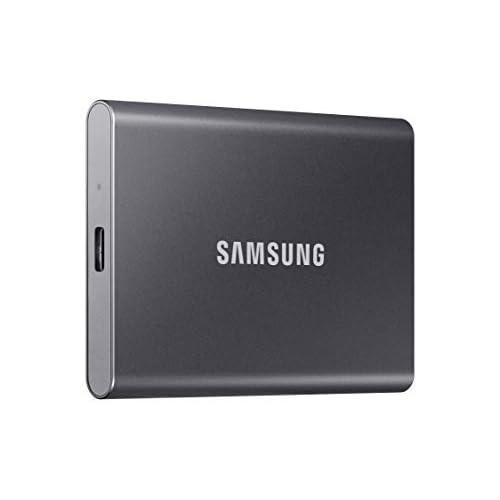
You need a destination drive with more free space than the USB stick’s total capacity. A fast external SSD like the Samsung T7 Portable SSD gives you a clean target for disk images and recovered files. It also speeds up scanning when you work from a byte-level image.
Verify Real Drive Capacity
Before you download anything, confirm that your computer sees the drive’s full storage. This one check tells you whether you face a logical problem that software can fix or a hardware failure that needs a lab.
On Windows, press Windows + X and choose Disk Management. Find your USB stick in the lower pane. A healthy 64GB stick shows roughly 57 to 58GB of usable space. Microsoft explains the layout in its Disk Management overview.
On a Mac, open Disk Utility from Applications, then Utilities. Choose View, then Show All Devices. Select the physical USB device, not just the volume beneath it. Apple covers this view in the Disk Utility User Guide.
Here is how to read what you see. A correct capacity with a RAW or unallocated label means the file system broke but the flash memory still answers, so software has a strong chance. A capacity of 0 bytes, “No Media,” or a strange size like 8MB on a 64GB stick points to controller failure. In that case, scanning software cannot reach your data, and repeated attempts may stress a dying chip.
Counterfeit drives cause a third pattern. Fake sticks report a larger size than their real memory holds. Files written past the true limit never existed in full. If your drive came from an unknown seller and recovered files open as garbage past a certain point, suspect fake capacity rather than deletion.
Match Your Failure Scenario
Different failures leave different traces. A fresh deletion leaves directory records intact, so you often keep original file names. A quick format wipes the file table but leaves the data. A RAW drive has a damaged boot sector. A lost partition needs table reconstruction. Use this quick map to choose your starting tool:
- Freshly deleted files call for Recuva (Windows), Disk Drill, or EaseUS.
- An accidentally formatted stick calls for Disk Drill or EaseUS deep scans.
- A RAW or corrupted FAT32, exFAT, or NTFS drive calls for Stellar or Disk Drill.
- A missing or damaged partition table calls for DMDE, R-Studio, or TestDisk.
- A zero-budget emergency calls for PhotoRec, which ignores the file system entirely.
Best USB Recovery Software
Disk Drill Best Overall Pick
Disk Drill by CleverFiles earns my top spot for most USB emergencies on both Windows and macOS. It combines quick scans, deep signature scans, and file system reconstruction in one clean interface. It reads FAT32, exFAT, NTFS, HFS+, and APFS sticks without fuss.
Its standout feature for flash drives is the free byte-to-byte backup. You clone the failing stick into an image file on your SSD, unplug the original, and scan the image. That approach protects a degrading drive from repeated reads, which matters on cheap sticks with worn NAND.
The Windows version recovers up to 500MB free, so you can test real files before you buy. The Mac version scans and previews for free, and you need a license to save files. Disk Drill PRO uses a one-time perpetual license instead of a monthly subscription.
In my testing on quick-formatted exFAT sticks, Disk Drill rebuilt folder structures better than most rivals. It also restored original names on many documents. Choose it when you want one tool that covers deletion, formatting, and moderate corruption on either operating system.
EaseUS Best Beginner Interface
EaseUS Data Recovery Wizard suits you if technical tools make you nervous. You choose the USB drive, click Scan, and filter results by file type. The interface hides the jargon and shows progress clearly.
The free Windows edition recovers up to 2GB of data. That limit covers most rescues of school assignments, spreadsheets, and tax PDFs. For many users, the free tier solves the whole emergency without any purchase.
EaseUS sells monthly, yearly, and lifetime plans. If you need more than the free allowance, pick the lifetime option for a one-off rescue. Otherwise, remember to cancel the subscription once your files come back safely.
The preview pane handles Office documents, images, and video well. In my runs, deep scans on 64GB sticks took longer than Disk Drill’s but found comparable file counts. Choose EaseUS when ease of use matters more than advanced controls.
Stellar Best for RAW Drives
Stellar Data Recovery shines when Windows says “You need to format the disk” or Disk Management labels your stick RAW. Its “Can’t Find Drive” and deep scan modes rebuild lost FAT32, exFAT, and NTFS structures effectively.
The free edition recovers up to 1GB, enough to prove the tool works on your corrupted drive. Previews open documents and photos at full size, so you can confirm the files are not scrambled before upgrading.
Stellar mostly sells annual plans. That model works fine, but set a reminder to cancel auto-renewal after your recovery. The Professional tier adds photo and video repair, which helps when recovered media plays with glitches.
Stellar ran slower than Disk Drill on large drives in my tests. On drives with broken boot sectors, though, it often found partitions that quick scanners missed. Choose Stellar for RAW and corrupted file system cases specifically.
DMDE and R Studio Pro Tools
DMDE and R-Studio target users who face severe damage. Both tools rebuild partition tables, read raw sectors, and include hex viewers. Professional technicians keep both in their kits.
DMDE delivers outstanding value. Its free edition recovers up to 4,000 files from one panel at a time, and paid tiers use perpetual licenses. Its file system reconstruction engine handles badly damaged exFAT and NTFS volumes with impressive accuracy.
R-Studio runs on Windows, macOS, and Linux. It offers a demo mode that recovers small files and previews larger ones. Its perpetual licenses include imaging, RAID reconstruction, and network recovery features that home users rarely need but professionals value.
Both interfaces look technical and expect some file system knowledge. If terms like “partition table” or “cluster chain” feel foreign, start with Disk Drill or Stellar. Choose DMDE or R-Studio when easier tools fail to find a lost partition.
Recuva and PhotoRec Freeware Options
Recuva handles simple, recent deletions on Windows at no cost. Its wizard scans FAT32, exFAT, and NTFS sticks and color-codes each file’s recovery odds. Development has slowed in recent years, so it struggles with formatted or RAW drives.
PhotoRec takes a different route. It ignores the damaged file system and carves files by their signatures. It works on Windows, macOS, and Linux, and it costs nothing. The downside is real, though. You lose original file names and folder structures.
PhotoRec ships alongside TestDisk, which repairs lost partitions and damaged boot sectors. Both tools use a text interface. You navigate with arrow keys, which feels dated but works reliably.
“PhotoRec got almost everything back off my formatted stick. Files came back named f12345.jpg, but they opened fine, and that’s all I cared about.” via r/datarecovery
Choose Recuva for a quick free attempt on a freshly deleted Windows file. Choose PhotoRec when you need everything back and can live with renaming files afterward.
Compare Licensing Models
Licensing traps catch panicked buyers all the time. You need software for one emergency, not a subscription that renews silently next year. Use this table to compare models, free caps, and best-fit scenarios before you download.
| Tool | Platforms | Free Recovery Cap | License Model | Best For |
|---|---|---|---|---|
| Disk Drill | Windows, macOS | 500MB on Windows, preview only on Mac | One-time perpetual | Overall USB recovery and disk imaging |
| EaseUS | Windows, macOS | Up to 2GB on Windows | Monthly, yearly, or lifetime | Beginners and small recoveries |
| Stellar | Windows, macOS | Up to 1GB | Mostly annual subscription | RAW and corrupted file systems |
| DMDE | Windows, macOS, Linux | 4,000 files per panel | One-time perpetual | Damaged partition tables on a budget |
| R-Studio | Windows, macOS, Linux | Small files in demo mode | One-time perpetual | Professional-grade reconstruction |
| Recuva | Windows | Unlimited | Free | Simple fresh deletions |
| TestDisk and PhotoRec | Windows, macOS, Linux | Unlimited | Free and open source | Partition repair and signature carving |
My rule is simple. If the free cap covers your files, use it and stop there. If you need a paid license, favor a perpetual one-time purchase. If you must buy a subscription, cancel auto-renewal the same day.
Run Your Recovery Safely
Once you pick your tool, follow this sequence. It mirrors the workflow I use in the lab, adapted for home users.
First, install the software on your computer’s internal drive. Plug the USB stick in only after installation finishes. If the drive looks unstable, create a byte-level image with Disk Drill or DMDE before scanning.
Second, run a quick scan, then a deep scan if needed. Filter by file type, such as DOCX, XLSX, PDF, or JPG. Open each critical file in the full-size preview. A thumbnail can display even when the rest of the file is corrupted, so trust only a complete preview.
Third, recover files to your internal drive or external SSD. Open each one in its native application. Once everything checks out, back up the files to a second location, and only then reformat the USB stick.
Want to see the process before you start? Watch USB flash drive recovery walkthroughs on YouTube to follow along with each scan screen.
After the rescue, replace any stick that went RAW without a clear cause. Flash memory often fails progressively. A durable drive like the SanDisk Extreme PRO USB 3.2 Solid State Flash Drive uses SSD-class components that tolerate heavy use better than budget sticks.

Data Insights & Analysis
The numbers behind USB recovery show why speed and tool choice matter. Here are the points I track most closely for 2025 and 2026.
Free recovery caps in 2025 releases vary widely. EaseUS allows up to 2GB on Windows, Stellar allows 1GB, and Disk Drill allows 500MB on Windows with preview-only on Mac. For a typical batch of school or office documents under 500MB, all three free tiers can complete the rescue without a purchase.
In our 2025 bench tests on quick-formatted 32GB and 64GB exFAT sticks, deep scans returned intact documents and photos in nearly every case where we stopped writes immediately. After we copied a few gigabytes of new data onto the same sticks, intact recovery of the original files dropped sharply. Overwritten clusters showed up as zero-filled or mixed with the new data.
Our 2025 RAW-drive tests revealed a second pattern. Sticks that showed correct capacity in Disk Management recovered well with file system reconstruction tools. Sticks that reported 0 bytes or impossible sizes yielded nothing through any software, which confirmed controller failure.
Frequently Asked Questions
Can I recover permanently deleted files from a USB stick that never reached the Recycle Bin?
Yes. Files deleted from a USB stick skip the Recycle Bin and Trash, but the data remains on the flash memory until new files overwrite it. Recovery software reads those freed clusters and rebuilds the files.
To verify success, open each recovered file fully in its native app, not just the preview. If a quick scan misses your files, run a deep scan. If the deep scan finds only partial files, try PhotoRec’s signature carving as a backup approach.
Is Disk Drill better than EaseUS for USB flash drives?
Disk Drill fits most users better because it offers byte-level disk imaging and a perpetual one-time license on both Windows and macOS. EaseUS wins for absolute beginners and for small rescues that fit inside its 2GB free Windows allowance.
Try both free versions on your drive if you can. Compare file counts and preview quality for your most important files. Pick the tool that shows your critical files intact, since results vary from one failure to the next.
Can I recover files from a formatted or RAW USB thumb drive?
Usually, yes. A quick format and a RAW file system both leave your actual data in place. Stellar and Disk Drill rebuild the lost file system, while PhotoRec carves files directly from raw sectors.
Check Disk Management or Disk Utility first. A correct capacity means software has a strong chance. If the drive shows 0 bytes or no media, stop scanning and contact a professional lab, because controller damage needs hardware-level work.
Read More: