
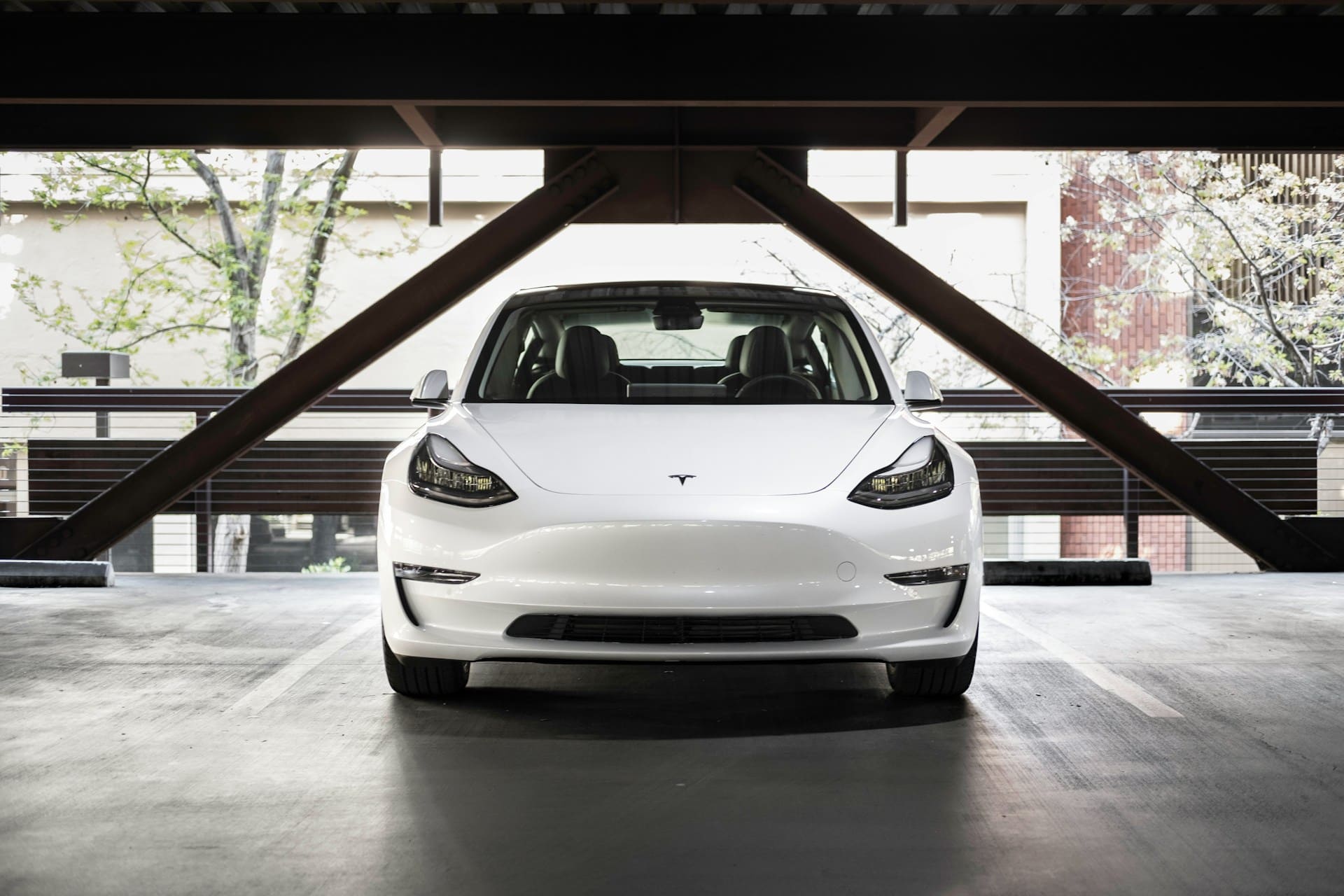
If your Tesla app is not working, it’s usually due to common issues like outdated software, network problems, or communication errors between your phone and the vehicle. The most effective way to fix the Tesla app is to check for app and vehicle updates, ensure a stable internet connection, and restart both your phone and car’s systems. Addressing these factors often restores full functionality quickly.
Sometimes, the problem might stem from Tesla’s servers being temporarily down or your app’s cache causing glitches. Understanding these causes helps you troubleshoot without unnecessary frustration. You’ll find it easier to regain control over features like remote climate control, phone key access, and charging status once you identify the underlying cause.
Knowing what to look for saves time and helps you avoid unnecessary steps. This article breaks down the most reliable fixes to get your Tesla app connected and running smoothly again, so you won’t miss critical features while on the go. For detailed guidance on troubleshooting and quick fixes, visit Tesla app troubleshooting resources.

Best Bluetooth OBD2 Scanner
Detect 39,000+ Issues With Enhanced Codes. Save $1000s on car repairs & buying used vehicles by diagnosing problems yourself.
Shop on Amazon
Common Reasons the Tesla App Is Not Working
When your Tesla app fails to connect or respond, it’s often due to specific issues related to network, app versions, or Tesla’s own systems. Identifying these problems allows you to address them efficiently and regain control of your vehicle through the app.
Internet Connectivity Issues
Your Tesla app relies heavily on a stable internet connection, both on your phone and the vehicle side. If your phone’s data signal is weak or unstable, the app won’t communicate properly with your Tesla. Similarly, if your vehicle is in an area with poor cellular coverage or Wi-Fi that’s unreliable, the connection can drop.
Check for active data or Wi-Fi on your device and avoid places with limited signal strength. Restarting your phone’s network settings or toggling airplane mode can reset connection issues. Also, ensure your Tesla has the necessary mobile data coverage; sometimes, network providers experience localized outages affecting vehicle connectivity.
Server Outages
Tesla’s backend servers occasionally undergo maintenance or face outages that disrupt app functionality. These server issues prevent commands and status updates from reaching your vehicle even when your internet is fine.
You can verify server status on Tesla community forums or dedicated server monitoring pages before troubleshooting your device. If Tesla servers are down, waiting is often the only option until service is restored. This can affect features like remote start, climate control, or unlocking doors through the app.
Outdated App Version
Running an outdated Tesla app can cause bugs or compatibility issues, hindering connectivity with your vehicle. Tesla regularly updates the app to improve performance, fix bugs, and match new vehicle software changes.
Check your device’s app store for available Tesla app updates and install the latest version. Automatic updates are recommended to avoid missing critical patches. An updated app also ensures better security and smoother communication between your phone and car.
Device and Account Troubleshooting
When facing issues with the Tesla app, device compatibility, login credentials, and app permissions are critical factors to check. Each can directly affect your app’s ability to connect and function properly. Addressing these points ensures you eliminate common barriers to successful usage.
Device Compatibility Problems
Your phone’s operating system version heavily influences the Tesla app’s performance. Tesla requires the app to run on relatively recent versions of Android or iOS. If your device’s OS is outdated, the app may crash or fail to load certain features.
Check that your phone’s OS version meets the Tesla app’s minimum requirements. Often, app updates introduce new features or security patches that won’t work on older OS platforms. Additionally, older devices might have hardware limitations that prevent a stable connection.
To avoid compatibility problems:
- Update your phone’s operating system.
- Install the latest Tesla app version.
- Test the app on a different device if possible to isolate the issue.
Failing to meet these requirements typically causes connectivity errors or prevents the app from opening altogether.
Incorrect Login Credentials
Your Tesla app requires accurate login information to verify your identity and link to your vehicle. Entering an incorrect email, password, or using credentials linked to a different Tesla account can block access or cause repeated login failures.
Double-check your login details by logging into the Tesla website first. If you have two-factor authentication enabled, ensure you complete all verification steps as the app may demand it during sign-in.
If you forgot your password or suspect unauthorized access:
- Use Tesla’s password reset option.
- Monitor your account activity for unknown logins.
- Contact Tesla Support if login problems persist after resetting credentials.
Incorrect login credentials are a common and easily fixed source of app access issues.
App Permissions Settings
The Tesla app requires specific permissions to communicate with your vehicle and provide accurate data. Key permissions include Bluetooth access, location services, and notifications.
Without Bluetooth enabled, the app cannot detect or connect to your car when nearby. Similarly, some features rely on location permissions to determine your proximity or vehicle status.
Check your app’s permission settings:
- On iOS: Go to Settings > Tesla > Permissions.
- On Android: Go to Settings > Apps > Tesla > Permissions.
Enable all necessary permissions, especially Bluetooth and location. Denying any of these may cause connectivity failures or limit app functionality. Additionally, background app refresh should be enabled to keep the app updated regularly.
Adjusting these settings often resolves connection issues quickly, restoring full app control over your Tesla. For a detailed walkthrough, review this Tesla app troubleshooting guide.
Tesla Vehicle and System Factors
Your Tesla’s ability to connect with the app depends heavily on the car’s internal systems and settings. Several issues can interrupt this connection, especially related to software versions, access permissions, and wireless linkages. Addressing these areas ensures smoother communication between your vehicle and the app.
Car Software Not Updated
When your Tesla’s software is outdated, it may cause incompatibility with the latest app version. Tesla frequently releases updates to improve features and fix bugs. Missing these updates can prevent your app from syncing properly.
Check your vehicle’s software version in the car’s display menu. If an update is available, install it promptly. Updates often address bugs that affect app connectivity. If you delay, new features or fixes won’t work, causing failures in remote commands.
Regularly updating both the car’s software and your Tesla app minimizes the risk of connection issues. Tesla’s servers expect certain version compatibility; mismatches can disrupt communication.
Remote Access Disabled
Your Tesla must have remote access enabled to allow the app to connect and control functions remotely. This feature can be turned off inadvertently or through privacy settings.
You can verify remote access under the vehicle’s settings on the touchscreen. Ensure mobile access is active. If remote access is disabled, your app won’t be able to send commands or receive data.
Disabling remote access improves privacy but restricts app functionality like remote climate control, charging status, and vehicle location tracking. Make sure you enable this option if you rely on the app for these features.
Bluetooth or Key Issues
If your Tesla app uses your phone as a key, Bluetooth connectivity is critical. Bluetooth problems between your phone and the vehicle can cause the app to fail in unlocking or starting your car.
Check that Bluetooth is enabled on your phone and that the Tesla is recognized as a paired device. Re-pairing may be necessary if the connection drops or behaves erratically.
Issues with phone keys can also arise from software glitches or multiple paired devices interfering with the connection. Keeping your phone’s OS and the Tesla app updated reduces these risks. If you experience frequent disconnects, consider resetting the car’s Bluetooth system or removing unused keys.
For more detailed troubleshooting, consult the guides on Tesla app connection issues.
How to Fix the Tesla App Not Working
If your Tesla app isn’t responding or connecting properly, there are targeted steps you can take to restore functionality. These involve adjusting how the app runs on your device and ensuring your mobile settings support a seamless connection.
Force Closing and Restarting the App
When the Tesla app freezes or crashes, force closing it can clear temporary glitches. On iOS, swipe up from the bottom of the screen and pause, then swipe the Tesla app off the screen. On Android, open Settings > Apps > Tesla > Force Stop.
After closing, wait a few seconds before reopening the app. This resets the app’s background processes and can resolve minor errors causing connection failures. Make sure your internet connection is stable when you restart the app, as poor connectivity often contributes to problems.
If the app still misbehaves after restarting, consider rebooting your phone since underlying system issues can impact app performance.
Reinstalling the Tesla App
Uninstalling and reinstalling the Tesla app removes corrupted files or faulty updates that might cause malfunctions. To uninstall, tap and hold the Tesla app icon, then select “Remove” or “Uninstall.” After that, download the latest version from the Apple App Store or Google Play Store.
Reinstalling ensures you have the newest software, which often includes bug fixes and improved compatibility with your device’s operating system. Before reinstalling, back up any saved settings if possible, although most data syncs with your Tesla account.
Once reinstalled, log in again and verify that permissions such as location services and background app refresh are enabled for proper operation.
Resetting Mobile Device Settings
If problems persist, resetting your device’s network or app-related settings can clear conflicts affecting the Tesla app. On iOS, go to Settings > General > Reset > Reset Network Settings to refresh Wi-Fi and cellular configurations without deleting personal data.
On Android, you can clear the Tesla app’s cache by navigating to Settings > Apps > Tesla > Storage > Clear Cache. For a deeper reset, use Settings > System > Reset Options > Reset Wi-Fi, mobile & Bluetooth.
These actions resolve issues like incorrect permissions, cached errors, or connectivity conflicts. After resetting, reconnect to your network and relaunch the Tesla app to check for improvement.
Preventing Future Tesla App Issues
To avoid recurring problems with the Tesla app, focus on maintaining updated software, controlling the app’s permissions carefully, and staying informed about Tesla’s system status. These steps help ensure a smooth connection between your device and vehicle.
Keeping App and Vehicle Software Updated
Keeping both your Tesla app and vehicle software current is essential. Tesla regularly releases updates that fix bugs and improve compatibility. Check for the latest app version in your device’s app store and enable automatic updates if possible.
For your vehicle, you can initiate software updates through the car’s touchscreen or by allowing automatic updates in settings. Outdated versions often cause connection failures or limited app functionality.
Key practices:
- Update the app as soon as new versions are available.
- Schedule or permit automatic vehicle software updates.
- Restart your phone occasionally to refresh app performance.
Maintaining these updates reduces glitches and connectivity interruptions.
Managing App Permissions
Proper app permissions are crucial for reliable Tesla app performance. Your phone must allow the app to access location services, background data, and notifications without restrictions.
If you restrict permissions, the app may fail to sync or refresh vehicle status. On both iOS and Android, review app settings regularly to confirm that permissions are enabled.
Important permissions to verify:
- Location access (while using the app or always)
- Background app refresh or data usage
- Push notifications enabled for alerts
Denial or misconfiguration of any critical permission can cause the Tesla app to stop working properly or lose connection with your vehicle.
Monitoring Tesla System Status
Tesla’s servers and backend systems can experience outages or maintenance downtime, directly impacting app connectivity. Before troubleshooting your device, check the current Tesla system status online.
Tesla provides status updates on their official support pages or via third-party uptime trackers. If servers are down, app connection failures are expected and temporary.
By staying informed, you can avoid unnecessary device resets or reconfigurations during server outages. This also saves time and confirms if the issue is on Tesla’s end, not yours.
Tips for monitoring:
- Bookmark Tesla’s official app support for updates.
- Follow Tesla-related news or community forums for outage alerts.
- Avoid making changes to your setup during known server issues.
Video Credit: iKnow iOS/ YouTube