
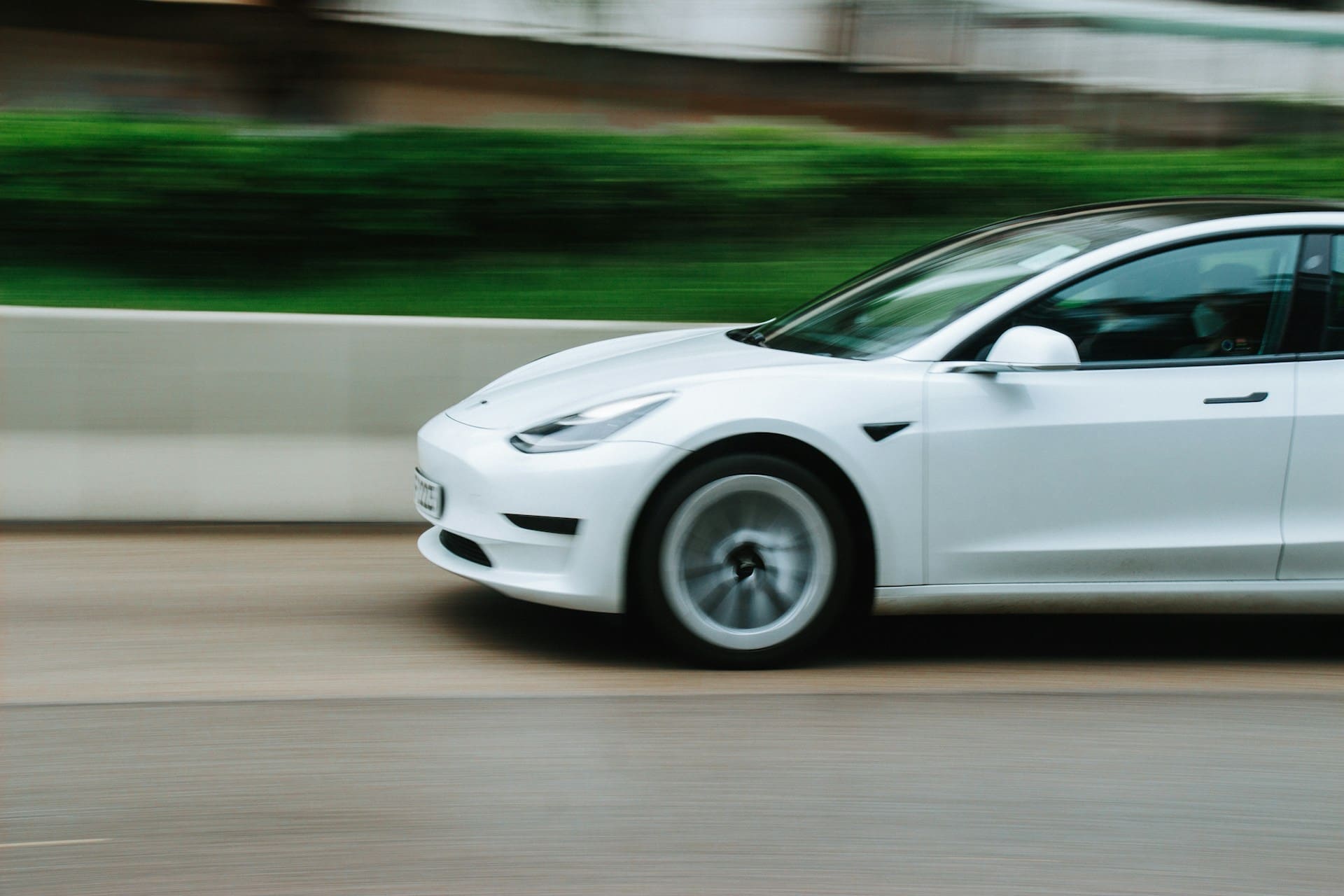
If your Tesla Full Self-Driving (FSD) feature isn’t working, the issue often boils down to software glitches or calibration problems following recent updates. One common cause is a software update that temporarily disables key FSD functions, requiring you to recalibrate cameras or reset driver assistance systems to restore operation. This can result in grayed-out controls or error warnings that prevent activation.
You might notice FSD refusing to engage randomly, sometimes linked to specific lighting conditions or vehicle states like system sleep. Because Tesla has not officially confirmed the root cause or issued a full fix, users like you may need to try troubleshooting steps yourself or await future updates. Understanding these factors will help you diagnose and manage FSD interruptions effectively.

Common Reasons Tesla FSD Is Not Working
When Tesla’s Full Self-Driving (FSD) system fails to activate, it often stems from software glitches, hardware limitations, sensor issues, or user settings. Understanding these causes can help you troubleshoot or communicate problems more effectively.

Best Bluetooth OBD2 Scanner
Detect 39,000+ Issues With Enhanced Codes. Save $1000s on car repairs & buying used vehicles by diagnosing problems yourself.
Shop on AmazonRecent Software Updates and Bugs
Tesla frequently releases over-the-air updates to improve FSD features. However, certain versions like v14.1.3 and v14.1.4 have introduced bugs that cause FSD activation to fail. You might notice the “Start Self-Driving” button grayed out or get an error beep accompanied by a yellow steering wheel icon.
These bugs are sometimes unpredictable, appearing after the car was functioning normally. Some users report that ambient lighting affects FSD’s ability to engage. Temporary fixes include recalibrating cameras via the service menu or resetting driver assistance systems in service mode. Tesla has not publicly acknowledged these problems, so it’s uncertain when a permanent patch will arrive. More on this issue can be found at Tesla FSD not engaging after updates.
Hardware and FSD Computer Issues
Your Tesla’s FSD relies on a specialized computer and sensors working correctly. Failures in the Full Self-Driving computer or its components can disable all assisted driving functions, including cruise control and steering assistance.
In some cases, hardware faults can cause the vehicle to “brick,” leaving the FSD and related features unusable. Such issues often require professional diagnosis or part replacement by Tesla service. If your vehicle suffers unexplained loss of FSD functionality, a hardware fault may be the root cause rather than a software problem.
Camera and Sensor Obstructions
FSD depends on clean, unobstructed cameras and sensors. Dirt, frost, or damaged lenses can interfere with proper system operation. When these sensors don’t provide accurate environmental data, FSD may refuse to activate or disable itself mid-drive.
You should regularly check and clean all cameras and sensor surfaces. Some users report improved FSD stability after performing a full camera recalibration through the service menu. Ambient lighting changes might also impact sensor performance, so ensure cameras aren’t directly blinded by sunlight or reflections.
User Errors and Settings
Sometimes, FSD won’t engage due to settings or user actions. For example, if you toggle off FSD or your subscription lapses, the system will become inactive. The FSD “Start from Park” button may remain grayed out until you begin driving.
Incorrect settings or toggling between cruise control and FSD modes repeatedly can confuse the system temporarily. Resetting by holding both steering wheel scroll buttons or powering down the vehicle can help. Always verify that your FSD subscription is active and your Tesla software is fully updated before troubleshooting further.
Troubleshooting Steps for FSD Issues
When your Tesla Full Self-Driving (FSD) system is not functioning as expected, addressing software responsiveness, hardware integrity, and proper calibration can often resolve the problem. These steps ensure your vehicle’s cameras, sensors, and internal systems are optimized for FSD operation.
How to Reboot Tesla Systems
A system reboot is the simplest way to resolve temporary glitches affecting FSD. To reboot your Tesla’s touchscreen and computer systems, press and hold both scroll wheels on the steering wheel until the screen goes black. Release the buttons and wait for the Tesla logo to appear, signaling the system has restarted.
This process resets software processes without affecting your vehicle settings or data. It often clears minor bugs causing FSD to freeze, not engage, or remain grayed out.
If issues persist, you can perform a full power cycle by going to Controls > Safety & Security > Power Off, then leaving the car off for several minutes before restarting it by pressing the brake pedal. This deeper reset can help when simple reboots fail.
Performing Camera and Sensor Checks
FSD relies heavily on multiple cameras and sensors. Dirt, damage, or obstruction to these components will prevent FSD from activating or performing properly.
You should regularly inspect each camera lens and sensor area for dirt, snow, or debris. Clean them gently with a soft cloth and approved cleaner. Also, check the vehicle’s touchscreen diagnostics by navigating to Controls > Service > Camera Calibration to view calibration status.
If the system reports any faults or if you notice cameras misaligned or obstructed, performing a recalibration or professional service may be required. Failed or outdated hardware can cause persistent FSD errors.
FSD Calibration and Reset Procedures
Proper calibration is key to FSD’s ability to understand its environment. After camera cleaning or hardware replacement, you must recalibrate the system.
Access the calibration option through the touchscreen: Controls > Service > Camera Calibration. Follow the prompts for the vehicle to drive at recommended speeds on clear roads until calibration completes automatically.
You can also reset FSD settings by disabling and re-enabling the feature in your Tesla account or directly on the touchscreen under Autopilot > Full Self-Driving Capability. This can resolve subscription glitches or software conflicts.
Maintaining updated software is equally important. Check for and install any available updates regularly to ensure your FSD system operates with the latest fixes and enhancements. For more on these steps, see troubleshooting tips in 4 Reasons Why Tesla FSD Not Working? (With Quick Solution).
When to Contact Tesla Service
If your Full Self-Driving (FSD) feature consistently fails or shows errors despite basic troubleshooting, it’s important to reach out to Tesla Service. Firmware issues and hardware replacements related to FSD often require professional intervention to ensure safety and restore proper function.
Identifying Persistent FSD Failures
You should contact Tesla Service when your FSD system repeatedly refuses to engage, especially if the “Start Self-Driving” button remains grayed out or an error beep with a yellow steering wheel icon appears. Occasional glitches that resolve after reset or charging may not require immediate service, but persistent failures indicate deeper issues.
Watch for patterns such as FSD not working at specific times—like night or day—or after updates. If recalibrating cameras or resetting the Driver Assistance Systems does not resolve these problems, service intervention is necessary. Document error messages or unusual behavior, as Tesla technicians will use this information for diagnosis.
Firmware Updates Through Tesla Service
Tesla occasionally rolls out firmware updates to address bugs affecting FSD performance, such as issues reported in versions 14.1.3 and 14.1.4. You may experience FSD disabling itself randomly or after system rest. If automatic updates don’t solve the problem, Tesla Service can perform manual firmware interventions or roll back updates if needed.
Tesla Service can also verify if your software version is compatible with your specific hardware configuration. Ensuring your vehicle runs the latest, validated FSD software minimizes malfunction risks and maintains optimal autonomy levels. Contacting Tesla Service guarantees expert handling of these complex software matters.
Handling FSD Computer Replacements
In some cases, FSD malfunctions stem from hardware faults in the onboard computer responsible for processing autonomous driving data. If service technicians determine your FSD computer is defective, they will schedule a replacement. This procedure typically includes reinstalling FSD software and ensuring full system calibration.
Be prepared for potential downtime during this process and ask Tesla about warranty coverage for such repairs. Proper installation by Tesla Service preserves your vehicle’s autonomous capabilities and addresses any hidden hardware failures that cause intermittent or total FSD loss.
Prevention and Best Practices for Reliable FSD Performance
To ensure Tesla’s Full Self-Driving (FSD) system works as intended, you need to maintain both the software and hardware carefully while following safe operating habits. Attention to detail in these areas directly affects the system’s reliability and your overall driving experience.
Keeping Software and Firmware Updated
Regularly updating your Tesla’s software and firmware is crucial for maintaining FSD performance. Tesla continuously releases updates that fix bugs, improve perception algorithms, and enhance system stability.
You should check for updates frequently by navigating to the Software section on your vehicle’s touchscreen. Connecting to Wi-Fi ensures faster and more reliable downloads. Delaying updates might leave your FSD system vulnerable to unresolved issues and reduce its effectiveness in handling complex scenarios.
Tesla’s updates sometimes include firmware improvements for sensors and cameras, so these must be installed promptly to keep hardware components synchronized with the latest software capabilities.
Regular Maintenance of Cameras and Sensors
Your Tesla’s FSD depends heavily on cameras and sensors to interpret the environment. Dirt, debris, or damage to these components can lead to misreads or malfunctions in the system.
Regular visual inspection of these parts is essential. Clean all cameras and sensors gently using a microfiber cloth to avoid scratching. Avoid harsh chemicals that could degrade lens coatings.
If your vehicle alerts you to diagnostic errors or calibration issues, use the on-screen calibration tools immediately or schedule professional service. Ensuring clear, unobstructed sensors helps maintain reliable object detection and response.
Older vehicles may require hardware upgrades to fully support newer FSD features, so verify compatibility as new FSD versions roll out.
Safe Usage Guidelines for FSD
FSD is designed as an advanced driver-assistance tool, not a fully autonomous system. You must remain engaged, with hands on the wheel and eyes on the road at all times.
Avoid relying solely on FSD in complex or poor weather conditions such as heavy rain, fog, or snow. The system can struggle with sudden changes, unmarked roads, or unexpected obstacles.
Adjust your driving behavior based on environment—reduce speed on challenging roads and prepare to intervene instantly if FSD exhibits unusual behavior. Following Tesla’s in-car warnings and safety prompts rigorously is essential.
Remaining attentive and ready to take over will ensure that FSD supports your driving without compromising safety or control.
For further technical details on maintaining FSD, consult Tesla’s official resources and troubleshooting guides such as the Tesla FSD Chip Debugging guide.