
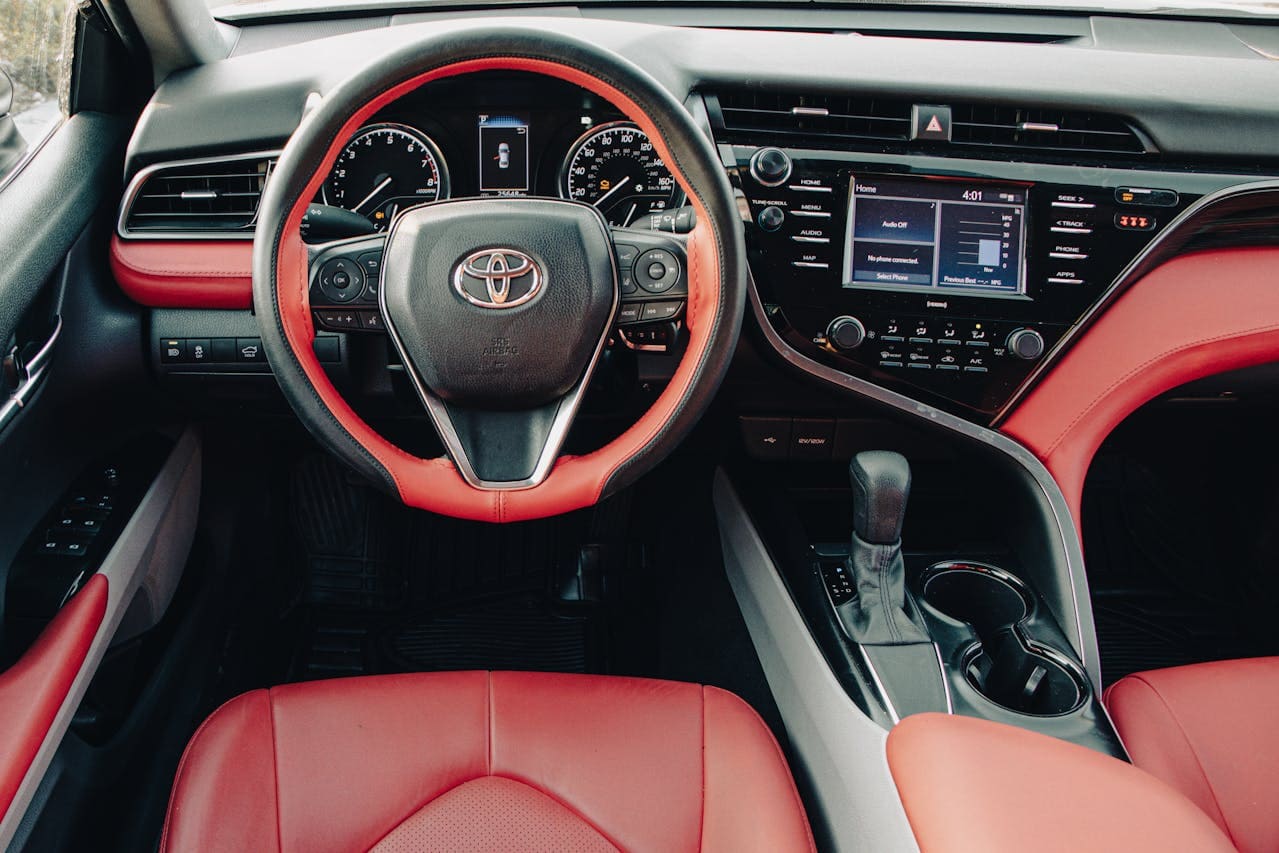
Your Toyota Camry’s Android Auto suddenly stopped connecting to your phone, and you’re stuck with a frustrating tech problem that’s making your daily commute unbearable.
Android Auto issues in Toyota Camry vehicles are typically caused by faulty USB cables, incorrect port usage, outdated software, or phone compatibility problems. Most connection failures can be resolved by using the correct USB port, checking cable quality, updating software, or performing a system reset.

Why Android Auto Fails
When your Camry’s Android Auto stops working, several underlying issues could be causing the problem. The most frequent culprit is using the wrong USB port, as many Camry models have multiple ports but only specific ones support data transfer for Android Auto functionality.
Cable quality plays a crucial role in maintaining stable connections. Many drivers unknowingly use charging-only cables that lack the necessary data transfer capabilities required for Android Auto to function properly. Your phone needs to communicate with the vehicle’s infotainment system through high-quality data cables specifically designed for this purpose.

Best Bluetooth OBD2 Scanner
Detect 39,000+ Issues With Enhanced Codes. Save $1000s on car repairs & buying used vehicles by diagnosing problems yourself.
Shop on AmazonSoftware compatibility between your Android device and Toyota’s infotainment system can create connection barriers. As both systems receive regular updates, version mismatches often occur, preventing successful pairing and functionality.
“The most common error I saw was people being plugged into the wrong USB port. The one below the head unit is the only data capable one.” Reddit User Experience
Your phone’s Android version must meet minimum requirements for Android Auto to work effectively. Toyota vehicles typically require Android 9.0 or higher, and phones running older versions will experience consistent connection failures.
Port Problems
Toyota Camry models feature multiple USB ports throughout the cabin, but not all ports support Android Auto functionality. Understanding which port to use eliminates one of the most common connection issues drivers face.
The primary data-capable USB port is typically located directly below the infotainment display in most Camry models. This port differs from charging-only ports found in the center console, glove compartment, or rear passenger areas.
Many drivers mistakenly connect their phones to convenient charging ports without realizing these ports lack data transfer capabilities. The Toyota support documentation specifically identifies which ports support Android Auto in each model year.
Wireless Android Auto availability varies by model year and trim level. Newer Camry models often include wireless connectivity options, while older models require wired connections through specific USB ports.
Cable Quality Matters
The USB cable connecting your phone to your Camry significantly impacts Android Auto performance. Poor-quality cables cause intermittent connections, data transfer failures, and complete system crashes.
Premium cables like the SUNGUY 10Gbps Android Auto USB C Cable provide reliable data transfer rates and consistent connections. These cables feature reinforced connectors and high-quality wiring that maintains stable communication between devices.
Cable length affects signal quality, with shorter cables generally providing better performance. Experts recommend using cables under 6 feet for optimal Android Auto functionality, as longer cables may experience signal degradation.
“Use a cable that’s under 6ft long and avoid using cable extensions.” Google Support Guidelines
Different phone models require specific cable types. USB-C phones need USB-A to USB-C cables, while older phones may require micro-USB connections. Using incorrect cable types prevents proper device recognition.
Software Updates
Keeping both your phone and Camry’s infotainment system updated prevents many Android Auto connection issues. Outdated software versions often contain bugs that interfere with proper device communication.
Android Auto app updates frequently address connectivity problems and compatibility issues. Regular updates through the Google Play Store ensure you have the latest bug fixes and feature improvements.
Toyota provides over-the-air software updates for newer Camry models equipped with compatible infotainment systems. These updates address known Android Auto issues and improve overall system performance.
Checking for system updates involves accessing your Camry’s settings menu and selecting the software update option. The vehicle must be connected to WiFi or have cellular connectivity to download and install updates.
Manual updates may be required for older Camry models through Toyota’s firmware update portal. This process requires downloading files to a USB drive and installing them through the vehicle’s infotainment system.
Phone Compatibility
Android Auto requires specific phone specifications to function properly in Toyota Camry vehicles. Understanding these requirements helps identify compatibility issues before they become problems.
Your Android phone must run Android 9.0 or higher for Android Auto compatibility. Phones with older operating systems cannot establish proper connections with modern Toyota infotainment systems, as explained in Android Authority’s troubleshooting guide.
Some Android phone manufacturers implement custom software modifications that interfere with Android Auto functionality. Samsung, OnePlus, and Xiaomi devices occasionally experience connectivity issues due to manufacturer-specific software customizations.
“Android Auto is embedded in Android 15. No need to download it.” Tech Support Specialist
Google Pixel phones typically offer the most seamless Android Auto experience, as they run stock Android without manufacturer modifications. These devices connect more reliably and experience fewer compatibility issues.
RAM and processing power requirements affect Android Auto performance. Phones with less than 3GB of RAM may struggle to maintain stable connections while running Android Auto alongside other applications.
Reset Methods
Performing system resets often resolves persistent Android Auto connection issues in Toyota Camry vehicles. Several reset methods address different types of problems.
The soft reset involves holding the infotainment system’s power/volume knob for approximately 3 seconds until the system restarts. This method clears temporary software glitches without affecting saved settings or paired devices.
Hard reset procedures require disconnecting the vehicle’s battery for 10-15 minutes, which completely resets the infotainment system. This method should only be used when other solutions fail, as it erases all saved settings and paired devices.
Phone-side resets include clearing the Android Auto app’s cache and data through your device’s application settings. This process removes corrupted files that may prevent proper connection establishment.
Step-by-step reset process:
- Turn off your Camry’s engine completely
- Hold the infotainment power button for 5 seconds
- Wait for the system to restart automatically
- Clear Android Auto app cache on your phone
- Restart your phone completely
- Reconnect using the correct USB port
Factory reset options are available through the infotainment system’s settings menu for severe software corruption issues. This process restores the system to original factory settings, requiring complete setup reconfiguration.
Troubleshooting Steps
Systematic troubleshooting helps identify and resolve Android Auto problems efficiently. Following a structured approach saves time and prevents unnecessary complications.
Begin by verifying your phone meets minimum Android Auto requirements and that the Android Auto app is installed and updated. Outdated apps frequently cause connection failures and compatibility issues.
Check cable connections at both ends, ensuring secure insertion into phone and vehicle ports. Loose connections create intermittent problems that may seem like software issues but are actually hardware-related.
Complete troubleshooting checklist:
- Verify correct USB port usage (data-capable port only)
- Test cable functionality with another Android Auto-compatible device
- Clear Android Auto app cache and restart phone
- Update phone operating system and apps
- Check for available infotainment system updates
- Perform soft reset of vehicle’s infotainment system
- Try different high-quality USB cable
- Test with another Android phone to isolate device-specific issues
The Consumer Reports infotainment troubleshooting guide provides additional reset procedures for various Toyota infotainment systems.
Environmental factors can affect Android Auto performance. Extreme temperatures, electrical interference, and poor cellular reception may cause connection instabilities that appear as hardware problems.
Testing Android Auto functionality in different locations helps identify environmental factors affecting performance. Garage testing eliminates variables like cellular tower interference and GPS signal quality.
Professional Solutions
When DIY troubleshooting fails to resolve Android Auto issues, professional assistance may be necessary. Toyota dealerships have specialized diagnostic equipment and access to technical service bulletins addressing known problems.
Software reflashing services can resolve corrupted infotainment system firmware that prevents Android Auto functionality. This procedure requires dealer-level equipment and should only be performed by certified technicians.
Hardware replacement may be necessary for defective infotainment systems or USB ports. Warranty coverage often applies to these components, reducing repair costs for eligible vehicles.
“Disconnecting the negative battery terminal for 10 minutes fully resets the head unit according to the head unit update service bulletin.” Toyota Technician Advice
Third-party Android Auto adapters like the Motorola MA1 Wireless Adapter can add wireless functionality to older Camry models that only support wired connections. These devices eliminate cable-related problems while providing wireless convenience.
Professional diagnostics can identify specific error codes and system faults that aren’t apparent through basic troubleshooting. These diagnostic procedures often reveal underlying issues that cause recurring Android Auto problems.
Extended warranty coverage may apply to infotainment system repairs, particularly for vehicles experiencing persistent connectivity issues. Contacting Toyota customer service helps determine warranty eligibility and available repair options.
Common Error Messages
Understanding error messages helps diagnose specific Android Auto problems in Toyota Camry vehicles. Different error codes indicate various underlying issues requiring targeted solutions.
“Device not supported” messages typically indicate phone compatibility problems or outdated Android Auto app versions. This error appears when your phone doesn’t meet minimum system requirements or lacks necessary software updates.
“Connection failed” errors often result from faulty USB cables, incorrect port usage, or temporary software glitches. These messages appear intermittently and may resolve with cable replacement or system resets.
USB connection errors frequently display when using charge-only cables instead of data-capable cables. The infotainment system detects the phone but cannot establish proper data communication for Android Auto functionality.
“App not responding” messages indicate software conflicts between your phone and the vehicle’s infotainment system. These errors may require clearing app cache, updating software, or performing system resets.
| Error Type | Common Cause | Solution |
|---|---|---|
| Device Not Supported | Outdated phone OS | Update Android system |
| Connection Failed | Wrong USB port | Use data-capable port |
| App Not Responding | Software conflict | Clear app cache |
| USB Error | Faulty cable | Replace with quality cable |
| System Timeout | Overloaded processor | Restart infotainment system |
Network-related errors occur when Android Auto attempts to access internet services but encounters connectivity problems. These issues may resolve when cellular or WiFi connections improve.
Alternative Solutions
When standard Android Auto functionality fails, alternative solutions provide similar smartphone integration capabilities. These options maintain hands-free operation while addressing connectivity issues.
Bluetooth audio streaming offers basic phone connectivity without requiring USB cables or Android Auto compatibility. This solution provides music playback and hands-free calling through the vehicle’s audio system.
Toyota’s native smartphone integration apps provide limited functionality compared to Android Auto but offer reliable connectivity. These applications access basic phone features through the infotainment system’s interface.
Third-party aftermarket solutions can upgrade older Camry infotainment systems with modern Android Auto capabilities. Companies like Pioneer and Kenwood manufacture compatible replacement units with enhanced connectivity features.
Wireless Android Auto adapters convert wired-only systems to wireless operation, eliminating cable-related connection problems. These devices plug into existing USB ports and create wireless connections to compatible smartphones.
Phone mounting solutions provide hands-free operation without relying on infotainment system integration. Quality phone mounts position devices for safe operation while maintaining access to native Android Auto features.
Prevention Tips
Preventing Android Auto problems requires regular maintenance and proper usage habits. Following these guidelines reduces the likelihood of connection issues and extends system reliability.
Regular software updates for both your phone and vehicle prevent compatibility issues that cause connection failures. Enable automatic updates when possible to ensure you always have the latest bug fixes and improvements.
Cable maintenance includes regular inspection for wear, damage, or loose connections. Replace cables showing signs of deterioration before they cause intermittent connection problems.
Proper port usage prevents damage to vehicle USB connections and ensures reliable data transfer. Avoid forcing connections or using incompatible cables that may damage port internals.
Temperature management protects electronic components from damage caused by extreme heat or cold. Avoid leaving phones in direct sunlight or exposing the vehicle to extreme temperatures when possible.
“Every vehicle feature remains useable except for the audio multimedia touchscreen display. Unplug all devices during updates.” Toyota Service Instructions
Regular system maintenance includes periodic soft resets to clear temporary files and refresh system performance. Monthly resets help prevent software conflicts that accumulate over time.
Video Credit: Steve Clifford / YouTube
Frequently Asked Questions
Can I use any USB cable for Android Auto in my Toyota Camry?
Not all USB cables work with Android Auto functionality. You need a high-quality data transfer cable, not just a charging cable. Cheap cables often lack the necessary data transmission capabilities required for Android Auto to communicate with your Camry’s infotainment system. Look for cables specifically labeled as “data sync” or “Android Auto compatible” to ensure proper functionality.
Quality cables like those from Anker or Belkin provide reliable connections and reduce the likelihood of intermittent connection problems. Cable length also matters, with shorter cables generally providing better signal quality than longer ones. Avoid using cable extensions, as they can introduce signal degradation that interferes with Android Auto performance.
Why does Android Auto work sometimes but not others in my Camry?
Intermittent Android Auto functionality typically indicates hardware or software instability rather than complete incompatibility. Common causes include loose USB connections, overheating phones, software conflicts, or temporary system glitches. Temperature fluctuations can affect electronic component performance, causing connections to work inconsistently.
Your phone’s available memory and processing power also influence Android Auto reliability. When your device runs multiple applications simultaneously, it may lack sufficient resources to maintain stable Android Auto connections. Closing unnecessary apps before connecting to your Camry can improve consistency.
Background app refresh settings on your phone can interfere with Android Auto’s ability to maintain stable connections. Disabling background refresh for non-essential apps helps ensure Android Auto receives adequate system resources for proper operation.
Does my 2020 Toyota Camry support wireless Android Auto?
Most 2020 Toyota Camry models require wired connections for Android Auto functionality, as wireless support wasn’t widely available until later model years. However, some higher trim levels may include wireless capabilities depending on the specific infotainment system installed.
You can check your vehicle’s wireless Android Auto compatibility by accessing the phone connection settings in your infotainment system. If wireless options appear in the connection menu, your Camry supports this feature. Alternative solutions include aftermarket wireless adapters that add wireless functionality to wired-only systems.
The distinction between trim levels is important, as base models typically lack advanced connectivity features found in higher-end configurations. Consulting your owner’s manual or contacting a Toyota dealer can confirm your specific vehicle’s capabilities.
How do I know if my phone is compatible with Toyota Android Auto?
Android Auto requires phones running Android 9.0 or higher, with at least 3GB of RAM for optimal performance. Older phones may lack the processing power necessary to run Android Auto smoothly alongside other applications. Check your phone’s Android version in the settings menu under “About Phone” or “Software Information.”
Some manufacturers implement custom Android modifications that can interfere with Android Auto functionality. Google Pixel phones typically offer the best compatibility, while heavily customized versions from manufacturers like Xiaomi or OnePlus may experience occasional issues.
The Android Auto app must be installed and updated on your phone for proper functionality. Newer Android versions include Android Auto as a built-in feature, while older versions require downloading the app from the Google Play Store.
Can software updates fix my Toyota Camry Android Auto problems?
Software updates frequently resolve Android Auto connectivity issues by addressing bugs, improving compatibility, and enhancing system stability. Both your phone’s Android operating system and your Camry’s infotainment system require regular updates for optimal performance.
Toyota provides over-the-air updates for newer vehicles, while older models may require manual updates through USB drives or dealer visits. The update process can take up to an hour and requires stable internet connectivity throughout the procedure.
Regular updates prevent many common Android Auto problems before they occur. Enable automatic updates on your phone when possible, and check for available vehicle updates monthly to maintain optimal system performance and compatibility.
Sources:
- Google Android Auto Support Documentation
- Toyota Owner Support Portal
- Consumer Reports Infotainment Troubleshooting
- Toyota Firmware Updates Portal
- Android Authority Android Auto Problems Guide
Read More:
- Toyota Camry Radio Not Working? Here’s Your Complete Fix Guide
- Toyota Camry USB Port Not Working? Here’s Your Complete Fix Guide
- Toyota Camry AC Not Working? Here’s the Complete Repair Guide