
If your Starlink connection crawls to a halt every evening, you’re far from alone. Thousands of subscribers report the same frustrating pattern between 6 PM and 11 PM.
The core reason your Starlink speeds drop at night is peak-hour network congestion. When most subscribers in your cell come online simultaneously after work, SpaceX’s satellites and ground infrastructure face massive demand spikes. Residential users share finite bandwidth per cell, and Starlink deprioritizes Roam and Best Effort plans first, but even standard Residential subscribers experience significant slowdowns in oversubscribed areas. Speeds that hover around 100–200 Mbps during the day can plunge below 25 Mbps or worse during evening hours.
This guide breaks down the network-level and user-level causes behind your nighttime speed drops, shows you how to isolate the problem using Starlink’s own diagnostic tools, and walks through proven fixes that actually work. Whether you’re a remote worker losing Zoom calls, a gamer fighting latency spikes, or just trying to stream a movie after dinner, you’ll find actionable steps below.
Key Takeaways
- Starlink speeds drop at night primarily due to peak-hour network congestion between 6 PM and 11 PM, when subscriber demand exceeds satellite bandwidth capacity in your cell, causing speeds to plunge from 100–200 Mbps during the day to 25–80 Mbps in the evening.
- Use the Starlink app’s Advanced Speed Test at multiple times (mid-afternoon, 7 PM, and 10 PM) to distinguish between Wi-Fi bottlenecks and network-level congestion, which directly determines whether you need hardware upgrades or service plan changes.
- Optimizing dish placement by running obstruction checks at night and mounting your dish as high as possible to clear trees and structures can eliminate satellite connection gaps that worsen evening performance.
- Switching to a mesh Wi-Fi system in bypass mode or upgrading to a Residential Priority plan can significantly improve nighttime speeds, with some users reporting a doubling of evening throughput.
- Contact Starlink support if you consistently experience speeds below 5 Mbps during peak hours, frequent outages exceeding 30 seconds, or outdated firmware, as these issues may indicate a hardware fault or cell oversubscription eligible for plan discounts.
- Thermal throttling, rain fade, and satellite orbital positioning contribute to nighttime slowdowns, so monitor your Starlink app’s Outages tab for “Network Issue” or “Thermal Shutdown” alerts that indicate environmental factors compounding congestion.
How Fast Should Starlink Actually Be at Night?
Setting realistic expectations matters before you start troubleshooting. SpaceX advertises Residential Starlink speeds between 25–220 Mbps with latency of 25–60 ms, according to Starlink’s own specifications page. But those numbers represent ideal conditions, not prime-time reality in a busy cell.
During off-peak hours (roughly midnight to 4 PM), many users report speeds well above 100 Mbps. The trouble starts around 6 PM when American households collectively fire up streaming services, video calls, and online gaming. According to Ookla’s Speedtest Intelligence data from Q4 2025, Starlink’s median U.S. download speed dropped to approximately 65 Mbps, a significant decline from the 90+ Mbps median recorded during daytime hours.
Here’s a quick breakdown of what different Starlink plan tiers experience during peak congestion:
| Plan Type | Daytime Avg Speed | Peak Hour Avg Speed | Priority Level |
|---|---|---|---|
| Residential (Standard) | 80–200 Mbps | 25–80 Mbps | Standard |
| Residential (Priority) | 100–220 Mbps | 40–150 Mbps | High |
| Roam (Regional) | 50–150 Mbps | 5–50 Mbps | Lower |
| Best Effort | 25–100 Mbps | 5–25 Mbps | Lowest |
If you’re on a Roam or Best Effort plan, your speeds get deprioritized first during congestion. Starlink’s priority hierarchy places Residential and Business plans at the top, with Roam regional and global users further down the queue. This Starlink residential vs mobile priority data distinction is critical to understanding your nighttime experience.
So what’s “normal” at night? If you’re a Residential subscriber pulling 40–80 Mbps during peak hours, your connection is actually performing within expected range. Below 25 Mbps consistently? That signals a deeper problem worth investigating.
Why Starlink Speeds Slow Down After Dark
Network Congestion During Peak Evening Hours
This is the biggest culprit by far. Starlink peak hours congestion from 6 PM to 11 PM follows the same pattern as terrestrial ISPs, but with a twist: satellite bandwidth is shared across a geographic “cell” roughly 15 miles in diameter. Every subscriber in that cell shares the same satellite capacity overhead.
As SpaceX has aggressively expanded its subscriber base, surpassing 4 million users globally by early 2026, many cells have become oversubscribed. Network deprioritization during high usage kicks in automatically, and the system allocates bandwidth based on plan tier. Residential Priority customers get first dibs, standard Residential comes next, and Best Effort or Roam users get whatever remains.
“My speeds went from 150 Mbps at 2 PM to literally 8 Mbps at 8 PM. I’m on the standard Residential plan and my cell is clearly oversold. Switching to Priority doubled my evening speeds.” via r/Starlink
If you’re considering whether changing your Starlink service address to a less congested cell might help, it absolutely can, but only if you physically relocate the dish to that new address. SpaceX assigns priority based on your registered service location.
Thermal Throttling and Environmental Factors
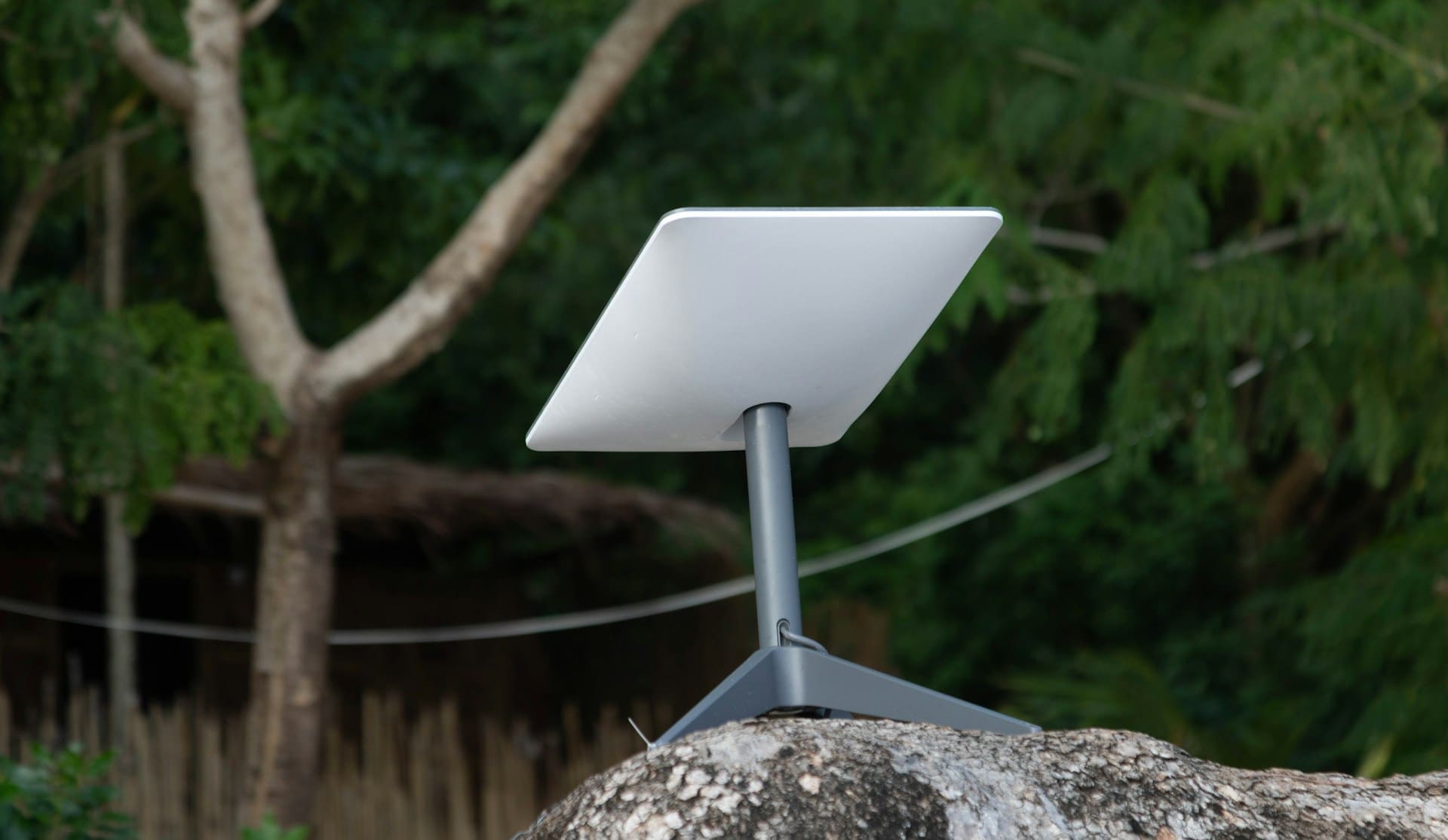
Your Starlink dish (Dishy) contains active electronics that generate heat. During summer evenings when ambient temperatures remain high, the dish may thermal-throttle to protect its components. You’ll notice this as intermittent speed drops paired with brief disconnections.
Starlink speed drops during heavy rain or snow also worsen at night because you’re stacking weather attenuation on top of congestion. Rain fade, where water droplets absorb and scatter the Ku-band signal, can reduce throughput by 20–50% during moderate storms. Snow accumulation on the dish face is another issue, though Dishy’s built-in heating element usually handles light snow.
Check your Starlink app’s “Outages” tab. If you see frequent short outages labeled “Network Issue” or “Thermal Shutdown,” environmental factors are compounding your peak-hour problems.
Satellite Coverage Gaps and Orbital Positioning
Starlink’s constellation doesn’t provide perfectly uniform coverage at all times. Depending on your latitude and the current orbital positions, you may experience brief coverage gaps where fewer satellites are overhead. These gaps cause momentary speed drops and latency spikes.
At night, your dish may connect to satellites at lower elevation angles, which increases signal path length and atmospheric interference. You can check your signal-to-noise ratio (SNR) in the Starlink app’s debug data, look for values below 9 dB, which indicate a weak or degraded link. A satellite dish obstruction check at night is also worthwhile, since trees and structures that seem clear during the day may block satellites at different orbital positions visible in the evening sky.
How to Test and Monitor Your Nighttime Speeds
Before changing anything, you need data. The Starlink app includes an Advanced Speed Test that most users overlook, and it’s the single best diagnostic tool at your disposal.
Here’s the critical distinction: the Starlink advanced speed test measures two separate connections. First, it tests the speed between your device and the Starlink router (your local Wi-Fi performance). Second, it tests the speed between the router and the satellite (the actual Starlink link). This isolates whether your bottleneck is a Wi-Fi problem or a network-level congestion issue.
Pro-Tip: Run the Advanced Speed Test at three different times, mid-afternoon, 7 PM, and 10 PM, on the same day. If the router-to-satellite speed drops dramatically but your device-to-router speed stays consistent, you’ve confirmed the issue is Starlink network congestion, not your local setup. If both drop, your Wi-Fi or cabling may be part of the problem.
Here’s a simple testing protocol:
- Open the Starlink app and tap “Speed Test”
- Note both the “Internet” speed (router-to-satellite) and “Wi-Fi” speed (device-to-router)
- Run tests from multiple devices and locations in your home
- Check the “Statistics” tab for 24-hour speed graphs to spot patterns
- Monitor the “Outages” section for obstruction or firmware-related drops
If you want more granular monitoring, a tool like PingPlotter helps you visualize latency and packet loss over time, especially useful for reducing Starlink latency for gaming at night. PingPlotter’s subscription plans start around $15/month and let you run continuous traces to game servers, showing exactly when and where packets get delayed.
Also, check whether a Starlink firmware update is stuck or pending. Go to the Starlink app > Settings > Advanced and look at your firmware version. Outdated firmware can cause performance regressions. Starlink pushes updates automatically, but occasionally a dish gets stuck on an older version.
Proven Ways to Improve Starlink Performance at Night
Optimize Your Dish Placement and Obstructions
Your dish placement is the single most impactful physical change you can make. The Starlink app’s obstruction tool uses your phone’s camera to map the sky and identify blockages, but here’s what many people miss: obstructions shift throughout the day as different satellites become visible at different angles.
Run the obstruction check at night, not just during the day. Trees that barely clip the field of view at noon might block critical low-elevation satellites in the evening. Even 1–2% obstruction can cause noticeable speed drops and connection interruptions because the dish has to wait for the next available satellite.
Mount your dish as high as possible. Roof mounts or pole mounts that get the dish above the tree line make the biggest difference. The Starlink Pipe Adapter is a solid option for securing your dish to an existing pole or mast, giving you the height needed to clear obstructions.

Also inspect your cables. The Starlink Ethernet adapter can become a speed bottleneck if the cable connections are corroded, kinked, or if you’re using a damaged proprietary Starlink cable. Water intrusion at the cable entry point is a common issue that degrades performance gradually over weeks.
Adjust Your Network Settings and Usage Habits
If your Advanced Speed Test shows strong router-to-satellite speeds but weak device-to-router speeds, your Wi-Fi is the problem, not Starlink’s network.
Consider putting the Starlink router in bypass mode and connecting a third-party mesh system. The standard Starlink router is decent but struggles in larger homes or buildings with thick walls. A system like the TP-Link Deco XE75 provides Wi-Fi 6E coverage that dramatically improves local network performance, especially with multiple devices competing for bandwidth at night.
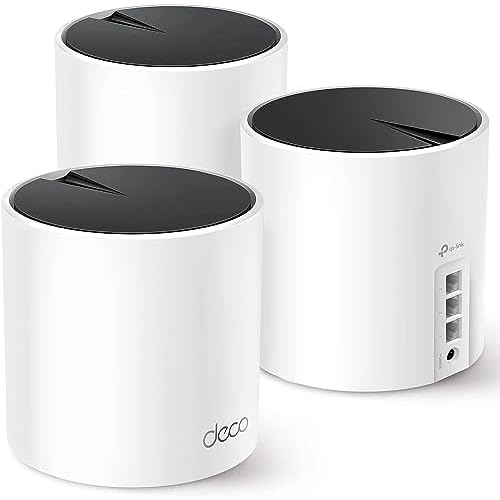
“Switched to bypass mode with a TP-Link mesh and my evening speeds on devices went from 30 Mbps to 85 Mbps. The Starlink router was the bottleneck the whole time.” via r/Starlink
Other practical adjustments:
- Schedule large downloads and system updates for off-peak hours (midnight–6 AM)
- Enable QoS (Quality of Service) on your third-party router to prioritize gaming or video calls
- Disconnect IoT devices you don’t actively use during peak hours, smart cameras and cloud backups consume surprising bandwidth
- Switch to 5 GHz or 6 GHz Wi-Fi bands for speed-sensitive devices: the 2.4 GHz band is slower and more congested
For Starlink Roam users experiencing regional vs global speed throttling, consider upgrading to a Residential plan if you’ve settled in one location. Roam plans carry lower priority, and the speed difference during peak hours can be dramatic.
When to Contact Starlink Support About Slow Speeds
Not every speed drop is “normal” congestion. You should contact Starlink support through the app if you’re experiencing any of the following:
- Consistent speeds below 5 Mbps during peak hours on a Residential plan for more than a week
- Frequent outages lasting more than 30 seconds that aren’t tied to weather or obstructions
- The app shows persistent “Network Issue” outages without corresponding weather events
- Your firmware version is significantly outdated compared to what other users in your area report
- Speed tests show extremely low router-to-satellite speeds even during off-peak hours
When you open a support ticket, include screenshots of your speed test results (both the regular and Advanced tests), your outage history, and your obstruction map. This gives the support team the data they need to investigate whether your dish has a hardware fault or if your cell is genuinely oversubscribed.
Starlink has, in some documented cases, offered users the option to switch to Priority plans at a discount when their cell is significantly overloaded. It doesn’t hurt to ask.
Data Insights and Analysis
According to Ookla’s Q4 2025 Speedtest data, Starlink’s median U.S. download speed sat at approximately 65 Mbps, down from roughly 90 Mbps two years prior as the subscriber base grew. The FCC’s 2025 Broadband Data Collection also noted that satellite internet providers showed the widest speed variance between peak and off-peak hours compared to any other broadband technology, with some cells showing a 70%+ speed reduction during evening hours.
Expert Note: "The speed degradation during peak hours isn't a signal quality issue, it's a capacity allocation problem. Each Starlink satellite has a fixed amount of throughput it can deliver to a given cell. As subscriber density increases without proportional satellite launches or spectrum allocation, the per-user bandwidth during peak hours will continue to decline. The V2 Mini satellites with their increased capacity are helping, but demand is outpacing deployment in many U.S. cells.", Network capacity analysis based on SpaceX's FCC filings and orbital deployment data.
Frequently Asked Questions About Starlink Speeds at Night
Why do Starlink speeds drop at night?
Starlink speeds drop at night primarily due to peak-hour network congestion between 6 PM and 11 PM when most subscribers come online simultaneously. Your geographic cell shares finite satellite bandwidth across roughly 15 miles in diameter, and residential users are deprioritized during oversubscribed conditions, causing speeds to plunge from 100–200 Mbps during daytime to 25–80 Mbps during evening hours.
What is normal Starlink speed during peak evening hours?
For Residential subscribers, normal peak-hour speeds range from 40–80 Mbps. According to Ookla’s Q4 2025 data, Starlink’s median U.S. speed dropped to approximately 65 Mbps during peak hours, down from 90+ Mbps daytime speeds. Speeds consistently below 25 Mbps indicate a deeper problem worth investigating with Starlink support.
How can I test if my Starlink nighttime speed issue is network congestion or a Wi-Fi problem?
Use the Starlink app’s Advanced Speed Test, which measures two separate speeds: device-to-router (Wi-Fi performance) and router-to-satellite (network link). Run tests at 7 PM and 10 PM. If router-to-satellite drops dramatically but device-to-router stays consistent, the issue is network congestion. If both drop, your Wi-Fi or cabling is the bottleneck.
Does upgrading to Starlink Priority help reduce nighttime speed drops?
Yes, upgrading to Residential Priority can significantly improve evening speeds. Starlink’s priority hierarchy places Priority customers first in bandwidth allocation during congestion, followed by standard Residential, then Roam and Best Effort plans. Users report priority plans delivering 40–150 Mbps during peak hours versus 25–80 Mbps for standard Residential.
Can moving my Starlink dish location help with nighttime speed problems?
Only if you physically relocate your dish to a different geographic cell with less congestion. SpaceX assigns priority based on your registered service address. Simply changing your address without moving the hardware won’t help, as the dish must actually relocate to access a different cell’s satellite capacity.
What physical changes improve Starlink speeds at night the most?
Optimizing dish placement has the biggest impact. Run the obstruction check at night, as trees blocking low-elevation satellites during evening cause noticeable speed drops. Mount your dish as high as possible above the tree line using a pole mount. For Wi-Fi issues, bypass the Starlink router and use a mesh system like TP-Link Deco XE75 for better coverage and reduced local congestion.
Sources:
- Troubleshooting Slow Speeds During Peak Hours (6 PM – 11 PM)
- Why Is My Starlink Slow? 5 Causes and Solutions
- Fixing Slow Starlink Speeds and Evening Congestion
- Community Discussion on Significant Speed Drops and Congestion
- General Troubleshooting for Hardware and Router Bottlenecks
Read More:
- Starlink Keeps Rebooting (Fix Constant Restart Issues)
- Starlink Not Connecting to Internet (Quick Troubleshooting Guide)
- Starlink Not Working After Power Outage (Recovery Solutions)