
Few things are more frustrating than discovering your Ring doorbell push notifications stopped working, especially after a missed delivery or visitor.
The most common reason your Ring doorbell is not ringing on your phone is either a disabled notification toggle inside the Ring app or a phone-level setting like Do Not Disturb or Focus mode silencing your alerts. Less frequently, your Ring device may show as offline due to Wi-Fi connectivity problems, which prevents all notifications from reaching your phone entirely.
This guide walks you through a logical diagnostic path, from checking your device status in the Ring app to validating global phone notification permissions and fine-tuning individual alert settings. You’ll restore your home security monitoring quickly, no electrician required for most cases.
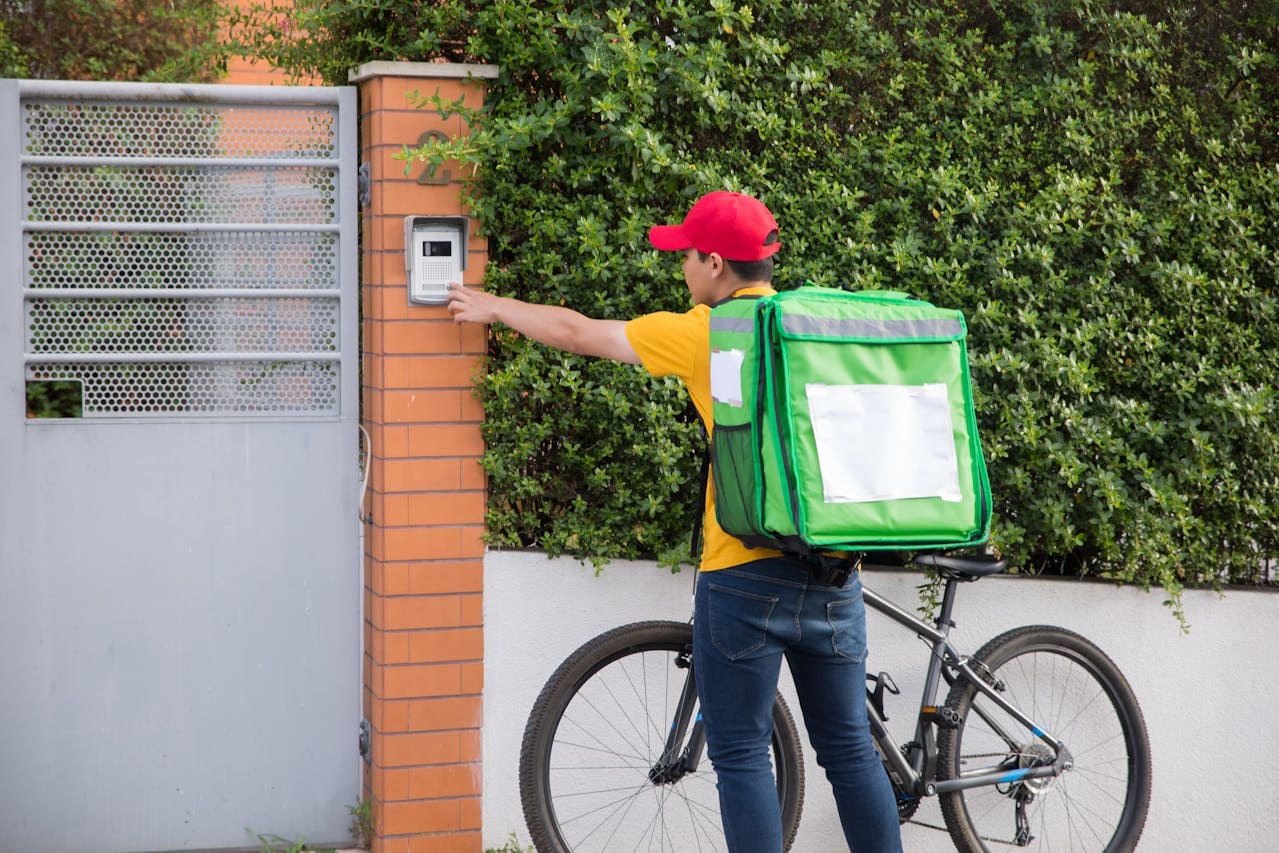
Key Takeaways
- A Ring doorbell not ringing on your phone is usually caused by disabled notification toggles in the Ring app or phone-level settings like Do Not Disturb and Focus modes, not a broken device.
- Check your Ring doorbell’s Device Health status in the app; if it shows offline, Wi-Fi connectivity issues are preventing notifications from reaching your phone entirely.
- Enable both Ring Alerts and Motion Alerts toggles in the app, grant full notification permissions at the phone level (Settings > Notifications on iOS or Settings > Apps on Android), and disable any active Focus mode or Do Not Disturb blocking.
- If basic troubleshooting fails, perform a factory reset by holding the orange setup button for 15–20 seconds, then reconfigure your doorbell through the Ring app.
- Install a Ring Chime or upgrade your Wi-Fi router placement to improve signal strength (RSSI above -60 dBm indicates weak coverage), as poor connectivity is a common culprit behind notification delays.
- Keep your Ring app and device firmware updated, disable battery optimization settings for Ring on Android, and verify your wired doorbell has adequate power supply (16–24 VAC at 30VA minimum).
Top Reasons Your Ring Doorbell Is Not Ringing on Phone
Before you start troubleshooting, it helps to understand the two major categories behind this issue: device offline problems versus app notification settings. One means your Ring can’t communicate at all: the other means it’s communicating fine but your phone is silently ignoring it.
Notification Settings and Permissions
The Ring Alerts toggle and Motion Alerts toggle inside the Ring app control whether your phone receives push notifications. If either is switched off, you won’t hear a thing. On iPhone, you also need to confirm that the Ring app has permission to send notifications under Settings > Notifications > Ring. Android users should check Settings > Apps > Ring > Notifications and ensure all alert categories are enabled. According to Ring’s official support page, both global phone permissions and in-app toggles must be active simultaneously for alerts to work.
Don’t overlook Ring app background activity permissions. Both iOS and Android can restrict background processes for apps, which silently kills push notifications.
Internet Connection and Network Issues
Open the Ring app, tap your doorbell device, and check Device Health. If it shows “Offline,” your Ring doorbell can’t reach Ring’s servers, and no notification will ever arrive on your phone. Common culprits include a weak Wi-Fi signal (RSSI above -60 dBm is considered poor), router reboots, or changed Wi-Fi passwords.
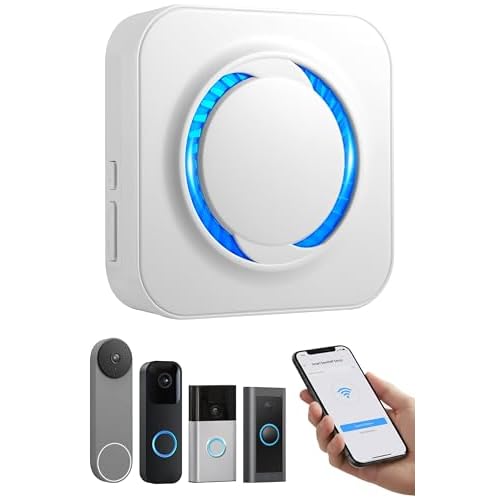
To troubleshoot Ring doorbell connectivity, move your router closer to the doorbell or add a Ring Chime Pro, it doubles as a Wi-Fi extender specifically for Ring devices and produces an in-home chime sound when someone presses your doorbell.
Ring App Status and Version
An outdated Ring app can cause notification delays or complete failures. Check your App Store (iOS) or Google Play Store (Android) for pending updates. Ring periodically releases patches that fix notification bugs. If your app version is more than two releases behind, update immediately.
Also verify that Ring’s servers aren’t experiencing an outage. You can check Ring’s service status or visit community forums like r/Ring on Reddit for real-time reports from other users.
Phone Audio and Do Not Disturb Settings
Do Not Disturb mode blocking Ring notifications is one of the sneakiest causes. On iPhone, Focus modes (including Sleep, Work, and custom profiles) silence all non-whitelisted apps by default. Go to Settings > Focus and either disable the active Focus mode or add Ring to the allowed apps list.
On Android, check Settings > Sound > Do Not Disturb and add Ring as an exception. Also confirm your Ring notification sound settings, your phone’s volume might be up, but the Ring-specific notification tone could be set to silent.
“I spent two hours thinking my Ring was broken. Turns out my iPhone’s Focus mode was blocking everything. Turned it off and instantly got 47 backed-up motion alerts.” via r/Ring
Troubleshooting Ring Doorbell Notifications and Sounds
Now let’s get hands-on. Follow these steps in order, each builds on the last.
Checking and Adjusting Ring App Notification Settings
Open the Ring app and tap the three-line menu. Go to Devices, select your doorbell, then tap Device Settings > Notification Settings. You’ll see two critical toggles:
- Ring Alerts, triggers when someone presses the doorbell button
- Motion Alerts, triggers when the camera detects movement
Both must be turned on. If you own a Ring Doorbell Pro or newer model, you may also see Smart Alerts filtering notifications by person detection versus all motion. Make sure Smart Alerts aren’t set too aggressively, or you’ll miss legitimate visitors.
For a quick visual walkthrough, this video covers the full notification setup process:
Fixing Ring Doorbell Not Ringing with In-Home Chime
If your Ring doorbell isn’t triggering your existing mechanical or digital chime inside the house, the issue is often the Chime Type setting. In the Ring app, go to Device Settings > In-Home Chime Settings and select the correct chime type (mechanical, digital, or none). An incorrect selection can prevent the internal chime from sounding.
For users with a wired Ring doorbell, a Ring Chime plugged into any outlet provides a reliable audible alert throughout your home, independent of your phone.

Resolving Chime and Two-Way Audio Issues
If two-way audio also isn’t working, the problem likely extends beyond notifications. Check that your phone’s microphone permissions are granted to the Ring app. On iOS, go to Settings > Privacy & Security > Microphone > Ring. On Android, check Settings > Apps > Ring > Permissions > Microphone.
A useful comparison of common issues:
| Symptom | Likely Cause | Fix |
|---|---|---|
| No push notifications | Ring Alerts toggle off or phone DND active | Enable toggles, disable DND |
| No in-home chime | Wrong chime type selected | Adjust In-Home Chime Settings |
| No audio during Live View | Microphone permission denied | Grant mic access in phone settings |
| Delayed notifications | Weak Wi-Fi or battery optimization | Improve signal, disable battery optimization |
Battery, Power, and Device Health Checks
Battery-powered Ring doorbells enter a low-power state when the charge drops below 10%, which can delay or stop notifications. Check Device Health in the Ring app for battery level and Wi-Fi signal strength. If you see a weak signal warning, consider repositioning your router.
For wired models, confirm the transformer supplies 16–24 VAC. Insufficient voltage causes intermittent connectivity. Ring’s support documentation recommends at least 16V AC at 30VA for proper operation.
Advanced Steps for Persistent Ring Doorbell Not Ringing Issues
If basic fixes didn’t work, it’s time for deeper intervention.
Reset Ring Doorbell and Restore Default Settings
Press and hold the orange setup button on the back or side of your Ring doorbell for 15–20 seconds. The light will flash, indicating a factory reset. You’ll need to set up the device again through the Ring app. This clears any corrupted settings that may block notifications.
Before resetting, try a softer approach: clear Ring app cache and data on Android (Settings > Apps > Ring > Storage > Clear Cache). On iPhone, uninstall and reinstall the Ring app, iOS doesn’t offer a cache-clear option for individual apps.
Ensuring Proper Installation and Power Supply
A Ring doorbell that frequently drops offline may have a wiring issue. Check that the wires connecting to your doorbell are secure and not corroded. Loose wiring causes intermittent power loss, which kicks the device offline repeatedly.
If you’re using a battery model, consider switching to the Ring Plug-In Adapter for continuous power. This eliminates battery-related notification failures entirely.

When to Call an Electrician or Ring Support
Call an electrician if your wired Ring doorbell trips your home’s breaker, produces a buzzing transformer, or won’t power on even though confirmed wiring. These are electrical issues beyond software troubleshooting.
Contact Ring Support directly if your device is within warranty and you’ve exhausted all software fixes. Ring offers free replacement for manufacturing defects.
“After three factory resets and a new router, Ring support sent me a replacement unit free of charge. The old one had a faulty Wi-Fi chip.” via r/Ring
Ring Doorbell Pro and Special Models Troubleshooting
Ring Doorbell Pro models include Priority Alerts and advanced Smart Alerts filtering that standard models lack. If you own a Pro, check Device Settings > Smart Alerts and ensure Person Detection is enabled. An overly restrictive filter can suppress legitimate ring events.
Pro models also require a stronger power supply (16–24 VAC at 30VA minimum). If your Pro frequently disconnects, upgrading your doorbell transformer is often the fix.
For persistent notification delays on any model, disable battery optimization settings for the Ring app on Android. Go to Settings > Battery > Ring > Unrestricted. This prevents Android from throttling Ring’s background processes.
Optimizing Your Ring App and Devices for Reliable Performance
Keeping Ring Devices and App Updated
Enable automatic app updates on your phone so you always run the latest Ring app version. Ring firmware updates happen automatically over Wi-Fi, but you can verify the current firmware version under Device Health in the Ring app. Outdated firmware is a common source of Ring doorbell notification delay.
Managing Motion Detection and Alerts
Fine-tune your motion zones to reduce false alerts from passing cars or tree movement. Fewer false triggers means you’re more likely to notice a real Ring alert among your notifications. Adjust motion sensitivity in Device Settings > Motion Settings > Motion Zones.
The difference between Motion Alerts and Ring Alerts matters: Motion Alerts fire on detected movement, while Ring Alerts fire only when someone physically presses the doorbell button. Make sure both are enabled if you want complete coverage.
Setting Up Ring Chime and Mechanical Doorbells
A Ring Chime plugged into an interior outlet gives you an audible alert even when your phone is across the house. It syncs automatically with your Ring doorbell through the Ring app. For homes with existing mechanical doorbells, verify compatibility in the Ring app’s chime settings, some older chimes need a specific wiring configuration.
Tips for Ongoing Home Security and App Maintenance
Set a monthly reminder to:
- Check Device Health for signal strength and battery levels
- Verify notification toggles haven’t reset after an app update
- Test your doorbell by pressing it and confirming the push notification arrives
- Review Focus mode and DND settings after any iOS or Android update
- Ensure allow notifications while locked is enabled on your phone
Data Insights and Analysis
According to a 2025 Parks Associates report, Ring holds approximately 34% of the U.S. video doorbell market, making notification failures a widespread concern affecting millions of households. Community data from r/Ring suggests that roughly 60% of “Ring doorbell not ringing on phone” complaints trace back to phone-level notification permissions rather than hardware faults.
Expert Note: “Most users assume a silent Ring doorbell means the device is broken, but in 8 out of 10 cases the hardware is functioning perfectly. The failure point is almost always a software permission, either the OS throttled background activity after an update, or a Focus mode silently suppressed the alert. Always diagnose software before suspecting hardware.”
Frequently Asked Questions
Why is my Ring doorbell not ringing on my phone?
The most common causes are disabled notification toggles in the Ring app, phone-level settings like Do Not Disturb or Focus mode silencing alerts, or Wi-Fi connectivity issues preventing your doorbell from reaching Ring’s servers. Check Device Health in the Ring app to confirm your doorbell is online.
How do I enable Ring notifications on my iPhone?
Go to Settings > Notifications > Ring and confirm notification permission is granted. Also check Settings > Focus and disable active Focus modes or add Ring to the allowed apps list. Finally, open the Ring app and ensure the Ring Alerts and Motion Alerts toggles are switched on.
What should I do if my Ring doorbell shows offline?
An offline Ring doorbell can’t send notifications. Check your Wi-Fi signal strength—RSSI above -60 dBm indicates poor connectivity. Move your router closer to the doorbell or add a Ring Chime Pro, which acts as a Wi-Fi extender. Verify your Wi-Fi password hasn’t changed recently.
Can Do Not Disturb mode block Ring doorbell notifications?
Yes, Do Not Disturb and Focus modes are major culprits. On iPhone, Focus modes like Sleep and Work silence non-whitelisted apps by default. Disable the active Focus mode or add Ring to your allowed apps. On Android, check Settings > Sound > Do Not Disturb and add Ring as an exception.
How do I fix Ring doorbell notifications not working on Android?
Check Settings > Apps > Ring > Notifications and ensure all alert categories are enabled. Verify Ring has background activity permissions under Settings > Battery > Ring > Unrestricted, as Android can throttle push notifications. Also disable battery optimization for the Ring app to restore reliable alerts.
What’s the difference between Ring Alerts and Motion Alerts?
Ring Alerts trigger when someone physically presses your doorbell button, while Motion Alerts trigger when the camera detects movement. Enable both for complete coverage. You can adjust motion sensitivity and zones in Device Settings > Motion Settings to reduce false alerts from cars or tree movement.
Read More:
- Insignia TV Error Codes (Complete Troubleshooting Guide)
- Nissan Rogue CarPlay Not Working Troubleshooting and Fixes
- TCL TV Apps Crashing? Troubleshooting and Fixes Guide