
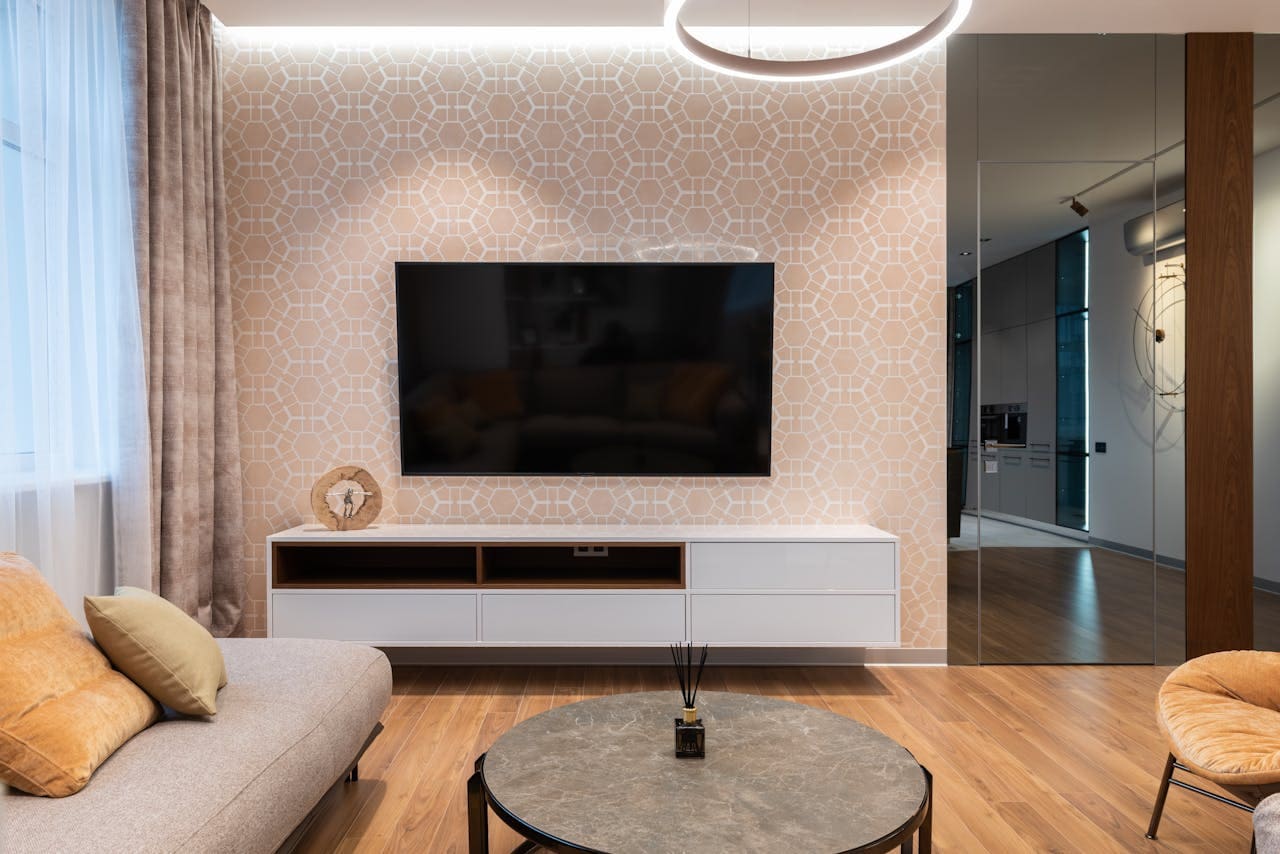
Insignia TVs, while generally reliable, can occasionally display error codes that indicate specific hardware or software problems. Insignia TV error codes are diagnostic signals displayed through blinking LED lights, on-screen messages, or specific patterns that help identify the root cause of malfunctions such as power supply issues, connectivity problems, or internal component failures.
These error codes serve as your TV’s way of communicating what’s wrong, allowing you to troubleshoot effectively and potentially avoid costly repairs.
Power-Related Error Codes
Power issues represent the most common category of Insignia TV problems, typically indicated by various blinking red light patterns on your television’s power indicator. Understanding these patterns will help you diagnose and resolve power-related malfunctions quickly.

Amazon Fire TV Stick HD
Turn Any TV to a Smart TV. Stream Netflix, Prime Video & More. Alexa Voice Remote Included. Easy Plug & Play Setup.
Shop on AmazonRed Light Blinking Patterns
2 Blinks Pattern: This indicates a power supply voltage issue or motherboard malfunction. The TV receives power but cannot properly distribute it to all components.
3 Blinks Pattern: Usually signals a problem with the TV’s internal power regulation circuit or a faulty power board component.
4 Blinks Pattern: Most commonly indicates LED backlight driver failure or issues with the backlight power supply circuit.
5 Blinks Pattern: Points to main board failure or severe internal component damage that requires professional repair.
6 Blinks Pattern: Typically represents a complete system failure or corrupted firmware that prevents normal startup.
Television error codes provide valuable diagnostic information that can save both time and money during the troubleshooting process.
Immediate Troubleshooting Steps:
- Unplug your Insignia TV from power for 60 seconds
- Press and hold the power button on the TV (not remote) for 30 seconds while unplugged
- Reconnect power and attempt to turn on the TV
- Check all cable connections for looseness or damage
- Test with a different power outlet to rule out electrical issues
In addition to these basic steps, examine your power cord for any visible damage, bent prongs, or loose connections that could disrupt power delivery.
Power Supply Failure Indicators
Beyond blinking lights, several other symptoms indicate power supply problems:
- Solid red light with no response: Complete power board failure requiring replacement
- No light at all: Either no power reaching the TV or complete internal power failure
- Flickering red light: Intermittent power connection or failing power supply components
- Light comes on then immediately turns off: Power protection circuit activating due to internal short
For newer Insignia Fire TV models, power issues may also manifest as endless boot loops where the TV repeatedly attempts to start but fails to complete the startup sequence.
Display and Picture Error Codes
Display-related error codes affect your TV’s ability to show images properly, ranging from complete black screens to partial picture distortion. These issues often stem from backlight failures, main board problems, or panel defects.
Black Screen Error Patterns
Black Screen with Sound: This indicates the main board is functioning properly, but the display panel or backlight system has failed. The audio processing continues normally while video processing fails.
Complete Black Screen (No Sound): Suggests main board failure, power supply issues affecting multiple circuits, or complete panel failure requiring professional diagnosis.
Intermittent Black Screen: Usually points to loose internal connections, failing capacitors on the main board, or overheating components that temporarily shut down.
Modern LED TVs rely on complex backlighting systems that can fail independently of other TV functions, creating specific diagnostic patterns.
Step-by-Step Display Diagnosis:
- Flashlight Test: Shine a bright flashlight close to the screen while TV is on
- If you can see faint images, the backlight has failed but the panel works
- No visible images with flashlight indicates main board or panel failure
- Check all HDMI and cable connections for proper seating
- Try different input sources to isolate the problem
- Test with external devices to verify signal processing
Moreover, examine your TV’s ventilation areas for dust buildup that could cause overheating and temporary display failures.
Screen Flickering and Distortion
Screen flickering patterns often indicate specific component failures:
- Horizontal lines across screen: Main board processing issues or panel connector problems
- Vertical lines or bands: Panel failure or T-Con board malfunction requiring professional repair
- Color distortion or tinting: Cable connection issues or failing video processing circuits
- Picture freezing: Memory issues on the main board or corrupted firmware
For Fire TV editions, display problems may also include interface elements appearing corrupted or apps failing to load properly, indicating software-related display issues rather than hardware problems.
Network and Connectivity Error Codes
Smart TV features rely heavily on network connectivity, and Insignia TVs display specific error messages when unable to connect to Wi-Fi or streaming services. These issues range from simple password problems to complex router compatibility issues.
Wi-Fi Connection Error Messages
“Unable to Connect to Network”: The most common error, usually indicating incorrect password entry, network configuration problems, or router compatibility issues with your TV’s wireless adapter.
“Network Connection Timeout”: Suggests weak signal strength, router distance issues, or network congestion preventing stable connection establishment.
“DNS Resolution Failed”: Points to internet service provider issues, router DNS configuration problems, or temporary internet connectivity disruption.
“IP Address Conflict”: Indicates multiple devices trying to use the same network address, requiring router restart or manual IP configuration.
Network Troubleshooting Process:
- Restart your Insignia TV and router/modem completely
- Move closer to your router to test signal strength
- Check if other devices connect to the same network successfully
- Verify network password accuracy (case-sensitive)
- Try connecting to a mobile hotspot to test TV’s wireless capability
- Reset network settings on your TV to factory defaults
Furthermore, consider updating your router’s firmware if connection problems persist across multiple devices, as compatibility issues between older routers and newer TV models can create persistent connectivity problems.
Streaming Service Error Codes
Amazon Prime Video Error 5001: Indicates account authentication problems or expired subscription requiring re-login or account verification.
Netflix Error Codes (various numbers): Usually point to account issues, expired subscriptions, or app-specific problems requiring cache clearing or app reinstallation.
“Home is Currently Unavailable”: Fire TV specific error indicating corrupted system files or incomplete software updates requiring factory reset.
App-Specific Error Resolution:
- Clear app cache and data through TV settings menu
- Uninstall and reinstall problematic applications
- Check subscription status for all streaming services
- Update TV software to ensure app compatibility
- Sign out and back into all streaming accounts
- Perform factory reset if multiple apps fail consistently
Additionally, verify that your internet connection provides sufficient bandwidth for streaming, as slow connections can trigger various streaming service error codes even when the connection appears stable.
Software and System Error Codes
Software-related errors affect your Insignia TV’s operating system functionality, particularly common in Fire TV editions running Amazon’s custom interface. These errors often require systematic troubleshooting approaches to resolve effectively.
Firmware Update Failures
“Update Error: Unable to Download”: Indicates insufficient storage space, corrupted download files, or network interruption during the update process.
“System Software Corruption”: Suggests incomplete firmware installation or interrupted update process requiring factory reset or professional servicing.
“Boot Loop Error”: TV repeatedly restarts without completing startup, usually caused by corrupted system files or failed firmware installation.
Update Error Resolution Steps:
- Free up storage space by removing unused apps and clearing cache
- Ensure stable internet connection throughout update process
- Perform power cycle before attempting update retry
- Use manual firmware installation via USB if available
- Contact Insignia support for firmware recovery assistance
- Consider professional repair for persistent boot loop issues
System Recovery Procedures:
For severe software problems, Insignia TVs include recovery options:
- Safe Mode Access: Hold power button during startup to access basic functionality
- Factory Reset via Service Menu: Use hidden menu codes for complete system restoration
- USB Recovery Mode: Some models support firmware installation via USB drive
- Professional Firmware Recovery: Service centers can restore corrupted firmware using specialized tools
System software problems often require complete factory resets, so backing up important settings and account information before troubleshooting is essential.
App and Interface Errors
App Crashes and Freezing: Usually indicates insufficient memory, corrupted app data, or compatibility issues between app versions and TV firmware.
Interface Responsiveness Issues: Slow menu navigation, delayed button responses, or frozen screens typically point to overloaded system memory or background process conflicts.
Missing or Corrupted Apps: Apps disappearing from the home screen or displaying error messages during launch often result from corrupted installation files or insufficient storage space.
Nevertheless, regular maintenance like clearing cache, updating apps, and restarting your TV can prevent many software-related error codes from occurring in the first place.
Hardware Component Error Codes
Hardware failures in Insignia TVs manifest through specific error patterns that help identify which internal components need attention or replacement. Understanding these patterns can help you determine whether professional repair is necessary.
Internal Component Failure Indicators
T-Con Board Failures: Display issues like vertical lines, color banding, or half-screen problems typically indicate T-Con (timing controller) board malfunctions requiring professional replacement.
Main Board Problems: Random shutdowns, failure to respond to remote commands, or inability to change inputs usually point to main board component failures.
Power Board Issues: Inconsistent power delivery, failure to turn on, or unexpected shutdowns often stem from failing capacitors or voltage regulation circuits on the power supply board.
Panel Defects: Physical damage, dead pixels, or permanent image retention indicate LCD/LED panel problems that typically require complete panel replacement.
Component Diagnosis Methods:
- Visual Inspection: Look for obvious physical damage, burnt components, or swollen capacitors
- Pattern Recognition: Note specific error patterns and their consistency
- Input Source Testing: Verify if problems occur across all inputs or specific sources
- Temperature Monitoring: Check for overheating during operation
- Professional Assessment: Consider service evaluation for complex hardware issues
When to Seek Professional Repair:
- Multiple error codes appearing simultaneously
- Physical damage visible inside the TV
- Repeated component failures after DIY repairs
- Warranty coverage still available
- Repair costs exceed 50% of replacement value
Additionally, attempting complex hardware repairs without proper experience can worsen existing problems or create safety hazards, making professional evaluation worthwhile for significant component failures.
LED Backlight System Errors
Partial Backlight Failure: Dim or dark sections of the screen indicate individual LED strip failures within the backlight array.
Complete Backlight Failure: Black screen with faint visible images when using flashlight test suggests total backlight driver or LED array failure.
Flickering Backlight: Intermittent lighting typically points to failing LED driver circuits or loose internal connections requiring disassembly to repair.
Backlight repairs often involve replacing entire LED strip arrays or driver boards, making them among the more expensive component repairs for modern flat-screen televisions.
Factory Reset and Recovery Solutions
When multiple error codes persist or your Insignia TV becomes completely unresponsive, factory reset procedures can restore functionality by returning all settings to original manufacturer defaults. These procedures vary depending on your TV model and current operational status.
Complete Factory Reset Procedures
Standard Menu Reset (TV Functional):
- Press Menu or Settings button on remote
- Navigate to System > Reset or Settings > Device Options > Reset
- Select “Factory Data Reset” or “Reset TV to Factory Defaults”
- Enter PIN code (default: 0000 or 1234)
- Confirm reset selection and wait for completion
- Follow initial setup wizard after restart
Physical Button Reset (No Remote/Menu Access):
- Locate small reset button on TV back panel (usually recessed pinhole)
- Unplug TV from power outlet completely
- Press and hold reset button with paperclip for 30 seconds
- Continue holding while plugging TV back into power
- Release button when TV displays startup screen
- Complete initial setup process
Button Combination Reset (Alternative Method):
- Ensure TV is powered on but not responding
- Press and hold Power + Volume Down buttons simultaneously
- Hold for 15-20 seconds until TV restarts
- Release buttons when manufacturer logo appears
- Allow TV to complete restart process
Factory resets erase all personalized settings, installed apps, and account logins, requiring complete reconfiguration of your TV’s features.
Post-Reset Verification Steps:
- Test all basic functions (power, volume, channel changing)
- Verify network connectivity and app functionality
- Check for available software updates
- Reconfigure parental controls and picture settings
- Re-install and log into streaming applications
Advanced Recovery Options:
For TVs that won’t respond to standard reset procedures:
- Service Menu Reset: Use technician codes to access hidden reset options
- USB Firmware Recovery: Install firmware directly via USB drive (model-specific)
- Professional Recovery: Service center firmware restoration for severely corrupted systems
Prevention Strategies:
To minimize future error code occurrences:
- Perform monthly power cycles to clear temporary system issues
- Keep TV software updated to latest available firmware
- Maintain adequate ventilation around TV to prevent overheating
- Use surge protectors to protect against power fluctuations
- Regular cache clearing for smart TV apps and features
Consider purchasing a universal remote control for Insignia TVs as backup during troubleshooting procedures, ensuring you maintain control access even when the original remote malfunctions.
Video Credit: Appliance Helpers / YouTube
Frequently Asked Questions
What does it mean when my Insignia TV red light blinks 5 times?
A 5-blink pattern on your Insignia TV typically indicates a serious internal component failure, most commonly main board issues or power supply problems affecting multiple circuits. This error usually requires professional diagnosis and repair, as it suggests hardware damage beyond simple troubleshooting fixes.
Start by performing a complete power reset: unplug the TV for 60 seconds, press and hold the power button for 30 seconds while unplugged, then reconnect and test. If the 5-blink pattern persists, the TV likely needs professional repair or component replacement.
How do I fix an Insignia TV that shows a black screen but has sound?
A black screen with sound indicates your TV’s audio processing works correctly, but the display system has failed. This commonly results from backlight failure, T-Con board problems, or LCD panel issues. Try the flashlight test: shine a bright light close to the screen while the TV is on.
If you can see faint images with the flashlight, the backlight system has failed and needs replacement. If no images appear even with external lighting, the main board or display panel requires professional repair. Check all cable connections first, then consider the repair cost versus replacement value.
Why won’t my Insignia Fire TV connect to Wi-Fi after showing error messages?
Wi-Fi connection errors on Insignia Fire TVs usually stem from network configuration issues, router compatibility problems, or incorrect password entry. First, restart both your TV and router completely, then verify your network password is entered correctly (case-sensitive).
Try connecting to a different network or mobile hotspot to test your TV’s wireless capability. If other devices connect successfully to your home network but the TV doesn’t, reset your TV’s network settings to factory defaults and attempt reconnection. Distance from router and network congestion can also cause persistent connection errors.
What should I do if my Insignia TV keeps restarting in a boot loop?
Boot loop errors indicate corrupted system software or failed firmware updates preventing normal startup completion. This serious software issue typically requires factory reset procedures to resolve. Try unplugging the TV for several minutes, then reconnecting while holding the power button.
If standard reset procedures don’t work, locate the small reset button on your TV’s back panel and perform a hardware reset using a paperclip. For persistent boot loops, the TV may need professional firmware recovery or main board replacement, especially if multiple reset attempts fail.
How can I prevent Insignia TV error codes from occurring?
Regular maintenance significantly reduces error code frequency on Insignia TVs. Perform monthly power cycles by unplugging the TV for 60 seconds, keep software updated to the latest firmware version, and maintain proper ventilation around the TV to prevent overheating.
Use surge protectors to guard against power fluctuations that can damage internal components. Clear app cache regularly for smart TV features, avoid interrupting software updates, and address minor issues promptly before they become major problems. Consider having a replacement remote available for uninterrupted troubleshooting access.
Sources:
- Insignia Products Support Center
- Amazon Fire TV Help Documentation
- PC Guide Insignia TV Troubleshooting
- JustAnswer TV Repair Expert Solutions