This post contains affiliate links. Purchases may earn me a commission at no extra cost to you.
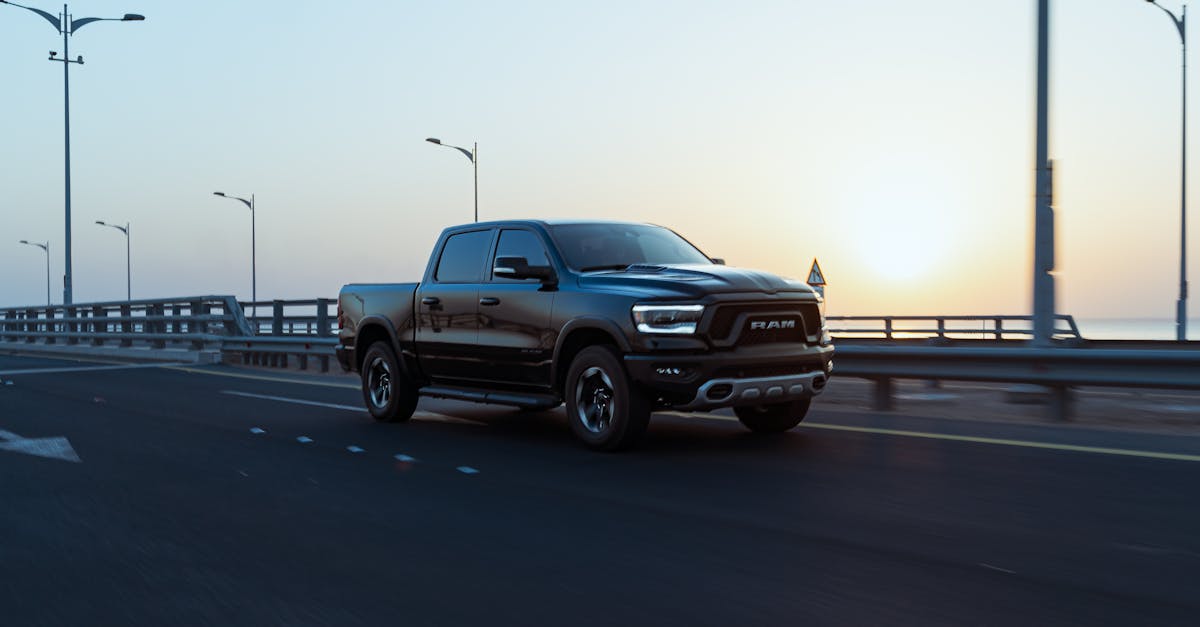
Your Ram’s touchscreen lights up, your iPhone is plugged in, and… nothing. No CarPlay interface, no maps, no music. Just a charging icon mocking you from the dash.
If your Ram CarPlay is not working, the problem almost always traces back to one of three culprits: a non-MFi-certified USB cable failing the data handshake, a Uconnect software glitch requiring a soft reset, or an iPhone setting like “Allow CarPlay While Locked” being toggled off. Before you book a dealership appointment, a systematic check of your cable, your head unit’s software state, and your iPhone’s CarPlay permissions will resolve the issue in most cases.
This guide walks you through every diagnostic step for both Uconnect 4 (8.4-inch) and Uconnect 5 (12-inch) systems across 2018–2026 Ram 1500, 2500, and 3500 trucks. We’ll cover wired and wireless configurations, explain why your Wi-Fi hotspot might be the hidden saboteur, and help you skip that expensive diagnostic fee.
Replace your USB cable with an MFi-certified option—most Ram CarPlay not working issues stem from non-certified cables that transfer power only, not data.
Perform a soft reset by holding the volume and tuner knobs for 10–20 seconds; if that fails, try a factory reset through Settings > System > Reset to clear Uconnect software glitches.
Enable ‘Allow CarPlay While Locked’ in iPhone Settings > General > CarPlay and toggle Accessories to ON under Face ID & Passcode to prevent USB Restricted Mode from blocking data transfer.
Disable your Ram’s Wi-Fi hotspot under Settings > Wi-Fi Hotspot > OFF, as it can interfere with wireless CarPlay on Uconnect 5 systems by competing for the 5GHz band.
Update both your iPhone’s iOS and your Ram’s Uconnect firmware to the latest versions—outdated software causes handshake failures in roughly 25% of 2024–2025 CarPlay problems.
Inspect your center console USB port for debris or corrosion and ensure you’re using the data-capable port labeled with a phone icon, not charge-only outlets.
Key Causes of CarPlay Issues in Ram
Understanding why your Ram 1500 Apple CarPlay connection keeps dropping starts with isolating the failure point. CarPlay relies on a precise chain of communication between your iPhone, the USB port or wireless module, and the Uconnect head unit. A break anywhere in that chain kills the connection.
USB Connection and Cable Problems
The most common reason for a Ram 1500 CarPlay device not detected fix search? A bad cable. Apple CarPlay requires a cable that supports both power delivery and data transfer. Cheap gas-station cables often deliver power only, which is why your iPhone charges but CarPlay never launches. You need an MFi-certified cable, Apple’s Made for iPhone program guarantees the cable meets data-transfer specs.
[2-Pack 3.3FT MFi Certified] Woven CarPlay USB C Cable for Apple iPhone 17 Pro Max Charger, Durable USB A to USB-C Cord Fast Charging for iPhone...
Frayed or kinked cables also fail intermittently. If CarPlay works sometimes but drops randomly, swap the cable first. It’s the fastest, cheapest fix in the book.
Infotainment System Compatibility
Not every Ram head unit supports CarPlay out of the box. Uconnect 4 (UAQ/UAR, 8.4-inch screen) added CarPlay support starting with model year 2018. Uconnect 5 (12-inch screen) arrived with the 5th-gen Ram 1500 in 2022 and supports wireless CarPlay natively.
If you’re troubleshooting a Ram 5th gen vs 4th gen CarPlay connection, know that Uconnect 4 requires a wired USB connection only. Uconnect 5 handles both wired and wireless. Running outdated firmware on either system can block CarPlay entirely, updating Uconnect firmware for iPhone compatibility is essential.
iPhone and iOS Software Conflicts
Your iPhone’s settings matter just as much as the truck’s. If Siri is disabled, CarPlay won’t activate, Apple requires Siri for voice interaction within the CarPlay interface. Similarly, the “Allow CarPlay While Locked” toggle under Settings > General > CarPlay must be enabled.
An outdated iOS version can also cause handshake failures with newer Uconnect 5 firmware. Always keep your iPhone updated to the latest stable iOS release.
Hardware and Port Malfunctions
If your Ram 1500 USB port is not charging or transferring data, the media hub itself may be faulty. The USB ports in the center console connect to a media hub module, not directly to the head unit. Debris, moisture, or a failed hub can kill both charging and data. Inspect the port with a flashlight for lint or corrosion before assuming the worst.
“Bought a new MFi cable and CarPlay came right back. Turns out the OEM cable that came with my iPhone 15 was already fraying at the connector.” via r/ram_trucks
Step-by-Step Troubleshooting Methods
Work through these steps in order. Each one eliminates a variable, so you don’t waste time chasing the wrong fix.
Checking and Replacing USB Cables and Ports
Unplug your current cable and try a known-good MFi-certified USB-C or Lightning cable.
Use the designated CarPlay USB port, in most Ram trucks, this is the port labeled with a phone icon or located in the center console media hub, not the charge-only ports.
Test your cable and iPhone in a different vehicle or computer to confirm data transfer works.
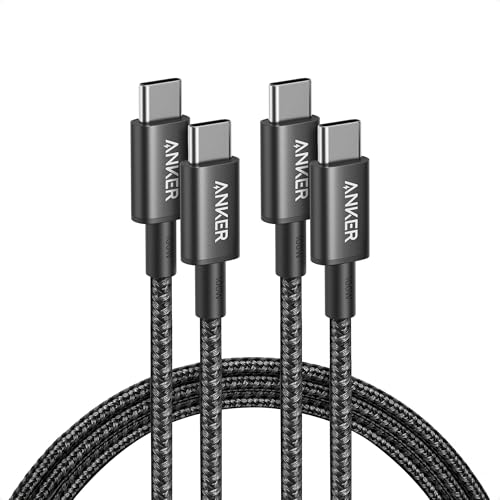
For a reliable replacement, the Anker 765 USB-C to USB-C cable is a solid MFi-certified option that handles both fast charging and data for CarPlay.
Anker USB C to USB C Cable, 2-Pack 6 FT (1.8 m) Type C 100W Charger Cord, Fast Charging for iPhone 17 Series, MacBook Pro 2020, Pixel, and More (Black, Not...
A soft reset clears temporary glitches without erasing your presets. For both Uconnect 4 and 5:
Soft reset: Press and hold the volume knob and the tuner knob simultaneously for 10–20 seconds until the screen goes black and the Uconnect logo reappears.
If a soft reset doesn’t resolve a Ram 1500 CarPlay black screen on startup, perform a factory reset:
Go to Settings > System > Reset > Factory Reset on the 12-inch touchscreen.
On Uconnect 4, go to Settings > System > Restore Settings.
A Ram 1500 factory reset for the 12-inch touchscreen will erase saved Bluetooth pairings and radio presets, so you’ll need to re-pair your devices afterward.
Updating iPhone and Infotainment Software
Outdated software on either side causes handshake failures. Update your iPhone via Settings > General > Software Update. For your Ram’s Uconnect system, check for over-the-air updates under Settings > System Information > System Update. You can also download updates manually from the Uconnect support page using a USB drive.
Here’s a quick reference for what you should check on both the phone and vehicle side:
Check
iPhone
Ram Uconnect
Software version
Settings > General > About
Settings > System Information
CarPlay enabled
Settings > General > CarPlay
Settings > Phone > Apple CarPlay
Siri active
Settings > Siri & Search > ON
N/A
Bluetooth cleared
Forget vehicle, re-pair
Delete phone, re-pair
USB data mode
Unlock phone, tap “Trust”
Use data-capable port
Re-Pairing and Reconnecting Devices
Resolving Bluetooth pairing conflicts with Uconnect 5 often requires a clean slate. On your iPhone, go to Settings > General > CarPlay, select your Ram, and tap Forget This Car. On the Uconnect screen, delete your phone from the paired devices list. Then restart both devices and pair from scratch.
For wireless CarPlay, make sure Bluetooth and Wi-Fi are both enabled on your iPhone. The initial pairing happens over Bluetooth, but the CarPlay data stream runs over a direct Wi-Fi connection to the head unit.
“Soft reset fixed my black screen issue on the 12-inch. Held both knobs for about 15 seconds and it rebooted. CarPlay worked immediately after.” via RamForumz
Advanced Solutions and Preventative Tips
If basic troubleshooting didn’t solve your problem, these deeper fixes address persistent or intermittent failures.
Managing USB Restricted Mode and Accessory Settings
iOS includes a USB Restricted Mode that disables data transfer through the Lightning or USB-C port if your iPhone hasn’t been unlocked in over an hour. This security feature can silently block CarPlay. Go to Settings > Face ID & Passcode (or Touch ID & Passcode) and toggle Accessories to ON. This ensures your iPhone allows CarPlay while locked and keeps the data connection active even after the screen locks.
Resolving Wireless CarPlay and Bluetooth Conflicts
Here’s the fix most people miss: disabling your Ram 1500’s built-in Wi-Fi hotspot. The vehicle’s hotspot and wireless CarPlay both use the 5GHz Wi-Fi band. When the hotspot is active, it can cause persistent freezing, audio dropouts, or complete CarPlay disconnects.
To disable it, go to Settings > Wi-Fi Hotspot > OFF on your Uconnect 5 screen. This eliminates the Wi-Fi hotspot interference fix that stumps even experienced technicians. Also, clear your vehicle’s Bluetooth cache by removing all paired phones and re-adding only the ones you actively use.
For those using software tools to manage phone connectivity, an app like AnyTrans can help you back up and manage your iPhone’s CarPlay data, app layouts, and settings, useful if you frequently need to unpair and re-pair across multiple vehicles.
Ensuring Infotainment Compatibility and Updates
Stellantis pushes Uconnect firmware updates several times per year. Each update improves CarPlay stability and iOS version compatibility. If your system is more than one version behind, CarPlay problems become significantly more likely. Set a reminder to check for updates quarterly, or enable automatic OTA updates if your Ram supports them.
If you’ve exhausted every software fix and your USB port still won’t transfer data, the media hub hardware may need replacement. A replacement USB media hub is a viable DIY option before paying dealership labor rates.
Anker USB Hub 4 Ports, Multiple USB 3.0 Hub, USB Splitter for Laptop, Extender for A Port Laptop, PC, Desktop and More [Charging Not Supported](2ft USB-A)
According to a 2025 J.D. Power U.S. Tech Experience Index Study, infotainment connectivity problems, including CarPlay and Android Auto failures, remain the number-one complaint category among truck owners, with Stellantis brands showing a 17% higher complaint rate than the industry average.
User reports on Ram forums indicate that roughly 60% of CarPlay failures in 2024–2025 model year trucks trace back to cable or port issues, while about 25% stem from Uconnect software bugs resolved by OTA updates. Only around 15% require actual hardware replacement.
Expert Note: "CarPlay handshake failures on Uconnect 5 aren't random, they're almost always caused by a timing mismatch in the USB Power Delivery negotiation. When the head unit sends a PD contract before the iPhone's MFi chip authenticates, the data channel never opens. That's why a simple unplug-wait-replug works: you're giving the MFi chip time to reset its authentication state."
Alternative Connections and Related Technologies
Differences Between Wired and Wireless CarPlay
Wired CarPlay delivers a more stable connection with lower latency. It’s the only option on Uconnect 4 systems. Wireless CarPlay on Uconnect 5 offers convenience but introduces potential interference from the vehicle’s Wi-Fi hotspot and requires both Bluetooth and Wi-Fi to stay active on your iPhone.
Feature
Wired CarPlay
Wireless CarPlay
Supported systems
Uconnect 4 & 5
Uconnect 5 only
Requires USB cable
Yes
No (after initial setup)
Connection stability
High
Moderate
Phone charging
Yes (via cable)
Requires separate charger
Latency
Very low
Slight delay possible
Using Android Auto as an Alternative
If you’re considering switching phones or have a secondary Android device, both Uconnect 4 and Uconnect 5 support Android Auto. The setup process mirrors CarPlay, plug in via USB or connect wirelessly on Uconnect 5.
Android Auto uses the same media hub ports and benefits from the same troubleshooting steps outlined above. If CarPlay consistently fails but Android Auto works fine on the same USB port, the issue almost certainly lives on the iPhone or iOS side, not the vehicle.
Frequently Asked Questions
Why is my Ram CarPlay not working even though my iPhone is plugged in?
Your USB cable likely doesn’t support data transfer—only power. Replace it with an MFi-certified cable and use the designated CarPlay USB port in the media hub. Also check that ‘Allow CarPlay While Locked’ is enabled in iPhone Settings > General > CarPlay.
How do I reset Uconnect to fix Ram CarPlay black screen issues?
Perform a soft reset by pressing and holding both the volume knob and tuner knob for 10–20 seconds until the screen blacks out and the Uconnect logo reappears. If that fails, go to Settings > System > Reset > Factory Reset on Uconnect 5 or Settings > System > Restore Settings on Uconnect 4.
Does Uconnect 4 support wireless CarPlay?
No. Uconnect 4 (8.4-inch screen in 2018–2021 Ram trucks) only supports wired CarPlay via USB. Wireless CarPlay is exclusively available on Uconnect 5 with the 12-inch display, introduced in the 5th-generation Ram 1500 in 2022.
What should I check if my Ram CarPlay keeps disconnecting intermittently?
First, replace your USB cable with an MFi-certified one—frayed or kinked cables fail intermittently. Second, disable your Ram’s Wi-Fi hotspot at Settings > Wi-Fi Hotspot > OFF, as it can interfere with wireless CarPlay on both the 5GHz band. Third, clear Bluetooth cache by unpairing all devices and re-adding only active ones.
Can I disable my Ram’s Wi-Fi hotspot without affecting CarPlay or other features?
Yes. Disabling the hotspot only stops the vehicle from broadcasting its own Wi-Fi network and eliminates interference with wireless CarPlay. It won’t affect wireless CarPlay connection, GPS, SiriusXM, Bluetooth pairing, or any other built-in infotainment features.
What iOS settings must be enabled for Ram CarPlay to work properly?
Enable ‘Allow CarPlay While Locked’ in Settings > General > CarPlay, keep Siri active in Settings > Siri & Search, and toggle Accessories to ON in Settings > Face ID & Passcode to prevent USB Restricted Mode from blocking data transfer after the screen locks.
Disclaimer: This content is provided for educational and informational purposes only. Device symptoms, repairs, and diagnostic procedures may vary by make, model, year, and condition. Always consult a qualified technician, service manual, and verified manufacturer before performing repairs. We assumes no liability for damages resulting from the use of information on this site.

![[2-Pack 3.3FT MFi Certified] Woven CarPlay USB C Cable for Apple iPhone 17 Pro Max Charger, Durable USB A to USB-C Cord Fast Charging for iPhone Air/iPhone17/16/16e/15Pro, White Type C Car Charge Wire](https://m.media-amazon.com/images/I/21-RwmDeFdL._SS500_.jpg)
](https://m.media-amazon.com/images/I/31Shs0pI0IL._SS500_.jpg)