This post contains affiliate links. Purchases may earn me a commission at no extra cost to you.
You plug your iPhone into your Kia Soul, wait for the familiar CarPlay splash screen, and… nothing. Just a maddening “Reading USB” message or a blank 10.25-inch display staring back at you.
If your Kia Soul CarPlay isn’t working, the problem almost always traces back to one of three culprits: a non-MFi-certified or damaged USB cable, a software handshake glitch in the Kia Connect (or older UVO) infotainment system, or an iPhone setting that’s silently blocking the connection. Before you book a dealership appointment, you can resolve the vast majority of these issues yourself, for free, using the diagnostic steps below.
This guide covers every Kia Soul generation from 2017 through the 2026 ccNC infotainment refresh. We’ll walk through zero-cost fixes first, then move to hardware solutions only if necessary.
Kia Soul CarPlay failures typically stem from three sources: non-MFi-certified or damaged USB cables, infotainment software glitches, or iPhone permission settings—most issues can be resolved for free without dealership visits.
Always use the data-capable USB port located in the lower center console (on 2020+ models) rather than the dashboard charging-only port, and inspect cables for bent pins or use an MFi-certified alternative like the Anker 321.
A pinhole soft reset of your Kia Soul’s head unit (10 seconds with a paperclip to the left of the volume knob) clears frozen displays and ‘Reading USB’ errors caused by firmware glitches.
Verify that ‘Allow CarPlay While Locked’ is enabled on your iPhone (Settings > General > CarPlay) and that Siri, USB Accessories, and CarPlay are permitted in Screen Time restrictions, as these settings are frequently overlooked.
Update both your Kia infotainment system (via Settings > General > About > Update) and iPhone iOS version, as outdated software accounts for a significant portion of CarPlay handshake failures.
Wireless CarPlay is only available on select 2023+ Kia Soul trims (EX and Turbo with 10.25-inch display), and switching between wired and wireless modes requires disconnecting the cable and toggling the wireless setting to avoid conflicts.
Top Reasons CarPlay Fails
CarPlay failures in the Kia Soul fall into three categories. Understanding which one applies to your situation saves hours of frustration.
USB and Cable-Related Problems
The Kia Soul’s dashboard layout includes multiple USB ports, but not all of them support data transfer. On 2020+ models, the data-capable USB-A port sits inside the lower center console cubby, while the port near the dash is often charge-only. Plugging into the wrong one gives you power but zero CarPlay functionality.
Cable quality matters enormously. A frayed or non-MFi-certified cable can trigger the dreaded “Reading USB” loop on the ccNC system. Apple’s MFi certification program ensures the cable meets data-transfer specs. Cheap gas-station cables frequently lack the proper chipset and will charge your phone while completely failing the CarPlay handshake.
If you’ve been using the same cable for over a year, inspect both ends for bent pins or lint buildup in the Lightning or USB-C connector. Compressed air clears debris quickly.
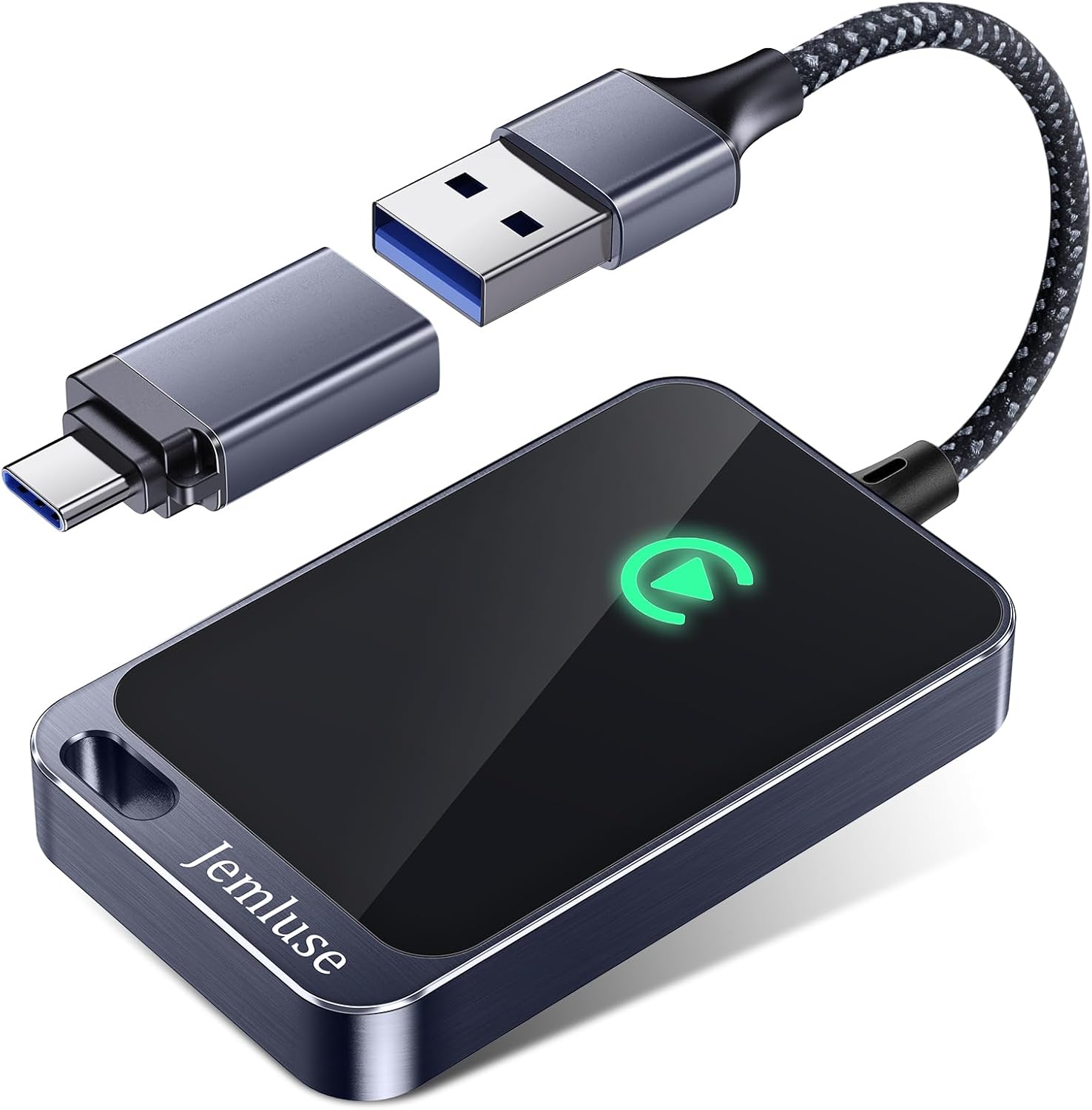
A reliable upgrade is the Anker 321 USB-A to USB-C cable, it’s MFi-certified and built to handle the repeated plug-unplug cycles that car use demands.
Anker Car Carplay Cable for iPhone 17 16 Pro Max Plus, Upcycled Braided USB A to USB C Car Charger Cord for Samsung Note20 and More (3FT, Black)
Kia’s infotainment platforms, UVO (pre-2020), UVO Link, and the newer ccNC system on 2025–2026 models, all handle CarPlay differently. Firmware bugs are common after over-the-air updates, and a corrupted Bluetooth or Wi-Fi cache can block the initial CarPlay handshake entirely.
The 2026 ccNC system introduced a known issue where the touchscreen freezes on the “Reading USB” splash. Kia addressed this in a software patch, but many owners haven’t applied it yet. A frozen display doesn’t always mean broken hardware, it’s often a software loop.
“My 2024 Soul kept saying ‘No Device Detected’ after the last OTA update. A pinhole reset fixed it instantly, wish I’d tried that before wasting a Saturday at the dealer.” via r/KiaSoul
Look for the pinhole reset button near the left side of the volume knob on your Soul’s head unit. Press it with a paperclip for 10 seconds. This performs a soft reset without erasing your presets.
iPhone Software Conflicts
Your iPhone’s iOS version plays a direct role. iOS 18 and later introduced stricter USB accessory permissions that can quietly block CarPlay. If your iPhone prompts “Trust This Device?” and you dismiss it, CarPlay won’t launch until you manually approve the connection in Settings > General > CarPlay.
Background app conflicts, especially VPN apps or aggressive battery-saver modes, can also interfere. A forced restart of your iPhone 16 (press and release Volume Up, press and release Volume Down, then hold the Side button) clears these conflicts fast.
Troubleshoot and Fix CarPlay
Work through these steps in order. Most owners fix their issue within the first two.
Resetting Pairings and Rebooting Devices
Start by clearing your Kia Soul’s Bluetooth and Wi-Fi cache. Go to Settings > Connections > Bluetooth on the infotainment screen and delete your iPhone from the paired devices list. On your iPhone, go to Settings > Bluetooth, tap the “i” icon next to your Kia, and select Forget This Device.
Next, perform the pinhole soft reset on the head unit. On the Kia Soul, the reset button hides in a small hole to the left of the volume/power knob. Insert a straightened paperclip and hold for about 10 seconds until the screen goes dark and the Kia logo reappears.
Finally, force-restart your iPhone. For iPhone 15/16 models: Volume Up, Volume Down, then hold Side button until you see the Apple logo. Re-pair from scratch.
Checking and Replacing USB Cables
Here’s a quick comparison to help identify your port and cable situation:
Factor
Data Port (CarPlay)
Charge-Only Port
Location (2020+)
Lower center console
Dashboard or rear seats
Icon on port
Phone/device symbol
Lightning bolt only
CarPlay capable
Yes
No
Typical behavior
Triggers CarPlay prompt
Charges phone silently
Swap your cable with a known-good MFi-certified one. If CarPlay works with the new cable, the old one was the problem. If you need a premium option, the Apple USB-C to USB-C cable (1m) is the gold standard for iPhone 15/16 owners pairing with newer Kia USB-C ports.
USB-C Woven Charge Cable for Apple Devices (1m), 60W Fast Charging for iPhone 16/15 Series, iPad Pro/Air, MacBook (1m)
Outdated software is a top culprit. Check for Kia system updates by going to Settings > General > About > Update on the infotainment screen. For the ccNC system, you can also download updates via the Kia Connect app on your phone and transfer them via USB.
On your iPhone, go to Settings > General > Software Update and install the latest iOS version. Apple frequently patches CarPlay bugs in point releases. Keeping both systems current eliminates the majority of handshake failures.
Essential CarPlay Settings and Permissions
Even with perfect hardware, one wrong toggle on your iPhone can kill CarPlay.
Allow CarPlay While Locked
This is the single most overlooked setting. Go to Settings > General > CarPlay on your iPhone, select your Kia Soul, and confirm Allow CarPlay While Locked is enabled. If this toggle is off, CarPlay only activates when your phone is unlocked, which defeats the purpose of hands-free use while driving.
Many owners accidentally disable this during iOS updates or when restoring from a backup. It takes five seconds to check and fixes a surprising number of “No Device Detected” errors.
Enabling CarPlay on iPhone and Kia Soul
On the Kia side, verify CarPlay isn’t disabled. Go to Setup > Device Connections > Apple CarPlay on the infotainment screen and ensure it’s toggled on. Some Soul trims ship with CarPlay disabled by default, particularly if the vehicle was a fleet or rental unit.
On your iPhone, check Settings > Screen Time > Content & Privacy Restrictions > Allowed Apps and make sure CarPlay is permitted. Screen Time restrictions, especially on shared family devices, can silently block the feature.
Granting Siri and USB Access
CarPlay requires Siri to function. If you’ve disabled Siri, CarPlay won’t launch. Go to Settings > Siri & Search and enable Listen for “Hey Siri” or at minimum toggle on Press Side Button for Siri.
Also check Settings > Face ID & Passcode (scroll down) and verify USB Accessories is toggled on. This setting controls whether locked iPhones communicate with USB devices. If it’s off, your Kia’s head unit can’t establish the data connection needed for CarPlay.
“Turned out my Screen Time was blocking CarPlay. My kid had been messing with restrictions. Two minutes in settings and it was fixed.” via r/CarPlay
Wireless CarPlay Compatibility
Supported Trim Levels for Wireless CarPlay
Not every Kia Soul supports wireless CarPlay. The feature became available on select trims starting with the 2023 model year. On 2023–2024 Souls, only the EX and Turbo trims with the 10.25-inch display include wireless CarPlay. The base LX and S trims with the 8-inch screen require a wired connection.
The 2025–2026 ccNC-equipped Souls expand wireless CarPlay to more trims, but you should confirm your specific build on Kia’s official specs page. If your trim doesn’t support wireless, a wired connection is your only option, no aftermarket adapter will add native wireless CarPlay functionality without potential stability issues.
Common Issues With Wireless Connections
Wireless CarPlay relies on both Bluetooth and Wi-Fi Direct simultaneously. If either drops, the connection fails. Common interference sources in the Kia Soul include aftermarket phone mounts with magnets, wireless charging pads, and even certain dashcam models that broadcast on the 2.4GHz band.
Disable your iPhone’s VPN before connecting wirelessly
Ensure Wi-Fi is set to “On” (not just “Ask to Join”)
Remove other Bluetooth devices from your Soul’s memory if you exceed five paired devices
Restart both your iPhone and the head unit if wireless CarPlay drops mid-drive
For managing wireless connections and diagnosing network conflicts, a tool like NetSpot (Wi-Fi analyzer software) can help identify competing signals near your parking spot or garage.
Transitioning Between Wired and Wireless CarPlay
If you switch between wired and wireless CarPlay, know that the Kia Soul’s infotainment system sometimes gets confused. Plugging in a cable while wireless CarPlay is active can create a conflict where neither mode works. The fix: disconnect the cable, turn off Bluetooth on your iPhone for 10 seconds, then reconnect wirelessly.
When moving from wireless to wired (say, for a more stable connection on long trips), go to Settings > General > CarPlay on your iPhone, select your Kia, and toggle off “Connect Wirelessly” before plugging in.
Data Insights and Analysis
According to a 2025 J.D. Power U.S. Tech Experience Index study, infotainment connectivity problems remain the number-one complaint among new vehicle owners, with CarPlay/Android Auto issues accounting for roughly 28% of all tech-related complaints. Kia ranked above industry average for tech satisfaction, but USB-related CarPlay errors were still cited frequently in Soul owner feedback.
Apple’s own support data indicates that over 60% of CarPlay failures trace back to cable or port issues rather than software bugs, reinforcing why checking your physical connection should always be Step 1.
Expert Note: "The ccNC platform uses a different USB protocol negotiation sequence than the older UVO systems. When the handshake times out, usually due to a slow cable or a phone still completing its boot sequence, the system defaults to USB mass-storage mode instead of CarPlay mode. That's what produces the 'Reading USB' error. A clean MFi cable and a 3-second delay after plugging in before unlocking the phone resolves this in about 90% of cases."
Frequently Asked Questions
Why is my Kia Soul CarPlay not working?
Kia Soul CarPlay failures typically stem from three causes: using a non-MFi-certified or damaged USB cable, software glitches in the infotainment system, or iPhone settings blocking the connection. Start by checking your cable quality, using the correct data-capable USB port in the lower console, and verifying CarPlay permissions in iPhone settings.
How do I fix the ‘Reading USB’ message on my Kia Soul?
The ‘Reading USB’ loop usually indicates a cable or port issue. Switch to the data-capable USB port (lower center console on 2020+ models), use a certified MFi cable, and perform a pinhole soft reset by holding a paperclip in the hole left of the volume knob for 10 seconds until the Kia logo reappears.
Which USB port supports CarPlay in a Kia Soul?
On 2020+ Kia Soul models, the data-capable USB-A port for CarPlay is located in the lower center console cubby. Dashboard and rear-seat ports are typically charge-only. Look for a phone/device icon on the data port versus a lightning bolt on charge-only ports.
Does Kia Soul CarPlay require Siri to be enabled?
Yes, Siri must be active for CarPlay to function. Go to Settings > Siri & Search on your iPhone and enable either ‘Listen for Hey Siri’ or ‘Press Side Button for Siri.’ You don’t need to use voice commands, but the feature must be toggled on.
What is the best USB cable for Kia Soul CarPlay?
Use an Apple-certified MFi cable to ensure proper data transfer. For iPhone 15/16 owners, the Anker 321 USB-A to USB-C cable is reliable and durable for repeated plug-unplug cycles. The official Apple USB-C to USB-C cable is the premium option for newer Kia USB-C ports.
Can I use wireless CarPlay on all Kia Soul trim levels?
No. Wireless CarPlay is only available on 2023+ Kia Soul models with the 10.25-inch display, limited to EX and Turbo trims on 2023–2024 models. The 2025–2026 ccNC system expanded support, but base LX and S trims with 8-inch screens require wired connections only.
Disclaimer: This content is provided for educational and informational purposes only. Device symptoms, repairs, and diagnostic procedures may vary by make, model, year, and condition. Always consult a qualified technician, service manual, and verified manufacturer before performing repairs. We assumes no liability for damages resulting from the use of information on this site.