This post contains affiliate links. Purchases may earn me a commission at no extra cost to you.
Your Hyundai Sonata’s CarPlay just stopped working, again. Whether you see “No Device Detected” or a blank 12.3-inch screen, you’re not alone.
The most common cause of Hyundai Sonata CarPlay failure is a broken “handshake” between Bluetooth and Wi-Fi during wireless projection, a non-MFi-certified cable on the wrong USB port, or a software glitch triggered by a recent OTA or iOS update. You can fix most cases yourself by performing a pinhole soft reset on the ccNC head unit, clearing your vehicle’s user profile cache, and verifying that “Allow CarPlay While Locked” is enabled on your iPhone.
This guide walks you through every zero-cost DIY fix, from cable swaps to system resets, before you ever need a dealership appointment. Let’s get your Sonata’s infotainment back on track.
Hyundai Sonata CarPlay failures are most often caused by broken Bluetooth/Wi-Fi handshakes, using the wrong USB port, or software glitches after OTA or iOS updates—all fixable without a dealership visit.
Always use an MFi-certified USB-C cable plugged into the data port (marked with a phone icon in the center console) to resolve ‘No Device Detected’ errors and connection issues.
A pinhole soft reset using a paperclip on the dashboard button, combined with forgetting and re-pairing your iPhone, clears cache glitches and resolves most persistent Hyundai Sonata CarPlay problems.
Disable VPNs and turn off Private Wi-Fi Address in iPhone settings before wireless CarPlay use, as both block the local 5 GHz Wi-Fi tunnel the connection requires.
Enable ‘Allow CarPlay While Locked’ in iPhone Settings—this single toggle solves approximately one-third of all reported Hyundai Sonata CarPlay issues.
If DIY fixes fail after cable swaps, resets, and software updates, contact Hyundai Service for hardware diagnosis, as faulty Wi-Fi modules and USB hubs may be covered under the 5-year/60,000-mile warranty.
Causes of CarPlay Connection Issues in Hyundai Sonata
CarPlay failures in the Sonata stem from four main categories. Understanding which one applies to you saves hours of guesswork.
Cable Quality and USB Port Compatibility
The Hyundai Sonata’s center console contains two USB ports, but only one is a “data” port capable of Phone Projection. The other is charge-only. Plugging into the wrong port gives you a “No Device Detected” error every time. This trips up a surprising number of owners.
Beyond port selection, your cable matters enormously. A cheap gas-station USB-C cable often lacks the data pins required for CarPlay. Apple requires MFi-certified cables for reliable communication. Frayed or kinked cables also cause intermittent drops that look like software bugs but are purely hardware.
Wireless CarPlay Signal Interference
Wireless CarPlay relies on a simultaneous Bluetooth and 5 GHz Wi-Fi connection. If either link drops, the handshake fails. Common culprits include active VPNs on your iPhone, which route Wi-Fi traffic through external servers and break the local connection. Aftermarket phone mounts with magnets can also degrade the 5 GHz signal between your phone and the head unit.
Some owners on r/Hyundai have reported that crowded parking garages and dense urban Wi-Fi environments cause enough 5 GHz interference to drop wireless CarPlay mid-drive.
System Software and Firmware Glitches
Hyundai’s ccNC infotainment platform receives periodic OTA updates. After a major update, Phone Projection settings can reset or conflict with cached data. If your CarPlay stopped working right after an update, that’s your likely culprit.
Similarly, iOS updates sometimes change how your iPhone negotiates the CarPlay handshake. A mismatch between your Sonata’s firmware version and your iPhone’s iOS version can produce a black screen on the 12.3-inch panoramic display even though Bluetooth shows “connected.”
iPhone Restrictions and Setting Conflicts
Apple buries a critical toggle deep in Settings: “Allow CarPlay While Locked.” If this is off, your Sonata can’t launch CarPlay when the phone screen is locked, which is how most people drive. Screen Time restrictions and Content & Privacy settings can also silently block CarPlay.
“Spent two hours at the dealer before realizing my kid turned on Screen Time restrictions that blocked CarPlay entirely.” via r/CarPlay
How to Diagnose and Resolve CarPlay Failures
Before you fix anything, you need to isolate the problem. Here’s a systematic diagnostic sequence.
Testing Cables and Identifying Data Ports
Start with the basics. In most 2020–2026 Sonatas, the data USB port sits inside the front center console cubby and is typically marked with a phone or data icon. Plug in a known-good MFi-certified cable. If CarPlay launches, your old cable was the problem.
Try a different iPhone if possible. This eliminates your phone as the variable. If CarPlay works with another device, the issue lives on your iPhone’s settings or hardware.
Verifying Siri and CarPlay Permissions on iPhone
CarPlay requires Siri to be active. Go to Settings > Siri & Search and confirm Siri is enabled. Then check Settings > General > CarPlay, tap your Sonata’s name, and make sure it’s listed as an allowed vehicle. Also verify “Allow CarPlay While Locked” is toggled on, this single setting solves roughly a third of all reported issues.
Troubleshooting Bluetooth and Wi-Fi Handshake
For wireless CarPlay, Bluetooth initiates the connection, then hands off to a direct 5 GHz Wi-Fi link. If Bluetooth pairs but CarPlay never appears, the Wi-Fi handshake is failing.
Disable any active VPN on your iPhone. Turn off Wi-Fi Assist under Settings > Cellular. Then toggle Bluetooth off and on, wait 10 seconds, and try reconnecting. This forces a fresh handshake sequence.
Checking for Regional and Feature Restrictions
CarPlay availability varies by market. Some gray-market or imported Sonatas lack CarPlay activation in their firmware. Check your head unit’s Setup > Phone Projection menu. If you don’t see a CarPlay option at all, your region’s software build may not support it, and you’ll need a dealer-level firmware update.
Step-By-Step Fixes for Persistent Issues
If diagnostics didn’t resolve it, work through these fixes in order.
Resetting the Infotainment System and iPhone
Locate the pinhole reset button next to the tuning knob on your Sonata’s dashboard. Press it with a paperclip for about 10 seconds until the screen goes black and the system reboots. This soft reset clears the ccNC’s temporary cache without erasing your presets.
On your iPhone, perform a forced restart. For iPhone 16 and later: press and release Volume Up, press and release Volume Down, then hold the Side button until the Apple logo appears. This clears lingering Bluetooth and Wi-Fi stack errors.
Forgetting and Re-Pairing the Device Connection
On your Sonata’s head unit, go to Setup > Bluetooth > Device List and delete your iPhone. On your iPhone, go to Settings > Bluetooth, tap the “i” next to your Sonata, and select Forget This Device. Also go to Settings > General > CarPlay and remove the vehicle.
Now re-pair from scratch. Enable Bluetooth on both devices, select your Sonata from the iPhone’s Bluetooth list, confirm the pairing code, and then enable Phone Projection on the head unit. Deleting the Hyundai user profile cache this way often resolves persistent “ghost connection” bugs.
Updating Hyundai Navigation and iOS Software
Check for pending ccNC updates under Setup > General > SW Info on the head unit. You can also visit Hyundai’s navigation update portal to download the latest map and system software. On your iPhone, go to Settings > General > Software Update and install the latest iOS version.
Keeping both systems current prevents the firmware mismatch that causes black screens on the 12.3-inch display.
Adjusting Network and Security Settings
If you use a VPN app, disable it before connecting to CarPlay. VPNs redirect the local Wi-Fi tunnel that wireless CarPlay depends on. Also check that your iPhone’s Private Wi-Fi Address setting isn’t randomizing the MAC address your Sonata expects.
Go to Settings > Wi-Fi, tap your Sonata’s network (if visible), and turn off Private Address. This ensures a consistent identity for the handshake.
Fix
Difficulty
Resolves
Pinhole soft reset
Easy
Cache/glitch issues
Forget and re-pair
Easy
Ghost connections
Cable + port swap
Easy
“No Device Detected”
OTA/iOS update
Medium
Firmware mismatch
Disable VPN/Private Address
Medium
Wireless handshake failure
Dealer firmware reflash
Advanced
Regional or hardware faults
Enhancing Your CarPlay Experience
Once CarPlay is working again, a few upgrades and habits keep it reliable long-term.
Using Certified High-Quality Accessories
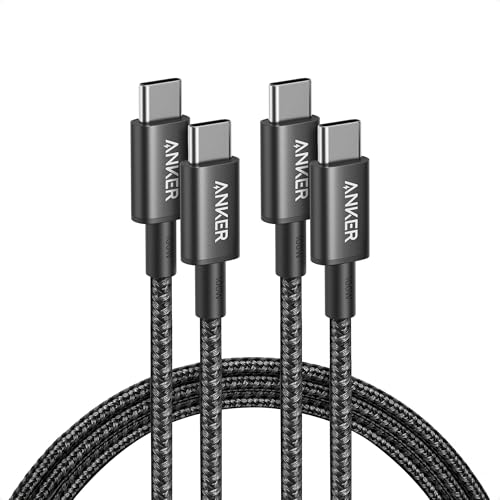
Invest in an MFi-certified USB-C to USB-C cable. The Anker 765 USB-C cable on Amazon is a top pick among Sonata owners for its durable braided design and full data-transfer support. For wireless CarPlay users experiencing drops, the LISEN MagSafe car mount positions your iPhone optimally without signal-blocking magnets near the antenna.
Anker USB C to USB C Cable, 2-Pack 6 FT (1.8 m) Type C 100W Charger Cord, Fast Charging for iPhone 17 Series, MacBook Pro 2020, Pixel, and More (Black, Not...
LISEN for 15W MagSafe Car Mount Charger,Magnetic Wireless Car Charger for iPhone 17 Pro Max Accessories,Magnetic Phone Holder for iPhone 17-12,Samsung,Pixel...
If wireless CarPlay keeps dropping, plug in via the data USB port as a fallback. Wired connections bypass the Bluetooth/Wi-Fi handshake entirely and deliver a more stable, lower-latency experience. You can switch back to wireless once a future OTA patch addresses the interference.
When to Contact Hyundai Service or Apple Support
If you’ve exhausted every DIY fix, reset, re-pair, new cable, software updates, the issue may be a faulty USB hub module or a defective Wi-Fi antenna inside the head unit. Schedule a service appointment through the Hyundai Owner portal. Some hardware failures are covered under Hyundai’s 5-year/60,000-mile warranty.
“After months of wireless drops, the dealer replaced my head unit’s Wi-Fi module under warranty. Zero issues since.” via r/HyundaiSonata
Best Practices for Future Compatibility
Always update your Sonata’s ccNC firmware and your iPhone’s iOS within two weeks of a release.
Use only MFi-certified cables rated for data transfer.
Disable VPNs before connecting to wireless CarPlay.
Periodically clear your vehicle’s user profile cache under Setup > General > Reset to prevent data corruption.
Keep “Allow CarPlay While Locked” enabled at all times.
Data Insights and Analysis
According to a 2025 J.D. Power U.S. Tech Experience Index study, infotainment connectivity issues, including CarPlay and Android Auto failures, remain the number-one complaint among new vehicle owners, with wireless phone projection problems increasing 25% year over year. Hyundai’s ccNC platform, while praised for its 12.3-inch display, has seen a notable uptick in user-reported CarPlay drops following OTA cycles.
A 2025 Consumer Reports reliability survey ranked Hyundai’s infotainment system above average overall, but flagged wireless CarPlay stability as a specific weak point in the Sonata and Tucson lines.
Expert Note: "The wireless CarPlay handshake fails more often than people realize because the ccNC's Wi-Fi module operates on a shared 5 GHz band. When the vehicle's own BlueLink telematics module is actively transmitting, say, during a remote start or OTA download, it creates momentary RF congestion that drops the CarPlay Wi-Fi tunnel. The fix isn't always on the phone side: it's an antenna scheduling conflict inside the head unit."
Frequently Asked Questions
Why is my Hyundai Sonata CarPlay not working after an iOS or OTA update?
Firmware mismatches between your Sonata’s ccNC system and iPhone’s iOS version often cause black screens or connection failures. Update both systems to the latest versions within two weeks of release to prevent compatibility issues and resolve the problem.
What’s the difference between the two USB ports on my Hyundai Sonata?
The Sonata has two USB ports: one is a data port (usually marked with a phone icon inside the console cubby) for CarPlay, and the other is charge-only. Plugging into the charge-only port causes “No Device Detected” errors. Always use the data port with an MFi-certified cable.
How do I reset my Hyundai Sonata’s infotainment system if CarPlay is frozen?
Locate the pinhole reset button next to the tuning knob on your dashboard. Press it with a paperclip for about 10 seconds until the screen goes black and reboots. This clears the ccNC cache without erasing presets and resolves most software glitches.
Can a VPN on my iPhone prevent wireless CarPlay from working in my Sonata?
Yes. Active VPNs redirect the local Wi-Fi tunnel that wireless CarPlay depends on, causing connection failures. Disable your VPN before connecting to wireless CarPlay, or switch to a wired connection using the data USB port for a more stable experience.
What is the “Allow CarPlay While Locked” setting and why does it matter?
This iPhone setting (Settings > General > CarPlay) lets CarPlay launch when your phone screen is locked—essential for safe driving. If disabled, your Sonata won’t activate CarPlay, even if properly connected. Enabling it solves roughly one-third of all reported CarPlay issues.
Should I use wired or wireless CarPlay on my Hyundai Sonata?
Wired CarPlay via the data USB port bypasses Bluetooth/Wi-Fi handshake complications and delivers lower latency and stability. If wireless CarPlay keeps dropping due to interference, switch to wired as a fallback until firmware patches address the issue.
Disclaimer: This content is provided for educational and informational purposes only. Device symptoms, repairs, and diagnostic procedures may vary by make, model, year, and condition. Always consult a qualified technician, service manual, and verified manufacturer before performing repairs. We assumes no liability for damages resulting from the use of information on this site.