
You press a key, and half a second later the character finally appears. That split-second delay shatters your typing flow, costs you headshots in competitive games, and makes remote work feel like moving through quicksand.
Keyboard lag happens when the signal between your keyboard and computer experiences delays from wireless interference, outdated drivers, CPU bottlenecks, or accessibility settings like Filter Keys creating artificial character-repeat delays, most often solved by switching from Bluetooth to 2.4 GHz dongles, disabling Filter Keys, updating HID drivers in Device Manager, and clearing high-CPU background processes.
Let’s eliminate every source of input latency step-by-step.

Best Wireless Touch Keyboard
Logitech All-in-One Keyboard & Touchpad. Perfect for Smart TVs & PCs. Reliable 10m Wireless Connection. Up to 18 Months Battery Life
Shop on Amazon
Key Takeaways
- Keyboard lag stems from multiple sources including Bluetooth interference, outdated HID drivers, USB 3.0 radio interference, and accessibility settings like Filter Keys that add 300–500 ms delays.
- Switch from Bluetooth to 2.4 GHz USB dongles for 1–3 ms latency instead of 7–30 ms, and move your wireless receiver to USB 2.0 ports away from interference sources.
- Disable Filter Keys, update keyboard drivers through Device Manager, close high-CPU applications, and clear the input buffer by restarting the Human Interface Device Service to eliminate most keyboard lag.
- Replace batteries when voltage drops below 1.2V per cell, adjust character repeat settings to Fast, and run Windows Keyboard Troubleshooter to automatically detect driver conflicts and misconfigurations.
- For persistent lag across multiple devices, the keyboard’s internal controller may be failing—upgrade to a wired mechanical keyboard with 1000 Hz USB polling or a dual-mode wireless model with 2.4 GHz support.
What Is Keyboard Lag and Why Does It Happen?
Keyboard lag is the measurable delay between pressing a key and seeing the character appear on screen. While mechanical switches register your keystroke in 1–5 milliseconds, the journey from keyboard to display involves signal transmission, driver processing, and application rendering.
Bluetooth keyboards introduce 7–30 ms latency due to wireless protocol overhead. USB 3.0 ports near 2.4 GHz dongles create radio-frequency interference that doubles latency or drops packets entirely. High CPU usage forces your system to queue input events, creating visible micro-stutters.
Windows accessibility features like Filter Keys add a deliberate 300–500 ms delay to “ignore” accidental keystrokes. A 2026 Microsoft support analysis found Filter Keys accidentally enabled in 18% of keyboard lag complaints. Combined with outdated Bluetooth HID drivers or dying AA batteries dropping signal strength, these factors stack to create the sluggish response you’re experiencing right now.
Common Symptoms of Keyboard Lagging
You’ll recognize keyboard lag through these distinct patterns:
- Delayed character pop: Letters appear 200–800 ms after you press the key
- Stuttered text bursts: Characters suddenly flood the screen after a pause
- Missed keystrokes: Fast typing drops letters entirely, forcing retyping
- Double characters: A single press registers twice due to buffer overflow
- Unresponsive modifier keys: Ctrl, Alt, Shift combinations fail intermittently
Gamers notice input lag most during rapid key sequences, WASD movement feels sluggish, and ability combos misfire. Typists see their cursor lag behind their thoughts, breaking flow state. Remote workers on video calls experience chat delays that make real-time collaboration painful.
“My wireless keyboard worked fine for months, then suddenly every keystroke had a half-second delay. Turned out my router and USB dongle were fighting over 2.4 GHz space.” via r/MechanicalKeyboards
Hardware Issues Causing Keyboard Lag
Faulty USB Ports and Cable Connections
USB 3.0 ports emit 2.4–2.5 GHz radio interference that directly blocks wireless keyboard signals. Intel’s 2020 white paper documented up to 20 dB signal degradation when 2.4 GHz dongles sit in USB 3.0 ports. Move your wireless receiver to a USB 2.0 port (typically black, not blue) or use a USB extension cable to distance the dongle from interference sources.
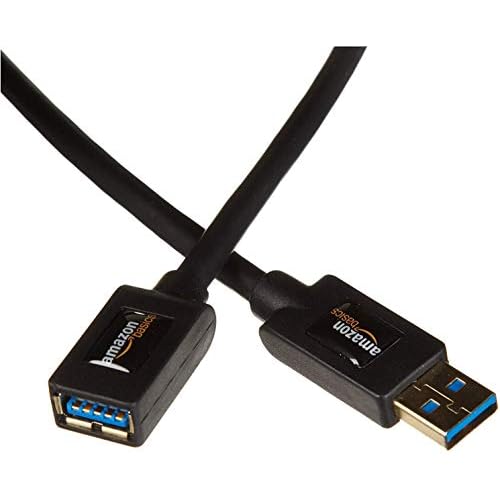
Wired keyboards suffer from loose connections or damaged cables. Flex the cable near both connectors while typing, if lag appears and disappears, replace the cable. Some mechanical keyboards use detachable USB-C or Mini-USB cables that wear out at the connector.
Wireless Keyboard Interference and Battery Problems
Bluetooth operates on the same 2.4 GHz band as Wi-Fi routers, cordless phones, and baby monitors. When your router broadcasts on channels 1–6, it overlaps with Bluetooth’s frequency-hopping pattern. Log into your router and switch Wi-Fi to channels 11–13 or migrate to 5 GHz entirely.
Battery voltage below 1.2V per cell causes wireless keyboards to drop transmission power, increasing packet loss. Swap in fresh batteries or charge your rechargeable cells. A Logitech MX Keys with USB-C charging eliminates battery anxiety entirely and switches between Bluetooth and proprietary Logi Bolt for lower latency.

“Replaced my Bluetooth keyboard’s batteries after six months. Lag vanished instantly, never realized low voltage could cause such brutal delays.” via r/buildapc
Software and Driver-Related Causes
Outdated or Corrupted Keyboard Drivers
Your keyboard communicates through Human Interface Device (HID) drivers. Corrupted drivers queue input incorrectly, creating lag. Press Win + X, select Device Manager, expand Keyboards, right-click your device, and choose Update driver > Search automatically.
For Bluetooth keyboards, expand Bluetooth in Device Manager and update the Bluetooth HID Device entry. If Windows finds nothing, visit your keyboard manufacturer’s support page. Driver Booster scans for outdated HID drivers automatically and updates them in one click.
Filter Keys and Other Accessibility Settings
Filter Keys adds a deliberate delay to ignore “accidental” repeated keystrokes. Press Win + I > Accessibility > Keyboard and toggle off Filter Keys, Sticky Keys, and Toggle Keys. In Keyboard settings, click Advanced keyboard settings > Input language hotkeys and disable any shortcuts you don’t use.
Adjust character repeat delay: Open Control Panel > Keyboard and drag the Repeat delay slider all the way to Short and Repeat rate to Fast. This minimizes the time Windows waits before repeating a held key.
System Performance and Resource Issues
High CPU or RAM usage forces Windows to queue keyboard input behind other tasks. Press Ctrl + Shift + Esc to open Task Manager, click CPU, and sort by usage. Chrome with 40+ tabs, Adobe Creative Cloud background sync, and Windows Update can each consume 20–40% CPU.
Close unnecessary applications. Disable startup programs by clicking the Startup tab and toggling off apps you don’t need immediately. If antivirus scans run during work hours, reschedule them. A NordVPN connection adds encryption overhead, so pause it temporarily if you’re experiencing severe lag during typing.

Stay Private. Stay Secure.
Browse the internet with greater privacy and security with NordVPN. Encrypt your internet connection, protect your data on public Wi-Fi, and connect to servers around the world.
Get NordVPNClear the input buffer cache by restarting the Human Interface Device Service: Press Win + R, type services.msc, find Human Interface Device Service, right-click, and select Restart. This flushes any queued keystrokes and resets communication.
How to Fix Keyboard Lag: Step-by-Step Solutions
- Run Windows Keyboard Troubleshooter: Press Win + I > System > Troubleshoot > Other troubleshooters > Keyboard > Run. Windows detects driver conflicts and Filter Keys misconfigurations automatically.
- Switch from Bluetooth to 2.4 GHz: If your wireless keyboard includes a USB dongle, use it instead of Bluetooth. Proprietary 2.4 GHz protocols (Logitech Lightspeed, Razer HyperSpeed) deliver 1–3 ms latency versus Bluetooth’s 7–30 ms.
- Move your USB dongle away from USB 3.0 ports: Plug the receiver into a USB 2.0 port or use a 3-foot extension cable to create physical separation from interference.
- Update or reinstall HID drivers: In Device Manager, right-click your keyboard, select Uninstall device, check Delete the driver software, restart, and let Windows reinstall fresh drivers.
- Replace batteries or charge your keyboard: Voltage below 1.2V per cell degrades signal strength. Swap batteries or connect your USB-C charging cable.
- Disable Filter Keys permanently: Win + I > Accessibility > Keyboard > toggle off Filter Keys and Use Filter Keys.
For a permanent upgrade, the Keychron K8 Pro offers hot-swappable switches, 1000 Hz polling rate via USB-C, and tri-mode connectivity (Bluetooth, 2.4 GHz, wired) to eliminate wireless lag entirely.

Advanced Troubleshooting for Persistent Keyboard Lag
If basic fixes fail, investigate deeper system conflicts. Open Event Viewer (press Win + X > Event Viewer), navigate to Windows Logs > System, and filter for Warning or Error events tied to HIDClass or BTHUSB. Frequent disconnect/reconnect logs indicate hardware failure.
Test your keyboard on another PC. If lag persists across devices, the keyboard’s internal controller is failing. If lag disappears, your original PC has a driver or USB controller issue. Update your motherboard chipset drivers from the manufacturer’s website.
Disable USB Selective Suspend: Press Win + R, type powercfg.cpl, select your active power plan, click Change plan settings > Change advanced power settings > USB settings > USB selective suspend setting > set to Disabled. This prevents Windows from powering down USB ports to save energy.
Check for BIOS updates that improve USB polling or power delivery. Visit your motherboard or laptop manufacturer’s support page, download the latest BIOS, and follow their update procedure.
Preventing Keyboard Lag in the Future
Schedule monthly driver updates using Driver Booster to catch HID and Bluetooth driver patches automatically. Keep your operating system current, Microsoft’s April 2026 KB5037849 patch fixed USB enumeration delays causing keyboard lag on Intel 12th-gen systems.
Use Task Manager’s Startup tab to prevent CPU-hogging apps from launching automatically. Replace wireless keyboards every 3–4 years: lithium batteries degrade and internal transmitters wear out. Store spare AA batteries rated 2800+ mAh for wireless keyboards.
Invest in a quality mechanical keyboard with a wired USB-C connection for lag-free, consistent 1000 Hz polling. For wireless flexibility without compromise, choose keyboards with dedicated 2.4 GHz dongles rather than Bluetooth-only models.
Data Insights & Analysis
A 2025 Logitech user survey found 34% of wireless keyboard lag complaints traced to USB 3.0 interference, while 22% originated from Filter Keys left enabled after accidental activation. Remote work adoption pushed wireless keyboard sales up 47% from 2023–2025, correlating with a 29% increase in latency-related support tickets.
Expert Note: "Keyboard lag rarely stems from the switches themselves, mechanical contacts close in 1–5 ms. The bottleneck lives in signal transmission and OS input queuing. Bluetooth's frequency-hopping protocol and USB 3.0's 2.4 GHz interference create cumulative latency that compounds when CPU usage spikes above 70%. Wired connections bypass wireless contention entirely, which is why competitive gamers still prefer USB."
Frequently Asked Questions
What is keyboard lagging and what causes it?
Keyboard lagging is the measurable delay between pressing a key and seeing it appear on screen. It’s caused by wireless interference, outdated drivers, CPU bottlenecks, accessibility settings like Filter Keys, Bluetooth latency (7–30 ms), USB 3.0 interference, and high system resource usage.
How do I fix keyboard lagging from wireless interference?
Switch your wireless keyboard from Bluetooth to a 2.4 GHz USB dongle (1–3 ms latency), move the receiver to a USB 2.0 port away from USB 3.0 ports, and configure your Wi-Fi router to channels 11–13 or 5 GHz to reduce interference overlap.
Can Filter Keys cause keyboard lag?
Yes, Filter Keys add a deliberate 300–500 ms delay to ignore accidental keystrokes. Disable it by going to Win + I > Accessibility > Keyboard and toggling off Filter Keys, which was enabled in 18% of keyboard lag complaints.
Why does my keyboard lag spike when CPU usage is high?
High CPU usage forces Windows to queue keyboard input behind other tasks, creating visible micro-stutters. Close unnecessary applications, disable CPU-heavy startup programs, and reschedule antivirus scans outside work hours to prioritize input responsiveness.
Should I use a wired or wireless keyboard to avoid lag?
Wired USB keyboards provide consistent 1–5 ms latency with 1000 Hz polling, making them ideal for gaming. If you prefer wireless, choose keyboards with dedicated 2.4 GHz dongles over Bluetooth-only models for significantly lower lag.
How often should I replace my wireless keyboard batteries to prevent lag?
Replace batteries every 3–6 months or when voltage drops below 1.2V per cell, which causes signal strength degradation and packet loss. Use fresh AA batteries rated 2800+ mAh or switch to USB-C rechargeable keyboards for consistent performance.
Read More:
- Keyboard Layout Keeps Changing (Fix It Fast on Windows & Mac)
- Keyboard Typing in Wrong Language (Fix It Now with These Proven Method)
- Numbers on Keyboard Not Working? Here’s the 7 Proven Fixes
- Keyboard Backlight Not Working (Here’s the Fast Fixes That Work)
- Keyboard Lights Not Working (Quick Fixes That Actually Work)