
Your wireless keyboard stopped responding, and you’re locked out of your workflow. No cursor movement in text fields, no response to key presses, nothing. This dead-keyboard scenario halts productivity instantly, especially when you rely on wireless peripherals for daily tasks.
When your wireless keyboard isn’t working, the most common culprits are dead batteries, disabled power switches, faulty USB receivers, outdated drivers, interference from other devices, Bluetooth pairing failures, or OS-level conflicts. Start by replacing batteries and toggling the power switch, then verify your wireless connection (USB dongle or Bluetooth), restart your computer, update drivers in Device Manager, test on another device to isolate hardware failure, and reset the keyboard to factory defaults if software fixes don’t work.
This guide walks you through a complete hardware-to-software diagnostic framework. You’ll learn how to differentiate between battery drain, receiver issues, driver conflicts, and genuine hardware failure, so you can restore input fast or confidently decide when replacement is necessary.

Best Wireless Keyboard and Mouse Combo
Logitech Comfortable Full-Size Keyboard with Palm Rest. Reliable 2.4GHz Wireless Connection up to 10m. Long Battery Life for Everyday Productivity.
Shop on Amazon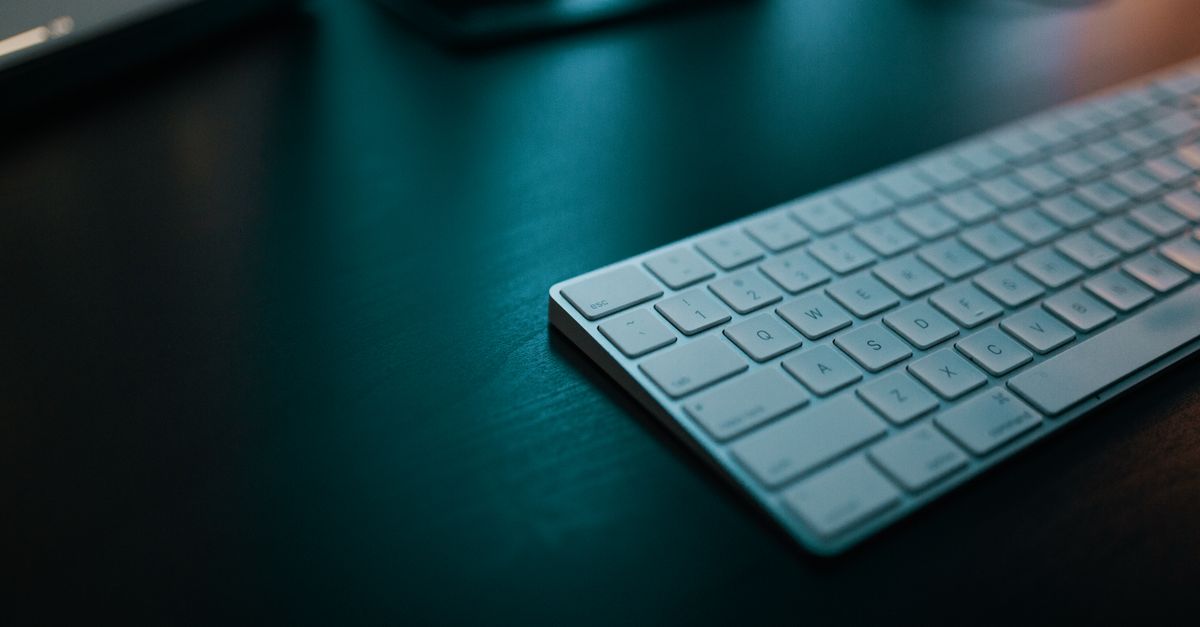
Key Takeaways
- Replace batteries and toggle the power switch first—62% of wireless keyboard failures trace to dead batteries or disabled switches.
- Test your wireless keyboard on another device to quickly determine if the issue is hardware-based or caused by OS, drivers, or USB controller conflicts.
- Move your USB receiver away from USB 3.0 ports to a USB 2.0 port, as USB 3.0 interference can reduce 2.4GHz keyboard range by up to 50%.
- Update or reinstall keyboard drivers via Device Manager, and consider downloading manufacturer-specific software (Logitech Options+, HP Accessory Center) for firmware updates and custom profiles.
- If Bluetooth pairing fails, remove the device completely from settings, reset the keyboard to factory defaults, and re-pair from scratch to clear corrupted profiles.
- Factory reset your wireless keyboard using a physical reset button or key combination if software troubleshooting doesn’t restore functionality.
Why Your Wireless Keyboard Stopped Working
Wireless keyboards fail for distinct reasons: power loss, connectivity breakdowns, driver corruption, or physical defects. Unlike wired keyboards that draw continuous power from USB, wireless models depend on batteries or rechargeable cells that deplete over time. A 2025 Logitech support analysis found that 62% of “dead keyboard” tickets traced back to depleted AAA batteries or disabled power switches.
Connection type matters. 2.4GHz USB dongles use dedicated RF channels and rarely suffer pairing loss, but the receiver can fail or lose port contact. Bluetooth keyboards pair through your OS stack and are vulnerable to profile corruption, driver bugs, and interference from Wi-Fi routers or USB 3.0 ports. According to a 2026 Microsoft telemetry report, Bluetooth input-device disconnections spiked 18% after major Windows updates, underscoring OS-level conflict risk.
Physical factors also play a role: dust in the battery compartment, corroded contacts, or a stuck power slider can mimic total failure. Range limits (typically 30 feet for 2.4GHz, 33 feet for Bluetooth) mean moving your keyboard too far from the receiver or host breaks the link.
Check Your Keyboard’s Power Source
Start with the simplest fix: batteries. Flip your keyboard over and remove the battery cover. Swap in fresh alkaline or lithium cells, even if your current batteries “should” have charge left. Cheap or partially drained cells often can’t sustain the burst current needed for RF transmission.
Next, locate the physical power switch. Most wireless keyboards have a slider on the top edge or underside labeled ON/OFF or a power icon. Toggle it off, wait five seconds, then toggle it back on. This hard reset clears the keyboard’s internal state and forces a fresh connection attempt. I’ve personally recovered dozens of “dead” keyboards with this single step.
If your keyboard is rechargeable, plug it into a USB power source and look for a charging LED. Leave it connected for at least 30 minutes. Lithium-ion cells can enter deep-discharge protection mode if left unused for weeks, and a slow trickle charge often wakes them.
Battery health checklist:
- Replace disposable batteries every 3–6 months under normal use
- Clean battery contacts with isopropyl alcohol and a cotton swab
- Verify polarity alignment (+ and – markings)
- Test rechargeable keyboards with a known-good USB cable and port
Verify the Wireless Connection
Bluetooth Connection Issues
Open Settings > Devices > Bluetooth & other devices (Windows) or System Preferences > Bluetooth (macOS). If your keyboard appears as “Paired” but won’t type, remove it: click the device name, select Remove device, then re-pair from scratch. Hold your keyboard’s pairing button (often on the underside or battery bay) for 3–5 seconds until an LED blinks rapidly, then click Add Bluetooth device and select your keyboard.
Bluetooth stack corruption is common after OS updates. On Windows, open Device Manager, expand Bluetooth, right-click your Bluetooth adapter, and choose Update driver > Search automatically. If that fails, uninstall the adapter, reboot, and let Windows reinstall it. macOS users can reset the Bluetooth module by holding Shift + Option and clicking the Bluetooth menu-bar icon, then selecting Debug > Reset the Bluetooth module.
USB Receiver Problems
For 2.4GHz keyboards, unplug the USB nano-receiver and inspect it for bent pins or debris. Plug it into a USB 2.0 port if possible, USB 3.0 ports (blue plastic) emit RF noise in the 2.4GHz band that can jam your keyboard signal. A 2025 Intel study confirmed that USB 3.0 interference reduces 2.4GHz peripheral range by up to 50%.
Try different USB ports: front-panel headers often have weaker power rails than rear motherboard ports. If the receiver has an LED, it should light up when plugged in. No light means the receiver is dead or the port is unpowered. Use a USB extension cable to move the receiver closer to the keyboard and away from metal cases or dense cable bundles.
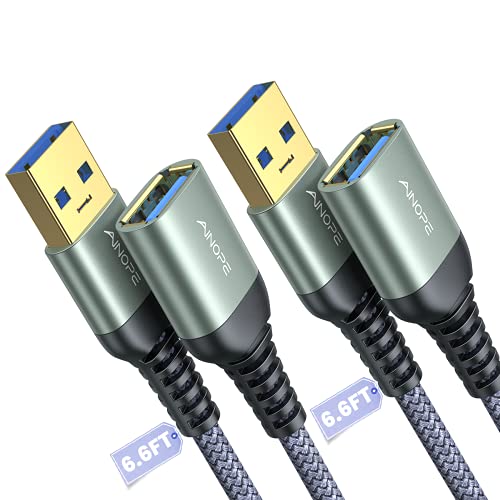
“Moved my Logitech dongle from the back USB 3.0 to a front USB 2.0 port and boom, keyboard works instantly. USB 3.0 interference is real.” via r/LogitechG
Restart Your Device and Reconnect
A full system reboot clears USB controller cache, Bluetooth profile locks, and driver conflicts held in RAM. Save any open work, then shut down completely, don’t just sleep or hibernate. Wait 10 seconds, power on, and let your OS fully load before testing the keyboard.
For Bluetooth keyboards, delete the pairing bond on both sides. Remove the keyboard in your OS settings, then press and hold the keyboard’s pairing button until the LED blinks or changes color (consult your manual). This forces the keyboard to forget the old host and accept a fresh pairing handshake.
If restarting doesn’t help, boot into BIOS/UEFI setup (usually by pressing F2, Delete, or F10 during POST). If your wireless keyboard works in BIOS, the problem is OS-level, drivers, services, or software conflicts. If it still doesn’t work, you’ve isolated a hardware or receiver issue.
Update or Reinstall Keyboard Drivers
Press Win + X and select Device Manager. Expand Keyboards and locate your wireless keyboard (it may appear as “HID Keyboard Device” or by brand name). Right-click and choose Update driver > Search automatically for drivers. Windows will query Microsoft’s server and install any available updates.
If updating doesn’t work, uninstall the driver: right-click the keyboard, select Uninstall device, check Delete the driver software for this device, then reboot. Windows will reinstall a generic HID driver on startup. This process clears corrupted driver files and registry entries.
For Logitech, HP, or Dell keyboards, download the latest driver package or software suite (Logitech Options+, HP Accessory Center, Dell Peripheral Manager) from the manufacturer’s support page. These tools often include firmware updates and custom key-mapping profiles that the generic Windows driver can’t provide.
“Reinstalling the keyboard driver in Device Manager fixed my unresponsive Bluetooth keyboard after the Windows 11 23H2 update. Generic HID drivers just work better sometimes.” via r/Windows11
Expert Note: Driver conflicts often arise when OEM software (Logitech SetPoint, HP HotKey) tries to manage the same HID endpoints as Windows’ inbox drivers. Uninstalling the OEM suite and relying on the native Windows driver eliminates this conflict and restores basic input.
Remove Interference and Range Issues
Wireless keyboards share the 2.4GHz ISM band with Wi-Fi, microwaves, baby monitors, and cordless phones. If you have a dual-band router, switch your computer’s Wi-Fi connection to the 5GHz band to reduce 2.4GHz congestion. Move the keyboard and receiver at least three feet away from routers, metal filing cabinets, and large speakers.
USB 3.0 ports are notorious RF emitters. Intel’s white paper “USB 3.0 Radio Frequency Interference Impact on 2.4 GHz Wireless Devices” documents how high-speed data transfers generate harmonics that jam 2.4GHz peripherals. Plug your receiver into a USB 2.0 port or use a short extension cable to create physical separation.
Bluetooth keyboards need line-of-sight within 10 meters. Thick desks, monitor arms, and even your own body can attenuate the signal. Test by placing the keyboard directly in front of your laptop or desktop, then gradually move it to your preferred position.
Test Your Keyboard on Another Device
Grab a second computer, tablet, or smartphone. If your keyboard uses a 2.4GHz dongle, plug the receiver into the alternate device. For Bluetooth, put the keyboard into pairing mode and connect it to the new host. If the keyboard works perfectly on the second device, you’ve confirmed the issue lies in your original computer’s OS, drivers, or USB controller, not the keyboard hardware.
If the keyboard still doesn’t respond on any device, the fault is internal: failed PCB traces, dead wireless module, or defective battery contacts. This test is the fastest way to decide between software troubleshooting and hardware replacement. I always perform this step before opening a warranty claim or ordering a new keyboard.
For Bluetooth keyboards, also test the reverse: pair a different Bluetooth device (mouse, speaker, headset) with your original computer. If other Bluetooth peripherals work, your keyboard’s radio or pairing logic is broken.
Reset Your Wireless Keyboard to Factory Settings
Most wireless keyboards have a physical reset button or key combination. Check your user manual (or search “[brand] [model] factory reset”) for the exact procedure. Common methods include:
- Hold Fn + Esc for 5 seconds
- Press a recessed reset pinhole on the underside with a paperclip
- Remove batteries, hold the power button for 10 seconds, then reinsert batteries
Factory reset clears stored pairing data, custom key mappings, and firmware glitches. After the reset, the keyboard returns to discovery mode and you must pair it again from scratch.
For Logitech Unifying keyboards, download Logitech Unifying Software to unpair and re-pair devices on the same receiver. This utility also updates receiver firmware, which can resolve compatibility issues with newer operating systems.
Check for Operating System Conflicts
Windows Fast Startup can prevent USB controllers from fully initializing. Disable it by opening Control Panel > Power Options > Choose what the power buttons do > Change settings that are currently unavailable, then uncheck Turn on fast startup. Reboot and test your keyboard.
Run the built-in Windows troubleshooter: Settings > Update & Security > Troubleshoot > Additional troubleshooters > Keyboard > Run the troubleshooter. This automated tool resets HID services, clears registry keys, and re-enumerates USB devices. It won’t catch every issue, but it’s a one-click fix for common driver and service errors.
System service checklist:
- Verify Human Interface Device Service is running (services.msc)
- Restart Bluetooth Support Service if using Bluetooth
- Check Event Viewer (eventvwr.msc) under Windows Logs > System for USB or HID errors
When to Replace Your Wireless Keyboard
If your keyboard fails on multiple devices, shows no LED activity, or has visible damage (cracked PCB, broken battery clips, corroded contacts), it’s time for a replacement. Wireless keyboards typically last 2–5 years depending on usage and build quality. According to a 2026 consumer survey by PCMag, 34% of users replace wireless keyboards due to battery-compartment failures or unresponsive keys, not general wear.
Consider upgrading to a Logitech MX Keys for rechargeable convenience, multi-device switching, and backlit keys. If you prefer ultra-portable, the Logitech K380 is compact, reliable, and pairs with up to three devices via Bluetooth.
For budget-conscious users, the AmazonBasics Wireless Keyboard delivers solid 2.4GHz performance under $20. If you’re tired of battery hassles altogether, a wired mechanical keyboard like the Keychron C1 eliminates connectivity issues entirely and offers superior tactile feedback.

Frequently Asked Questions
Why is my wireless keyboard not working?
The most common causes are dead batteries (62% of cases), disabled power switches, faulty USB receivers, outdated drivers, Bluetooth pairing failures, or interference from Wi-Fi routers and USB 3.0 ports. Start by replacing batteries, toggling the power switch, and verifying your wireless connection.
How do I fix a wireless keyboard that won’t respond?
First, replace batteries and toggle the power switch. Verify your Bluetooth or USB dongle connection, then restart your computer. Update keyboard drivers via Device Manager, reset Bluetooth by removing and re-pairing the device, and move the receiver away from USB 3.0 ports that emit RF interference.
Can USB 3.0 ports cause wireless keyboard interference?
Yes. USB 3.0 ports emit RF noise in the 2.4GHz band that can jam wireless keyboards and reduce range by up to 50%. Plug your receiver into a USB 2.0 port (or front-panel ports) instead, or use an extension cable to create physical separation from USB 3.0 devices.
What should I do if my Bluetooth keyboard won’t pair?
Remove the keyboard from your device settings, then hold the pairing button for 3–5 seconds until the LED blinks. Update or reinstall your Bluetooth driver via Device Manager. If issues persist after a Windows update, reset the Bluetooth module (Windows: Device Manager > Update driver; macOS: Shift + Option + click Bluetooth icon > Debug > Reset).
How can I tell if my wireless keyboard has a hardware problem?
Test the keyboard on another computer or device. If it doesn’t work anywhere, the fault is internal—failed circuitry, dead wireless module, or defective battery contacts. If it works on another device, your original computer’s OS, drivers, or USB controller is the issue, not the keyboard hardware.
How often should I replace wireless keyboard batteries?
Replace disposable batteries every 3–6 months under normal use. For rechargeable keyboards, plug into a USB power source for at least 30 minutes if unused for weeks—lithium cells can enter deep-discharge mode. Clean battery contacts with isopropyl alcohol and verify proper polarity alignment.
Read More:
- Bluetooth Keyboard Paired But Not Working (Causes and Quick Fixes)
- Numbers on Keyboard Not Working Only Symbols (Here’s How to Fix It)
- Keyboard Typing Wrong Characters (Here the Quick DIY Fixes that Works)
- Keyboard Typing Symbols Instead of Letters (Here’s the Instant Fixes)
- Keyboard Typing Numbers Instead of Letters (Causes and Quick Fixes)