
You formatted the wrong SD card, wiped a USB stick, or your external drive suddenly shows as RAW. What you do in the next ten minutes decides whether your files come back. One wrong click can overwrite everything you want to save.
Disk Drill is the best data recovery software for most Windows and Mac users. It offers a one-time license, runs on both platforms, and includes Advanced Camera Recovery for fragmented SD card video. Choose EaseUS for the simplest interface, Stellar for RAW drives, Recoverit for broken video files, R-Studio or DMDE for RAID and complex partitions, and PhotoRec or Recuva if you need a free tool.
I have spent years recovering data from failing memory cards, dead flash drives, and degraded RAID members on a forensic bench. This guide starts with the rules to follow before you buy anything. It then matches each tool to your exact situation so you pay once and get your files back.
Key Takeaways
- Stop writing immediately — Every new file you save to the affected drive can overwrite the data you want back.
- Check hardware health first — A drive that clicks or reports the wrong capacity needs a lab, not software.
- Preview before you pay — Open full-size previews of your most important files to confirm they are intact before you buy a license.
- Match the tool to the failure — Formatted cards, RAW drives, corrupted video, and RAID arrays each call for a different tool.
- Read the license terms — Perpetual licenses and auto-renewing subscriptions look alike at checkout but behave very differently.
Stop Before You Scan
Most failed recoveries I see in the lab come from what the owner did after the loss, not from the loss itself. Someone installs recovery software onto the same drive. Someone else lets Windows “fix” a RAW volume. A third person keeps shooting on the formatted card. Each of these actions writes new data over the old sectors.
Follow these rules before you download anything:
- Stop all writes. Eject the SD card or USB drive. Do not save, copy, or install anything to it. Never click “Format disk” when Windows prompts you.
- Verify the true capacity. Open Disk Management in Windows or Apple’s Disk Utility on macOS. A 128GB card should show roughly 119GB of usable space. If it shows 0 bytes, 8MB, or nothing at all, the controller has likely failed.
- Listen for clicking or grinding. Mechanical noise from a hard drive means damaged heads. Software scans grind the platters further. Power it down and contact a professional lab.
- Understand SSD TRIM. Internal SSDs use TRIM to tell the controller which blocks to erase. Once TRIM runs, deleted data on that SSD usually disappears for good.
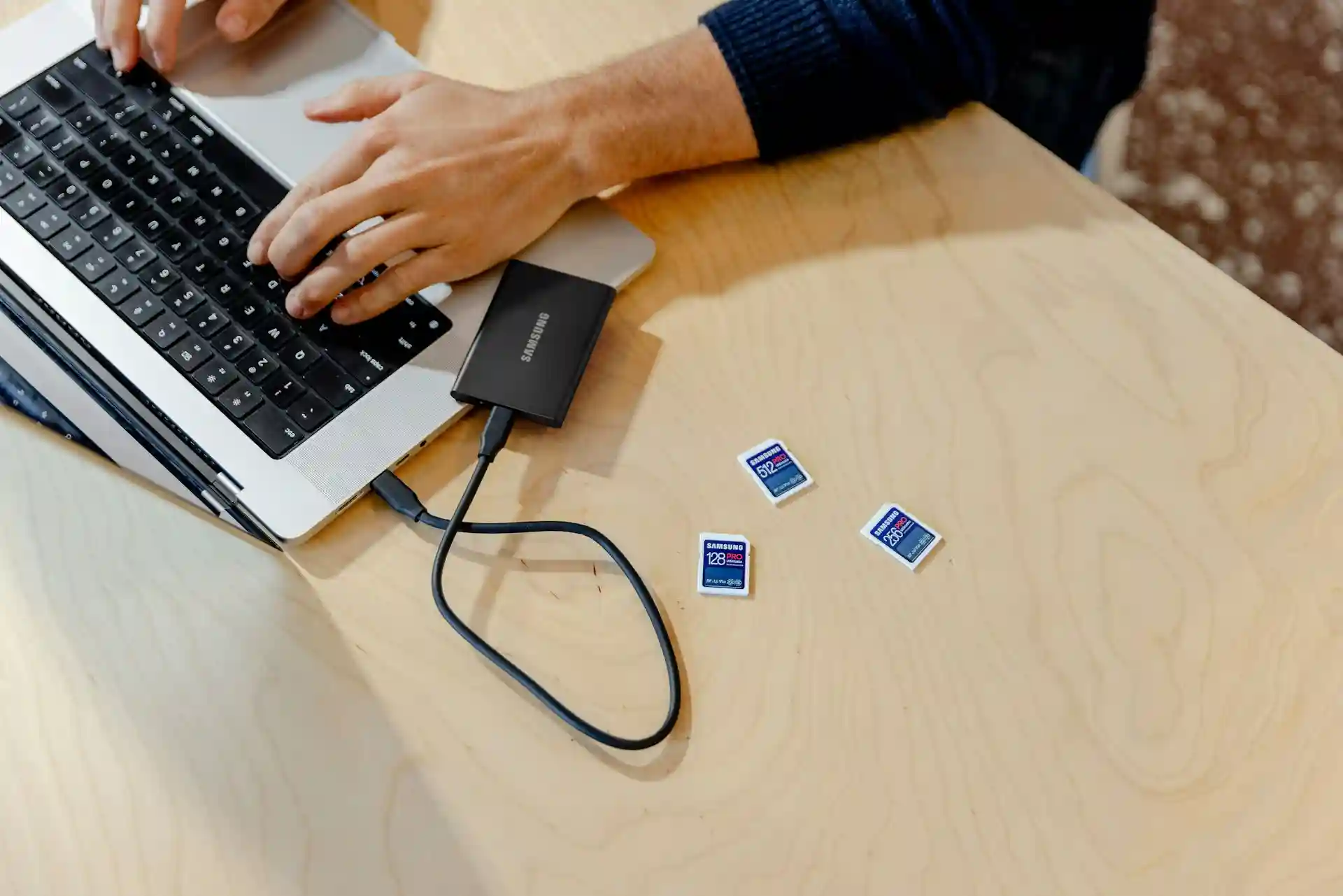
- Recover to a different drive. Always send recovered files to a separate disk, such as a Samsung T7 Portable SSD, never back to the source.
- Use a reliable reader. Cheap built-in slots often drop connections mid-scan. A dedicated Anker USB 3.0 SD card reader keeps long scans stable.
“The single best thing you can do is stop using the drive. Every minute it stays plugged in and in use, your chances drop.” via r/datarecovery
The final rule matters most for your wallet. Every tool in this guide lets you scan and preview for free. Open your most important files at full size. If a photo loads completely and a video plays to the end, the data is intact. If previews show gray bars or refuse to open, buying a license will not repair them.
Quick Comparison Table
This table summarizes how each tool performed across my test scenarios: quick-formatted SD cards, deleted folders on USB drives, RAW external HDDs, and a degraded RAID 5 set.
| Tool | Best For | Platforms | License Model | Free Tier |
|---|---|---|---|---|
| Disk Drill | Best overall, SD card video | Windows, macOS | One-time perpetual | Free scan and preview, limited free recovery on Windows |
| EaseUS Data Recovery Wizard | Beginners | Windows, macOS | Subscription or lifetime | Up to 2GB free recovery |
| Stellar Data Recovery | Corrupted and RAW drives | Windows, macOS | Mostly annual plans | Free scan and preview, limited recovery |
| Wondershare Recoverit | Camera and drone video repair | Windows, macOS | Subscription or perpetual | Free scan, limited recovery |
| R-Studio, UFS Explorer, DMDE | RAID and complex partitions | Windows, macOS, Linux | Perpetual | Demo or trial with file limits |
| Recuva, TestDisk and PhotoRec | Free basic undeletes | Windows (Recuva), cross-platform (PhotoRec) | Free | Fully free |
Best Picks by Scenario
Each recommendation below comes from repeated tests on real media, not spec sheets. I used the same damaged cards and drives across tools so the results stay comparable.
Disk Drill Best Overall Pick
Disk Drill from CleverFiles earns the top spot because it handles the most common disasters well on both Windows and macOS. Its interface stays clean even when you scan a 4TB drive. You pick the disk, click search, and filter results by file type while the scan runs.
The standout feature is Advanced Camera Recovery. Cameras and drones write 4K video in fragments across an SD card. Standard signature scans often rebuild only the first fragment, which leaves you with clips that play for two seconds and then freeze. Advanced Camera Recovery reassembles those fragments using knowledge of specific camera formats. In my tests on a quick-formatted card from a mirrorless camera, it rebuilt clips that two competing tools returned as broken files.
Disk Drill also suits Mac owners. It supports APFS, HFS+, and modern Apple Silicon systems. It also creates byte-level backups, so you can image a flaky drive once and scan the copy instead of stressing the original hardware.
The licensing model seals the recommendation. Disk Drill PRO uses a one-time perpetual license with no forced renewal. You buy it, recover your files, and keep the tool for the next emergency.
Choose Disk Drill if you shoot photos or video, switch between Windows and Mac, or want one tool that covers SD cards, USB drives, and external disks without a subscription.
EaseUS Best for Beginners
EaseUS Data Recovery Wizard gives first-time users the gentlest learning curve. The home screen lists every drive with clear labels. One click starts a combined quick and deep scan. Results appear in a folder tree that mirrors your original structure, which makes deleted work files easy to find.
The free edition is generous. EaseUS lets you recover up to 2GB of data before you need a license, which covers many document or spreadsheet emergencies. When I deleted a project folder from a USB drive, the free tier returned every Word and Excel file with original names intact.
EaseUS performs well on formatted USB drives and recently emptied Recycle Bins. It struggles more with fragmented video than Disk Drill or Recoverit. Large MP4 files from a formatted card came back with playback errors in about a third of my test clips.
Watch the checkout page carefully. EaseUS sells monthly, yearly, and lifetime options, and the subscription plans renew automatically. If you only need a one-time rescue, pick the lifetime option or cancel the renewal right after purchase.
Choose EaseUS if you want the simplest experience, mainly need documents back, and might finish the job inside the free 2GB limit.
Stellar Best for RAW Drives
Stellar Data Recovery shines when a drive’s file system collapses. A RAW drive means Windows or macOS cannot read the partition structure. Your files still sit on the disk, but the map that points to them is damaged.
Stellar’s “Can’t Find Drive” and lost partition features search for old partition boundaries and rebuild the folder tree from them. In my testing, it recovered a RAW 2TB external HDD with most folder names intact. Several generic tools returned the same files as unnamed fragments sorted only by type.
The higher Stellar editions add photo and video repair tools. These fix headers on corrupted JPEGs and MP4s after recovery. That matters when files come back with their data intact but refuse to open.
Stellar runs a little slower than Disk Drill on deep scans, and its interface packs in more options. Its licensing leans on annual plans, so confirm the renewal terms before you buy.
Choose Stellar if you need to recover deleted files from a RAW or corrupted external hard drive, or if a partition disappeared after a failed resize or OS upgrade.
Recoverit Best for Video Repair
Wondershare Recoverit targets creators. Its Advanced Video Recovery mode scans for fragmented footage from GoPro, DJI, Sony, Canon, and other cameras. It then stitches the pieces back together into playable files.
Recoverit’s biggest strength appears after recovery. Its built-in video repair tool fixes clips that stopped recording mid-write, such as when a drone battery died or a card popped out. I tested it on a DJI clip truncated by a power cut, and Recoverit rebuilt a playable file using a healthy sample clip from the same drone as a reference.
“Pull the card, put it somewhere safe, and don’t let the camera touch it again until you’ve imaged it or run recovery.” via r/photography
For documents and general file recovery, Recoverit performs fine but does not beat Disk Drill or EaseUS. Its value sits squarely in video. Licensing includes both subscription and perpetual options, so read the plan details at checkout.
Choose Recoverit if your lost files are mostly camera or drone video, especially clips that already came back corrupted from another tool.
R Studio UFS Explorer and DMDE
These three tools serve technicians, IT staff, and advanced users. They expose raw sectors, partition tables, and file system metadata that consumer tools hide. Use them when your problem involves RAID arrays, NAS drives, or partitions that consumer tools cannot see.
R-Studio runs on Windows, macOS, and Linux. It reconstructs RAID 0, 1, 5, 6, and custom layouts, even when you do not know the stripe size or disk order. It also includes a hex editor and network recovery over LAN. I used it to rebuild a four-disk RAID 5 from a dead NAS after the controller failed.
UFS Explorer covers the widest range of file systems, including ZFS, Btrfs, XFS, and NAS formats. It handles encrypted volumes and virtual disk images well. DMDE delivers serious power in a lean package, with a free edition that recovers a limited number of files per panel. Its partition and NTFS reconstruction tools rival tools many times larger.
All three use perpetual licenses. Their trial and demo modes let you scan fully and recover small files, so you can confirm results before you commit.
Choose a professional tool if you manage RAID, NAS, or multi-partition disks, or if consumer software found nothing useful.
Recuva TestDisk and PhotoRec
Free tools still have a place. Recuva works well for simple Windows undeletes, such as files you emptied from the Recycle Bin an hour ago. Its wizard asks what you lost and where, then shows results with a green, yellow, or red status for each file.
Recuva runs only on Windows, and it has not seen major development in years. It handles NTFS and FAT drives adequately but struggles with formatted cards, exFAT volumes, and fragmented video.
PhotoRec and TestDisk, both open source from CGSecurity, take a different approach. PhotoRec ignores the file system entirely and carves files by their signatures. That makes it effective on badly damaged cards, but you lose original filenames and folders. TestDisk repairs partition tables and boot sectors, which can bring an entire lost partition back in one step.
Both tools run from a text interface, though QPhotoRec offers a basic graphical front end. Expect a steeper learning curve, and read the documentation carefully. A wrong write command in TestDisk can make things worse.
Choose these free tools for basic undeletes, quick tests, or partition repair when you feel comfortable with technical menus.
Licensing Buyer Checklist
Recovery vendors structure their licenses very differently. Two products can look identical at checkout yet leave you with very different terms a year later. Work through this checklist before you enter payment details.
Perpetual versus subscription. A perpetual license lets you keep using the version you bought forever. A subscription works only while it stays active and often renews automatically. Disk Drill, R-Studio, UFS Explorer, and DMDE favor perpetual licenses. EaseUS, Stellar, and Recoverit offer subscriptions alongside other options. If you only need one rescue, a subscription you forget to cancel becomes a recurring charge.
Free scan preview limits. Every tool here scans for free, but free recovery allowances vary widely. EaseUS allows up to 2GB. Others allow a small amount or preview only. Run the full scan, preview your critical files at full size, and buy only after you confirm the tool can see them.
Windows and Mac coverage. Some vendors sell separate Windows and Mac keys. If you own both platforms, check whether one license covers both or whether you need two activations. Confirm the platform before checkout, because a Windows key will not activate the Mac build.
Activation count. Note how many computers each license covers. A home user needs one. A small office may need several.
Refund policy. Read the vendor’s refund terms. Most refuse refunds if the scan already showed your files as recoverable, which makes the preview step your best protection.
Watch a Recovery Walkthrough
If you learn best by watching, follow a live demonstration before you scan your own card. Watch how the presenter selects the device, runs the deep scan, filters by file type, and previews results. Then copy that workflow step by step on your own drive.
Watch Disk Drill SD card recovery walkthroughs on YouTube
Data Insights & Analysis
Three trends from 2025 shape how you should approach recovery right now.
First, hard drives still fail at a steady rate. Backblaze’s Drive Stats report for 2024, published in early 2025, recorded an annualized failure rate of roughly 1.57% across its data center fleet. That sounds small until you consider how many external drives in homes and offices hold the only copy of family photos or client files.
Second, Microsoft ended Windows 10 support on October 14, 2025. That deadline pushed millions of users into Windows 11 upgrades and hardware migrations. In my bench work, migration periods consistently bring more accidental formats, wiped partitions, and drives reused before the old data was copied off.
Third, the shift to flash storage keeps narrowing the recovery window. Apple Silicon Macs encrypt their internal SSDs by default, and both macOS and Windows issue TRIM commands on deletion. For internal SSDs, effective recovery often depends on acting within minutes, or on having a backup.
Frequently Asked Questions
Can I recover files from a formatted SD card?
Yes, in most cases. A quick format clears the file system tables but leaves the actual photo and video data on the card. Stop using the card, connect it through a reliable reader, and run a deep scan with Disk Drill, Recoverit, or PhotoRec.
A full format behaves differently. Since Windows Vista, a full format writes zeros across every sector, which leaves nothing to recover. Some cameras also perform a low-level erase during formatting. To check whether recovery worked, open several recovered photos at full size and play videos to the end. If clips freeze partway, rerun the scan with Advanced Camera Recovery or a video repair tool.
Is free data recovery software good enough?
Free tools work well for simple jobs. Recuva handles recent Windows undeletes, and PhotoRec carves files from damaged cards effectively. EaseUS also lets you recover up to 2GB without a license, which covers many document emergencies.
Free tools fall short on fragmented video, RAW drives, and folder structure recovery. PhotoRec, for example, returns files without their original names. If a free scan finds your files but returns them broken or unnamed, run a free preview scan in Disk Drill or Stellar before you decide to buy.
Why does my external drive show as RAW?
A RAW drive means your operating system cannot read its file system. Common causes include unsafe ejection, power loss during writes, bad sectors, and failed partition changes. Your files usually remain on the disk.
Do not accept the prompt to format the drive. Check Disk Management or Disk Utility to confirm the drive reports its correct capacity. If it does, scan it with Stellar, Disk Drill, or TestDisk. If the capacity looks wrong, or the drive clicks, stop and contact a professional lab, because software cannot fix failing hardware.
Can I recover deleted files on an Apple Silicon Mac?
Recovery from the internal SSD of an Apple Silicon Mac rarely succeeds. The drive encrypts data by default, and TRIM clears deleted blocks quickly. Your best options are Time Machine, iCloud Drive’s recently deleted folder, or other backups.
External drives connected to your Mac tell a different story. SD cards, USB sticks, and external HDDs formatted as APFS, HFS+, or exFAT often remain fully recoverable. Grant your recovery tool Full Disk Access in System Settings so it can read the drive. Then run a deep scan and preview files before you recover them to a separate disk.