
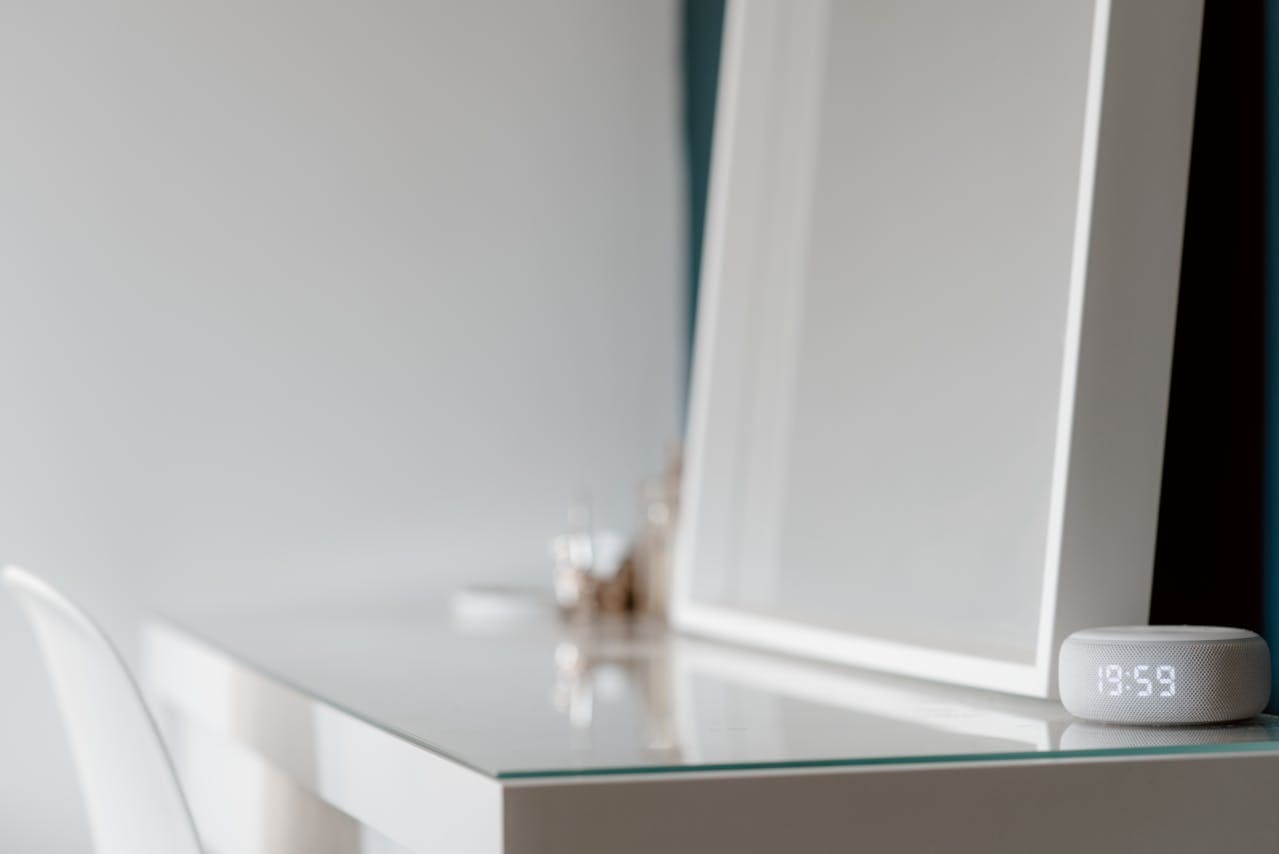
If your Alexa alarm is not working, the issue often comes down to simple settings like the correct time, internet connection, or app updates. The most common fix is to check your alarm time in the Alexa app, ensure your device is connected to a stable Wi-Fi network, and restart your Alexa device. This can solve many problems without needing complicated steps.
Sometimes, your router or firewall may block ports Alexa needs to work, or your alarm might need to be set as a repeating alarm if it’s for more than 24 hours later. These technical details can interfere with alarms going off as expected.
Knowing these key points helps you avoid missing important alarms and keeps your daily routine on track. Keep reading to learn exactly what you can do to fix your Alexa alarm quickly and easily.

Common Causes of Alexa Alarm Issues
If your Alexa alarm isn’t working, the problem could be with the device itself, how the alarm is set up, or your internet connection. Identifying the root cause helps you fix the issue quickly and prevent it from happening again.
Device Not Responding
Sometimes your Alexa device doesn’t respond when you set or expect an alarm. This can happen if the device is frozen or stuck. Try unplugging it, waiting 30 seconds, and plugging it back in to reboot the system.
A device with outdated software may fail to run alarms correctly. Make sure your Alexa app and device software are updated to the latest versions.
Low volume or muted sound settings can also stop alarms from sounding. Check the alarm volume and device volume in the Alexa app under Devices > [your device] > Sounds. Setting the volume too low means you may not hear the alarm.
Incorrect Alarm Settings
Your alarm won’t go off if the time or repeat settings are wrong. Double-check the alarm time in the Alexa app to ensure it matches the current time and your time zone.
If you set a one-time alarm more than 24 hours in the future, it might not work. Instead, use a repeating alarm for longer periods.
Make sure you’ve selected the right sound or volume for the alarm. Sometimes alarms don’t play because the selected sound is unavailable or is set too low.
Internet Connectivity Problems
Alexa relies on an internet connection to confirm settings and download alarm sounds. If your device is offline or the connection is weak, your alarm may fail.
Check that your Wi-Fi is working correctly and your Echo device is connected. Restart your router if needed.
Make sure your firewall or router isn’t blocking needed ports. Alexa uses ports like 123, 443 TCP, and others to connect to its servers. If these are blocked, alarms might not work.
Troubleshooting Alexa Alarm Not Working
To solve your Alexa alarm issues, focus on restarting the device, checking the microphone, and verifying the alarm volume. These steps target common reasons why your alarm might fail.
Restarting Your Alexa Device
Restarting your Alexa device can fix many problems. Unplug it from the power source, wait about 10 seconds, and then plug it back in. This resets the system and clears minor glitches.
After restarting, check if your alarm works by setting a new one. This simple step often restores normal alarm function. If the problem continues, try rebooting your Wi-Fi router as well, since Alexa needs internet to work properly.
Make sure your Alexa app is up to date. Sometimes outdated apps cause syncing issues with alarms.
Checking Microphone Functionality
Alexa needs its microphone to be on to hear your commands and alerts. Look at your device’s microphone button to see if it is muted. If muted, Alexa will not respond or activate alarms.
You can unmute the microphone by pressing the button until the light turns on, indicating it’s active. After this, test voice commands to confirm Alexa hears you.
If your device microphone is faulty, Alexa might not recognize when to trigger the alarm, so checking microphone status is crucial.
Verifying Alarm Volume
Alarm volume is controlled separately in the Alexa app and on the device itself. Make sure the volume isn’t set too low or muted.
Use the app to adjust alarm volume: go to More > Settings > Sounds & Notifications and slide the alarm volume bar up. You can also increase the device volume by pressing the volume buttons.
Test your alarm volume by setting a sample alarm. If the alarm sound is still too quiet, check if Do Not Disturb mode is on, as this can mute alarms.
Alexa App Settings and Alarm Configuration
You need to verify that your alarms are correctly set and active within the Alexa app. It’s also important to ensure your devices sync properly and your time zone matches your location. These steps help keep your alarms working on schedule.
Ensuring Scheduled Alarms Are Active
Open the Alexa app and go to More > Settings > Reminders and Alarms. Check the alarms in the Alarms section. Each alarm has a blue toggle switch—make sure the switch is on for alarms you want to use. If it looks off, tap the switch to enable the alarm.
Check the alarm times carefully. If you set an alarm for a past time due to an error, it won’t go off. Also, alarms can be set to repeat on specific days. Confirm repeating settings to avoid missed alarms.
You can edit or delete alarms here too. If your alarm still doesn’t work, try disabling and re-enabling it to refresh the setting.
Syncing Alarms Across Devices
If you have multiple Alexa devices, alarms may not sync automatically. The Alexa app controls this.
Make sure all devices are connected to the same Amazon account. Alarms you set on one device may not appear on another unless you create them individually or use the app to manage them.
You can use voice commands to check alarms per device, like “Alexa, what alarms are set?” This helps confirm which alarms are active on each device.
If you notice differences or missing alarms, open the Alexa app and manually check each device’s alarm list. Resync by toggling alarms or restarting devices if needed.
Time Zone and Location Settings
Your Alexa device uses your account’s registered time zone and location to set alarms correctly. If your alarm isn’t going off at the right time, check these settings.
Open the Alexa app, then go to Devices > Echo & Alexa > [Your Device] > Device Location. Verify your current address and time zone are accurate.
If your time zone is wrong, alarms might trigger early or late. Update the time zone if needed.
Also, check your phone or tablet’s time and time zone match those in the Alexa app. Conflicting times can cause issues syncing with Amazon’s cloud service.
Keeping your location and time zone correct ensures alarms go off precisely when you want them to.
Firmware and Software Updates
Keeping your Alexa device and app up to date is important if your alarm isn’t working. Updates can fix bugs and improve how your device operates. You need to update both the device firmware and the Alexa app to avoid problems.
Updating Your Device Software
Your Echo or Alexa-enabled device must have the latest firmware installed to work properly. Updates often include fixes for issues like alarm failures. To update your device, say, “Alexa, check for software updates,” or open the Alexa app and go to Device Settings > About to see the current version.
Make sure the device is connected to a stable Wi-Fi network during updates. If your device is stuck updating or you see an error, restart the device and try again.
Check for updates regularly. Most devices update automatically, but sometimes you need to do it manually to solve problems like alarm issues.
App Compatibility and Updates
Your Alexa app controls alarms and settings, so having the latest app version is just as important as updating the device. Go to your phone’s app store and update the Alexa app if needed.
Older app versions can cause syncing problems between the app and your device. This might stop alarms from working correctly. After updating, reopen the app and verify your alarm settings.
If alarms still don’t trigger, log out of the app and log back in. This can help fix connection and update issues between your device and the app.
Connectivity and Network Solutions
Your Alexa alarm needs a stable internet connection to work properly. If your device loses connection or has a weak Wi-Fi signal, the alarm may not go off as expected. Fixing these issues helps ensure your alarms sound on time.
Wi-Fi Signal Strength
Check the Wi-Fi signal where your Alexa device is placed. A weak signal can cause delays or stop your alarm from working.
Move your device closer to the router if possible. Avoid physical barriers like walls or appliances that block signals.
You can use your phone or computer to test signal strength near the Alexa device. A strong, steady connection shows high signal strength, usually above 70%.
If the signal is weak, try switching your router’s frequency band. Alexa works well on both 2.4 GHz and 5 GHz, but 2.4 GHz generally covers larger areas.
Resolving Network Interruptions
Interruptions in your network can stop Alexa alarms from working.
First, restart your router and Alexa device. This often solves temporary connection problems.
Make sure your router firmware is up to date. Outdated software may cause instability.
If you have multiple Wi-Fi networks, ensure Alexa and your phone (used for setup) connect to the same one.
Set your router to avoid automatic channel switching, which can cause brief connection drops.
Use a wired connection if possible through an Ethernet adapter to reduce wireless issues.
Finally, check for ongoing internet outages with your service provider if problems continue.
Audio Device and Speaker Problems
Issues with sound output can prevent your Alexa alarm from working properly. You need to check the volume and mute settings and consider if external devices are connected that might affect the alarm sound.
Muted or Low Speaker Output
If your alarm doesn’t produce sound, first check if your Echo device is muted. Alexa devices have a mute button that disables sound output. Make sure it is not activated.
Next, verify the volume level. Use voice commands like “Alexa, set volume to 7” or adjust it manually from the Alexa app. Alarms often use the same volume setting as other alerts, so a low volume could cause the alarm to be too quiet or inaudible.
Sometimes, a brief silent alarm or default sound happens because the volume was turned down accidentally or muted during use. Unmuting and increasing the volume usually fixes this problem.
Connected External Audio Devices
If your Alexa device is linked to external speakers via Bluetooth or an audio cable, alarm sound might not play through the main speaker. Instead, it could route to the connected device.
Check whether your Echo is paired with a Bluetooth speaker. If so, try unpairing it before your alarm time. You can do this in the Alexa app under Settings > Bluetooth Devices.
Similarly, if you use an aux cable or other external audio connections, unplug them to test if the alarm sound plays directly from your Echo device’s speaker.
Making sure your speakers and connections are correctly set will help avoid missed alarms caused by audio being routed elsewhere.
Preventing Future Alexa Alarm Failures
To keep your Alexa alarms working reliably, focus on care and setup routines that stop common problems before they start. Staying on top of device health and following clear alarm practices helps reduce errors and missed alarms.
Regular Device Maintenance
You should restart your Alexa device regularly. Unplug it from power for about 30 seconds, then plug it back in. This can clear temporary glitches that might stop alarms from sounding.
Keep your Alexa device updated. Check the Alexa app and update it when available. Updates fix bugs and improve alarm functions.
Make sure your device stays connected to a strong, stable Wi-Fi network. Weak or dropped internet connections can interfere with alarm delivery.
Also, clean the device’s speaker area gently. Dust or debris can reduce sound clarity and volume, making alarms harder to hear.
Best Practices for Alarm Reliability
Always set alarms using the Alexa app or voice commands carefully. Double-check the alarm time, AM or PM setting, and time zone in the app.
For recurring alarms, use the repeat alarm feature instead of setting multiple single alarms. This avoids confusion and alarms that fail after 24 hours.
Avoid heavy smart home routines linked to alarms. If you use Alexa routines, test them separately to confirm alarms trigger correctly.
Lastly, check volume settings before sleep. Make sure volume is high enough and that “Do Not Disturb” mode is turned off when alarms are active.
Read More:
- Why Alexa Is Yellow? (Fix Flashing Light in Seconds)
- Why Alexa Is Red? Fix Your Echo Device in Minutes
- Why Alexa is Not Responding (7 Quick Fixes That Work)