
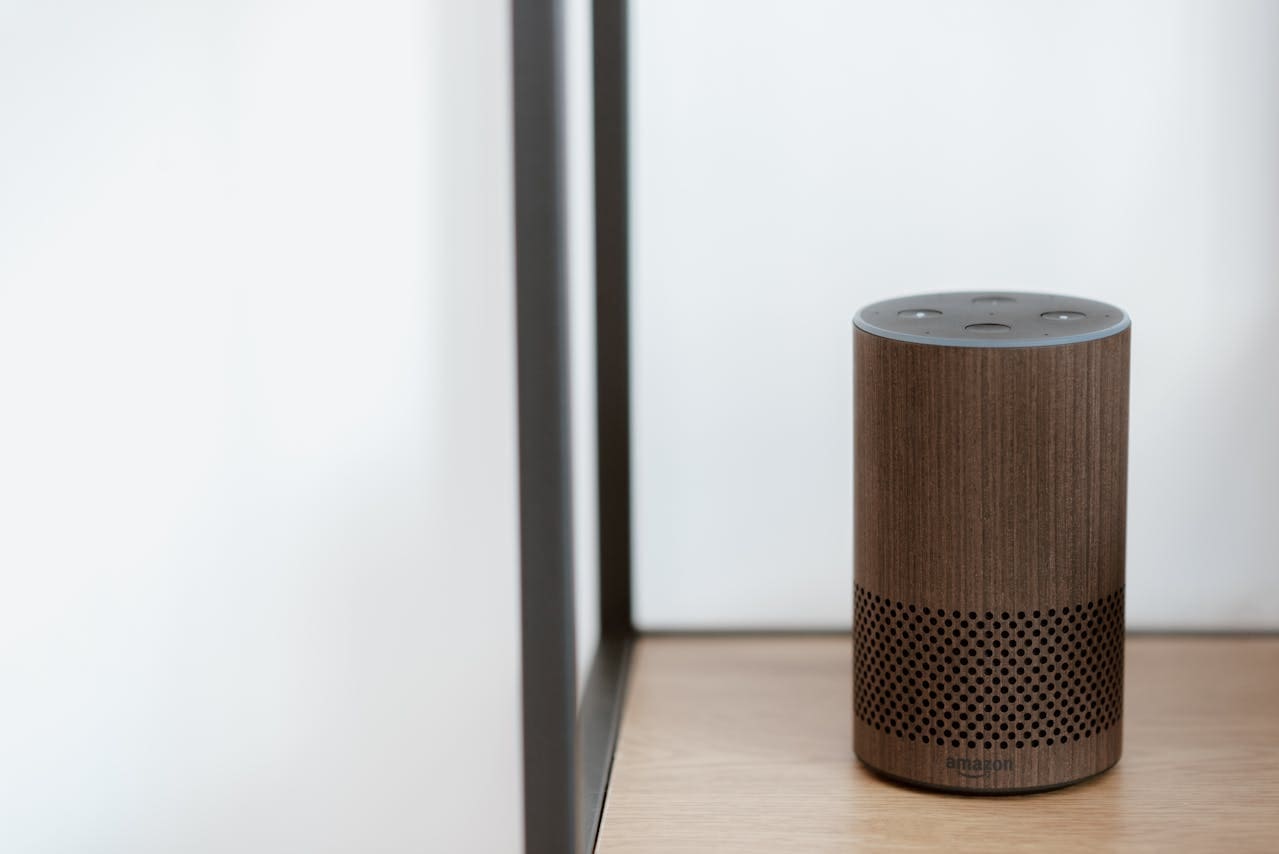
If your Alexa Echo is not working, the most common causes are connectivity problems, muted microphone, or software issues. The quickest way to fix your Echo is to check if the microphone is off, reconnect it to Wi-Fi, and restart the device. These simple steps often solve most problems where Alexa won’t respond.
Sometimes Alexa may stop listening because the microphone button is accidentally pressed or your Wi-Fi connection is weak. Other times, your device may need a software update or a reset. Understanding these common issues helps you get your Echo back to working without extra frustration.

Common Causes of Alexa Echo Not Working
Several technical and setup issues can prevent your Alexa Echo from working properly. Power problems, Wi-Fi interruptions, device temperature, and microphone settings are common reasons for these issues.
Power Supply Issues
Your Echo device requires a stable power source. If it’s unplugged or the power adapter is damaged, Alexa won’t turn on or respond.
Check that the power cable is firmly connected to both the device and the outlet. Try using a different power outlet or charger if you suspect a fault.
A faulty power supply can cause intermittent shutdowns or prevent the device from booting. If your Echo flashes or stays off, power is likely the issue. Ensuring proper power prevents many common problems.
Wi-Fi Connectivity Problems
Alexa needs a steady Wi-Fi connection to work. If your network is down, slow, or interrupted, Alexa won’t respond to commands.
Make sure your Echo is within range of your router, away from thick walls or electronic interference. You can test by connecting another device to the same Wi-Fi network.
Restart your router and Echo device to fix temporary glitches. If your Wi-Fi password changed recently, update it in the Alexa app.
Without a reliable internet connection, Alexa cannot access its cloud services, which stops it from working properly.
Device Overheating
Your Echo device can overheat if it is placed in a hot environment or enclosed spaces without ventilation.
When overheating occurs, Alexa may stop responding, become slow, or restart randomly. Keep your device on a flat, hard surface, away from direct sunlight and heat sources.
Avoid covering it with cloth or placing it near other heat-producing electronics. Regular overheating might signal internal hardware issues which could need technical support.
Microphone Muted
If Alexa doesn’t hear your commands, the microphone might be muted. Most Echo devices have a microphone off button that disables voice input.
Check the microphone status light. If it’s red, your microphone is off, so Alexa won’t respond to voice commands.
Press the microphone button to toggle it back on. If the microphone is on but Alexa still doesn’t respond, try resetting the device or checking the microphone settings in the Alexa app.
Ensuring the mic is active is essential for proper voice recognition.
Initial Troubleshooting Steps
Start by focusing on basic checks that can often resolve common issues. These include power cycling your device, verifying physical connections, and confirming network stability. Addressing these areas can quickly restore your Alexa Echo’s responsiveness.
Restarting the Alexa Echo
Turn off your Alexa Echo by unplugging it from the power source. Wait about 30 seconds to let it fully power down. Then, plug it back in and allow it to reboot completely.
Restarting helps clear temporary glitches in the device’s software. If Alexa was slow to respond or not responding at all, this often fixes the issue. Avoid using the Echo’s built-in restart option, as unplugging ensures a more complete reset.
After restarting, wait for the light ring to show blue and then orange, indicating setup mode or normal operation. Try giving voice commands once the lights stabilize.
Inspecting Cables and Power Adapter
Check the power cable and adapter for any damage, such as frayed cords or bent plugs. Use only the original power adapter provided with your Echo device, as third-party adapters might cause voltage issues.
A faulty power supply can cause your Echo to lose power or behave erratically. If you have another compatible adapter, try swapping it to see if the Echo powers on more reliably.
Make sure the cable is firmly connected to both the device and the wall outlet. Loose connections can interrupt power and lead to unresponsiveness.
Checking Internet Connection
Alexa requires a stable Wi-Fi connection to operate correctly. Use a different device, like your phone or laptop, to confirm your internet is working.
If Wi-Fi is slow or disconnecting frequently, your Echo may fail to respond. Restart your router by unplugging it for 30 seconds, then plugging it back in.
In the Alexa app, check your device’s Wi-Fi settings. Navigate to Devices > Echo & Alexa > [Your Device] > Change Wi-Fi and follow the prompts to reconnect to your network if needed.
Strong and consistent internet ensures Alexa hears and processes your commands without delay.
Resolving Connection Problems
When your Echo device won’t connect or keeps losing connection, the problem is often related to your Wi-Fi network or how your device interacts with it. Fixing these issues requires checking and adjusting your network settings and the physical setup of your device.
Reconnecting to Wi-Fi
If your Echo isn’t connecting to Wi-Fi, start by forgetting the network on your device. Open the Alexa app, go to Devices > Echo & Alexa > [Your Device] > Wi-Fi Network, and select the option to forget the current network.
Next, reconnect by selecting your Wi-Fi network and entering the password carefully. Make sure you enter the correct password because a mistake here will stop the connection.
If the connection still fails, restart your Echo and router. Power them off, wait 30 seconds, and turn them on again. After restarting, repeat the Wi-Fi setup process in the Alexa app.
Updating Router Settings
Sometimes your router’s settings block Echo devices from connecting. Log into your router’s admin page and check for these settings:
- Firmware updates: Outdated router firmware can cause connection problems.
- MAC address filtering: Make sure your device’s MAC address isn’t blocked.
- 2.4 GHz vs. 5 GHz: Echo devices usually work better on a 2.4 GHz band, especially if far from the router.
- DHCP settings: Ensure your router is set to assign IP addresses automatically.
If you change router settings, restart the router and try reconnecting your Echo.
Distance from Router
Your Echo needs a strong Wi-Fi signal to work well. If it’s too far from the router, the connection may be weak or unstable.
Place your Echo no more than 30 feet away from the router, avoiding walls or metal objects that can block the signal. You can also try moving the router to a more central location in your home.
If distance is an issue, consider a Wi-Fi extender or mesh network to improve coverage. A steady signal helps maintain clear communication between your Echo and your network.
Software and Firmware Solutions
Fixing Alexa Echo issues often starts with updating software, resetting settings, or managing app permissions. These steps ensure your device runs the latest code and that apps have the access they need to work correctly.
Installing Software Updates
To keep your Echo working smoothly, regularly check for software updates. You can do this by going to the device’s settings through the Alexa app or on Echo devices with screens.
First, open Settings > About > Check for Software Updates. If an update is available, install it and allow the device to restart. This process fixes bugs and improves performance.
If Alexa isn’t responding after an update, also update the Alexa app on your phone. Sometimes app and firmware versions need to match to avoid errors.
Speak to Alexa and say, “Check for software updates,” to start the update verbally on some devices.
Resetting to Factory Settings
If your Echo still isn’t working after updates, try a factory reset. This erases all personalized settings and returns Alexa to its original state.
Reset methods vary by device model. For most Echo Dot devices, press and hold the Action button for about 25 seconds until the light ring turns orange.
Make sure you have your Wi-Fi password handy. After resetting, you will need to set up your Echo from scratch.
Resetting can resolve deep software conflicts and connectivity problems that updates don’t fix.
Managing App Permissions
Alexa relies on permissions from your Alexa app and related apps to operate effectively. Check you have allowed the necessary permissions.
On your smartphone, go to Settings > Apps > Alexa (or similar depending on your OS). Ensure permissions for Microphone, Location, and Network Access are enabled.
If permissions are missing, Alexa might not hear your commands or connect properly to your Wi-Fi.
Review any recent changes to app permissions after updates or phone resets. Restoring needed permissions can fix issues quickly.
Account and Alexa App Issues
Problems with your Amazon account or the Alexa app can stop your Echo device from working properly. Fixing these issues often starts with refreshing your login or clearing the app’s cached data. These steps reset connections and remove errors that cause Alexa to be unresponsive.
Signing Out and Back Into Amazon Account
If Alexa is not responding or your device shows connection errors, try signing out of your Amazon account in the Alexa app.
- Open the Alexa app on your phone.
- Go to the Settings or Account section.
- Tap Sign Out.
- Close the app completely.
- Reopen the app and sign back in with your Amazon account details.
Signing out and back in refreshes your account’s connection to Alexa’s services. It can fix issues where Alexa does not recognize your voice or shows incorrect device status. This process also resets syncing problems between your Echo and Amazon’s servers.
Clearing Alexa App Cache
Clearing the Alexa app cache helps if the app freezes, crashes, or refuses to load device information correctly.
To clear the cache:
- On Android: Go to Settings > Apps > Alexa > Storage, then tap Clear Cache.
- On iPhone: Deleting and reinstalling the Alexa app clears the cache because iOS does not allow manual cache clearing.
Clearing the cache removes temporary files that might be corrupted. It often improves app speed and fixes errors like failed device setup or missing voice commands. After clearing, restart the app and check your Echo device again.
Audio and Voice Command Problems
If your Alexa Echo is not hearing you correctly or the sound is off, the issue could be with the microphone or the volume settings. Fixing these can improve how your device responds and plays audio.
Improving Microphone Recognition
Check if the mute button on your Echo device is on. If it is, Alexa won’t hear your voice commands. Make sure the microphone light is off to allow Alexa to listen.
Place your Echo in a quiet spot away from fans, TV, or other noise sources. Background noise can block Alexa from recognizing your voice.
Speak clearly and not too fast. Make sure you are within about 10 feet of the device.
You can also try restarting your Echo to reset the microphone. If problems continue, update the device’s software or check microphone settings in the Alexa app.
Adjusting Device Volume
Low or muted volume can make it seem like Alexa is not responding. Use the volume buttons on your Echo or say, “Alexa, volume up,” to increase sound.
You can set the volume from 0 (mute) to 10 (max). Check the current volume level by asking, “Alexa, what is your volume?”
If Alexa is too loud or low during responses, adjust the volume in the Alexa app. Also, check if the device is connected to Bluetooth speakers or other audio devices that might affect sound output.
Proper volume settings ensure you hear Alexa clearly and can tell if it is responding.
Advanced Troubleshooting
If your Alexa Echo still does not work after basic fixes, there are tougher steps to try. You may need to check for hardware problems or think about warranty options if your device is damaged.
Diagnosing Hardware Failures
First, check the speaker and microphone on your Echo device. If the speaker is broken, Alexa’s responses will be hard to hear or missing. If the microphone is faulty, Alexa won’t hear your commands. Test by playing music or using voice commands in a quiet room.
Next, look for physical damage or loose cables. Power cords or ports can wear out. Try a different power outlet and cable if possible.
You can also reset the device to factory settings. This removes software issues that updates and restarts didn’t fix.
If Alexa still won’t respond, the internal hardware might be failing. In that case, professional repair or replacement is your best choice.
Warranty and Replacement Options
Check if your Echo device is still under Amazon’s warranty. Most Echo devices come with a one-year limited warranty covering defects and hardware failures.
If your device is faulty and under warranty, Amazon usually offers a free replacement or repair. You can start a warranty claim through the Amazon website or app.
For devices out of warranty, consider the cost of repair versus buying a new Echo. Amazon or certified repair shops can give you repair estimates.
Keep your purchase receipt handy, as it helps speed up warranty claims and replacement requests. Contact Amazon support directly for help with the process.
Read More:
- Alexa Drop In Not Working? Here’s How to Fix Them Fast
- Alexa Routines Not Working? Simple Fixes That Actually Work
- Alexa App Won’t Work? (Quick Fixes To Solve the Problem)