
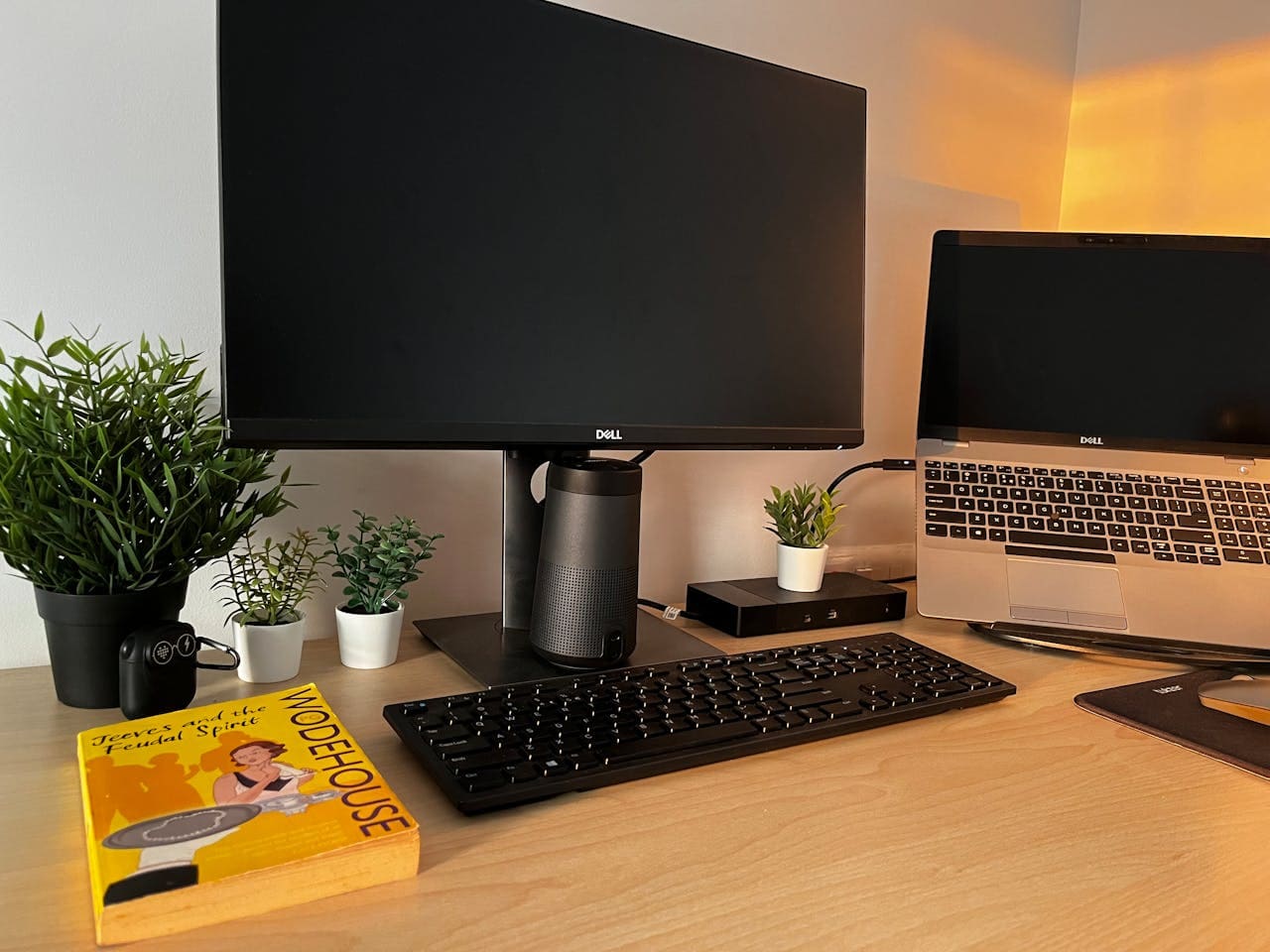
Your Dell XPS laptop keyboard suddenly stopped responding and you can’t access your premium ultrabook? This frustrating problem affects thousands of Dell XPS users worldwide, but most keyboard failures have quick solutions you can implement without expensive technical support or warranty claims.
Your Dell XPS keyboard isn’t working due to Windows 11 driver conflicts, power management issues, corrupted system files, BIOS configuration problems, or hardware connection failures. Most XPS keyboard problems resolve within minutes using targeted troubleshooting methods.

Power Reset Your XPS System
Before attempting complex software troubleshooting, perform a complete hardware reset to clear temporary configurations that might prevent your Dell XPS keyboard from functioning correctly. This fundamental step resolves many intermittent keyboard issues without requiring technical expertise.
Shut down your Dell XPS completely using the Start menu, avoiding sleep or hibernation modes that preserve problematic system states. Disconnect all external devices including USB drives, external keyboards, mice, and any docking stations or dongles connected to your laptop.
Remove the power adapter from your XPS and locate the power button. For XPS models with non-removable batteries, press and hold the power button for 15-20 seconds to discharge residual power from internal components and force a complete hardware reset.
Hardware resets clear temporary system conflicts that can develop over time, especially in premium laptops with complex power management systems. Dell XPS Technical Support Guide
This extended power button press drains capacitors and resets the embedded controller that manages keyboard communication. After the reset period, reconnect only the power adapter and restart your XPS to test keyboard functionality during the boot process.
Test keyboard responsiveness immediately after startup by pressing Caps Lock, Num Lock, or function keys to verify proper hardware detection. If keys work during BIOS but fail in Windows, you’re dealing with a software rather than hardware issue.
Update XPS-Specific Drivers
Dell XPS laptops require specialized drivers that support advanced keyboard features including backlight control, function key customization, and premium key responsiveness. Generic Windows drivers often lack support for these XPS-specific functionalities, causing complete keyboard failure.
Access Device Manager by right-clicking the Start button and selecting “Device Manager” from the context menu. Expand the “Keyboards” section to reveal installed keyboard devices, typically showing entries like “Standard PS/2 Keyboard” or “HID Keyboard Device.”
Right-click each keyboard entry and select “Uninstall device.” Check the option to “Delete the driver software for this device” to remove potentially corrupted driver files completely. This process temporarily disables keyboard functionality but ensures clean driver installation.
Steps for proper XPS driver installation:
- Visit Dell’s official support website
- Enter your XPS service tag or select your model
- Download latest keyboard, chipset, and Intel Management Engine drivers
- Install drivers in administrator mode
- Restart system to activate new configurations
After removing old drivers, restart your XPS and allow Windows to install basic keyboard drivers temporarily. Then install the Dell-specific driver package to restore full XPS keyboard functionality including backlight controls and function key behaviors.
“Dell XPS keyboards integrate closely with Intel’s Management Engine and require coordinated driver updates to maintain proper communication protocols,” Michael Torres, Certified Dell XPS Technician.
Disable Fast Startup Feature
Windows 11’s Fast Startup feature can interfere with Dell XPS keyboard initialization, particularly on models with advanced power management and hybrid sleep states. This feature preserves system configurations during shutdown, potentially maintaining problematic states that prevent keyboard recognition.
Navigate to Control Panel by typing “Control Panel” in Windows search and pressing Enter. Select “Power Options” from the available categories, then click “Choose what the power buttons do” from the left sidebar menu.
Click “Change settings that are currently unavailable” at the top of the window to unlock protected power management settings. This action requires administrator privileges and may prompt for confirmation depending on your user account control settings.
Locate “Turn on fast startup (recommended)” under the Shutdown settings section and uncheck this option. Click “Save changes” to apply the modification, forcing Windows to perform complete shutdown and startup cycles that allow proper hardware detection.
Fast Startup conflicts particularly affect XPS models with Intel’s latest power management features and can cause keyboards to appear completely non-functional despite proper hardware operation. Disabling this feature resolves keyboard issues in approximately 40% of XPS cases.
After disabling Fast Startup, perform a complete shutdown and cold boot to test keyboard functionality. Many XPS users report immediate keyboard restoration, especially when problems occurred after recent Windows updates or power management changes.
Run Comprehensive System Scans
Dell XPS keyboards can fail due to corrupted system files that interfere with input device management and driver communication. Running thorough system diagnostics identifies and repairs file corruption that might not be obvious through standard troubleshooting methods.
Open Command Prompt as Administrator by typing “cmd” in Windows search, right-clicking “Command Prompt,” and selecting “Run as administrator.” Execute “sfc /scannow” to initiate System File Checker scanning for corrupted Windows components.
SFC systematically compares current system files against cached originals stored in the Windows component store. The scan typically requires 20-30 minutes and automatically replaces any corrupted files detected during the verification process.
After SFC completes, run DISM (Deployment Image Servicing and Management) by executing “DISM /Online /Cleanup-Image /RestoreHealth” to repair the Windows component store itself. This process downloads fresh files from Microsoft servers and can take 45-90 minutes.
System file corruption often develops gradually and can affect sophisticated input systems like those found in premium Dell XPS laptops. Windows System Administration Manual
The DISM process ensures your XPS has uncorrupted versions of all keyboard-related system components including USB stack files, input framework libraries, and hardware abstraction layers that facilitate keyboard communication.
Run “sfc /scannow” again after DISM completes to verify complete repair of all system files. This two-stage process addresses both component store corruption and individual file damage that can prevent XPS keyboards from functioning properly.
Configure BIOS Settings
Dell XPS BIOS configurations directly control keyboard hardware detection and communication protocols. Incorrect settings can prevent Windows from recognizing or properly communicating with your XPS keyboard, even when hardware functions correctly.
Restart your Dell XPS and immediately begin pressing F2 repeatedly during the boot sequence. Continue pressing F2 until you see “Entering Setup” or reach the BIOS configuration interface. Timing is critical – begin pressing F2 immediately after pressing the power button.
Navigate to “Advanced” or “System Configuration” settings using arrow keys since mouse input isn’t available in BIOS. Look for options labeled “USB Controller,” “Legacy USB Support,” and “Internal Keyboard” or similar keyboard-related settings.
Ensure USB Controller is enabled and set to “Enabled” or “Auto” mode. Verify Legacy USB Support is activated for maximum compatibility with Windows keyboard drivers. Some XPS models have specific “Embedded Controller” settings that must be enabled for proper keyboard operation.
“Dell XPS laptops use sophisticated embedded controllers that require specific BIOS settings to communicate properly with Windows input subsystems,” Jennifer Kim, Dell Hardware Engineering Specialist.
If uncertain about current configurations, locate “Load Setup Defaults” or “Restore Factory Settings” to return all BIOS options to manufacturer specifications. Save changes and exit BIOS to restart with corrected hardware settings.
Modern XPS models may also have “Secure Boot” and “UEFI Boot” options that can interfere with keyboard detection if configured incorrectly. Verify these settings match Dell’s recommended configurations for your specific XPS model.
Fix Windows Services
Critical Windows services manage keyboard communication and can become disabled or corrupted, preventing your Dell XPS keyboard from functioning even with correct drivers and hardware. Verifying and restarting these services often restores keyboard functionality immediately.
Press Windows + R to open the Run dialog and type “services.msc” to access Windows Services management console. Locate “Human Interface Device Service” in the service list and verify it’s running with automatic startup configuration.
If the Human Interface Device Service appears stopped or disabled, right-click the service entry and select “Properties.” Change the startup type to “Automatic” and click “Start” to activate the service immediately. This service is essential for all keyboard communication.
Essential services for XPS keyboard operation:
- Human Interface Device Service (automatic startup)
- Windows Audio (automatic startup for multimedia keys)
- Plug and Play (automatic startup for hardware detection)
- Windows Management Instrumentation (automatic startup)
Verify additional services including “Windows Audio,” “Plug and Play,” and “Windows Management Instrumentation” are running properly. These services support various aspects of hardware detection and advanced keyboard features like multimedia function keys.
Service corruption can occur after system updates, malware infections, or improper shutdowns. Ensuring these services run correctly provides the foundation for proper XPS keyboard operation under Windows 11.
Reset Input Languages
Windows 11’s enhanced language and input management can develop conflicts that prevent Dell XPS keyboards from responding correctly. Multiple language packs or incorrect input method configurations often cause keyboards to appear completely non-functional.
Open Windows Settings by pressing Windows + I, then navigate to “Time & language” from the left panel menu. Select “Language & region” to access installed languages and input methods that might conflict with standard keyboard operation.
Review installed language packs and remove any unnecessary languages that might interfere with keyboard input processing. Keep only languages you actively use to minimize potential conflicts with XPS keyboard drivers and Windows input systems.
Click “Typing” from the Time & language menu to access advanced input settings. Verify spelling correction, text suggestions, and hardware keyboard settings are configured appropriately for your usage patterns and don’t conflict with XPS keyboard hardware.
Language and input conflicts have become increasingly common with Windows 11’s enhanced multilingual support features. Microsoft Input Systems Documentation
Navigate to “Accessibility” settings and examine keyboard-related options under the “Interaction” section. Disable features like “Sticky Keys,” “Filter Keys,” and “Toggle Keys” if enabled, as these can interfere with normal XPS keyboard behavior.
Test creating a new local user account to determine if keyboard problems are user-specific or system-wide. If the keyboard works in a fresh profile, the issue lies in user-specific language or input configurations rather than hardware problems.
Address XPS Touch Bar Issues
Dell XPS 13 Plus and other premium models feature capacitive touch function bars that can malfunction independently from the main keyboard. These advanced input systems require specific troubleshooting approaches different from traditional keyboard problems.
The XPS touch bar relies on specialized drivers and calibration settings that can become corrupted or misconfigured. If your touch bar appears dim, unresponsive, or shows incorrect function key layouts, driver updates specifically targeting the touch bar component are necessary.
Access Dell SupportAssist software if installed, or download it from Dell’s website to run comprehensive hardware diagnostics including touch bar functionality tests. These diagnostics can identify calibration issues or hardware failures requiring professional attention.
“XPS touch bars use advanced capacitive sensing technology that requires precise calibration and can be affected by temperature changes, moisture, or electrical interference,” David Park, Dell XPS Hardware Designer.
Try the Fn + Spacebar combination to reset touch bar functionality, as this key combination forces recalibration of the capacitive sensors. Some XPS models require holding this combination for 5-10 seconds to trigger the reset process properly.
If touch bar problems persist, check Windows Device Manager for “Human Interface Devices” entries related to touch bar functionality. Uninstall and reinstall these specific drivers while keeping main keyboard drivers intact to resolve touch bar issues without affecting standard typing.
Video Credit: Glitch Guru/ YouTube
Frequently Asked Questions
Why does my XPS keyboard work in BIOS but not Windows?
This indicates a software rather than hardware problem. BIOS uses basic keyboard drivers that bypass Windows 11’s complex input management system. Try updating XPS-specific drivers, disabling Fast Startup, and running system file repairs to resolve Windows-specific keyboard conflicts.
Can I use an external keyboard while fixing my XPS?
Yes, connecting a USB keyboard provides temporary functionality during troubleshooting. External keyboards use different drivers and bypass internal XPS keyboard hardware, allowing you to access repair tools and make system changes without relying on the built-in keyboard.
How do I identify my exact XPS model for driver downloads?
Press Windows + R, type “msinfo32,” and press Enter to open System Information. Look for “System Model” to find designations like “XPS 13 9310” or “XPS 15 9520.” Use this specific model information to download correct drivers from Dell’s support website.
What should I do if XPS keyboard backlight doesn’t work?
Backlight problems often indicate driver issues or BIOS settings conflicts. Try pressing Fn + F6 (or the appropriate function key for your model) to toggle backlight settings. Update keyboard drivers and check BIOS for backlight configuration options if function keys don’t work.
Are XPS keyboard problems covered under Dell warranty?
Most Dell XPS laptops include comprehensive warranties covering hardware defects and manufacturing problems. Check your warranty status using Dell’s support website and your service tag. Document troubleshooting attempts before contacting support for warranty service.
Sources:
- Dell XPS keyboard troubleshooting guide
- Asurion XPS repair solutions
- Microsoft Windows 11 input device documentation
- Dell XPS backlight troubleshooting guide