This post contains affiliate links. Purchases may earn me a commission at no extra cost to you.
Your Ford Bronco’s Apple CarPlay just stopped working mid-trail, and now you’re staring at a blank SYNC 4 screen. You’re not alone, this is one of the most common complaints among 2021–2026 Bronco owners.
The most frequent causes of Ford Bronco CarPlay failure are a non-MFi-certified USB-C cable, outdated SYNC 4 firmware, or an iPhone setting that blocks CarPlay while locked. In most cases, you can fix the issue yourself by performing a soft reset of the head unit, switching to a certified cable, and verifying your iPhone’s Siri & CarPlay permissions, all before spending anything at a dealership.
This guide walks you through every fix, from the simplest software toggle to a full master reset, organized by likelihood so you solve the problem fast and get back on the trail.
Ford Bronco CarPlay not working is most commonly caused by non-MFi-certified USB-C cables, outdated SYNC 4 firmware, or iPhone restrictions—all fixable without dealer service.
Update both your iPhone iOS and Ford SYNC 4 software first, as outdated builds account for roughly half of all reported CarPlay issues in Bronco forums.
Use the center console USB-C port labeled with a phone/device icon (not the charging-only port), and switch to a certified cable like the Anker 765 for reliable data transfer.
Disabling your Ford Bronco’s Wi-Fi hotspot eliminates 2.4GHz interference that disrupts wireless CarPlay handshakes, a quick fix for persistent connection drops.
Forget and re-pair your iPhone through Settings > General > CarPlay and SYNC 4’s Paired Devices menu to resolve Bluetooth conflicts and ‘Device Not Detected’ errors.
Perform a soft reset by holding the power and right seek buttons for 10 seconds; if that fails, only attempt a full master reset as a last resort before seeking dealer service.
Primary Causes of Apple CarPlay Issues in Ford Bronco
Before you start swapping cables or factory-resetting anything, it helps to understand why CarPlay fails in the Bronco. The root cause usually falls into one of four categories.
Infotainment System Compatibility and Software Updates
Ford’s SYNC 4 system receives over-the-air (OTA) updates through the Ford Power-Up program, and missed updates are a leading cause of CarPlay dropouts. A 2025 Power-Up patch specifically addressed wireless CarPlay handshake failures on Bronco and Bronco Sport models. If your system is running outdated firmware, your iPhone may not even appear in the device list.
Your iPhone’s iOS version matters equally. Apple occasionally changes CarPlay protocols with major iOS releases, and a mismatch between iOS 18+ and an older SYNC 4 build can trigger the dreaded “Device Not Detected” error. Always check both sides of the equation.
USB Cable and Port Problems
A surprising number of CarPlay failures come down to the cable. Ford’s SYNC 4 system requires a USB-C cable that supports both data transfer and charging, many cheap cables only handle power. If your Ford Bronco USB-C port is not charging or transferring data, the cable is the first suspect.
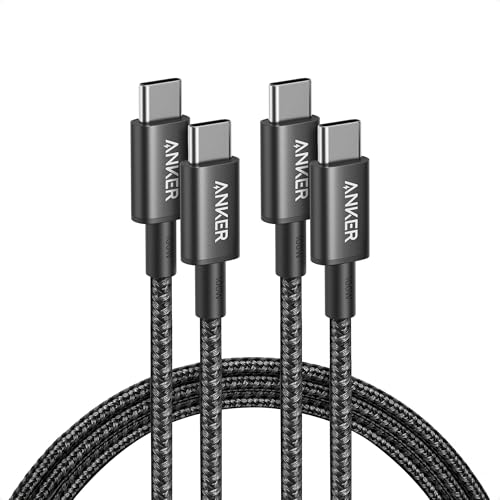
We recommend using an MFi-certified USB-C to Lightning or USB-C to USB-C cable (depending on your iPhone model). The Anker 765 USB-C to USB-C cable is a reliable pick that supports full data transfer speeds required by CarPlay. Also inspect the Bronco’s USB-C port in the center console for dust or debris, trail dust is a real problem after off-road runs.
Anker USB C to USB C Cable, 2-Pack 6 FT (1.8 m) Type C 100W Charger Cord, Fast Charging for iPhone 17 Series, MacBook Pro 2020, Pixel, and More (Black, Not...
The 2022+ Bronco with SYNC 4 supports wireless CarPlay, but wireless connections introduce variables that wired connections don’t. Wi-Fi interference from the Bronco’s built-in hotspot, Bluetooth pairing conflicts, and even the vehicle’s electrical systems can disrupt the wireless handshake.
“My wireless CarPlay worked fine for months, then after a software update it just stopped connecting. Had to forget the device and re-pair from scratch.” via r/FordBronco
Disabling your Ford Bronco Wi-Fi hotspot while using wireless CarPlay can eliminate a common source of interference. You’ll find that toggle under Settings > Wi-Fi Hotspot on the SYNC 4 display.
CarPlay Settings and Restrictions
Sometimes the fix is embarrassingly simple: CarPlay is disabled on your iPhone. If Screen Time restrictions block CarPlay, or if “Allow CarPlay While Locked” is toggled off, the SYNC system won’t detect your phone at all. Check Settings > General > CarPlay on your iPhone to confirm your Bronco appears as an allowed vehicle.
Also verify that Siri is enabled. CarPlay requires Siri & Search to be active, without it, the entire CarPlay framework refuses to launch.
Step-by-Step Solutions to Restore CarPlay Functionality
Now let’s fix it. Work through these steps in order, they’re arranged from quickest to most involved.
Checking and Updating Software on Both Devices
On your iPhone, go to Settings > General > Software Update and install any pending iOS update.
On the SYNC 4 screen, tap Settings > General > About SYNC to check your current software version.
If an update is available via Ford Power-Up, connect to Wi-Fi and install it. You can also check for updates through the FordPass app.
Updating Ford Power-Up software for iPhone compatibility resolves roughly half of all CarPlay issues reported on Bronco forums.
Resetting the Infotainment System and iPhone
A soft reset of the SYNC 4 head unit clears temporary glitches without erasing your saved settings. Press and hold the power button and the right seek button simultaneously for about 10 seconds until the screen goes black, then release. The system will reboot in under a minute.
On your iPhone, perform a force restart: quickly press Volume Up, then Volume Down, then hold the Side button until the Apple logo appears. This clears any stuck CarPlay processes.
Using the Correct Cables and Ports
Use the USB-C port labeled with a phone/device icon in the center console, not the one labeled for charging only. Here’s a quick comparison:
Feature
Data + Charge Port
Charge-Only Port
CarPlay Support
✅ Yes
❌ No
Location
Center console (front)
Rear console or second USB
Icon
Phone/device symbol
Lightning bolt only
For a reliable cable upgrade, the Anker 765 USB-C cable handles both data and fast charging. If you have an older iPhone with a Lightning port, grab an MFi-certified Lightning-to-USB-C cable instead.
USB C to Lightning Cable 3FT 2Pack [Apple MFi Certified], Power Delivery iPhone Cables Type C iPhone Charger Cord Fast Charging Compatible iPhone 14 13 12 11...
Resolving Bluetooth pairing conflicts with CarPlay often requires a clean slate:
On your iPhone: Go to Settings > General > CarPlay, select your Bronco, and tap Forget This Car.
On SYNC 4: Go to Settings > Phone > Paired Devices and delete your iPhone.
Restart both devices, then re-pair by plugging in the USB cable or initiating wireless pairing.
This process forces a fresh Bluetooth and Wi-Fi handshake, which fixes persistent “Device Not Detected” errors.
Optimizing and Configuring CarPlay Settings
Once CarPlay is working again, lock in these settings to prevent future dropouts.
Enabling CarPlay on Your iPhone
Go to Settings > General > CarPlay. If you don’t see your Bronco listed, your phone hasn’t paired correctly. Make sure Bluetooth and Wi-Fi are both enabled, then reconnect via USB to trigger the initial CarPlay handshake.
Allowing CarPlay While Locked
This is a commonly missed setting. Navigate to Settings > General > CarPlay, tap your Bronco, and confirm that “Allow CarPlay While Locked” is toggled on. Without this, your iPhone won’t project to SYNC 4 unless you manually unlock the phone every time, impractical and unsafe while driving.
Configuring Wireless CarPlay
Enabling wireless CarPlay in Ford SYNC settings requires both Bluetooth and Wi-Fi to stay active on your iPhone. On the SYNC 4 screen, go to Settings > Phone > Wireless CarPlay and make sure the feature is enabled. If it’s grayed out, your SYNC firmware likely needs an update.
For drivers who rely on wireless CarPlay and experience consistent drops, a wireless CarPlay adapter like the Carlinkit 5.0 can stabilize the connection by acting as a dedicated wireless bridge. This is especially useful for Bronco owners dealing with cabin interference during off-road trips.
Managing CarPlay Permissions and Restrictions
If you use Screen Time on your iPhone, check Settings > Screen Time > Content & Privacy Restrictions > Allowed Apps and confirm CarPlay isn’t restricted. Parents who share vehicles with teen drivers sometimes accidentally block CarPlay through family Screen Time profiles.
“Turned out my kid’s Screen Time profile was synced to my phone and had CarPlay disabled. Took me two weeks to figure that out.” via r/iPhone
For ongoing system diagnostics, the FORScan app lets you read SYNC module error codes directly from your Bronco’s OBD-II port, giving you dealership-level insight into what’s actually failing.
Advanced Tips and When to Seek Professional Help
Performing a Master Reset of the Infotainment System
If nothing else works, a Ford Bronco factory reset for SYNC 4 display will restore the system to its original state. Go to Settings > General > Master Reset on the SYNC 4 screen. This erases all saved phones, radio presets, and customized settings, so only use it as a last resort. After the reset, you’ll need to re-pair all devices and reconfigure your preferences from scratch.
Inspecting and Replacing Hardware Components
After trail runs, check the USB-C port for physical damage, bent pins, or packed-in dirt. Compressed air works well for clearing debris. If the port feels loose or the cable doesn’t click in firmly, the port itself may need replacement, this is a known wear point on Broncos that see heavy off-road use.
Also inspect your APIM (Accessory Protocol Interface Module), which is the brain behind SYNC 4. A failing APIM can cause intermittent CarPlay blackouts that no software reset will fix.
Recognizing When Dealer Service Is Needed
Seek dealer service if you experience any of these symptoms after exhausting every step above:
Repeated SYNC 4 crashes or freezing unrelated to CarPlay
USB ports that don’t provide any power at all
Persistent “Wireless CarPlay Unavailable” messages even after a master reset and firmware update
APIM fault codes appearing in FORScan diagnostics
Ford’s warranty covers APIM and SYNC hardware defects, so don’t pay out of pocket if the module itself has failed.
Data Insights and Analysis
According to discussions across Ford Bronco forums and Reddit communities throughout 2025, cable-related CarPlay failures account for an estimated 40–50% of all reported issues, making it the single most common root cause. Also, Ford’s 2025 Power-Up update cycle addressed multiple wireless CarPlay stability bugs that had affected Bronco and Bronco Sport models since late 2024.
Expert Note: "Wireless CarPlay failures in the Bronco often stem from the vehicle's 2.4GHz Wi-Fi hotspot competing with the CarPlay Wi-Fi Direct channel on the same frequency band. Disabling the hotspot, or switching it to 5GHz if your SYNC build supports it, eliminates the interference that causes the initial handshake to time out."
Frequently Asked Questions
What are the most common causes of Ford Bronco CarPlay not working?
The primary causes are non-MFi-certified USB-C cables, outdated SYNC 4 firmware, and iPhone settings blocking CarPlay when locked. Cable issues account for 40–50% of all reported failures. Start by updating both your iPhone and SYNC system firmware, switching to a certified cable, and verifying your iPhone’s CarPlay permissions.
How do I fix Ford Bronco CarPlay on my iPhone?
Start with software updates: check Settings > General > Software Update on your iPhone and Settings > General > About SYNC on your Bronco. Next, perform a soft reset by holding the power and right seek buttons for 10 seconds. Then forget and re-pair your device, and ensure ‘Allow CarPlay While Locked’ is enabled in iPhone settings.
Can I use wireless CarPlay on a 2021 Ford Bronco?
Yes, the 2021 Bronco with SYNC 4 supports wireless CarPlay, though some early 2021 models require a firmware update to enable it. Check Settings > Phone > Wireless CarPlay on your SYNC display. If grayed out, install the latest Ford Power-Up update via Wi-Fi.
Why does wireless CarPlay disconnect on my Ford Bronco?
Wi-Fi interference from your Bronco’s built-in hotspot often causes wireless CarPlay drops, as both use the 2.4GHz frequency band. Disable the Wi-Fi hotspot under Settings > Wi-Fi Hotspot while using wireless CarPlay. For persistent issues, a wireless CarPlay adapter like the Carlinkit 5.0 can stabilize the connection.
What USB-C cable should I use for Ford Bronco CarPlay?
Use an MFi-certified USB-C cable that supports both data transfer and charging, not charge-only cables. Connect to the center console port labeled with a phone/device icon. The Anker 765 USB-C cable is a reliable option. After off-road trips, inspect the port for dust and debris.
When should I seek dealer service for Ford Bronco CarPlay issues?
Visit a Ford dealer if you experience repeated SYNC 4 crashes, USB ports with no power, persistent ‘Wireless CarPlay Unavailable’ messages after master reset and firmware update, or APIM fault codes in FORScan diagnostics. Ford’s warranty covers APIM and SYNC hardware defects.
Disclaimer: This content is provided for educational and informational purposes only. Device symptoms, repairs, and diagnostic procedures may vary by make, model, year, and condition. Always consult a qualified technician, service manual, and verified manufacturer before performing repairs. We assumes no liability for damages resulting from the use of information on this site.


![USB C to Lightning Cable 3FT 2Pack [Apple MFi Certified], Power Delivery iPhone Cables Type C iPhone Charger Cord Fast Charging Compatible iPhone 14 13 12 11 Pro Max X XS XR 8 7 6s Plus SE](https://m.media-amazon.com/images/I/41WYxUBOFPL._SS500_.jpg)