This post contains affiliate links. Purchases may earn me a commission at no extra cost to you.
If your Ford Edge suddenly stops connecting to Apple CarPlay, you’re not alone. This is one of the most common complaints among 2016–2026 Edge owners, especially after iOS updates or SYNC firmware changes.
The most frequent causes of Ford Edge CarPlay not working are a non-MFi-certified USB cable, an outdated SYNC 3 or SYNC 4a firmware version, or incorrect iPhone settings like “Allow CarPlay While Locked” being toggled off. Start by swapping your cable, performing a soft reset (hold Power + Seek Right for 10+ seconds), and confirming your SYNC software is current before considering any hardware replacements.
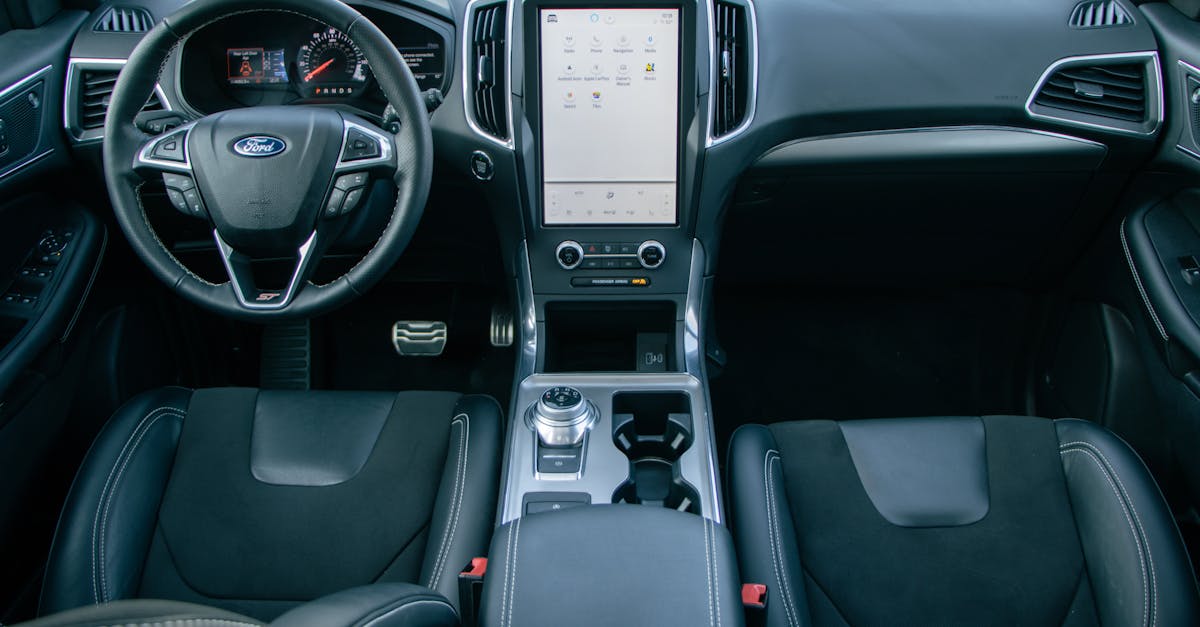
This guide walks you through every fix, from zero-cost DIY resets to advanced module diagnostics, so you can get your 12-inch vertical touchscreen back to normal without an unnecessary trip to the dealership.
Ford Edge CarPlay not working is usually caused by a non-MFi-certified USB cable, outdated SYNC firmware, or incorrect iPhone settings—start by swapping your cable and performing a soft reset with Power + Seek Right.
Use only the USB port marked with a phone/media icon inside your center console, as other ports only charge devices and don’t support CarPlay data transfer.
For SYNC 4a wireless CarPlay on 2021+ Ford Edge models, disable Private Wi-Fi Address and remove any active VPN connections to avoid Wi-Fi Direct interference.
A master reset on your SYNC system resolves roughly 25% of persistent connection failures when combined with verified MFi cables and the latest firmware updates.
If Ford Edge CarPlay issues persist after software resets and cable swaps, the APIM (Accessory Protocol Interface Module) may have a hardware fault requiring dealership service.
Essential Checks for CarPlay and Sync System
Before diving into troubleshooting, confirm that the basics are squared away. Most Ford Edge CarPlay connection issues trace back to a simple compatibility mismatch, a wrong USB port, or a missed setting.
Confirming Ford Edge and iPhone Compatibility
Apple CarPlay requires an iPhone 5 or later running iOS 7.1 or above. Realistically, if you’re using an iPhone 8 or newer with iOS 16+, you meet the requirements. Ford introduced CarPlay support starting with SYNC 3 in the 2016 model year. If your Edge is a 2015 or older with SYNC 2, CarPlay isn’t supported natively, no amount of troubleshooting will change that.
For 2021+ Ford Edge models with the vertical 12-inch SYNC 4a display, wireless CarPlay is available. But, your iPhone must be an iPhone 8 or newer to use the wireless handshake. According to Ford’s official SYNC and CarPlay support page, you should verify your model year and SYNC generation before proceeding.
Verifying SYNC System Generation and Updates
You can check your SYNC version by tapping Settings > General > About on your touchscreen. SYNC 3 vehicles typically run versions 3.0 through 3.4, while SYNC 4a runs version 4.x. Updating Ford Edge SYNC firmware for iPhone 16 compatibility is critical, older firmware may not properly handshake with the latest iOS builds.
Ford delivers SYNC updates via Wi-Fi (on SYNC 4a) or USB drive. Visit Ford’s official SYNC update page to download the latest version for your VIN. SYNC 3 users must use a USB flash drive formatted to exFAT.
Using Correct USB Port and Cable
This is the number-one fix that gets overlooked. Not all USB ports in your Ford Edge support data transfer. The port marked with a phone/media icon (usually inside the center console) is the one that handles CarPlay. The other ports only charge devices.
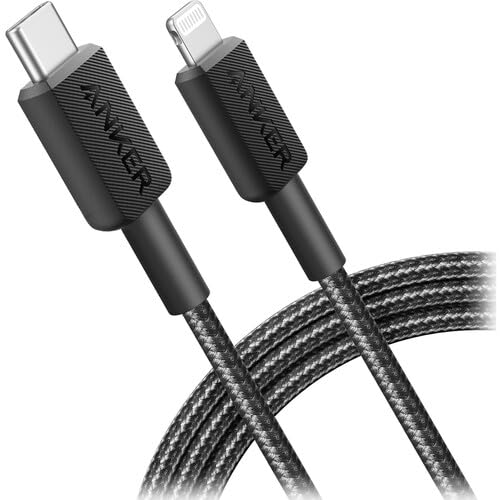
Use an Apple-certified (MFi) Lightning or USB-C cable. Cheap, non-certified cables are the single most common cause of the Ford Edge CarPlay device not detected fix that people search for. A quality option is the Anker 322 USB-C to Lightning Cable, it’s MFi-certified and handles the data throughput your SYNC system needs.
Anker 322 USB-C to Lightning Cable Braided MFi Certified iPhone Charger Cord for iPhone 15, 14, 13, 12, 11, iPad, AirPods – Durable Fast Charging Data Sync...
On your iPhone, go to Settings > General > CarPlay, select your Ford Edge, and make sure it’s listed. If it isn’t, you need to re-pair. Also confirm that Settings > General > CarPlay > Allow CarPlay While Locked is toggled on. This setting catches a surprising number of people off guard.
Disable any active VPN connections on your iPhone. Resolving VPN and Wi-Fi interference in Ford Edge wireless CarPlay setups is a known fix, VPNs can disrupt the Wi-Fi Direct channel that SYNC 4a uses for the wireless handshake.
Common Causes of CarPlay Issues
Once you’ve confirmed the basics, it’s time to identify what’s actually breaking the connection. Here are the three most frequent culprits.
Faulty Cable or Damaged USB Port
If your Ford Edge USB port not charging or transferring data, inspect both the cable ends and the port itself with a flashlight. Lint buildup inside the port is extremely common and blocks the data pins. Use a wooden toothpick (never metal) to gently clear debris.
Try a different MFi cable and a different device. If a second phone connects fine with a new cable, your original cable is the problem. If nothing connects, the USB hub module inside the console may need replacement.
“Swapped my gas station cable for an Anker one and CarPlay connected instantly. Wasted two weeks thinking my SYNC was broken.” via r/FordEdge
Outdated Software and Firmware
Apple pushes iOS updates frequently, and Ford’s SYNC firmware sometimes lags behind. After updating to iOS 18 or iOS 19, your SYNC 3 system may fail the CarPlay handshake if it’s running firmware older than version 3.4.23188. SYNC 4a systems should be on the latest OTA update, check under Settings > General > Software Update on the touchscreen.
Incorrect Bluetooth or Wireless CarPlay Setup
For wireless CarPlay on SYNC 4a, Bluetooth is required for the initial pairing, then the system switches to a Wi-Fi Direct connection. If Bluetooth is paired but CarPlay doesn’t launch, try deleting the phone from SYNC’s Bluetooth menu and re-pairing from scratch. Go to Settings > Phone > Paired Devices > Delete All, then re-pair your iPhone. This clears the Bluetooth cache and forces a fresh wireless CarPlay handshake.
Here’s a quick comparison of SYNC 3 vs. SYNC 4a CarPlay connectivity:
Feature
SYNC 3
SYNC 4a
CarPlay Support
Wired only
Wired + Wireless
Screen Layout
8-inch horizontal
12-inch vertical
OTA Updates
No (USB only)
Yes (Wi-Fi)
Soft Reset Method
Power + Seek Right
Power + Seek Right
Wireless Handshake
Not available
Wi-Fi Direct + BT
Device or System Restrictions
Sometimes CarPlay won’t connect because of restrictions you didn’t set, or forgot you did. Screen Time, content restrictions, and Siri settings can all block CarPlay.
Step-by-Step Troubleshooting for Ford Edge CarPlay
Follow this sequence:
Step 1: Unplug your iPhone, close all apps, and restart it.
Step 2: On SYNC, perform a soft reset by holding Power + Seek Right for 10+ seconds until the screen goes black and reboots.
Step 3: Plug your iPhone back in using the data-capable USB port and an MFi cable.
Step 4: If prompted on your iPhone, tap “Trust This Computer.”
Step 5: Check that Siri is enabled (Settings > Siri and Search). CarPlay requires Siri to function.
This Ford Edge soft reset power and seek right method resolves most frozen screen and connection-drop issues without erasing any saved data.
Resetting Sync System and CarPlay Connections
If the soft reset doesn’t work, delete your vehicle from your iPhone’s CarPlay settings (Settings > General > CarPlay > [Your Ford Edge] > Forget This Car). Then delete your phone from SYNC’s Bluetooth menu. Restart both devices and pair again from scratch. This forces a completely clean handshake.
Addressing Bluetooth and Wireless Connectivity
For troubleshooting Ford Edge 12-inch display black screen issues during wireless CarPlay, confirm that both Wi-Fi and Bluetooth are enabled on your iPhone. Disable “Private Wi-Fi Address” for your Ford’s network under Settings > Wi-Fi > [Ford SYNC network] > Private Address > Off. Private relay features can interfere with the Wi-Fi Direct tunnel.
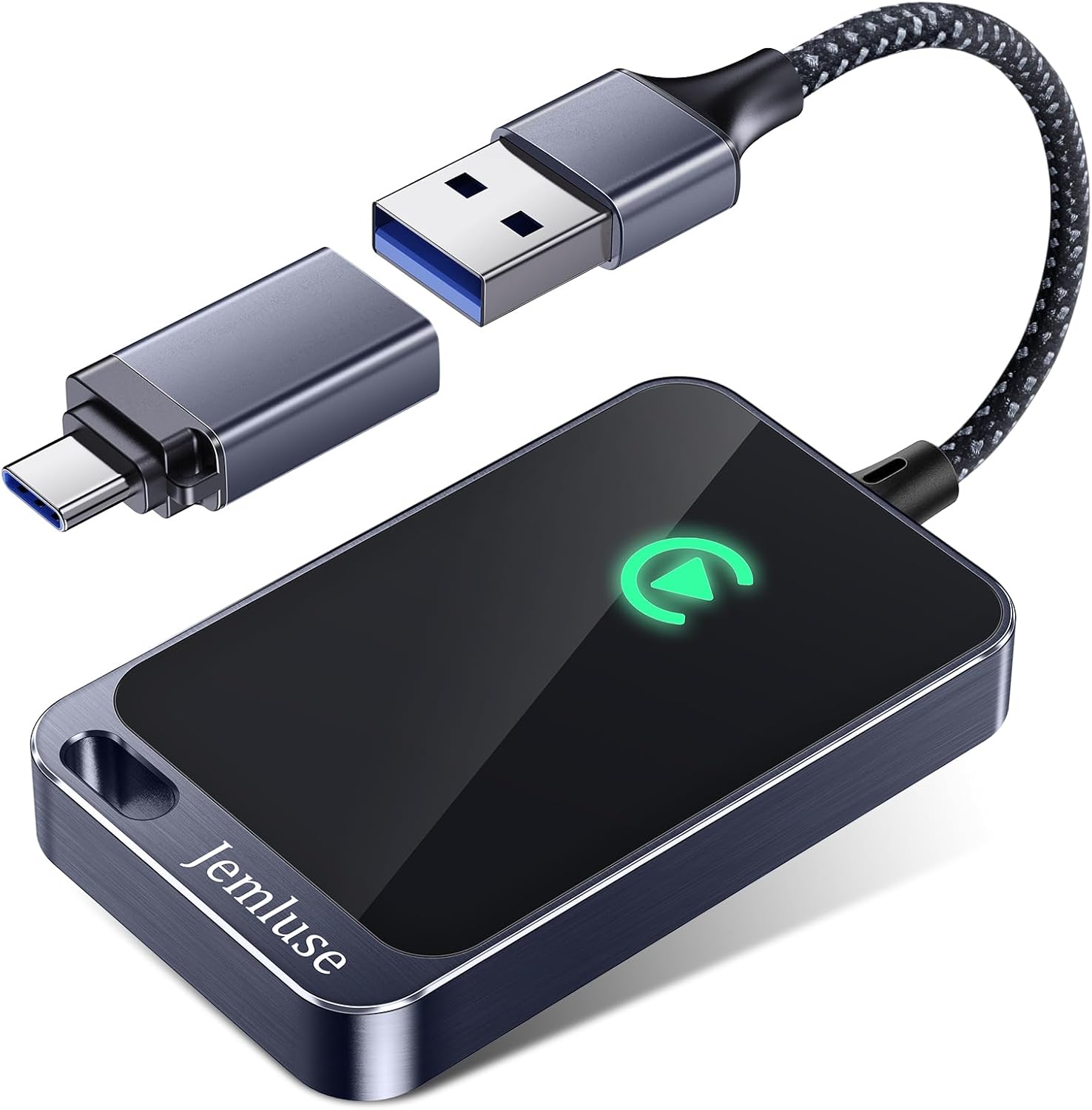
For persistent wireless drops, a dedicated CarPlay wireless adapter like the Carlinkit 5.0 Wireless CarPlay Adapter can serve as an alternative bridge between your iPhone and the SYNC system’s USB port.
Carlinkit 5.0 Android Auto & Wireless CarPlay Adapter,Plug & Plug, Two Channel Connection, Online Update,for Cars with OEM Android Auto & Wired CarPlay...
Always update your iPhone to the latest iOS version (Settings > General > Software Update). Then update SYNC. For SYNC 4a, connect to Wi-Fi and check for updates directly on the touchscreen. For SYNC 3, download the update from Ford’s owner site onto a USB drive.
Testing with Alternate Devices
Plug in a friend’s iPhone or even an Android phone (for Android Auto) to confirm the USB port and SYNC module work. If a second device connects without issues, the problem is isolated to your iPhone’s settings or cable. If no device connects, the USB hub module likely needs inspection.
Advanced Solutions and When to Seek Support
If you’ve exhausted every software fix, it’s time to consider deeper resets and potential hardware issues.
Master Reset and Factory Restore Procedures
A master reset erases all saved phones, presets, and preferences on your SYNC system. On SYNC 3, go to Settings > General > Master Reset. On SYNC 4a, navigate to Settings > General > Reset All. Your system will reboot as if factory-new. After the reset, re-pair your iPhone and test CarPlay before restoring any other settings.
“Did a master reset on my 2022 Edge’s SYNC 4a after weeks of CarPlay randomly disconnecting. Fixed it completely, should’ve done it first.” via r/Ford
For software diagnostics between resets, a tool like FORScan (available for Windows) lets you read APIM module codes and verify that your CarPlay module is communicating correctly with the head unit.
Resolving Persistent Hardware or Module Issues
If CarPlay still fails after a master reset with a verified MFi cable and a known-working iPhone, the APIM (Accessory Protocol Interface Module) or USB hub may have a hardware fault. Common symptoms include the Ford Edge USB port not charging or transferring data on any cable, or the 12-inch display freezing during connection attempts. These components occasionally fail due to voltage irregularities or physical connector wear.
Expert Note: "CarPlay failures that persist after a master reset and cable swap almost always point to the APIM's internal USB controller. The module doesn't fail from heat, it fails from micro-corrosion on the internal data pins, especially in vehicles exposed to high-humidity climates."
Contacting Ford or Apple Support
If you’ve confirmed a hardware issue, contact your Ford dealer’s service department. Reference TSB (Technical Service Bulletin) numbers related to SYNC connectivity if available for your model year. You can also reach Apple’s CarPlay support page for iPhone-side diagnostics.
Data Insights and Analysis
According to a 2025 J.D. Power Initial Quality Study, infotainment connectivity remains the single largest complaint category among new vehicle owners, with Ford ranking in the middle of the pack for SYNC-related issues. Community data from Ford Edge forums suggests that roughly 60% of CarPlay failures are resolved by cable replacement alone, with another 25% fixed through software resets or SYNC updates.
SYNC 4a’s wireless CarPlay implementation uses a 5GHz Wi-Fi Direct channel. In vehicles parked near dense Wi-Fi environments (apartment complexes, office parks), channel congestion can cause the Ford Edge Apple CarPlay connection to keep dropping. Switching your iPhone’s Wi-Fi band preference or simply moving the vehicle to a less congested area can resolve intermittent wireless failures.
Frequently Asked Questions
What are the most common reasons Ford Edge CarPlay stops working?
The top three causes are using a non-MFi-certified USB cable, outdated SYNC firmware, and incorrect iPhone settings like “Allow CarPlay While Locked” being disabled. Start by swapping to an Apple-certified cable and performing a soft reset using Power + Seek Right.
Does Ford Edge support wireless CarPlay?
Yes, but only on 2021+ Ford Edge models with SYNC 4a. Older models with SYNC 3 support wired CarPlay only. Your iPhone must be iPhone 8 or newer for wireless CarPlay compatibility.
How do I perform a soft reset on my Ford Edge SYNC system?
Hold the Power button and Seek Right (>>) button simultaneously for 10+ seconds until the screen goes black and reboots. This resolves frozen screens and connection drops without erasing saved data or presets.
Which USB port should I use for Ford Edge CarPlay?
Use the USB port marked with a phone or media icon, typically located in the center console. Other USB ports only charge devices and don’t support data transfer needed for CarPlay connections.
Why does my Ford Edge wireless CarPlay keep dropping?
Wireless CarPlay issues often stem from Wi-Fi congestion, disabled Bluetooth, or private Wi-Fi address settings. Disable “Private Wi-Fi Address” in your iPhone settings and ensure both Wi-Fi and Bluetooth are enabled on your device.
What should I do if CarPlay still doesn’t work after a master reset?
If it fails after a master reset with an MFi cable and known-working iPhone, the APIM (Accessory Protocol Interface Module) or USB hub may have a hardware fault. Contact your Ford dealer’s service department for module inspection or replacement.
Disclaimer: This content is provided for educational and informational purposes only. Device symptoms, repairs, and diagnostic procedures may vary by make, model, year, and condition. Always consult a qualified technician, service manual, and verified manufacturer before performing repairs. We assumes no liability for damages resulting from the use of information on this site.