
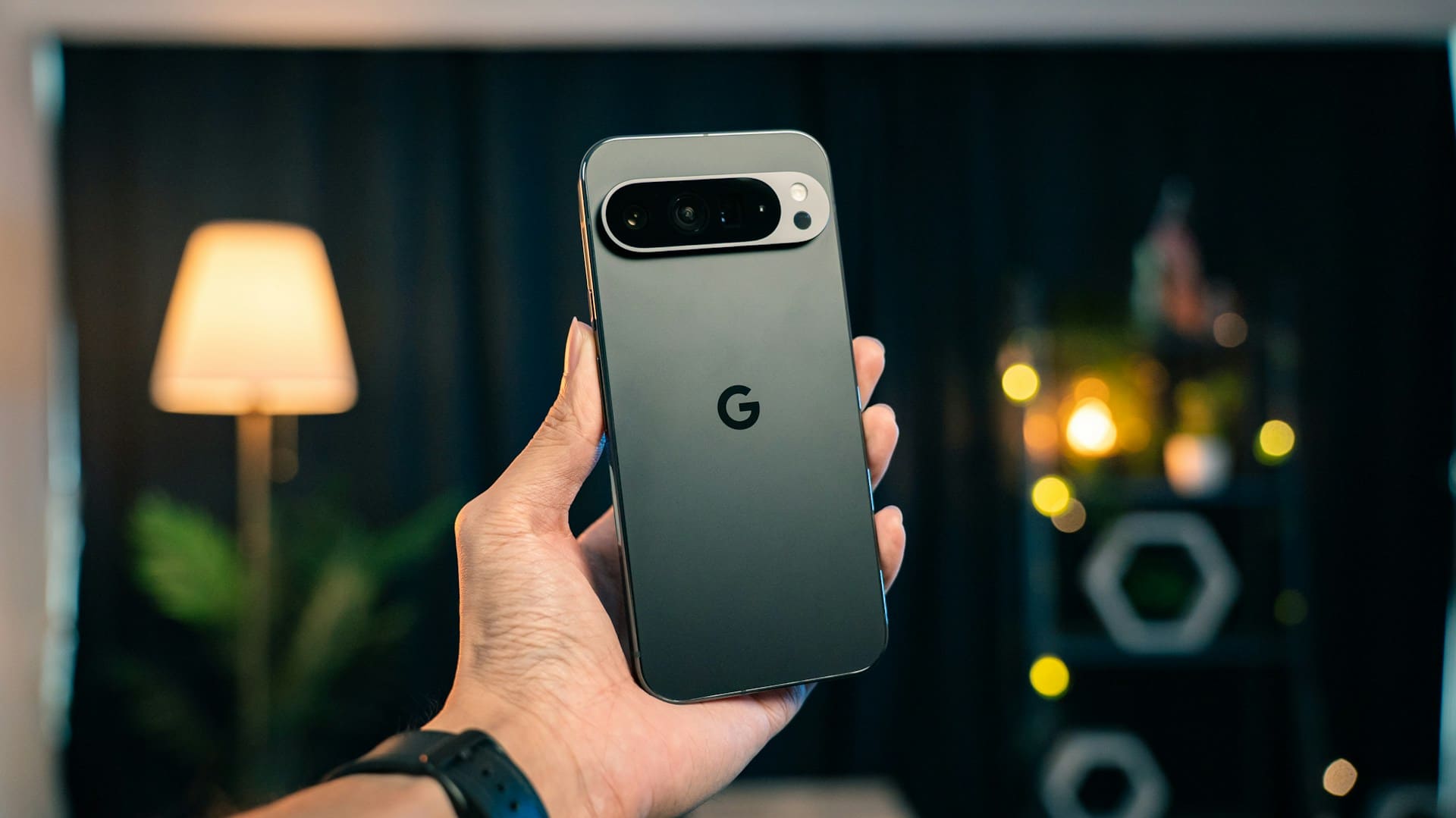
If your Google Pixel is not charging, it can disrupt your daily routine and cause frustration. The most common reasons include a faulty cable or charger, debris in the charging port, software glitches, or hardware problems.
Identifying the exact cause is key to restoring reliable charging and extending your phone’s lifespan. You can start by inspecting your charging accessories and cleaning out the USB-C port carefully.
Sometimes, a simple forced restart or trying a different, compatible charger can resolve the issue without needing professional help. Understanding these steps will help you troubleshoot effectively and avoid unnecessary repairs.

Core Causes of Google Pixel Not Charging
When your Google Pixel won’t charge, the cause often lies in hardware, software, or the power supply you’re using. Identifying the exact source will help you address the problem efficiently and avoid unnecessary replacements or repairs.
Hardware-Related Issues
Your charging cable and the phone’s charging port are common hardware components that may cause charging failure. A damaged or frayed charging cable often results in slow or no charging.
Inspect the cable for visible wear or breaks. The charging port on your Pixel can accumulate dust, lint, or debris, blocking the connection and preventing power transfer.
Check and clean the port carefully with a soft brush or compressed air. Sometimes, internal hardware like the battery or the charging circuitry can malfunction.
Battery degradation over time reduces its ability to hold a charge. If you experience erratic charging or sudden drops in battery percentage, a battery replacement might be necessary.
Faulty hardware issues typically require professional repair or replacement parts designed for your Pixel model.
Software Glitches and Updates
Software glitches can disrupt the charging process, especially after system updates. If your Pixel suddenly won’t charge, a recent software update might be the culprit.
Buggy or incomplete updates sometimes cause conflicts in power management settings. You can try restarting your device to resolve minor glitches.
In some cases, booting into safe mode helps determine if third-party apps interfere with charging. If the problem persists, checking for new software updates can fix bugs introduced earlier.
Resetting your phone’s cache or performing a factory reset are more advanced steps, but should be done carefully to avoid data loss.
Power Source and Adapter Problems
The power adapter and source also significantly impact charging. Not all USB power adapters and cables are fully compatible with Google Pixel phones.
Using a third-party or damaged charger may trigger a “Check charging accessory” warning or slow charging. To avoid this, always use a charger and cable certified for your Pixel.
Test charging with another adapter and power outlet to rule out outlet or adapter failure. USB power adapters vary in output voltage and current—using an adapter with insufficient power will result in very slow or no charging.
For detailed steps to identify and fix power source issues, you can consult guides on fixing Google Pixel not charging.
Step-by-Step Troubleshooting Solutions
Start by focusing on physical components before moving to software. You will check the charging port, cables, and adapters, then apply software fixes if needed.
Alternative charging methods can help identify where the problem lies.
Clean and Inspect the Charging Port
Dirt, lint, or debris in your Pixel’s charging port can block the cable connection. Use a flashlight to carefully examine the port for visible obstructions.
Avoid pushing anything too deep or using metal objects that could damage the contacts. Gently clean the port with a non-metallic tool like a toothpick or a small soft brush.
Compressed air can also remove loose particles. Inspect the port for any signs of damage, such as bent pins or corrosion, which may require professional repair.
Regular cleaning prevents charging issues and ensures your Google Pixel maintains a solid physical connection with the charger.
Test Charging Cables and Power Adapter
Your charging cable or power adapter may be faulty—try using different, compatible ones to identify the cause. Google Pixel phones only support specific power adapters and USB cables, so third-party chargers may not work correctly.
Connect your Pixel with an original or manufacturer-approved charger and cable. Check if the phone recognizes the charger or shows a “Check charging accessory” notification.
If the phone charges normally with other accessories, the original cable or adapter is likely defective. Also, inspect cables for visible signs of wear, fraying, or bent connectors.
Damaged cables frequently cause slow or no charging.
Perform a Force Restart and Software Update
Software glitches sometimes block charging. Performing a force restart can fix minor bugs.
Hold the power button and volume down button simultaneously for about 10–15 seconds until the phone restarts. Next, check for system updates.
Go to Settings > System > System update. Installing the latest software can resolve known charging issues and improve power management.
Ensure your Pixel’s battery optimization settings don’t restrict charging functions. If your Pixel won’t start after connecting to charge, combining a force restart with a software update often restores normal operation.
Try Alternative Charging Methods
If standard charging isn’t working, try wireless charging if your Pixel supports it. Place the device on a compatible wireless charger to determine if the wired port is the issue.
You can also attempt charging by connecting your Pixel to a computer via USB. This method may charge slowly but helps check if the phone recognizes any power source.
Experimenting with these alternatives helps isolate whether the issue lies in hardware (cables, ports, adapters) or software. For detailed guides on checking and switching charging accessories, consult troubleshooting resources like Google’s support page.
Wireless Charging and Fast Charging Considerations
When charging your Google Pixel, understanding compatibility, settings, and troubleshooting for wireless and fast charging is crucial to ensure optimal performance. Proper alignment, charger type, and software settings all influence charging speed and efficiency.
Wireless Charging Compatibility
Your Google Pixel supports Qi wireless charging, but not all wireless chargers charge at the same speed. To achieve the best results, use chargers designed specifically for Pixel devices or those with similar power output standards.
Avoid cheap or low-power chargers, as they may cause slow or intermittent charging. Remove bulky or metal cases when using wireless charging, as these can obstruct the connection or generate excess heat.
Keep your Pixel away from direct heat sources to prevent overheating, which can slow down charging or temporarily stop it. Wireless charging pads with built-in coils positioned improperly can cause inconsistent charging.
Align your phone carefully with the charger coils to maintain a steady connection. If your Pixel stops charging wirelessly, check compatibility and positioning before testing other solutions.
Fast Charging Settings
Your Pixel uses adaptive fast charging when connected to a compatible charger and cable. To activate or optimize this, make sure you use the official Google Pixel charger or a certified fast charger supporting USB Power Delivery (USB-PD).
Check your settings under Battery options to confirm that Adaptive Charging or Battery Saver modes are not limiting charging speed. Disabling Adaptive Charging can help if your device is stuck below a certain charge percentage or charging slower than expected.
You can speed up wired charging temporarily by using chargers with higher wattage, though prolonged use of fast chargers might affect long-term battery health.
Troubleshooting Wireless Charging
If wireless charging is slow or unreliable, start by checking for dust or debris on both your Pixel’s back and the wireless charger surface. Clean both with a soft cloth.
Overheating is a common cause. Let your phone cool down if it feels hot during charging.
Remove the case and move your phone off heat sources. Software glitches can disrupt charging.
Restart your device or update the system software to fix bugs related to wireless charging. If problems continue, try a different wireless charger known to be compatible with Pixel phones, or test wired charging to isolate the issue.
For deeper issues, consulting specialized repair guides or contacting Google support can help resolve persistent wireless charging problems.
Learn more about fixing slow wireless charging on Pixel phones at Google Help.
Preventive Measures and When to Seek Professional Help
Maintaining your Google Pixel’s charging functionality requires attention to the accessories you use and care for the charging port. Taking these practical steps can help avoid damage and ensure smooth charging for your device.
However, some situations will call for expert assistance when fixes on your own aren’t enough.
Proper Accessory and Charger Usage
Use only certified charging cables and power adapters designed for your Google Pixel model, such as those compatible with the Pixel 6. Third-party or uncertified accessories may not deliver consistent power, causing slow or intermittent charging.
Avoid using damaged or frayed charging cables and always inspect connectors for debris or wear. Wireless charging pads should be Qi-certified and compatible with your Pixel model, especially if you own newer phones like the Pixel 10 series, which may have specific wireless charging requirements.
Charging your phone with the correct power adapter ensures stable voltage. For example, using a Pixel-certified USB-C charger minimizes risks related to underpowered or overpowering currents, which can degrade battery health or cause charging failures.
Protecting Charging Ports From Damage
The charging port on your Google Pixel is sensitive to physical damage and dirt accumulation. Avoid forcing the cable into the port and insert it gently to prevent bending or breaking internal pins.
Keep the port clean by regularly checking for dust, lint, or moisture. Use compressed air or a clean, dry brush rather than metal objects to remove debris.
Moisture exposure can cause corrosion and connectivity issues, so avoid charging in humid or wet environments. If you carry your phone in tightly packed bags or pockets, be careful as debris can enter the port unnoticed.
Use protective cases that don’t obstruct or press against the charging area.
When to Contact Google Support
If your Google Pixel still refuses to charge after trying basic troubleshooting—such as swapping cables, cleaning ports, or using certified chargers—it might indicate a hardware malfunction.
This is especially true if the device shows no signs of charging or powering on, even after prolonged attempts.
You should contact Google Support when you notice persistent charging issues or physical damage that you cannot address safely.
This includes problems related to the motherboard, battery, or charging circuitry inside the Pixel phone.
For more information on troubleshooting steps and repair options, you can visit guides on Google Pixel not charging troubleshooting.