

Last updated on February 11th, 2026 at 07:55 pm
If your LG TV is showing a “not enough memory” or “out of memory” message, it means the device’s limited internal storage is full or nearly full.
LG TVs typically have between 2 to 4 GB of internal storage, so running out of memory can easily happen if you have many apps installed or cached data piling up.

Amazon Fire TV Stick HD
Turn Any TV to a Smart TV. Stream Netflix, Prime Video & More. Alexa Voice Remote Included. Easy Plug & Play Setup.
Shop on AmazonThis issue can cause apps to crash, streaming services to freeze, or slow down your TV’s performance.
You can address it by deleting unused apps, clearing cache, closing background apps, or updating the TV’s software to free up space and improve stability.
Understanding how to manage your LG TV’s storage is essential for smooth operation.
For a detailed walkthrough, see this guide on how to fix LG TV memory issues.

Why Your LG TV Says Not Enough Memory
When your LG TV shows a “Not Enough Memory” message, it reflects how the device manages its resources.
Video Credit: The Savvy Professor/ YouTube
Understanding how memory operates, what causes these errors, and how LG TVs differ from other devices can help you troubleshoot more effectively.
How Memory Works on LG Smart TVs
Your LG Smart TV uses two main types of memory: RAM and internal storage.
RAM handles active processes like running apps and navigating menus, while internal storage holds apps, system files, and cached data.
LG TVs running on WebOS allocate memory dynamically, but this is limited compared to computers or smartphones.
When you open apps, they use RAM temporarily.
If multiple apps run simultaneously or an app’s cache grows too large, the RAM can fill up quickly.
Internal storage can also become full with installed apps and cached content, affecting the device’s overall performance.
Since LG TVs have less memory capacity than laptops or smartphones, managing these resources through features like Quick Start+ or periodic app clearing is essential.
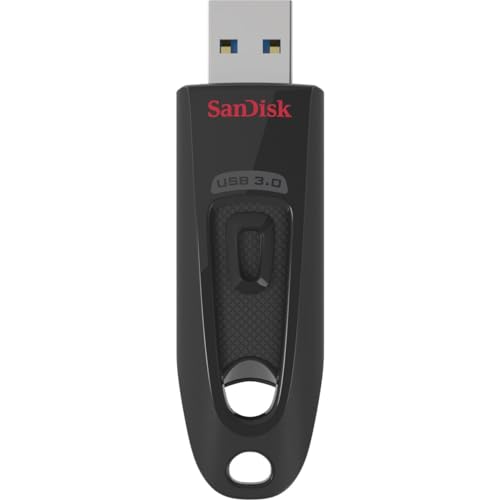
For newer LG models that support external storage for media or time-shift features, using a high-speed SanDisk 128GB USB 3.0 Flash Drive can help offload large files and keep your TV’s internal 2GB of RAM focused on system performance.
Common Causes of Out of Memory Errors
Memory shortage messages usually arise because your TV’s RAM or internal storage is overloaded.
Running several apps at the same time, background processes, or heavy cache files cause RAM to max out.
Long periods without restarting your TV increase stored cache, worsening memory use.
Another reason is having too many installed apps or large apps on your internal storage, leading to filling disk space.
This can cause apps to crash or prevent new apps from opening.
Some WebOS versions struggle with newer apps or websites due to limited software support, especially on older LG TVs before 2017, leading to frequent memory errors.
Turning off Quick Start+ and completely powering off your TV for a few minutes can often free memory when this happens.
Differences Between LG TVs and Other Devices
Compared to computers or smartphones, LG Smart TVs have significantly less RAM and internal storage.
While laptops may have gigabytes of memory, LG TVs operate under stricter hardware limits focused mainly on streaming and app use.
Also, LG TVs run WebOS, a lightweight operating system streamlined for TV functions.
It handles memory differently than full desktop or mobile OSes, lacking advanced multitasking or memory management features seen on smartphones.
Unlike smartphones, LG TVs don’t often have options like moving apps to external storage, though some newer models may support external devices.
You must actively manage apps and clear cache manually to avoid memory issues.
For precise steps on managing memory issues, see how to turn off Quick Start+ and free memory on LG TVs.
Essential Fixes for Low Memory on LG TVs
Managing your LG Smart TV’s memory effectively can prevent frequent issues like sluggish performance or app crashes.
You’ll need to address both temporary and persistent memory use by restarting the device, clearing stored data, and managing running apps.
Restart and Power Cycle Your TV
Simply turning off your LG TV with the remote often doesn’t clear RAM completely.
Some processes and cached data may remain active, causing ongoing memory shortages.
To fully reset the memory, unplug your TV from the power outlet for at least one minute.
This interrupts power to all components, including the RAM module, allowing it to clear stored data.
After unplugging, wait a bit before plugging the TV back in.
When you power it on, the system should run smoother with freed-up memory, reducing errors like “not enough memory” or “memory full.”
This is especially helpful if you use your TV for intensive apps or browsing on WebOS, where internal storage and RAM can fill quickly.
Clear Cache and Browsing Data
Your LG Smart TV stores cache and browsing data when you use apps or the internet browser, which consumes internal storage.
Over time, this buildup can lead to performance issues.
You can clear this data directly through the settings menu.
Go to Settings > General > Privacy > Clear Browsing Data to remove cookies, cached images, and history.
If your TV supports private browsing, use it to reduce data retention during sessions.
Clearing this data regularly helps prevent memory overload and improves app responsiveness.
Keep in mind that clearing cache will not delete your apps but will log you out of websites and reset browsing preferences.
This step is essential if you notice web pages failing to load or receiving errors related to memory limits in the WebOS browser.
Close Recent Apps
LG TVs running WebOS often keep apps open in the background, consuming memory without visible signs.
Leaving multiple apps active simultaneously reduces available RAM for new apps or tasks.
To close recent apps, press the Home button and navigate to the app list.
Highlight each app you want to close and select the X or Delete icon shown above the app.
Confirm the action to free up memory.
This process stops background processes and reduces clutter on your TV’s limited internal storage.
Regularly closing apps you no longer use prevents crashes and helps maintain smoother navigation in the WebOS environment.
Managing Apps and Storage
To maintain smooth performance on your LG Smart TV, it is crucial to actively manage the apps and the limited internal storage.
Regularly freeing up space and keeping software up to date can prevent memory errors and app crashes.
Delete or Disable Unused Apps
Unused apps consume valuable internal storage, increasing the chances of encountering memory shortages.
You should regularly review all installed apps and uninstall any that you no longer use or need.
To delete apps on most LG TV models:
- Press the Home button on your remote.
- Navigate to the apps list.
- For newer models, long-press the app icon and select the trash bin icon.
- For older TVs, select Edit Apps list, then choose apps to remove and confirm deletion.
Disabling apps that you rarely use but cannot uninstall also helps reduce background resource use.
Update LG TV Firmware and Software
Ensuring your LG TV runs the latest firmware and software is critical for optimal memory management.
Updates may include fixes for memory leaks and improvements to app handling.
Check for updates by:
- Pressing the Settings button on your remote.
- Going to All Settings > General > About This TV > Check for Updates.
- If available, download and install the updates.
Keeping Netflix, Hulu, and other streaming apps updated also prevents performance issues linked to outdated software.
Using the Memory Optimizer Tool
Your LG TV may include a built-in memory optimizer or similar tool to free up RAM and storage temporarily.
Access this feature occasionally to clear cached data and improve responsiveness.
The memory optimizer works by:
- Closing background apps that consume excess memory.
- Clearing temporary system caches without deleting your apps or settings.
- Reducing app crashes and slowdowns caused by insufficient RAM.
You can usually find this tool in Settings under System or Device Management.
Running it before streaming on Netflix or Hulu can enhance playback stability.
Advanced Solutions and Preventive Tips
Dealing with low memory on your LG TV can require more than just deleting apps.
Understanding how to reset your system safely, manage app behavior, and maintain your TV’s memory proactively is essential for smoother performance over time.
Factory Reset as a Last Resort
A factory reset restores your LG smart TV to its original settings, erasing all apps, accounts, and custom configurations.
This step should only be taken if other memory-clearance methods haven’t resolved the issue.
To perform a factory reset, access the Settings menu, then navigate to General > Reset to Initial Settings.
Your TV will prompt you to confirm, and once completed, all cached data and stored information will be wiped.
This clears out hidden files and app data that often accumulate beyond simple deletions.
Before resetting, back up any important information such as app logins or preferences.
Factory resets can solve persistent memory shortages by eliminating software glitches and lingering data, but you will need to reinstall apps afterward.
Optimizing App Usage for Memory
Managing memory effectively means controlling how apps run on your LG TV.
Some apps use more background resources than others, causing your storage to fill quickly.
You can free up space by reviewing installed apps and uninstalling those you rarely use.
Access the Home menu, select Edit App List, then delete unnecessary apps to keep at least 25% of your internal storage free.
Regularly clearing app caches helps, but this option depends on the specific app.
Limit simultaneous app usage and avoid keeping multiple heavy apps open at once, as this stresses the TV’s memory.
Updating apps and your LG smart TV’s software can also improve memory management, as new versions often bring optimizations.
Preventing Memory Issues in the Future
To reduce the chance of memory problems recurring, establish a routine for maintaining your LG TV’s storage health. Perform periodic app cleanups and monitor storage through the settings to catch early signs of congestion.
Keep your TV’s firmware up to date to ensure efficient memory use and compatibility with apps. Avoid installing too many apps or streaming from multiple sources simultaneously, as this leads to quick storage depletion.
If you use the browser often, clear its cache regularly since web data can consume considerable memory. Being mindful about what you install and maintaining software updates keeps your TV responsive and less likely to show out-of-memory errors.
For additional tips on preventing these issues, check out this LG TV memory management guide.