
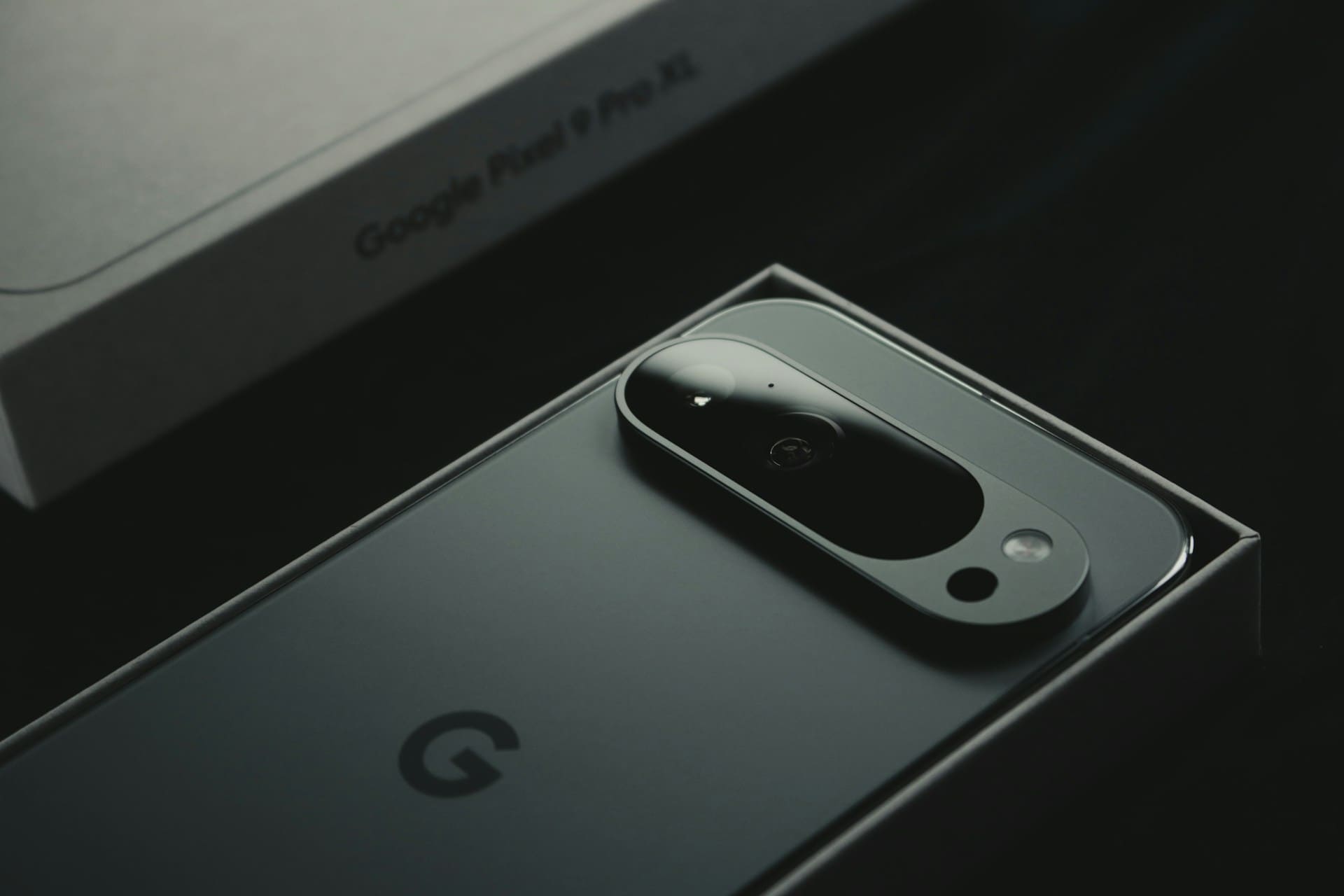
If your Google Pixel is not ringing when you receive calls, the issue is often related to sound settings, Do Not Disturb mode, or software glitches. Checking your volume levels, notification settings, and ensuring your phone’s software is up to date can usually fix the problem quickly.
Sometimes calls come through without a ringtone due to silent mode or sound profile conflicts. You may also want to review any recent app changes or bugs that might affect how your device handles incoming calls.

Common Reasons Why a Google Pixel Is Not Ringing
When your Google Pixel stops ringing, the cause often lies in settings or physical issues that silence incoming calls. Careful checks of your phone’s sound configuration, notification options, and hardware condition can help you quickly identify the problem.
Volume and Sound Settings
Your Pixel’s ringer volume must be properly adjusted for calls to be audible. Press the volume buttons on the side and look for the ringer icon.
If it shows a muted bell or a line through it, your phone is on silent or vibrate mode. You can increase the ringer volume by navigating to Settings > Sound & vibration.
Here, adjust the Ring volume slider to ensure it is loud enough. Also, check that Media volume is separate from ringer volume and does not affect calls.
Avoid confusing the two since call sounds rely on ringer volume specifically. Sometimes apps or system glitches can mistakenly lower volume levels.
Restarting your phone or resetting app preferences may fix this. If volume buttons don’t work, hardware faults might be the culprit.
Do Not Disturb Mode
Do Not Disturb (DND) mode blocks call notifications and silences ringtones automatically. Swipe down from the top of your screen to open Quick Settings and look for the DND icon.
If it’s enabled, turn it off or adjust its settings. You can configure exceptions for favorite contacts or repeat callers in Settings > Sound > Do Not Disturb to allow certain calls through while blocking others.
Be aware that scheduled DND settings might activate at certain times. Double-check these schedules to avoid missing calls unexpectedly.
Accidentally enabling this mode is common, especially if you use gesture controls or quick toggles to silence your device temporarily.
Notification and Call Settings
Your Pixel separates notifications for calls and other alerts. If your phone isn’t ringing, ensure call notifications are allowed.
Go to Settings > Apps & notifications > Notifications and check if call notifications are enabled for the Phone app. Google’s Call Screen feature may also silence unknown numbers by default, especially on Pixel 5 and newer models.
Review this setting in the Phone app under Settings > Spam & Call Screen to avoid missing legitimate calls. Additionally, check if Blocked numbers or call forwarding settings are inadvertently preventing your phone from ringing.
Physical Damage or Hardware Issues
Hardware issues can prevent your Pixel from ringing even with all settings correct. Dirt in the charging port can cause the phone to think headphones are plugged in, silencing the ringer.
Use a flashlight to inspect the charging port. If you see lint or debris, clean it gently with a soft brush.
Other hardware problems like speaker faults, volume button damage, or motherboard issues may require professional repair. If your Pixel still won’t ring after troubleshooting software settings, consider contacting Google support or visiting a repair center.
Troubleshooting Steps to Fix Pixel Not Ringing
If your Google Pixel isn’t ringing, there are specific checks you can perform related to sound settings, ringtone options, and software updates. Each step can help you identify the root cause and quickly restore your phone’s ability to alert you for incoming calls.
Checking Sound Profiles
Start by verifying your Pixel’s sound profiles. Make sure Do Not Disturb mode is turned off.
This mode silences all notifications and calls by default. Also, confirm that the ringer volume is set to an audible level.
Use the volume buttons on the side to increase it. Go to Settings > Sound & vibration to review your sound profile.
Check that your phone isn’t accidentally set to Silent or Vibrate mode. Also, disable any sound-blocking features or third-party apps that might override your phone’s default sound settings.
Ensure that notification access permissions for apps are correct, as some apps may block calls or mute notifications, affecting the ringing.
Testing With Different Ringtones
A corrupted or silent ringtone can cause your Pixel to seem like it’s not ringing. Change your ringtone to a default system sound to rule this out.
Navigate to Settings > Sound & vibration > Phone ringtone and select a different tone. Play the selected ringtone to confirm it’s audible.
Avoid custom ringtone files that could be faulty or incompatible. You can also test if vibration or LED flash notifications are working when calls come in.
If these function but the ringtone doesn’t, it’s a strong sign the ringtone itself or the associated sound file is causing the problem.
Updating Software and Apps
Keeping your Pixel’s software and apps current is essential. Updates often include bug fixes that address sound and notification issues.
Go to Settings > System > System update to check for the latest Android version available for your device. Install any pending updates promptly.
Also, update all installed apps through the Google Play Store, especially those related to phone calls or notifications. Outdated apps may interfere with your phone’s sound system.
If the problem started after a recent update, check forums or official Google support channels for any reported issues and possible patches.
Advanced Solutions and User Insights
When basic troubleshooting doesn’t resolve your Google Pixel not ringing, you may need to dive deeper into system settings or consider restoring default configurations. User experiences reveal practical fixes and common pitfalls to watch for.
Resetting Network and App Preferences
Resetting your network and app preferences can clear misconfigurations that block incoming calls or silence alerts. This process restores default settings without deleting your data.
To reset network settings:
- Go to Settings > System > Reset options
- Select Reset Wi-Fi, mobile & Bluetooth
- Confirm the reset
This step resolves connectivity glitches affecting calls and notifications. Next, reset app preferences:
- Open Settings > Apps
- Tap the three-dot menu and choose Reset app preferences
- Confirm the action
This reinstates permissions, default apps, and notification settings. It fixes issues where apps responsible for call alerts might be disabled or muted inadvertently.
Performing a Factory Reset
If other fixes fail, a factory reset might be necessary. This erases all data and restores your Pixel to its original state.
Ensure you back up contacts, photos, and important files beforehand. Steps to perform a factory reset:
- Open Settings > System > Reset options
- Select Erase all data (factory reset)
- Confirm and enter your credentials if prompted
A factory reset removes any software corruption or misconfigurations causing your Pixel not to ring. It also eliminates buggy apps that interfere with sound or notifications.
Insights from Reddit Communities
Reddit users often share detailed reports and workarounds for Pixel ringing problems, providing valuable real-world perspectives. Many highlight the importance of checking Do Not Disturb settings and notification access permissions.
Some recommend disabling Wi-Fi calling or turning off third-party call screening apps that may block incoming calls silently. Others suggest testing ringtones after every system update since new firmware can reset or alter sound profiles unexpectedly.
Common advice includes keeping your phone’s software fully updated and regularly monitoring notification settings for changes after app installations. Engaging with Pixel-specific subreddits provides timely insights and solutions from users facing similar issues.
For more detailed user reports and troubleshooting discussions, see the Pixel 7 not ringing Reddit thread.
How to Prevent Future Issues With Pixel Ringing
Maintaining your Google Pixel’s ability to ring reliably involves managing key settings and staying updated. Taking control of app permissions, keeping your software current, and knowing when to seek expert help are essential steps to avoid missed calls.
Enabling Critical Permissions
Your Pixel’s ringtone depends heavily on apps having the correct permissions. Make sure your Phone app and any related communication apps have notification permissions enabled.
Without these, incoming calls might not trigger sounds or vibrations. Check this by navigating to Settings > Apps > Phone > Permissions.
Allow access to notifications and microphone if needed. Also, avoid restricting background activity for these apps, as it can prevent the ringtone from activating when the phone is idle or locked.
Lastly, reviewing your Do Not Disturb exceptions ensures calls from contacts are allowed to ring even during focused or quiet modes. Proper permission management directly affects your Pixel’s ability to alert you to calls.
Regular Software Updates
Google releases frequent updates that fix bugs affecting core functions like ringing and notifications. Keeping your Pixel’s system software and apps updated reduces the chance of glitches causing missed calls.
Check for updates by going to Settings > System > System Update. Download and install available patches promptly.
Also, update your app store and phone app via the Google Play Store. Updates often include improvements to sound management, notification delivery, and bug fixes for connectivity issues that can interfere with your ringtone.
Staying current protects your device from known problems and enhances performance.
Contacting Google Support
If your Pixel continues to have ringing problems despite troubleshooting, reaching out to Google Support may be necessary. They can provide guided assistance or identify hardware faults that software fixes can’t resolve.
You can contact support through the Google Support app or online at the official Google Pixel help page. Be ready to provide details like your Pixel model, current Android version, and a description of the issue.
Google’s technicians can walk you through more advanced diagnostics or arrange repairs if your phone’s speaker or vibration motor is malfunctioning.
For more information on phone ringing issues troubleshooting, see this guide on Pixel 8 troubleshooting.