
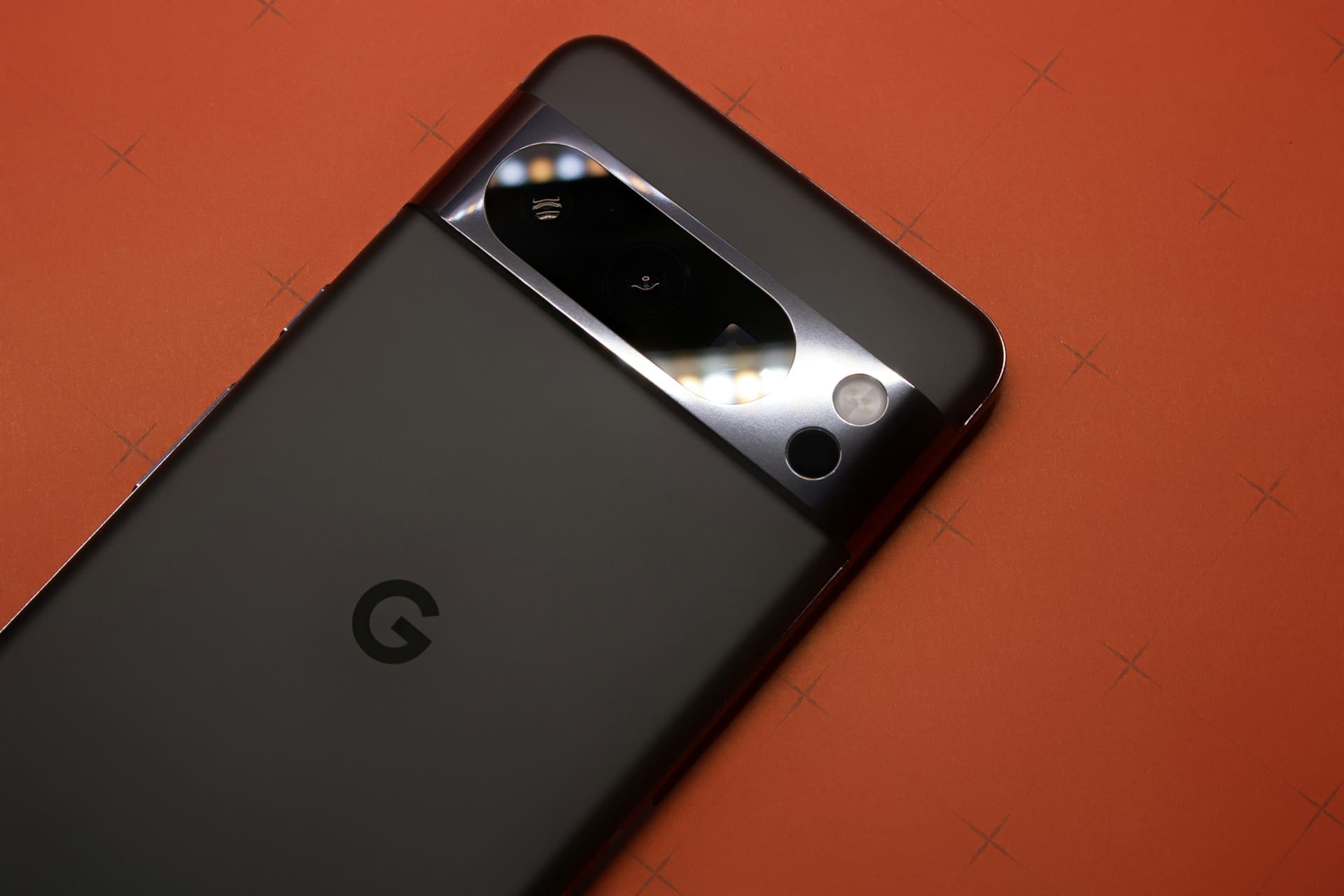
If you’re using a Google Pixel and find that the built-in VPN is not working, you’re not alone. The Pixel’s VPN, available on Pixel 7 or newer models, can sometimes fail to connect or cause internet interruptions.
Your VPN may not work if you are trying to use the discontinued Google One VPN service or if your device is rooted or running an unstable system build. Pixel’s VPN automatically selects the server location, which means you can’t pick a country manually.
Network conflicts with private DNS or other VPN apps can also interfere. Troubleshooting your Pixel VPN involves steps like resetting network settings, verifying your Google account type, and disabling conflicting apps or profiles.
For detailed fixes, see the guide on how to fix VPN by Google not working.

Diagnosing Google Pixel VPN Not Working
When your VPN by Google isn’t functioning correctly on your Pixel device, the issue often lies in service status, device compatibility, or specific error messages. Identifying these factors quickly helps you apply the right fixes and get your VPN running smoothly.
Confirm VPN Service Status and Version
First, verify which VPN service you are using. The original Google One VPN was discontinued in June 2024, so it no longer functions.
If you try activating it through the Google One app and don’t see the VPN tile, the service has ended and you must switch to the built-in VPN by Google on supported Pixel models. On a Pixel 7 or newer, open Settings > Network & internet > VPN > VPN by Google.
This is the active version designed to work in supported countries. Avoid trying to use the old Google One VPN on these devices, as it won’t connect.
Check Device and App Compatibility
Your VPN by Google only works on Pixel 7 or newer phones and the Pixel Tablet, with availability limited to specific countries. Start by confirming your device and country eligibility through Settings > About phone.
Ensure your Google account isn’t a supervised child account, which restricts VPN access. Keep your Android software and Google apps updated via Settings > System > System update and the Google Play Store.
If you have other VPN apps installed, or use private DNS, these can interfere. Temporarily disable those and retest your VPN.
Rooted or unlocked Pixel devices often face VPN connection blocks, so check that your bootloader is locked and your system is running stable firmware.
Identify Common Error Messages
Certain error messages often indicate specific issues with your Pixel VPN. If you see “VPN can’t connect” or prompts to check router and firewall settings, the problems may lie in your network configuration or conflicts with other VPN apps.
The message could also mean your network requires login on a captive portal before enabling VPN. Errors related to permission or unavailable VPN usually indicate device restrictions like child accounts or rooted status.
If you find the VPN repeatedly turning off or refusing to toggle on, try toggling it manually through Settings > Network & internet > VPN by Google, rather than quick settings shortcuts. This can resolve issues caused by stuck toggles.
Each error points toward targeted fixes, so noting exactly what you see will guide your troubleshooting steps efficiently. For detailed troubleshooting steps matched to specific errors, see this guide on fixing VPN by Google not working.
Step-by-Step Fixes for Connectivity Issues
To resolve connectivity problems with your Google Pixel VPN, focus on updating your system and apps. Manage the VPN connection directly, and ensure your internet and network settings are stable and correctly configured.
Update Android and Google Apps
Start by making sure your Google Pixel’s Android version is up to date. System updates often include bug fixes and improvements that enhance VPN compatibility.
Go to Settings > System > System update and install any available updates. Next, update your VPN app through the Google Play Store to avoid incompatibility caused by outdated versions.
Open the Play Store, search for your VPN app, and tap Update if available. Also, update Google’s core services by checking for updates to apps like Google Play Services.
Keeping these current can help maintain stable VPN connectivity and prevent conflicts that cause the VPN to fail.
Toggle and Re-enable VPN
If your VPN connection isn’t working, try toggling it off and on again to refresh the connection. Disable the VPN directly from Settings > Network & internet > VPN by tapping your VPN and turning it off.
Wait a few seconds and then re-enable the VPN by reconnecting through the app or system settings. Confirm any permissions the VPN requests for establishing a secure connection.
If problems persist, clear your VPN app’s cache and data: go to Settings > Apps & notifications > [VPN app] > Storage & cache > Clear cache. This removes corrupted files that could impact connection stability.
Address Network and Internet Connection Problems
A stable internet connection is essential for any VPN to work. Check your Pixel’s Wi-Fi or mobile data signal strength.
If your connection is unstable, try toggling Airplane mode on and off or switching between Wi-Fi and mobile data. You can also reset network settings by going to Settings > System > Reset options > Reset Wi-Fi, mobile & Bluetooth.
This clears saved networks and Bluetooth pairings but can resolve underlying issues causing VPN failures. If your device still faces connectivity issues, verify that your network supports VPN traffic and no firewall or carrier restrictions block it.
Consider changing the VPN server location to one with less load or better compatibility.
Advanced Troubleshooting and Device Integrity
Addressing VPN issues on your Google Pixel often requires more than basic steps. Conflicting network configurations, corrupted app data, or device modifications can block a stable VPN connection.
Resolve Conflicting VPN or DNS Settings
Other VPN apps and private DNS settings can interfere with your Google VPN connection. To avoid conflicts, disable or uninstall any other VPN or ad-blocking applications.
Check your Private DNS setting by navigating to Settings > Network & internet > Private DNS and set it to Off temporarily. This ensures no custom DNS overrides affect your VPN traffic.
If you use work profiles on your device, switch to your personal profile when testing the VPN. Public Wi-Fi networks sometimes require captive portal logins before VPN connections will function properly.
Testing with mobile data instead of Wi-Fi can help narrow down the issue.
Reset Network Settings and App Data
Corrupted network settings can cause persistent VPN problems. Reset your network settings by going to Settings > System > Reset options > Reset Wi-Fi, mobile & Bluetooth.
This clears out saved connections and resets routing configurations that may block VPN traffic. Additionally, clearing the data for related apps such as Google Play Services or the Google Settings app can resolve underlying issues.
To do this, tap Settings > Apps > See all apps > Google Play Services > Storage & cache > Clear storage. After resetting, restart your device, reconnect to the internet, and enable the VPN again.
Check for Root or Bootloader Issues
Your VPN service by Google enforces device integrity checks. If your Pixel has an unlocked bootloader or is rooted, the VPN will likely not connect.
To restore access, you must relock the bootloader and remove root. Returning to stock firmware and leaving Android beta builds is also necessary since the VPN may block connections on unstable versions.
You can check your lock status under Settings > About phone > Build number and confirm bootloader status using fastboot commands. Until these conditions are met, the VPN by Google will remain disabled to protect secure network routing.
For detailed troubleshooting, the VPN by Google connection problems page offers additional insights into device integrity requirements.
Alternative Solutions and When to Switch VPN Providers
If your Pixel VPN struggles with connectivity, lacks server options, or you face compatibility issues, it may be time to explore other solutions. Understanding your needs and how VPN providers differ will help you choose the right alternative that fits your device and use cases.
Recommended VPN Alternatives for Pixel Phones
Since Google One VPN was discontinued and Pixel’s built-in VPN has limited availability and features, you might consider third-party apps with broader support. Look for VPN services offering AES-256 encryption, secure protocols like WireGuard or OpenVPN, and a strict no-logs policy.
Some reputable options to consider:
- ExpressVPN: Known for speed and reliability across many countries. It supports smooth streaming and bypasses geo-restrictions well.
- CyberGhost: A budget-friendly service with easy setup and dedicated servers optimizing privacy and streaming.
- Opera VPN: A free, browser-based VPN if you want light protection without a full subscription.
These VPN services offer better server choice flexibility than the native Pixel VPN, which auto-selects servers and does not let you pick locations. You can install them easily from the Play Store and configure according to your network needs.
Handling Region Restrictions and Server Limitations
Pixel VPN restricts server selection and is only available in supported countries on Pixel 7 or newer devices. If you live where Pixel VPN isn’t offered or require specific server locations for work or content, switching providers is necessary.
Region restrictions also affect connection stability. VPNs that let you manually select servers help you avoid congested or unreliable routes and improve speed.
Some apps and services may block connections from VPN servers, which Pixel VPN cannot circumvent due to its limited server network.
By using a third-party VPN app, you control your routing and can access a wider range of servers globally. This improves your experience with apps like Google Voice, streaming platforms, and international websites where regional access matters.
For more detail on alternatives and troubleshooting, see this guide on fixing Google One VPN issues.