
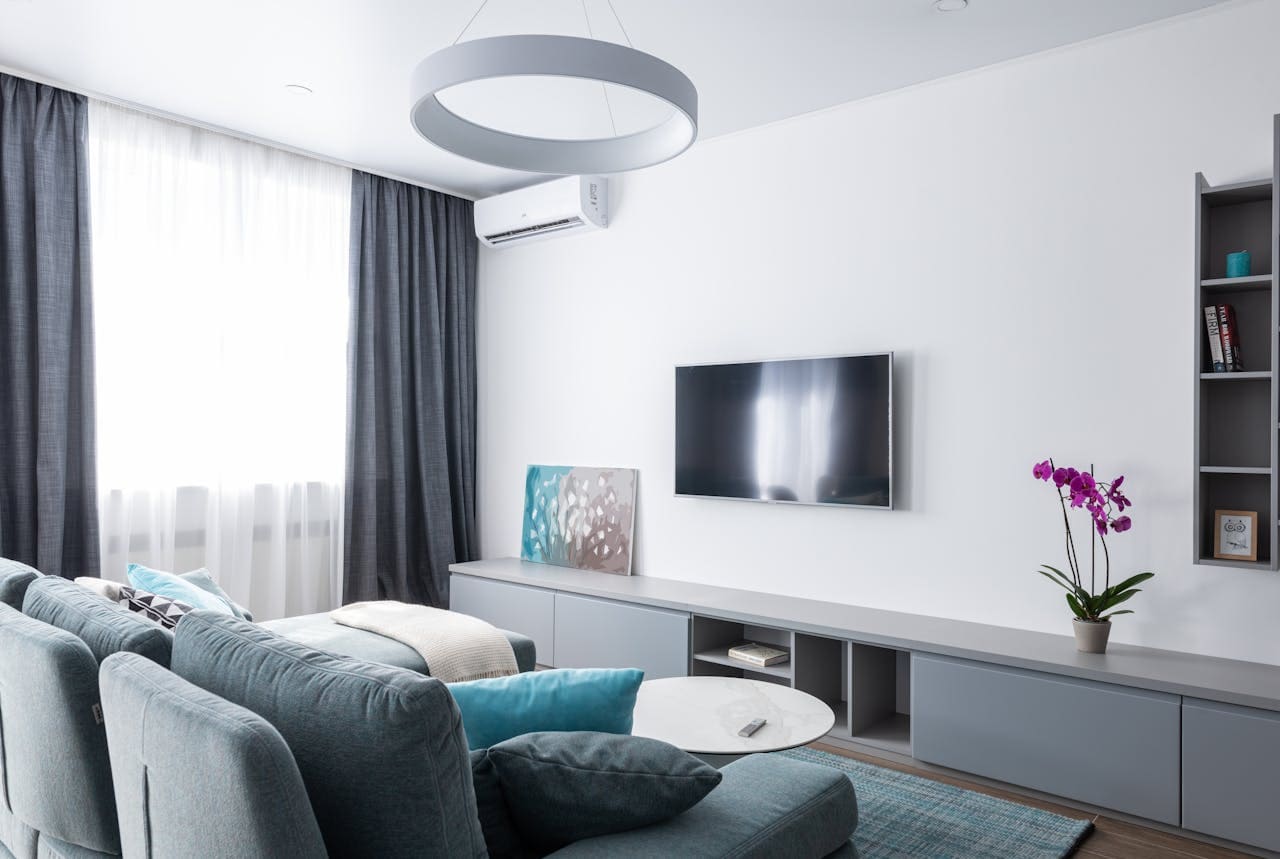
Insignia TVs offer excellent value for budget-conscious consumers, but like any electronic device, they can develop frustrating problems over time. From power issues to audio glitches, these common problems can disrupt your viewing experience when you least expect it.
Insignia TV problems commonly include power failures, black screen issues, audio malfunctions, remote control failures, connectivity problems, and software glitches. Most issues stem from power supply problems, loose cable connections, outdated firmware, overheating, or hardware component failures that require specific troubleshooting approaches based on the symptom pattern.

Power and Startup Issues
Power-related problems represent the most frustrating Insignia TV issues since they prevent you from using your television entirely. These problems often manifest as complete failure to turn on, random shutdowns, or getting stuck in standby mode with only indicator lights showing.
Check your power cable connections first, ensuring both the wall outlet and TV power port connections are secure. Loose connections can cause intermittent power issues that worsen over time, especially if the TV gets moved frequently during cleaning or rearrangement.

Amazon Fire TV Stick HD
Turn Any TV to a Smart TV. Stream Netflix, Prime Video & More. Alexa Voice Remote Included. Easy Plug & Play Setup.
Shop on AmazonTest your wall outlet using another device to verify it provides consistent power. Faulty outlets can cause voltage fluctuations that damage TV power supplies or create unreliable operation that appears to be a TV malfunction.
Power cycling procedure for startup issues:
- Unplug the TV completely from wall power
- Press and hold the physical power button for 30 seconds
- Wait exactly 60 seconds before reconnecting power
- Plug TV back in and attempt normal startup
- Use TV’s physical power button rather than remote for initial test
Power supply board failures often cause complete power loss or standby mode issues where the TV receives power but won’t fully boot. These internal failures typically require professional repair or replacement depending on your TV’s age and repair costs.
Moreover, power surge damage can affect multiple components simultaneously, causing combinations of power, display, and audio problems that develop gradually or appear suddenly after electrical storms or power outages.
Consider investing in a quality surge protector to prevent future power-related damage that can destroy expensive electronic components throughout your entertainment system.
“Power supply failures account for approximately 40% of all Insignia TV repair calls, with surge damage being the leading cause of premature component failure.”
Consumer Electronics Repair Institute
Display and Screen Problems
Screen-related issues on Insignia TVs range from complete black screens to color distortions, flickering, and partial display failures. These visual problems can affect your viewing experience dramatically while often indicating specific hardware component failures.
Black screen with sound typically indicates backlight system failure while the main processing components continue functioning normally. Use a flashlight to shine directly on the screen while content is playing – if you can see faint images, your backlight system requires professional repair.
Color distortion, lines, or flickering often point to T-Con board problems or loose internal cable connections between the main board and display panel. These issues may appear intermittently at first but typically worsen over time without intervention.
Display troubleshooting steps:
- Verify all HDMI and video cable connections are secure
- Test different input sources to isolate the problem
- Check for magnetic interference from speakers or other devices
- Perform TV software updates through the settings menu
- Reset picture settings to factory defaults
- Try different video resolution settings on connected devices
Partial screen failures like dead pixels, vertical lines, or section blackouts usually indicate panel damage that cannot be economically repaired. Panel replacement costs often exceed the TV’s replacement value, making these problems terminal for older models.
Furthermore, overheating can cause temporary display issues that resolve after cooling but indicate ventilation problems that need addressing to prevent permanent damage.
Screen burn-in from static images appears as permanent ghost images and typically affects older LCD panels or OLED displays that have been used extensively with static content like news tickers or gaming HUDs.
Audio and Sound Issues
Audio problems on Insignia TVs manifest in various ways including complete sound loss, intermittent audio dropouts, distorted playback, or audio sync issues where sound doesn’t match video timing properly.
Sound output selection problems often cause apparent audio failure when the TV routes audio to disconnected external speakers or soundbars. Navigate to Settings > Audio > Audio Output and ensure the correct output device is selected for your setup.
Audio troubleshooting checklist:
- Check audio output settings match your speaker configuration
- Verify volume levels and mute status on both TV and external devices
- Test different audio sources to isolate input-specific problems
- Clear audio cache through TV restart or factory reset
- Update TV firmware to resolve known audio compatibility issues
- Inspect audio cable connections for damage or looseness
Internal speaker failures cause complete audio loss from the TV’s built-in speakers while external audio outputs may continue working normally. This component-specific failure typically requires professional repair or external speaker solutions.
Audio board failures affect all sound output including HDMI, optical, and analog connections. These comprehensive audio failures often indicate main board problems requiring significant repair investment.
Additionally, audio codec compatibility issues can cause sound problems with specific content types or streaming services while other audio sources work normally. Software updates usually resolve these compatibility problems.
Audio delay or sync issues frequently result from processing delays in external sound systems or TV audio processing settings that can be adjusted through the audio menu advanced options.
“Audio-related problems represent 25% of Insignia TV service calls, with output selection confusion being the most common user-correctable issue.”
TV Audio Technology Group
Remote Control Malfunctions
Remote control problems create significant frustration since they prevent normal TV operation even when the television itself functions perfectly. These issues range from complete unresponsiveness to intermittent button failures.
Battery problems cause the majority of remote control issues. Replace batteries with fresh alkaline or lithium options, ensuring correct polarity alignment and clean battery contact points inside the remote compartment.
Infrared signal interference can block communication between your remote and TV. Remove objects blocking the TV’s infrared sensor, typically located at the bottom center of the screen behind a dark plastic window.
Remote reset procedure:
- Remove batteries and wait 60 seconds minimum
- Press every button on remote firmly twice while batteries are out
- Clean battery contacts with isopropyl alcohol if corrosion is visible
- Reinsert fresh batteries with correct polarity alignment
- Test remote functionality starting with power button
- Re-pair remote if using Fire TV model with Bluetooth features
Fire TV remote pairing failures require specific reset procedures involving holding the Home button for 10-15 seconds while the TV is powered on. The remote’s LED should flash rapidly during successful pairing attempts.
Physical remote damage including cracked cases, stuck buttons, or water damage often requires complete remote replacement rather than repair attempts that may cause further damage.
Moreover, infrared interference from LED lights, fluorescent fixtures, or direct sunlight can disrupt remote signals even with functioning remotes and clean TV sensors.
Universal remote controls provide excellent backup solutions and often offer enhanced features like programmable buttons and improved ergonomics compared to original Insignia remotes.
Connectivity and Network Problems
Network connectivity issues prevent smart TV features from functioning properly, affecting streaming apps, software updates, and online content access that modern viewing depends upon heavily.
Wi-Fi connection problems often stem from network configuration changes, router updates, or TV software conflicts that develop over time. Reset your network connection through TV settings and re-enter Wi-Fi credentials to establish fresh connections.
Network troubleshooting steps:
- Restart both TV and wireless router to refresh connections
- Verify Wi-Fi password accuracy and network visibility
- Check internet speed requirements for streaming services
- Move TV closer to router to test signal strength impact
- Update TV firmware to resolve known connectivity bugs
- Reset network settings to factory defaults if problems persist
HDMI connectivity issues affect external device connections including cable boxes, gaming consoles, and streaming devices. Test different HDMI ports and cables to isolate hardware-specific problems from TV issues.
Ethernet connection problems with wired internet typically indicate cable damage, port failures, or network configuration issues that require systematic testing to identify the specific failure point.
Furthermore, streaming app problems may appear as connectivity issues but often result from app-specific bugs, cache corruption, or service outages rather than TV network problems.
HDMI-CEC control issues prevent seamless device integration where external devices should automatically control TV functions like power and volume through their own remote controls.
Consider upgrading to a high-speed HDMI cable if you experience intermittent connectivity issues with 4K content or external devices that seem related to cable quality.
“Network connectivity problems affect 60% of smart TV users annually, with Wi-Fi interference being the most common underlying cause.”
Smart TV Connectivity Research
Software and Firmware Issues
Software problems on Insignia Fire TV models can cause app crashes, slow performance, menu freezing, and various functionality issues that worsen over time without proper maintenance.
App cache accumulation creates storage pressure and performance degradation that affects overall TV responsiveness. Clear individual app cache through Settings > Applications > Manage Installed Applications for problematic apps.
System software updates resolve many known bugs and compatibility issues while adding new features and security improvements. Enable automatic updates or manually check for updates monthly through Settings > My Fire TV > About.
Software maintenance routine:
- Clear app cache for streaming services monthly
- Restart TV weekly to clear temporary files and reset memory
- Check for system updates and install promptly
- Uninstall unused apps to free storage space
- Monitor storage usage to prevent capacity-related slowdowns
- Factory reset TV annually for optimal performance
Factory reset resolves persistent software conflicts but requires complete TV reconfiguration including app reinstallation and account setup. Document current settings before performing factory resets to simplify restoration.
Streaming app compatibility issues may require individual app updates or reinstallation to resolve conflicts with updated TV software. Some older apps may lose compatibility entirely with newer TV firmware.
Moreover, developer mode settings accidentally enabled can cause stability issues and should be disabled unless specifically needed for advanced troubleshooting or custom software installation.
Boot loop problems where the TV repeatedly restarts indicate serious software corruption or hardware failures requiring professional diagnosis to determine repair feasibility.
“Regular software maintenance prevents 70% of performance-related TV problems while extending average device lifespan by 2-3 years.”
Digital Device Maintenance Association
Hardware Component Failures
Internal hardware failures affect specific TV subsystems and often require professional diagnosis to distinguish from software problems that might have similar symptoms but different solutions.
Main board failures can cause various symptoms including startup problems, input switching issues, audio processing failures, or complete system unresponsiveness while power indicators show normal operation.
T-Con board problems specifically affect display timing and can cause screen flickering, color distortion, partial image display, or complete display failure while audio and other functions continue working normally.
Hardware failure indicators:
- Symptoms persist despite software resets and updates
- Multiple unrelated problems develop simultaneously
- Physical damage visible on internal components
- Burning smells or unusual noises during operation
- Progressive symptom worsening over time
- Complete subsystem failures affecting specific functions
Power supply board issues cause startup failures, random shutdowns, or inability to maintain stable operation during use. These problems often develop gradually through component aging or sudden failure from electrical stress.
Capacitor failures within various circuit boards create distinctive symptoms including slow startup, audio distortion, or display brightness fluctuations that can often be repaired economically by experienced technicians.
Furthermore, thermal damage from inadequate ventilation can affect multiple components simultaneously and often creates cascading failures where one damaged component stresses others beyond their tolerance limits.
Professional repair evaluation costs typically range from $50-100 and helps determine whether repair makes economic sense compared to TV replacement based on age, condition, and repair complexity.
Prevention and Maintenance Tips
Proactive maintenance significantly extends Insignia TV lifespan while preventing many common problems that develop through neglect or environmental factors that accumulate over time.
Environmental control includes maintaining proper ventilation around your TV, avoiding direct sunlight exposure, controlling dust accumulation, and using surge protection to prevent electrical damage during storms or power fluctuations.
Monthly maintenance checklist:
- Clean TV screen and vents with appropriate cleaning materials
- Check cable connections for looseness or damage
- Clear app cache and restart TV to maintain performance
- Verify surge protector functionality and connections
- Update TV software and streaming applications
- Monitor TV performance for early problem detection
Temperature management prevents overheating damage by ensuring adequate airflow around TV vents and avoiding enclosed cabinet installations that trap heat during operation.
Regular software maintenance including cache clearing, app updates, and periodic factory resets keeps the TV operating efficiently while preventing gradual performance degradation that many users accept as normal aging.
Additionally, power management through proper shutdown procedures and surge protection prevents electrical damage that represents the leading cause of premature TV failure in modern electronics.
Cable management reduces connection stress that can cause intermittent problems and prevents accidental disconnections during cleaning or furniture rearrangement around your entertainment center.
“Preventive maintenance reduces TV failure rates by 65% while extending average lifespan from 5-7 years to 8-12 years for properly maintained units.”
Consumer Electronics Longevity Institute
Video Credit: Tech Tests / YouTube
Frequently Asked Questions
Why does my Insignia TV keep turning off by itself?
Automatic shutoffs typically result from overheating protection, power supply instability, or sleep timer settings that activate without user awareness. Check your TV’s sleep timer and auto-shutoff settings through the main menu to ensure they’re configured according to your preferences rather than default factory settings.
Overheating causes thermal protection circuits to shut down the TV before component damage occurs. Ensure adequate ventilation around your TV and clean dust from vents that might block airflow. Poor ventilation in enclosed cabinets often triggers thermal shutdowns during extended viewing sessions.
Power supply degradation can cause voltage instability that triggers protective shutdowns as components age. This problem typically worsens over time and may eventually require professional repair or TV replacement depending on the severity and your TV’s age.
How do I fix an Insignia TV that won’t turn on at all?
Complete power failure requires systematic testing starting with external factors before assuming internal TV problems. Verify your wall outlet provides power using another device, check power cable integrity for damage, and ensure all connections are secure at both the outlet and TV power input.
Perform an extended power cycle by unplugging the TV for 60 seconds while pressing and holding the physical power button for 30 seconds to discharge internal capacitors. This process often resolves temporary power supply glitches that prevent normal startup sequences.
If external power checks prove normal and power cycling doesn’t restore function, internal power supply or main board failures likely require professional diagnosis. These repairs may not be economically viable for older TVs depending on component costs and labor rates.
Why is my Insignia TV screen black but I can hear sound?
Black screen with normal audio indicates display system failure while audio processing continues functioning. This symptom pattern typically points to backlight failure, T-Con board problems, or display panel damage rather than complete system failure.
Test for backlight failure using a flashlight shined directly on the screen while content is playing. If you can see faint images through the external light, your backlight system requires professional repair. Complete absence of any visible content suggests more serious panel or processing problems.
Check all video cable connections including HDMI, component, and antenna connections that might cause input signal problems appearing as display failure. Try different input sources to determine whether the problem affects all sources or only specific connections.
What causes Insignia TV remote controls to stop working?
Remote control failures usually stem from battery depletion, infrared signal interference, or physical damage to the remote’s internal components. Start troubleshooting with fresh battery installation and verify correct polarity alignment within the battery compartment.
Infrared interference from LED lights, fluorescent fixtures, or bright sunlight can block communication between remote and TV. Test the remote’s infrared LED using a smartphone camera – working remotes display a flashing light through the camera when buttons are pressed.
Fire TV remote models use Bluetooth connectivity that requires specific pairing procedures when connections fail. Hold the Home button for 10-15 seconds while the TV is on to initiate re-pairing, watching for rapid LED flashing that indicates successful pairing mode activation.
How often should I update my Insignia TV software?
Check for software updates monthly through Settings > My Fire TV > About > Check for System Update to ensure optimal performance and security. Enable automatic updates if available to receive critical fixes and new features without manual intervention.
Software updates resolve compatibility issues with streaming services, improve system stability, and add new features that enhance your viewing experience. Delaying updates can cause app compatibility problems and security vulnerabilities that affect smart TV functionality.
Factory reset your TV annually after backing up important settings to clear accumulated software conflicts and restore optimal performance. This maintenance procedure prevents gradual slowdowns that many users incorrectly attribute to normal aging rather than correctable software issues.
Sources:
- Insignia TV Troubleshooting Guide
- Tech Junctions Insignia Repair Solutions
- JustAnswer TV Repair Expert Solutions
- PC Guide Insignia Power Issues