
Last updated on April 5th, 2026 at 12:05 pm
Getting frustrated because your JBL speakers won’t work with Windows 10? You’re not alone—thousands of users face this exact problem every day. Whether it’s a pairing issue, audio dropout, or complete connection failure, these problems can turn your favorite music session into a technical nightmare.
Most JBL speaker issues on Windows 10 stem from outdated Bluetooth drivers, incorrect audio settings, or Windows compatibility problems. The good news? Nearly all of these issues can be resolved with simple troubleshooting steps that don't require technical expertise.
Reasons Your JBL Speakers Fail
Connection problems between JBL speakers and Windows 10 typically arise from several common culprits. Understanding these root causes helps you target the right solution immediately.
Driver incompatibility represents the most frequent issue. Windows 10 often installs generic Bluetooth drivers that lack proper support for JBL’s advanced features. These default drivers might establish a connection but fail to deliver audio properly.
Audio codec mismatches create another significant problem. JBL speakers support various audio formats, but Windows 10 doesn’t always select the optimal codec automatically. This mismatch results in poor sound quality or complete audio failure.
Power management settings frequently interfere with Bluetooth functionality. Windows 10’s aggressive power saving features sometimes disable Bluetooth adapters unexpectedly, causing sudden disconnections during use.
“The biggest problem with Bluetooth audio is that it’s not one technology, but a collection of protocols that must work together perfectly.” Marc Whitten
Additionally, interference from other wireless devices can disrupt the connection. WiFi routers, smartphones, and other Bluetooth devices operating on the same frequency range often cause intermittent connectivity issues.
Quick Initial Checks
Before proceeding to complex solutions, performing basic checks can often resolve your JBL speaker problems instantly. These preliminary steps eliminate obvious issues and prepare your system for more advanced troubleshooting.
First, verify that your JBL speaker is fully charged and in pairing mode. Many connection failures occur simply because the speaker’s battery is too low to maintain a stable Bluetooth connection. Press and hold the power button until you hear the pairing chime.
Next, check your Windows 10 Bluetooth settings. Navigate to Settings > Devices > Bluetooth & other devices. Ensure Bluetooth is enabled and your JBL speaker appears in the device list. If it’s listed but not connecting, try removing and re-adding the device.
Distance and obstacles between your computer and speaker matter significantly. Bluetooth has limited range, and walls, furniture, or other electronic devices can weaken the signal. Move closer to your speaker and eliminate potential interference sources.
Test your speaker with another device like your smartphone or tablet. If it works perfectly with other devices, the problem lies specifically with your Windows 10 configuration rather than hardware failure.
Windows Audio Settings
Windows 10’s audio configuration plays a crucial role in JBL speaker functionality. Incorrect settings often prevent proper audio routing, even when the Bluetooth connection appears successful.
Access your sound settings by right-clicking the speaker icon in your taskbar and selecting “Open Sound settings.” Under the “Choose your output device” section, ensure your JBL speaker is selected as the default audio device.
Navigate to the “Sound Control Panel” for more detailed configuration options. Here, you can see all audio devices and their current status. Your JBL speaker should appear under the “Playback” tab. Right-click it and select “Set as Default Device” if it isn’t already configured.
The “Properties” menu for your JBL speaker contains additional settings that impact performance. Under the “Advanced” tab, experiment with different sample rates and bit depths. Sometimes changing from 44.1 kHz to 48 kHz resolves audio quality issues.
“Sound quality depends not just on the speaker, but on every link in the audio chain.” Rupert Neve
Audio enhancements can sometimes interfere with Bluetooth audio. In the speaker properties, navigate to the “Enhancements” tab and try disabling all audio enhancements. This removes potential processing conflicts that might prevent proper audio playback.
Bluetooth Driver Updates
Outdated or corrupted Bluetooth drivers frequently cause JBL speaker connection problems. Windows 10 doesn’t always install the most current drivers automatically, leaving your system with suboptimal Bluetooth support.
Open Device Manager by right-clicking the Start button and selecting “Device Manager.” Expand the “Bluetooth” section to view all Bluetooth-related devices. Look for any devices with yellow warning triangles, which indicate driver problems.
Right-click your Bluetooth adapter and select “Update driver.” Choose “Search automatically for drivers” to let Windows find the latest version. However, this method doesn’t always locate the newest drivers, especially for newer JBL models.
For better results, visit your computer manufacturer’s website directly. Download the latest Bluetooth drivers specifically designed for your laptop or desktop model. These drivers often include optimizations for popular audio devices like JBL speakers.
Consider using the JBL official support page for device-specific guidance. They provide detailed instructions for various JBL models and common Windows compatibility issues.
Sometimes, completely uninstalling and reinstalling Bluetooth drivers resolves persistent issues. In Device Manager, right-click your Bluetooth adapter and select “Uninstall device.” Restart your computer, and Windows will automatically reinstall the drivers with a fresh configuration.
Connection Troubleshooting
When basic checks don’t resolve your JBL speaker problems, systematic connection troubleshooting becomes necessary. This process involves testing each component of the Bluetooth connection chain.
Start by clearing your Bluetooth cache. Open Settings > Devices > Bluetooth & other devices, find your JBL speaker, and click “Remove device.” This action clears any corrupted pairing information stored in Windows.
Reset your JBL speaker to factory defaults. Most JBL models support factory reset by holding specific button combinations. For example, on JBL Charge models, hold the Volume Up and Play buttons simultaneously for 15 seconds until the device powers off.
“When troubleshooting electronics, always start with the simplest solution first.” Steve Wozniak
Re-pair your speaker from scratch. Put your JBL speaker in pairing mode, then use Windows’ “Add Bluetooth or other device” function. Select “Bluetooth” and choose your speaker from the discovered devices list.
If pairing fails repeatedly, try the Windows Bluetooth troubleshooter. Navigate to Settings > Update & Security > Troubleshoot > Additional troubleshooters > Bluetooth > Run the troubleshooter. This automated tool identifies and fixes common Bluetooth problems.
For persistent issues, consider using the Command Prompt to reset Windows’ Bluetooth stack. Open Command Prompt as administrator and run these commands:
netsh winsock resetnetsh int ip resetipconfig /releaseipconfig /renewipconfig /flushdns
Restart your computer after running these commands to apply the changes.
Audio Quality Fixes
Even when your JBL speaker connects successfully, audio quality issues can diminish your listening experience. These problems often stem from codec incompatibilities or Windows audio processing conflicts.
Windows 10 supports various Bluetooth audio codecs, but not all provide optimal quality for JBL speakers. Access your speaker’s properties in the Sound Control Panel and experiment with different formats under the “Advanced” tab.
If you’re experiencing audio dropouts or stuttering, try adjusting the audio buffer size. Some third-party audio drivers allow buffer size modification, which can improve streaming stability for Bluetooth devices.
Power management settings frequently cause audio interruptions. In Device Manager, find your Bluetooth adapter under “Bluetooth” or “Network adapters.” Right-click it, select “Properties,” go to the “Power Management” tab, and uncheck “Allow the computer to turn off this device to save power.”
“The quality of sound reproduction depends on the weakest link in the audio chain.” Julian Hirsch
Windows’ audio exclusive mode can conflict with Bluetooth audio. In your JBL speaker’s properties, navigate to the “Advanced” tab and uncheck “Allow applications to take exclusive control of this device.”
Consider installing high-quality audio drivers like Realtek Audio drivers which often provide better Bluetooth audio support than generic Windows drivers.
Advanced Solutions
When standard troubleshooting fails, advanced solutions target deeper system-level issues that prevent proper JBL speaker functionality.
Registry modifications can resolve certain Bluetooth compatibility problems. However, always back up your registry before making changes. Navigate to HKEY_LOCAL_MACHINE\SYSTEM\CurrentControlSet\Services\BTHPORT\Parameters and look for audio-related settings that might need adjustment.
Windows Services related to Bluetooth sometimes become corrupted or misconfigured. Open the Services console (services.msc) and locate “Bluetooth Audio Gateway Service” and “Bluetooth Support Service.” Restart these services and set them to automatic startup.
Group Policy settings can interfere with Bluetooth functionality in some Windows 10 configurations. Use the Group Policy Editor (gpedit.msc) to review Bluetooth-related policies under Computer Configuration > Administrative Templates > Network > Bluetooth.
For advanced users, consider using third-party Bluetooth management software. Applications like BlueSoleil or Broadcom Bluetooth Software sometimes provide better JBL speaker compatibility than Windows’ built-in Bluetooth stack.
Driver signing enforcement occasionally prevents proper Bluetooth driver installation. Temporarily disable driver signature enforcement by holding Shift while clicking “Restart,” then navigating to Troubleshoot > Advanced options > Startup Settings > Restart, and pressing F7 to disable driver signature enforcement.
Popular JBL Models Guide
Different JBL speaker models have unique characteristics that affect Windows 10 compatibility. Understanding these differences helps you apply model-specific solutions.
JBL Charge Series
The JBL Charge series represents one of the most popular portable speaker lines. However, these models sometimes struggle with Windows 10’s default Bluetooth codecs. For optimal performance, ensure you’re using the latest Windows 10 build, as Microsoft regularly improves Bluetooth compatibility.
JBL Charge 4 users frequently report connection drops during high-volume playback. This issue often resolves by reducing the maximum volume in Windows audio settings to 80% and letting the speaker handle volume amplification.
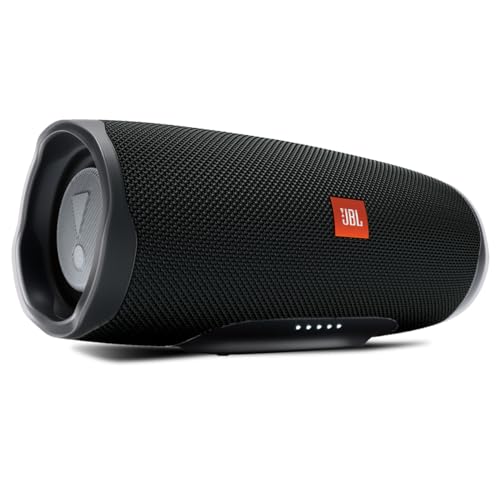
The JBL Charge 4 – Waterproof Portable Bluetooth Speaker remains a top choice for Windows 10 users, with over 56,000 positive reviews highlighting its reliability and compatibility.
JBL Flip Series
JBL Flip speakers excel in portability but sometimes experience audio latency issues with Windows 10. These problems typically stem from Windows’ audio processing pipeline rather than the speaker itself.
For JBL Flip 6 users, enabling “Low Latency Audio” in Windows audio settings can significantly improve synchronization between video and audio. This setting is found in the speaker’s advanced properties under the “Enhancements” tab.
Consider the JBL Flip 6 – Portable Bluetooth Speaker for its excellent Windows 10 compatibility and 12-hour battery life, making it perfect for extended computing sessions.

JBL Xtreme Series
JBL Xtreme speakers offer powerful sound but require more robust Bluetooth connections. These larger speakers sometimes overwhelm Windows 10’s default Bluetooth power management settings.
For JBL Xtreme models, manually setting the Bluetooth adapter to high performance mode often resolves connectivity issues. This setting is found in Device Manager under your Bluetooth adapter’s properties.
Compatibility Table
| JBL Model | Windows 10 Compatibility | Common Issues | Best Solution |
|---|---|---|---|
| Charge 4 | Excellent | Volume drops | Reduce Windows volume to 80% |
| Charge 5 | Good | Codec conflicts | Update Bluetooth drivers |
| Flip 5 | Excellent | None significant | Standard pairing |
| Flip 6 | Good | Audio latency | Enable low latency mode |
| Xtreme 2 | Fair | Power management | Disable power saving |
| Xtreme 3 | Good | Driver issues | Manual driver installation |
Video Credit: MDTechVideos / YouTube
Frequently Asked Questions
Why does my JBL speaker keep disconnecting from Windows 10?
Frequent disconnections usually result from Windows 10’s aggressive power management settings. Your computer might be turning off the Bluetooth adapter to save power, causing the speaker to lose connection.
Navigate to Device Manager, find your Bluetooth adapter, access its properties, and disable power management. Additionally, check that your JBL speaker has sufficient battery charge, as low battery levels can cause unstable connections.
My JBL speaker connects but produces no sound on Windows 10. What should I do?
This common issue typically occurs when Windows doesn’t properly route audio to your Bluetooth speaker. Right-click the speaker icon in your taskbar, select “Open Sound settings,” and ensure your JBL speaker is selected as the default output device.
If it’s not listed, try removing and re-pairing the device. Also, check the volume mixer to ensure your applications aren’t muted for the Bluetooth output.
How do I fix audio lag between my JBL speaker and Windows 10?
Audio latency with Bluetooth speakers is often caused by Windows’ audio processing pipeline. To minimize lag, access your JBL speaker’s properties in the Sound Control Panel and experiment with different sample rates under the “Advanced” tab. Lowering the sample rate from 48 kHz to 44.1 kHz sometimes reduces latency.
Additionally, close unnecessary applications that might be using audio processing resources.
Can I use multiple JBL speakers simultaneously with Windows 10?
Windows 10 natively supports only one Bluetooth audio output at a time. However, some JBL models support “PartyBoost” or “Connect+” features that allow multiple speakers to play synchronized audio.
First, pair one speaker with Windows 10, then use the JBL Connect app to link additional speakers. Alternatively, third-party software like VoiceMeeter can route audio to multiple Bluetooth devices simultaneously.
Why won’t my JBL speaker appear in Windows 10’s Bluetooth device list?
If your JBL speaker isn’t appearing during device discovery, several factors might be responsible. First, ensure your speaker is in pairing mode – most JBL models require holding the Bluetooth button for several seconds until you hear an audio cue.
Check that your speaker isn’t connected to another device, as many JBL models can only pair with one device at a time. Try restarting both your computer and speaker, then attempt pairing again. If the issue persists, your computer’s Bluetooth adapter might need driver updates or the Windows Bluetooth service might require restarting.
Sources:
- JBL Support – Pairing Issues with Computer or PC
- Microsoft Support – Fix Sound or Audio Problems in Windows
- Microsoft Support – Fix Bluetooth Problems in Windows
- Microsoft Community – JBL Bluetooth Speakers Not Connecting
- Auslogics – Fix Bluetooth Connected but No Sound
Read More:
- JBL Speakers Not Pairing? Quick Solutions That Actually Work
- JBL Speakers Not Working on Mac? Fix Connection Issues Now
- JBL Speakers Not Connecting? Fix Your Bluetooth Issues Now