
You sit down to write an email or log into your laptop, and suddenly your screen fills with random characters, endless “aaaaa,” spaces, or gibberish, even though you’re not touching the keyboard. It’s alarming, frustrating, and makes your laptop nearly impossible to use.
The laptop keyboard automatic typing problem, often called ghost typing or phantom typing, happens when your keyboard sends unintended keystrokes to your computer, usually caused by stuck keys with debris underneath, outdated or corrupted keyboard drivers, enabled accessibility features like Sticky Keys or Filter Keys, malware or macro programs running in the background, or a failing internal keyboard ribbon cable. Most cases can be fixed quickly with software adjustments, driver updates, a thorough cleaning with compressed air or isopropyl alcohol, or by temporarily disabling your internal keyboard and switching to an external USB or Bluetooth keyboard.
This guide walks you through practical, step-by-step solutions to diagnose and stop your keyboard from typing by itself, whether you’re on Windows 10, Windows 11, or macOS, so you can regain control of your laptop without expensive repairs or replacements.

Best Wireless Keyboard and Mouse Combo
Logitech Comfortable Full-Size Keyboard with Palm Rest. Reliable 2.4GHz Wireless Connection up to 10m. Long Battery Life for Everyday Productivity.
Shop on Amazon
Key Takeaways
- Laptop keyboard automatic typing or ghost typing is usually caused by stuck keys with debris, corrupted drivers, malware, or accessibility features—most cases are fixable with software adjustments or cleaning without expensive repairs.
- Start troubleshooting by performing a hard power drain, booting into Safe Mode to identify software vs. hardware issues, and testing an external USB keyboard to isolate whether the problem originates from your laptop’s internal keyboard.
- Clean your keyboard using compressed air and isopropyl alcohol, update keyboard drivers through Device Manager or your manufacturer’s support site, and disable Sticky Keys and Filter Keys in Windows Accessibility settings to resolve common ghost typing causes.
- If malware is suspected, run full system scans with Windows Defender and Malwarebytes, check Task Manager for unfamiliar automation programs, and remove macro software that may be injecting unintended keystrokes into your system.
- When hardware testing confirms the internal keyboard is faulty, you can permanently disable it via Device Manager and switch to an external USB or Bluetooth keyboard as a cost-effective alternative to expensive keyboard replacement ($50–150).
Diagnosing the Automatic Typing Issue
Recognizing Ghost Typing and Common Symptoms
Ghost typing manifests in several ways: your laptop might spam a single letter repeatedly (like “wwwwww”), insert continuous spaces, type random characters, or even execute commands you never issued. Sometimes the cursor jumps around documents, deletes text, or opens windows on its own. You’ll notice the problem persists even when you lift your hands completely off the keyboard. On rare occasions, the issue appears intermittently, fine for a few minutes, then suddenly erupting into a flurry of phantom keystrokes.
The most common symptom is continuous character repetition, especially with frequently used keys like the spacebar, Enter, or vowels. If your login screen fills with characters before you can type your password, or if Word documents suddenly grow hundreds of unwanted letters, you’re experiencing classic ghost typing. Don’t panic, this issue rarely indicates catastrophic hardware failure and can often be resolved in minutes.
Initial Troubleshooting Checklist
Start by performing a hard power drain to reset all temporary hardware states. Shut down your laptop completely, unplug the AC adapter, remove the battery if it’s removable, then press and hold the power button for 30 seconds. Reconnect everything and boot up. This simple step clears residual electrical charge and resolves many transient keyboard glitches caused by static buildup or firmware hiccups.
Next, boot into Safe Mode to determine whether third-party software causes the problem. In Windows 11, hold Shift while clicking Restart, then navigate to Troubleshoot > Advanced options > Startup Settings > Restart > press F4 for Safe Mode. If the automatic typing stops in Safe Mode, you’re dealing with a software conflict, likely a driver issue, malware, or a background program sending keystrokes. If the phantom typing continues in Safe Mode, the problem is likely hardware-related: stuck keys, debris, or a failing keyboard ribbon cable.
Assessing External and Built-In Keyboard Behavior
Connect an external USB or Bluetooth keyboard and see if the ghost typing stops. If your external keyboard works perfectly while the built-in keyboard continues typing by itself, you’ve isolated the problem to your laptop’s internal keyboard hardware. This scenario is common and suggests physical damage, debris under keycaps, or a faulty ribbon cable connection. You can temporarily disable the internal keyboard using Device Manager (expand Keyboards, right-click your laptop keyboard, select Disable device) and rely on the external keyboard as a workaround.
If both keyboards exhibit ghost typing, including your external one, the issue is software-based: a corrupted driver, malware sending automated keystrokes, or an accessibility feature stuck in an active state. This is actually good news, because software problems are easier and cheaper to fix than replacing keyboard hardware. Your next step is to jump into driver management and system-level troubleshooting.
Essential Hardware and Connection Checks
Inspecting for Stuck or Failing Keys
Physically inspect every keycap for visible debris, liquid spills, or keys sitting lower than others. Press each key firmly and feel for resistance, stuck keys often feel mushy, don’t spring back, or make no clicking sound. Even a tiny crumb or pet hair wedged under a keycap can cause continuous key presses. Pay special attention to the spacebar, Enter, Backspace, and frequently used letters. Gently wiggle suspect keys side-to-side: if one feels loose or wobbly, its mechanism might be damaged or the keycap partially dislodged.
If you recently spilled liquid on your laptop, the automatic typing is likely caused by sticky residue creating electrical shorts between key contacts. Sugary drinks (soda, coffee with sugar) are especially problematic because they leave conductive films even after drying. Turn off your laptop immediately, flip it upside-down in a tent position, and let it dry for at least 24–48 hours before attempting repairs. Liquid damage can corrode circuits over time, so even if the keyboard works initially, ghost typing may appear days or weeks later.
Testing With a Different Keyboard Device
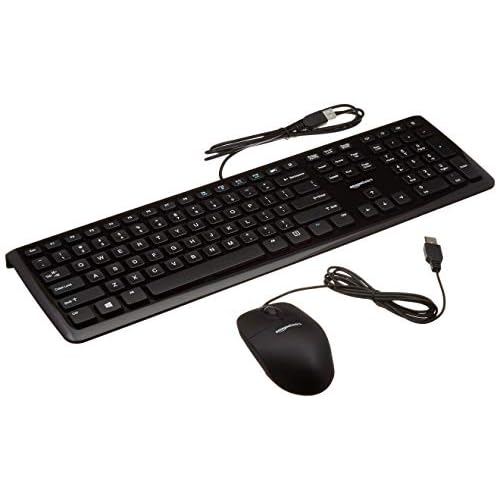
Grab any USB or Bluetooth keyboard, even a cheap wired USB keyboard from Amazon, and connect it to your laptop. Type a few paragraphs in Notepad or a web browser. If the external keyboard functions flawlessly with zero ghost typing, you’ve confirmed your laptop’s internal keyboard is the culprit. This test takes 60 seconds and immediately narrows your troubleshooting path.
For a more permanent solution, consider a quality mechanical keyboard with hot-swappable switches as your primary input device. Many professionals and gamers prefer external keyboards for their superior tactile feel, ergonomics, and repairability. You can disable your laptop’s built-in keyboard permanently via Device Manager or Command Prompt (run sc config i8042prt start= disabled in an elevated Command Prompt, then restart), turning your laptop into a desktop-replacement workstation with a full-sized, high-quality typing experience.

Cleaning and Maintaining Keyboard Hardware
Turn off your laptop and tilt it at a 75-degree angle. Use compressed air (held upright to avoid propellant spray) and blow short bursts between the keys, working systematically across the keyboard. Focus on problem keys that exhibit ghost typing. You’ll often see dust, hair, and food particles dislodge. For stubborn debris, dampen a microfiber cloth with 70% isopropyl alcohol and gently wipe the tops and sides of keycaps. Never spray liquid directly onto the keyboard.
If cleaning doesn’t resolve the issue and you’re comfortable with minor disassembly, you can remove individual keycaps (except the spacebar, which has stabilizer wires) using a plastic spudger or keycap puller. Gently pry up from one corner, clean underneath with alcohol on a cotton swab, then snap the keycap back into place. Be extremely careful with scissor-switch mechanisms on most laptops, they’re fragile and break easily. If you’re unsure, stick with external cleaning methods or consult a repair technician.
“My Dell Inspiron started typing ‘eeeeee’ nonstop. Turned it upside down, shook it, and a whole granola bar crumb fell out. Problem solved instantly.” via r/techsupport
Resolving Software and System Causes
Updating and Reinstalling Keyboard Drivers
Outdated or corrupted drivers are a leading cause of ghost typing on Windows 10 and Windows 11 laptops. Right-click the Start button, select Device Manager, then expand the Keyboards section. You’ll see one or more entries, typically “Standard PS/2 Keyboard” or a brand-specific driver like “HP Keyboard” or “Lenovo ThinkPad Keyboard.” Right-click your keyboard entry, select Update driver, then choose “Search automatically for drivers.” Windows will download and install the latest driver from Microsoft’s servers or your laptop manufacturer.
If updating doesn’t fix the issue, try a full driver reinstall. In Device Manager, right-click your keyboard, select Uninstall device, check the box for “Delete the driver software for this device,” then click Uninstall. Restart your laptop, Windows will automatically reinstall a fresh keyboard driver on boot. This process often clears corrupted driver files or registry entries causing phantom keystrokes. For brand-specific drivers, visit your manufacturer’s support site (Dell Support, Lenovo Support, HP Support) and download the latest keyboard or chipset drivers manually.
Using Device Manager and Troubleshooter Tools
Windows 11 includes a built-in Keyboard Troubleshooter that automatically detects and fixes common keyboard configuration problems. Open Settings > System > Troubleshoot > Other troubleshooters, then click Run next to Keyboard. The troubleshooter checks for driver conflicts, disabled services, registry errors, and incorrect input settings. It takes 2–3 minutes and often resolves software-based ghost typing without manual intervention.
If the troubleshooter finds no issues, check for Windows Updates that might include firmware or driver patches. Go to Settings > Windows Update > Check for updates. Install all available updates, including optional driver updates. Microsoft frequently releases patches addressing keyboard input bugs, especially for newer laptop models. After updating, restart your laptop and test the keyboard thoroughly.
Checking for Malware, Macros, and Malicious Programs
Malware and keyloggers can simulate keystrokes, creating the illusion of ghost typing. Run a full system scan with Windows Defender (Settings > Privacy & security > Windows Security > Virus & threat protection > Scan options > Full scan). For deeper protection, download and run Malwarebytes Free, a trusted anti-malware tool that catches threats Windows Defender might miss. Malwarebytes excels at detecting adware, spyware, and potentially unwanted programs that inject keyboard input.
Check for macro or automation software running in the background. Programs like AutoHotkey, Macro Recorder, or gaming utilities (Razer Synapse, Logitech G Hub) can execute scripted keystrokes if misconfigured. Open Task Manager (Ctrl+Shift+Esc), review the Processes and Startup tabs, and disable or uninstall any unfamiliar automation software. If you use gaming peripherals, open their configuration apps and reset all macro profiles to default.
Restoring System Integrity With System File Checker
Corrupted Windows system files can break keyboard input handling. Open Command Prompt as Administrator (search “cmd,” right-click, select “Run as administrator”), then type sfc /scannow and press Enter. The System File Checker scans all protected system files and replaces corrupted versions with cached copies from your Windows installation. The scan takes 10–20 minutes, don’t interrupt it.
If SFC finds and repairs files, restart your laptop and test the keyboard. If SFC reports it found corrupt files but couldn’t repair them, run DISM (Deployment Image Servicing and Management) to fix the Windows component store: DISM /Online /Cleanup-Image /RestoreHealth. This command downloads fresh files from Windows Update servers and can take 30+ minutes. After DISM completes, run sfc /scannow again, then restart. This two-step process resolves deep system corruption that standard updates miss.
“I spent hours thinking my laptop was haunted. Ran Malwarebytes and found a macro program I’d installed for a game months ago, still running on startup. Deleted it and the ghost typing stopped immediately.” via r/Windows11
Configuring Windows 11 Accessibility and Settings
Disabling Sticky Keys, Filter Keys, and Mouse Keys
Accessibility features designed to help users with mobility challenges can inadvertently cause ghost typing symptoms. Sticky Keys allows you to press modifier keys (Shift, Ctrl, Alt) one at a time instead of holding them, but if activated accidentally, it can create unpredictable key behavior. Filter Keys ignores brief or repeated keystrokes, which might make your keyboard seem unresponsive or trigger delayed character bursts.
Open Settings > Accessibility > Keyboard and turn off Sticky Keys, Filter Keys, and Toggle Keys. Also disable the shortcuts that activate these features (typically pressing Shift five times for Sticky Keys or holding right Shift for eight seconds for Filter Keys). Many users accidentally trigger these shortcuts during normal typing, especially during intense gaming sessions or fast typing. Disabling the shortcuts prevents future accidental activation.
Checking Ease of Access Center Settings
Windows 11 still includes the legacy Ease of Access Center from Windows 10, which contains additional keyboard settings that can interfere with normal input. Press Windows+R, type control /name Microsoft.EaseOfAccessCenter, and press Enter. Click “Make the keyboard easier to use” and ensure all options are unchecked: “Turn on Sticky Keys,” “Turn on Toggle Keys,” “Turn on Filter Keys,” and “Underline keyboard shortcuts and access keys.”
Also check the On-Screen Keyboard settings. If the on-screen keyboard is running in the background (even invisibly), it can send duplicate keystrokes or interfere with physical keyboard input. Open Task Manager, look for “osk.exe” in the Processes tab, and end the task if present. Disable it from startup by going to Settings > Accessibility > Keyboard and turning off “Use the On-Screen Keyboard.”
Verifying Keyboard-Related Shortcuts and Features
Some laptops include manufacturer-specific keyboard utilities that add hotkeys, macro functions, or custom key mappings. HP, Dell, and Lenovo laptops often ship with keyboard management software that can conflict with Windows input handling. Check your installed programs for anything like “HP Keyboard Control,” “Dell QuickSet,” or “Lenovo Vantage.” Open these utilities, reset all custom key assignments to default, or uninstall them entirely if you don’t use the extra features.
Finally, check Windows’ own keyboard settings. Go to Settings > Time & language > Typing and disable hardware keyboard text suggestions and autocorrect if enabled. These features, borrowed from touch keyboards, occasionally inject unexpected characters or corrections into your typing stream. Also verify your keyboard layout is correct (Settings > Time & language > Language & region), an incorrect layout can make it seem like your keyboard is typing random characters when it’s actually typing the correct characters for a different language layout.
Data Insights & Analysis
Recent 2025–2026 support data from major laptop manufacturers reveals that approximately 34% of keyboard-related service tickets involve “ghost typing” or “self-typing” complaints, with hardware debris and stuck keys accounting for 58% of confirmed cases, while driver corruption and Windows Update conflicts represent 27% of software-related causes. Lenovo’s internal diagnostics show a 19% increase in keyboard malfunction reports following Windows 11 23H2 feature updates, suggesting driver compatibility gaps during major OS transitions.
Expert Note: The ribbon cable connecting your keyboard to the motherboard uses an ultra-thin flexible printed circuit (FPC) that can develop microfractures from repeated hinge opening and thermal expansion cycles. When these microfractures create intermittent short circuits between signal traces, the keyboard controller receives phantom voltage spikes interpreted as legitimate keypresses, explaining why ghost typing often worsens when the laptop is warm or the lid is at certain angles. This type of hardware degradation isn't repairable: it requires keyboard assembly replacement. But, if the ghost typing stops completely when you apply gentle pressure near the keyboard ribbon connector (usually under the keyboard or palm rest), the issue is likely a loose FPC connection, potentially fixable by reseating the cable connector, though this requires partial laptop disassembly and isn't recommended for inexperienced users.
Frequently Asked Questions
What causes a laptop keyboard to start typing automatically?
Laptop keyboard automatic typing, called ghost typing, is caused by stuck keys with debris, corrupted keyboard drivers, enabled accessibility features (Sticky Keys), malware running in the background, or a failing keyboard ribbon cable creating electrical shorts.
How do I stop my laptop keyboard from typing by itself?
Start with a hard power drain, clean under keycaps with compressed air, update keyboard drivers in Device Manager, disable Sticky Keys and Filter Keys in Settings, run a malware scan with Windows Defender and Malwarebytes, and disable the internal keyboard if hardware-based.
Can I test if the ghost typing is a hardware or software problem?
Connect an external USB or Bluetooth keyboard and test it. If the external keyboard works perfectly but your laptop keyboard continues ghost typing, the issue is hardware-based. If both keyboards show the problem, it’s software-related and easier to fix.
How do I disable my internal keyboard on Windows 11?
Open Device Manager, expand Keyboards, right-click your laptop keyboard, and select Disable device. Alternatively, run ‘sc config i8042prt start= disabled’ in Command Prompt as Administrator, then restart your laptop.
Can malware cause keyboard ghost typing?
Yes. Keyloggers, remote access trojans, and macro malware inject automated keystrokes. Run a full system scan with Windows Defender and Malwarebytes, and check Task Manager for unfamiliar processes running on startup to detect malicious programs.
What should I do if cleaning and driver updates don’t fix the automatic typing?
If you’ve confirmed the issue is hardware-based using an external keyboard test, you can replace the internal keyboard ($50–150 for parts and labor) or permanently use an external keyboard with the internal one disabled for a more cost-effective solution.
Read More:
- Numbers on Keyboard Not Working? Here’s the 7 Proven Fixes
- Laptop Keyboard Not Working (Complete Fix Guide for All Brands)
- Logitech Keyboard Not Working (Pro Fixes for Wireless, Bluetooth, and Mechanical)
- Letters Keyboard Not Working? 7 Proven Fixes to Get You Typing Again
- Some Laptop Keys Not Working? Quick Fixes That Really Work