
You glance away for a second, and when you look back, your screen is filled with dozens of repeated letters. Your cursor jumps around, menus open by themselves, and you haven’t touched a single key.
A laptop keyboard typing by itself is typically caused by physically stuck keys from debris or liquid damage, corrupted or outdated keyboard drivers, Windows accessibility settings like Filter Keys or Sticky Keys being enabled, malware or remote-access software running in the background, or a failing internal keyboard ribbon cable. Most ghost typing issues can be resolved by restarting your laptop, cleaning stuck keycaps with compressed air, disabling accessibility features, updating HID keyboard drivers in Device Manager, and scanning for keylogger malware.
This guide walks you through every diagnostic step, from quick software toggles to hardware inspection, so you can isolate the root cause, stop the phantom typing, and regain full control of your laptop without spending a fortune on repairs.

Best Wireless Keyboard and Mouse Combo
Logitech Comfortable Full-Size Keyboard with Palm Rest. Reliable 2.4GHz Wireless Connection up to 10m. Long Battery Life for Everyday Productivity.
Shop on Amazon
Key Takeaways
- A laptop keyboard typing by itself is typically caused by stuck keys, corrupted drivers, enabled accessibility settings, malware, or a failing ribbon cable—most issues can be resolved without professional repair.
- Start troubleshooting by restarting Windows, disconnecting external USB devices, and physically inspecting keycaps for debris or liquid damage using compressed air and isopropyl alcohol.
- Open Task Manager to check for unauthorized remote-access software or auto-typing macros running in the background, then run Windows Defender or Malwarebytes to scan for keylogger malware.
- Disable Windows accessibility features like Sticky Keys, Filter Keys, and Toggle Keys in Settings → Accessibility, which can accidentally trigger phantom typing.
- Update or reinstall your HID keyboard driver through Device Manager, run the Windows Keyboard Troubleshooter, and use System File Checker (sfc /scannow) to repair corrupted system files.
- If cleaning and software fixes don’t work, your keyboard likely has a failing internal ribbon cable; use an external USB keyboard as a temporary workaround while arranging repair or replacement.
Stop Unwanted Typing With Quick Checks
Restart Windows and Disconnect External Devices
Before diving into complex troubleshooting, perform a simple restart. Windows can accumulate temporary input buffer glitches that cause keys to repeat or auto-fire. Hold the power button for ten seconds if the keyboard won’t let you navigate normally, then power back on.
Once restarted, immediately disconnect all USB devices, mice, hubs, controllers, even your phone cable. Faulty peripherals or damaged USB ports can send spurious HID signals that Windows interprets as keyboard input. If the ghost typing stops after unplugging everything, reconnect devices one at a time to identify the culprit.
Identify Stuck Keys and Test the Keyboard
Press every key on your laptop keyboard individually and watch for keys that don’t spring back fully or feel mushy. A keycap jammed by a crumb, pet hair, or dried liquid will register continuous input even when you’re not touching it.
Open Notepad and let the laptop sit idle for thirty seconds. If characters appear on their own, note which letters or symbols repeat. Those specific keys are your primary suspects for mechanical failure. You can also boot into BIOS/UEFI (usually by tapping F2, Delete, or Esc during startup) and observe whether phantom input occurs there, if it does, the issue is hardware, not Windows.
“My laptop kept typing ‘eeeeeee’ nonstop. Rebooted into BIOS and it was still happening, turned out a cookie crumb was wedged under the ‘E’ key.” via r/techsupport
Check for Remote Access and Auto-Typing Apps
Ghost typing can be caused by legitimate remote-desktop software (TeamViewer, AnyDesk, Chrome Remote Desktop) left running in the background, or by macro/auto-clicker utilities you installed for gaming or productivity. Open Task Manager (Ctrl+Shift+Esc) and scan the Processes tab for unfamiliar applications.
If you spot remote-access tools you didn’t authorize, disconnect from Wi-Fi immediately and uninstall them. Also check your Startup tab in Task Manager, disable any auto-typing scripts or keyboard automation apps. For peace of mind, run a full scan with Windows Defender or Malwarebytes to rule out keylogger malware.
Inspect, Clean, and Isolate Hardware Faults
Remove Debris and Check for Spill Damage
Power off your laptop completely and tilt it at a 75-degree angle, keys facing down. Gently tap the back to dislodge crumbs, dust, and debris. Next, use short bursts of compressed air, hold the can upright and spray between keycaps at an angle to avoid moisture buildup.
If you recently spilled liquid, even a few drops of coffee or soda can short the membrane layer beneath the keys. Dip a cotton swab in 90% or higher isopropyl alcohol and clean around the affected keycaps. The alcohol evaporates quickly and dissolves sticky residue without damaging electronics. Let the laptop air-dry for at least two hours before powering on.
Recommended cleaning kit: For stubborn grime, grab a portable keyboard cleaning gel and compressed air combo from Amazon. The gel reaches into tight spaces and picks up dust that air alone won’t shift.

Try Another USB Port or a Different Keyboard
Connect an external USB keyboard to an unused port. If the phantom typing stops and the external board works perfectly, your built-in laptop keyboard is faulty. You can continue using the external keyboard as a temporary workaround while you arrange for repair or replacement.
To disable the internal keyboard entirely on Windows 10/11, open Device Manager (Win+X → Device Manager), expand Keyboards, right-click your built-in keyboard (usually labeled “Standard PS/2 Keyboard” or “HID Keyboard Device”), and select Disable device. This prevents ghost input from interfering with your external keyboard.
Know When a Laptop Keyboard Needs Repair or Replacement
If cleaning and driver updates don’t resolve the issue, the problem likely lies in the internal keyboard ribbon cable or membrane sheet. These components can degrade over time, especially in older laptops or models subjected to heavy use and heat.
Replacing a laptop keyboard typically costs $50–$150 for parts and labor at a repair shop, or $20–$40 if you’re comfortable doing it yourself and ordering an OEM replacement from eBay or LaptopParts101. Watch a YouTube teardown guide specific to your laptop model before attempting DIY replacement, some ultrabooks require removing the entire bottom chassis.
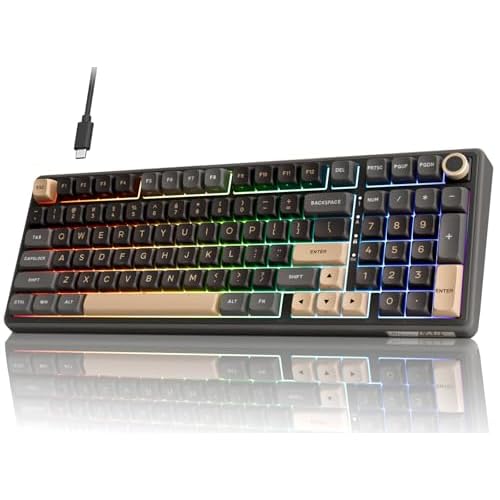
Ultimate hardware workaround: Consider upgrading to a mechanical external keyboard with hot-swappable switches for a superior typing experience and the flexibility to replace individual keys if they ever fail.
Correct Windows Accessibility and Input Settings
Turn Off Sticky Keys, Filter Keys, and Mouse Keys
Windows accessibility features are designed to help users with mobility challenges, but they can trigger ghost typing if accidentally enabled. Sticky Keys, Filter Keys, and Toggle Keys can cause repeated input, delayed responses, or unexpected modifier behavior.
Open Settings (Win+I), navigate to Accessibility → Keyboard, and turn off Sticky Keys, Filter Keys, and Toggle Keys. Also disable the keyboard shortcuts that activate these features (“Allow the shortcut key to start…”) so you don’t accidentally re-enable them by tapping Shift five times.
Use the Ease of Access Center to Make the Keyboard Easier to Use
Still in the Accessibility section, scroll down to On-Screen Keyboard and toggle it on. This virtual keyboard lets you continue working even if your physical keys are misbehaving. You can click letters with your mouse or touchpad, bypassing the faulty hardware entirely.
If your laptop supports touch input, enable the touch keyboard from the taskbar (right-click taskbar → Show touch keyboard button). This provides another input method while you troubleshoot or wait for a replacement keyboard.
Check Keyboard Layout, Language, and Input Settings
Incorrect keyboard layout or language settings can produce unexpected characters. Click the language indicator in your taskbar (usually ENG or US) and confirm it matches your physical keyboard layout.
Go to Settings → Time & Language → Language & Region → Keyboard and verify the input method. If you see multiple layouts installed (e.g., US QWERTY and UK QWERTY), remove the extras. Mismatched layouts won’t cause true ghost typing, but they’ll make diagnosis harder by producing “wrong” letters when you press keys.
Repair Software, Drivers, and System Files
Run the Windows Keyboard Troubleshooter
Windows includes a built-in diagnostic tool that can automatically detect and fix common keyboard issues. Open Settings → System → Troubleshoot → Other troubleshooters, then click Run next to Keyboard.
The troubleshooter will scan for driver conflicts, incorrect registry settings, and accessibility misconfigurations. Follow any on-screen prompts to apply recommended fixes. While it won’t repair physical damage, it can resolve software glitches in minutes.
Update or Reinstall the Keyboard Driver
Outdated or corrupted HID keyboard drivers are a frequent cause of ghost typing. Open Device Manager (Win+X → Device Manager), expand Keyboards, right-click your keyboard device, and select Update driver → Search automatically for drivers.
If Windows reports your driver is current but problems persist, right-click again and choose Uninstall device. Check the box for Delete the driver software for this device (if present), then restart your laptop. Windows will reinstall the default driver on boot, often clearing corruption.
“Uninstalling and reinstalling the HID driver fixed my phantom spacebar issue after a Windows update. Took two minutes.” via Microsoft Answers
Use Windows Update and Scan for Malware
Ensure your system is fully patched by opening Settings → Windows Update and clicking Check for updates. Microsoft frequently releases patches that address input-device bugs and security vulnerabilities.
Next, run a comprehensive malware scan. Keylogger trojans and remote-access malware can simulate keypresses. Use Windows Defender Offline for a pre-boot scan, or download Malwarebytes Free for a second opinion. Quarantine and remove any threats immediately.
Run System File Checker and Perform a Clean Boot
Corrupted Windows system files can interfere with input services. Open Command Prompt as Administrator (Win+X → Windows Terminal (Admin)), type sfc /scannow, and press Enter. The scan takes 10–15 minutes and repairs any damaged OS files automatically.
If ghost typing persists, perform a Clean Boot to isolate third-party software conflicts. Press Win+R, type msconfig, and hit Enter. Under the Services tab, check Hide all Microsoft services, then click Disable all. Restart and test your keyboard, if the problem vanishes, re-enable services one by one to identify the offender.
Expert Note: "Most phantom typing stems from voltage irregularities in the keyboard matrix controller, often triggered by static discharge or aging capacitors. A clean driver reinstall resets the controller's state machine, which is why it frequently resolves intermittent ghost input even when the hardware isn't physically damaged."
Frequently Asked Questions
What causes a laptop keyboard to type by itself?
Laptop keyboard typing by itself is typically caused by stuck keys from debris or liquid damage, corrupted keyboard drivers, Windows accessibility features like Sticky Keys, malware, or a failing keyboard ribbon cable. Restarting your laptop, cleaning keycaps, and updating drivers often resolve the issue.
How can I stop ghost typing on my laptop keyboard?
Start by restarting Windows and disconnecting external USB devices. Then clean stuck keycaps with compressed air, disable Sticky Keys and Filter Keys in Settings, update your HID keyboard driver in Device Manager, and scan for malware using Windows Defender or Malwarebytes.
How do I know if my laptop keyboard is physically damaged?
Boot into BIOS/UEFI (usually F2 or Delete during startup) and observe whether phantom input occurs there. If ghost typing persists in BIOS, the issue is hardware-related. You can also connect an external USB keyboard; if phantom typing stops, your built-in keyboard is faulty.
Can remote access software cause a keyboard to type by itself?
Yes, legitimate remote-desktop tools like TeamViewer or AnyDesk left running in the background can cause unexpected input. Open Task Manager (Ctrl+Shift+Esc), check the Processes tab for unfamiliar applications, and uninstall unauthorized remote access or macro-automation software immediately.
What is the cost to replace a laptop keyboard?
Professional keyboard replacement typically costs $50–$150 for parts and labor at a repair shop, or $20–$40 if you do it yourself with an OEM replacement. For a superior alternative, consider upgrading to a mechanical external USB keyboard instead.
How do I disable my laptop’s internal keyboard while using an external one?
Open Device Manager (Win+X), expand Keyboards, right-click your built-in keyboard (labeled ‘Standard PS/2 Keyboard’ or ‘HID Keyboard Device’), and select Disable device. This prevents ghost input from interfering with your external keyboard while troubleshooting.
Read More:
- Laptop Keyboard Malfunction (Quick Check and How to Restore It Fast)
- Laptop Keyboard Not Working Windows 10 (Quick Fixes That Actually Work)
- Laptop Keyboard Not Working Windows 11 (Fast Diagnosis Explained)
- Laptop Keyboard Not Responding (Most Users Fix It With This Method)
- Laptop Keyboard One Key Not Working (Here’s How to Fix It in Minutes)