

Last updated on April 5th, 2026 at 03:46 am
Is your Mazda CX-5 CarPlay Not Working? You’re not alone, CarPlay connectivity issues affect many Mazda drivers. It can be frustrating when your iPhone won’t sync with your Mazda’s infotainment system.
CarPlay stops working due to incompatible iPhone software, faulty USB cables, outdated Mazda firmware, or misconfigured settings. Most issues resolve with basic troubleshooting like restarting your system, checking your connection, or updating software.

Why Your Mazda CX-5 CarPlay Not Working
CarPlay connectivity issues in your Mazda CX-5 can stem from several sources. Some problems are quick fixes, while others require deeper troubleshooting. Understanding what might be wrong helps you target the right solution.

Best Bluetooth OBD2 Scanner
Detect 39,000+ Issues With Enhanced Codes. Save $1000s on car repairs & buying used vehicles by diagnosing problems yourself.
Shop on AmazonVideo Credit: Walser Polar Mazda / YouTube
Common Causes of CarPlay Failures
Your iPhone and Mazda infotainment system communicate through a USB cable. When that connection fails, CarPlay stops working. Several factors can interrupt this link.
Outdated iPhone software is one of the most common causes. If your iPhone hasn’t received the latest iOS update, it may not support CarPlay properly. Similarly, outdated Mazda firmware can prevent your vehicle’s infotainment system from recognizing your phone.
“My iPhone was two iOS versions behind. After updating to the latest iOS, my CX-5 recognized CarPlay without any other changes. Software compatibility is no joke.” – Mazda CX-5 Owner’s Group member on Facebook
Physical connection issues also play a major role. A damaged USB cable, loose connection, or debris in the USB port can block communication between devices. Over time, USB ports accumulate dust and lint, which prevents proper contact.
Incorrect CarPlay settings within your Mazda system can also disable the feature. If you accidentally turned off CarPlay in the settings menu, you’ll need to re-enable it. Sometimes a simple system glitch causes your vehicle to forget your phone’s pairing.
Other factors include using a third-party or non-certified cable, incompatible iPhone models, or too many devices connected to your Mazda’s Bluetooth system at once.
| Cause | Solution |
|---|---|
| Outdated iPhone software | Update iOS to latest version |
| Outdated Mazda firmware | Check Mazda infotainment system updates |
| Damaged USB cable | Replace with certified cable |
| CarPlay disabled in settings | Re-enable CarPlay in vehicle menu |
| Too many Bluetooth devices | Forget unused devices from system |
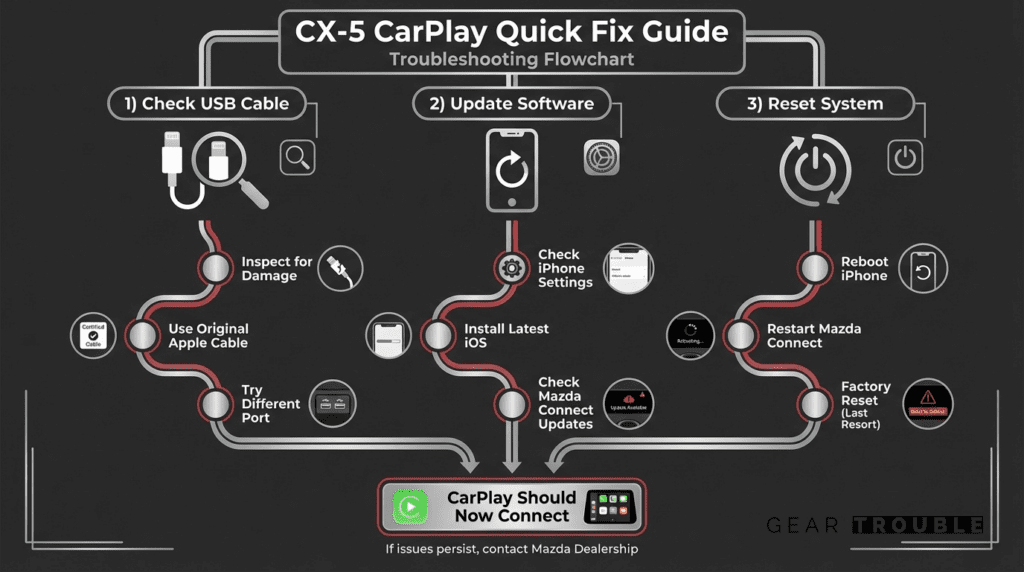
Check Your iPhone And USB Connection
Your iPhone and the USB cable connection to your Mazda are the foundation of the CarPlay. Start your troubleshooting here, which most issues comes in the details of this connection.
Verify iPhone Compatibility And Software
First, confirm your iPhone model is supports CarPlay. The feature requires an iPhone 5 or newer running iOS 7.1 or later. Newer Mazda models support wireless CarPlay, while older CX-5 models may require a USB connection.
Check your iPhone’s current iOS version by going to Settings > General > About. Note your iOS number. If it’s not the latest version, update it immediately. Open Settings > General > Software Update and install any available updates. Your phone may need to restart during this process.
Next, make sure your iPhone isn’t in Airplane Mode or Do Not Disturb mode when connecting to CarPlay. These settings can block the connection. Also check that Siri is enabled on your iPhone, CarPlay requires Siri to function properly.
Inspect Your USB Cable And Port
Look closely at your USB cable for visible damage like frayed ends, cracks, or kinks. If you see any damage, replace it with an Apple-certified USB cable. Don’t use cheaper third-party cables, they often lack proper certification and don’t work with Mazda systems.
![Coiled Lightning Cable, iPhone Charger Cable 3FT for Car, 2 Pack [Apple MFi Certified] 3 Feet Lightning Cord Compatible with iPhone14/13/12/11 Pro Max/XS MAX/XR/XS/X/8/7/Plus/6S iPad/iPod- Black](https://m.media-amazon.com/images/I/41YSLricJtL._SS500_.jpg)
“I went through three cheap Amazon cables before finally buying an Apple-certified one. The CarPlay connection was instant and hasn’t failed since. Don’t waste time with knockoff cables.” – CX-5 owner from Mazda CX-5 Forum
Examine the USB port in your Mazda’s center console. Use a flashlight to check inside the port for dirt, lint, or debris. If you see buildup, use a soft brush or compressed air to clean it gently. Never insert metal objects into the port.
Check the port on your iPhone’s bottom as well. Gently clean it with a dry brush if needed. Insert the USB cable firmly but gently, you should feel a clear click indicating a secure connection.
Reset CarPlay Settings In Your Mazda CX-5
Sometimes your Mazda infotainment system needs a fresh start. A reset can clear software glitches that prevent CarPlay from working. These steps are safe and won’t delete your vehicle settings.
“After weeks of frustration, I held the power button for 10 seconds on my 2021 CX-5’s infotainment screen. The system rebooted and CarPlay connected immediately. I wish I’d tried this first instead of visiting the dealer.” – Reddit user on r/CX5
Restart The Infotainment System
The simplest reset is a power cycle. Turn off your Mazda’s engine completely. Wait 30 seconds, then restart the vehicle. This gives the infotainment system time to fully shut down and reboot.
If that doesn’t work, try this method:
Keep the car running and locate the power button for your infotainment screen. Press and hold it for 10 seconds until the system shuts down. Wait another 10 seconds, then press the power button again to restart.
During the restart, don’t connect your iPhone yet. Let the system fully boot up and return to the home screen. Only then should you connect your iPhone via USB cable.
Reset CarPlay Through Settings Menu
Access your Mazda’s main menu and navigate to Settings. Look for a section labeled “Phone” or “Devices” depending on your vehicle year. You should see CarPlay listed as an option.
Select CarPlay and look for an option to “Reset” or “Forget” the connected iPhone. Confirm the action. This removes your iPhone from the system’s memory. Disconnect your USB cable, wait 30 seconds, then reconnect it. Your Mazda will recognize your iPhone as a new device and may prompt you to allow CarPlay again.
During reconnection, approve the prompt on your iPhone asking whether to “Trust” this vehicle. Tapping trust establishes secure communication between your devices.
Update Software And System Firmware
Outdated software is one of the leading causes of CarPlay failures. Keeping both your iPhone and Mazda current system ensures compatibility. These updates often include bug fixes that improve CarPlay performance.
Update Your iPhone Software
Plug your iPhone into a power source and connect to WiFi. Go to Settings > General > Software Update. If an update is available, tap “Download and Install.” Your iPhone will download the update and ask you to confirm installation.
Your phone will restart during this process. Don’t disconnect power or interrupt the update. Wait until your iPhone fully restarts and shows the home screen. This can take 10-15 minutes.
After updating iOS, reconnect your iPhone to your Mazda via USB cable. The new software may resolve CarPlay issues automatically.
Check For Mazda Infotainment Updates
Your Mazda infotainment system also needs regular updates. The method varies by model year and system version. Check your Mazda owner’s manual for specific instructions for your CX-5 generation.
Most Mazda systems allow you to check for updates through the Settings menu. Look for “System Update” or “Software Update” options. Some systems require connecting to WiFi via your phone’s hotspot to download updates. Others may require a visit to a Mazda dealership for updates.
If your system hasn’t been updated recently, contact your Mazda dealership or visit Mazda’s official support website to check if updates are available for your model. Keeping current firmware prevents compatibility issues with newer iPhone models.
Advanced Troubleshooting Steps
If basic troubleshooting hasn’t worked, try these deeper solutions. These steps address more complex system issues that prevent CarPlay from functioning properly.
Forget And Reconnect Your iPhone
Your Mazda remembers previous connected iPhones. Sometimes this memory becomes corrupted, blocking new connections. Clearing this memory helps solve the issue.
On your Mazda infotainment screen, go to Settings > Phone or Devices. Find your iPhone in the list of connected devices. Select it and choose “Forget” or “Disconnect.” Confirm the action. Your vehicle no longer remembers your phone.
Now open your iPhone’s Bluetooth settings and look for your Mazda’s system name. Tap it and select “Forget This Device.” This removes the Mazda from your iPhone’s memory as well.
Wait one minute. Start fresh by connecting your USB cable again. Your devices will go through the initial pairing process like when you first purchased your CX-5. Approve the trust prompt on your iPhone. Your Mazda should recognize CarPlay.
Clear Cache And Temporary Files
Your infotainment system stores temporary data that can accumulate and cause problems. Clearing this cache often improves performance.
Access your Mazda’s Settings menu and look for an option like “Clear Cache,” “Delete Cache,” or “Clear Temporary Files.” Not all Mazda models have this option visible, so check your specific vehicle’s manual. If available, select this option and confirm deletion.
Restart your infotainment system after clearing the cache. This forces the system to rebuild fresh temporary data files. The process usually takes a few minutes.
Factory Reset Your Infotainment System
A factory reset returns your infotainment system to its original settings. This is a powerful solution but erases all personalized settings you’ve configured.
Before proceeding, write down any saved radio stations, phone numbers, or custom settings you want to preserve. Navigate to Settings > System or Settings > Advanced Options. Look for “Reset to Factory Defaults” or “Restore Factory Settings.” Tap it and confirm the action. Your system will restart and reset all settings to their original state.
After the reset completes, reconnect your iPhone via USB. Set up CarPlay again through the initial pairing process. Your system should now work properly with CarPlay.
Tired of plugging in every time you get in your CX-5? If you’ve restored your connection but want to go wireless, the CarlinKit Wireless CarPlay Adapter is the most reliable plug-and-play solution for the Mazda Connect system.

When To Contact Mazda Support
You’ve tried everything, and CarPlay still isn’t working. At this point, professional help from Mazda is your best option. The infotainment system may have a hardware fault that needs dealer service.
Contact your nearest Mazda dealership and explain the issue. Describe which troubleshooting steps you’ve already done, this helps the service team start from the right place. You can also call Mazda Customer Service at 1-800-639-6290 or visit Mazda’s customer support page for additional help options.
If your CX-5 is still under warranty, dealership repairs for CarPlay issues are typically free. If warranty coverage has expired, you may face service charges. Ask about pricing before scheduling an appointment.
During your service visit, the dealer can check for firmware updates specific to your model, inspect the USB port for physical damage, and test the infotainment system with their diagnostic tools. They can identify hardware failures that you cannot fix at home.
“The dealer found a firmware update for my 2019 CX-5 that wasn’t available through the car’s menu. After the update, wireless CarPlay has been flawless. Sometimes you need professional help.” – Mazda CX-5 owner testimonial
Document when the CarPlay issue started and any error messages you’ve seen. This information helps the service team diagnose the problem faster. Some dealers can resolve issues on the same day, while others may need your vehicle for deeper diagnostics.
Bring your iPhone with you to the appointment so the technician can test CarPlay with your actual device. Different iPhone models sometimes behave differently with the Mazda system.
Frequently Asked Questions
What are the most common causes of Mazda CX-5 CarPlay not working?
Common causes include outdated iPhone software, faulty USB cables, outdated Mazda firmware, disabled CarPlay settings, and debris in the USB port. Most issues resolve through basic troubleshooting like restarting your system, updating software, or checking your cable connection.
How do I fix Mazda CX-5 CarPlay connection issues with a USB cable reset?
Restart your infotainment system by turning off the engine and waiting 30 seconds, then restarting. For deeper resets, access Settings > Phone, select CarPlay, choose ‘Reset,’ then disconnect and reconnect your USB cable after 30 seconds to re-pair your iPhone.
What should I check on my iPhone before troubleshooting CarPlay?
Verify your iPhone is compatible (iPhone 5 or newer with iOS 7.1+). Check Settings > General > About for your iOS version and update if needed. Ensure Airplane Mode and Do Not Disturb are off, and confirm Siri is enabled, as CarPlay requires it to function.
Can a damaged USB cable cause Mazda CX-5 CarPlay to stop working?
Yes, damaged or non-certified USB cables are a leading cause of CarPlay failure. Inspect your cable for frayed ends, cracks, or kinks. Replace it with an Apple-certified cable, as third-party options lack proper certification and often don’t work with Mazda systems.
How do I factory reset my Mazda CX-5 infotainment system for CarPlay issues?
Navigate to Settings > System or Advanced Options and select ‘Reset to Factory Defaults’ to restore original settings. Note that this erases personalized configurations. After resetting, reconnect your iPhone via USB and complete the initial pairing process again.
When should I contact Mazda dealership support for CarPlay problems?
Contact Mazda support at 1-800-639-6290 after trying all troubleshooting steps, especially if issues persist. Bring your iPhone to the appointment, document when the problem started, and describe completed troubleshooting steps. Dealership repairs are typically free if your CX-5 is under warranty.
Sources:
- Reddit iOS 18 Mazda CarPlay Fix
- Modern Mazda Infotainment Troubleshooting
- Mazda Connect Official Manual
- Apple CarPlay Support Documentation
- Mazda CX-5 Community Forum
Read More:
- Apple CarPlay Not Working (Troubleshooting, Causes & Solutions)
- Mazda CarPlay Not Working? Complete Troubleshooting Guide